> ## Documentation Index
> Fetch the complete documentation index at: https://arize-ax.mintlify.site/docs/llms.txt
> Use this file to discover all available pages before exploring further.
# Alyx: Arize AX's AI engineering agent
> Alyx is the AI engineering agent built into Arize AX. It understands your traces, prompts, datasets, and evals, so you tell it what you need and it acts.
 ## Where to find Alyx
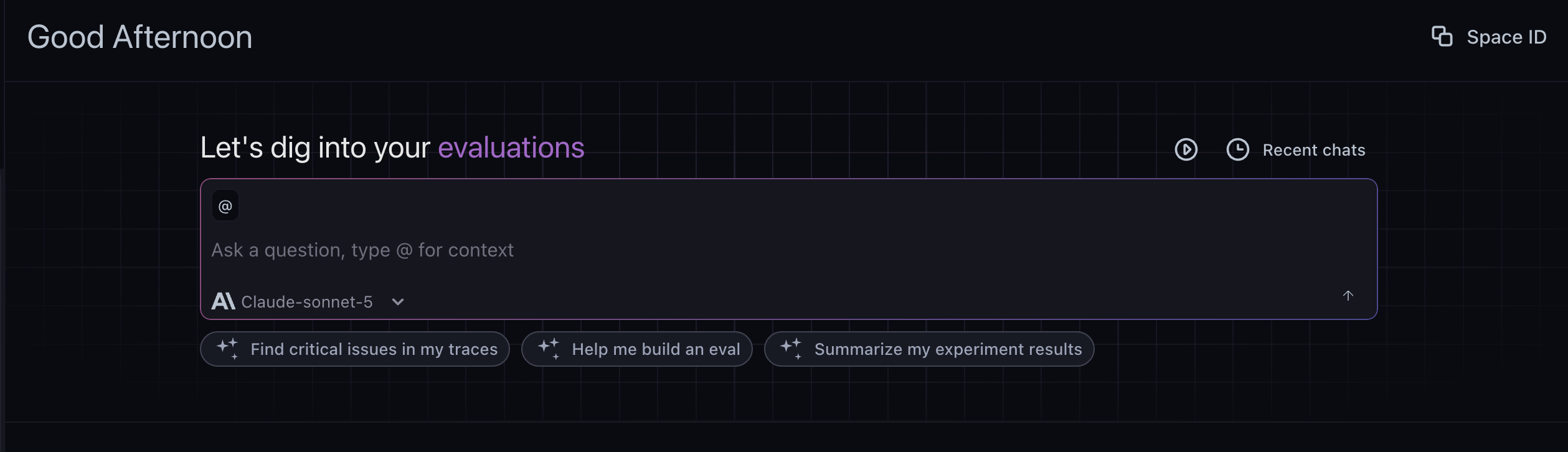
Alyx is a built-in AI agent that works wherever you are in the platform. Your conversation carries over between pages and tasks, so you can go from a trace to the playground to an experiment without losing context. Behind the scenes, Alyx loads the right skills, instructions, and tools on demand for the surface you're on, which keeps responses fast and focused as its capabilities grow.
Alyx appears in two forms that share the same conversation:
* **Home view:** the full-page experience on the Arize AX home page. Use it to start or resume a conversation, browse suggested workflows, and pick up a previous thread from your history. It is the place to begin broad or return to earlier work.
* **Side chat:** a panel you open over any page with the keyboard shortcut. It inherits the context of whatever you are viewing, such as a project, trace, dataset, or experiment, so you can ask about the data in front of you and let Alyx act on it without leaving the page. Dock it to the right as a resizable sidebar or detach it as a floating window. When you open it from a trace, it scopes to that trace and its spans.
Each surface loads the skills relevant to the task at hand:
| Surface | How to open | Skills available |
| ------------------------------------------------------------------------- | ------------------------------------- | --------------------------------------------------------------------------------------- |
| **Arize AX home** | Full-page Alyx on the home page | Full skill set across observe, evaluate, and improve |
| [**Trace slideover**](/ax/observe/tracing) | Open Alyx from a trace detail view | Trace troubleshooting, span analysis, annotations, build evals |
| [**Prompt Playground**](/ax/prompts/prompt-playground) | Alyx chat in the Playground | Optimize prompts, build evals, run experiments |
| [**Eval Builder / Task Builder**](/ax/evaluate/evaluators) | Alyx on the eval or task builder page | Build custom evals, configure tasks |
| [**Traces table search bar**](/ax/observe/tracing/view-and-manage-traces) | AI Search in the filter bar | Natural language to filter syntax |
| [**Traces page**](/ax/observe/tracing) | Alyx on the main Traces page | Multi-trace analysis, pattern discovery, aggregations, custom metrics, and custom views |
| [**Datasets / Experiments**](/ax/develop/datasets-and-experiments) | Alyx on Datasets or Experiments | Analyze experiments, manage datasets |
## Getting started
### Open Alyx
Use the keyboard shortcut to open or close the side chat from anywhere in the app.
* **macOS:** **Cmd+L**
* **Windows / Linux:** **Ctrl+L**
You can customize this shortcut in [Settings](#settings). Set any combination of a modifier key (Cmd, Ctrl, Alt, or Shift) and a second key, and Alyx saves it for future sessions in that browser.
## Where to find Alyx
Alyx is a built-in AI agent that works wherever you are in the platform. Your conversation carries over between pages and tasks, so you can go from a trace to the playground to an experiment without losing context. Behind the scenes, Alyx loads the right skills, instructions, and tools on demand for the surface you're on, which keeps responses fast and focused as its capabilities grow.
Alyx appears in two forms that share the same conversation:
* **Home view:** the full-page experience on the Arize AX home page. Use it to start or resume a conversation, browse suggested workflows, and pick up a previous thread from your history. It is the place to begin broad or return to earlier work.
* **Side chat:** a panel you open over any page with the keyboard shortcut. It inherits the context of whatever you are viewing, such as a project, trace, dataset, or experiment, so you can ask about the data in front of you and let Alyx act on it without leaving the page. Dock it to the right as a resizable sidebar or detach it as a floating window. When you open it from a trace, it scopes to that trace and its spans.
Each surface loads the skills relevant to the task at hand:
| Surface | How to open | Skills available |
| ------------------------------------------------------------------------- | ------------------------------------- | --------------------------------------------------------------------------------------- |
| **Arize AX home** | Full-page Alyx on the home page | Full skill set across observe, evaluate, and improve |
| [**Trace slideover**](/ax/observe/tracing) | Open Alyx from a trace detail view | Trace troubleshooting, span analysis, annotations, build evals |
| [**Prompt Playground**](/ax/prompts/prompt-playground) | Alyx chat in the Playground | Optimize prompts, build evals, run experiments |
| [**Eval Builder / Task Builder**](/ax/evaluate/evaluators) | Alyx on the eval or task builder page | Build custom evals, configure tasks |
| [**Traces table search bar**](/ax/observe/tracing/view-and-manage-traces) | AI Search in the filter bar | Natural language to filter syntax |
| [**Traces page**](/ax/observe/tracing) | Alyx on the main Traces page | Multi-trace analysis, pattern discovery, aggregations, custom metrics, and custom views |
| [**Datasets / Experiments**](/ax/develop/datasets-and-experiments) | Alyx on Datasets or Experiments | Analyze experiments, manage datasets |
## Getting started
### Open Alyx
Use the keyboard shortcut to open or close the side chat from anywhere in the app.
* **macOS:** **Cmd+L**
* **Windows / Linux:** **Ctrl+L**
You can customize this shortcut in [Settings](#settings). Set any combination of a modifier key (Cmd, Ctrl, Alt, or Shift) and a second key, and Alyx saves it for future sessions in that browser.
 ### Add context to Alyx
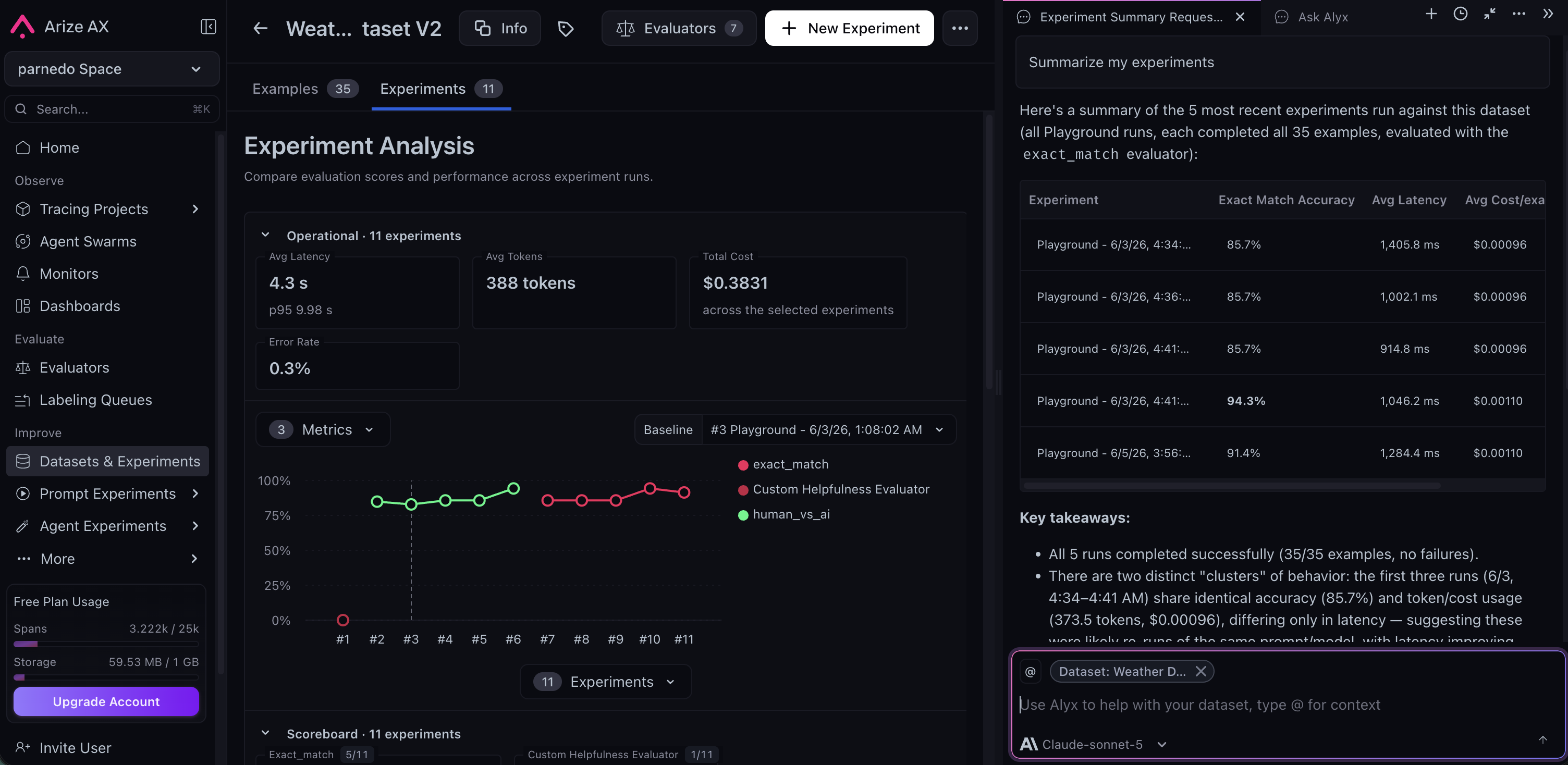
Alyx works best when it knows exactly what you're looking at. There are three ways to give it context:
* **Highlight:** Select any text on the page, such as a span attribute, an error message, or a prompt snippet, then press **Cmd+L** on macOS or **Ctrl+L** on Windows and Linux. Alyx opens and adds the selected text to your message. If nothing is selected, the shortcut opens or closes Alyx.
* **Mention:** Type **`@`** in the Alyx input to open a menu. Mention a dataset, experiment, project, or span, and Alyx receives the IDs so it can scope the conversation to that data.
* **Type it:** Include context directly in your message. Reference a trace, dataset, or experiment by ID, or start with "Additional context:" and add what Alyx needs to know.
Whatever you add is sent with your message as input context and displayed as pills in the Alyx input field. Alyx uses this context to scope its response to the data you care about, so you don't have to restate the situation every time.
### Settings
Open **Settings** from the menu in the top-right corner of the Alyx chat to configure your keyboard shortcut, Auto Accept, and documentation preferences. Additional settings will be added over time.
**Keyboard shortcut:** Change the shortcut used to open and close Alyx, as described in [Open Alyx](#open-alyx).
**Auto Accept:** By default, Alyx proposes changes as cards that you review and accept before anything is applied. Turn on Auto Accept for a category to let Alyx apply those changes without a confirmation step. Each category is controlled independently:
* **Eval and task updates:** Apply evaluator and task configuration changes automatically.
* **Annotations:** Apply annotation configs and span annotations automatically.
* **Dataset creation and appends:** Create datasets and append rows automatically.
* **Prompt changes:** Apply prompt edits in the playground automatically.
**Documentation:** Authorize the documentation support skill. When enabled, questions about Arize documentation are answered with help from RunLLM, as described in [Third-party integrations](#third-party-integrations).
## Chat experience
### Edit and resend a message
Hover over a message you have sent and select **Edit & resend**, or click the message to edit it in place. Change the text and adjust the attached context, then press **Enter** to send or **Escape** to cancel.
If that message previously produced results, such as a dataset, evaluation, or experiment, Alyx asks you to confirm before resending, because resending rewrites the conversation from that point on. Everything after the edited message is replaced, the turns above it stay in place, and the original turn is archived.
### Queue a message
If Alyx is still responding, you can line up your next message instead of waiting. Type it and send, and it appears as **Queued** beneath the conversation. Alyx sends it automatically once the current response finishes. Send it right away with **Send Now**, or remove it from the queue.
## Alyx across your workflow
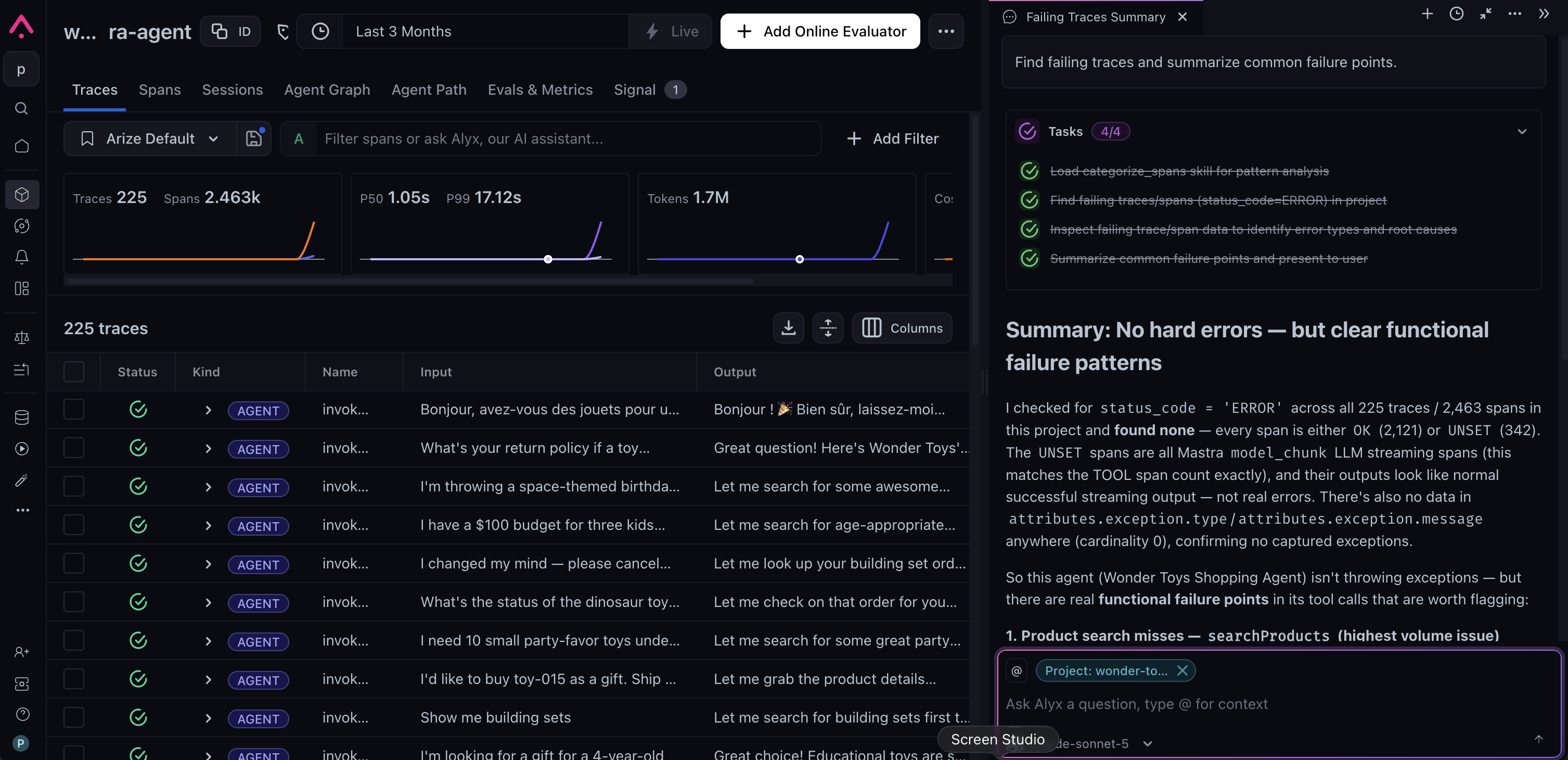
A single trace tells you something failed. It doesn't tell you why or how widespread it is. Alyx is grounded in live trace and span context including inputs, outputs, tool calls, errors, and your selected time range, so you can go from noticing a problem to understanding its scope in one conversation.
### Add context to Alyx
Alyx works best when it knows exactly what you're looking at. There are three ways to give it context:
* **Highlight:** Select any text on the page, such as a span attribute, an error message, or a prompt snippet, then press **Cmd+L** on macOS or **Ctrl+L** on Windows and Linux. Alyx opens and adds the selected text to your message. If nothing is selected, the shortcut opens or closes Alyx.
* **Mention:** Type **`@`** in the Alyx input to open a menu. Mention a dataset, experiment, project, or span, and Alyx receives the IDs so it can scope the conversation to that data.
* **Type it:** Include context directly in your message. Reference a trace, dataset, or experiment by ID, or start with "Additional context:" and add what Alyx needs to know.
Whatever you add is sent with your message as input context and displayed as pills in the Alyx input field. Alyx uses this context to scope its response to the data you care about, so you don't have to restate the situation every time.
### Settings
Open **Settings** from the menu in the top-right corner of the Alyx chat to configure your keyboard shortcut, Auto Accept, and documentation preferences. Additional settings will be added over time.
**Keyboard shortcut:** Change the shortcut used to open and close Alyx, as described in [Open Alyx](#open-alyx).
**Auto Accept:** By default, Alyx proposes changes as cards that you review and accept before anything is applied. Turn on Auto Accept for a category to let Alyx apply those changes without a confirmation step. Each category is controlled independently:
* **Eval and task updates:** Apply evaluator and task configuration changes automatically.
* **Annotations:** Apply annotation configs and span annotations automatically.
* **Dataset creation and appends:** Create datasets and append rows automatically.
* **Prompt changes:** Apply prompt edits in the playground automatically.
**Documentation:** Authorize the documentation support skill. When enabled, questions about Arize documentation are answered with help from RunLLM, as described in [Third-party integrations](#third-party-integrations).
## Chat experience
### Edit and resend a message
Hover over a message you have sent and select **Edit & resend**, or click the message to edit it in place. Change the text and adjust the attached context, then press **Enter** to send or **Escape** to cancel.
If that message previously produced results, such as a dataset, evaluation, or experiment, Alyx asks you to confirm before resending, because resending rewrites the conversation from that point on. Everything after the edited message is replaced, the turns above it stay in place, and the original turn is archived.
### Queue a message
If Alyx is still responding, you can line up your next message instead of waiting. Type it and send, and it appears as **Queued** beneath the conversation. Alyx sends it automatically once the current response finishes. Send it right away with **Send Now**, or remove it from the queue.
## Alyx across your workflow
A single trace tells you something failed. It doesn't tell you why or how widespread it is. Alyx is grounded in live trace and span context including inputs, outputs, tool calls, errors, and your selected time range, so you can go from noticing a problem to understanding its scope in one conversation.
 ### Skills
| Theme | Skill | Description | Example prompt |
| --------------------------- | ----------------------------- | ---------------------------------------------------------------------- | ----------------------------------------------------------------------- |
| **Diagnose & understand** | **Trace preview** | Get an overview of the trace structure and span hierarchy | "Give me an overview of this trace" |
| | **Find in trace** | Search for specific content across the trace | "Find where the search tool was called in this trace" |
| | **Display query params** | Show the current filter and time range | "What filter and time range am I looking at?" |
| | **Span data** | Inspect detailed input/output, latency, and attributes for any span | "Show the input and output for the slowest span" |
| **Analyze & aggregate** | **Aggregate metrics** | Compute averages, sums, and other stats across traces | "Compute the average latency of all traces in the last week" |
| | **Group and aggregate** | Run SQL-like group-by aggregations | "Show total cost per user email" |
| | **Categorize** | Extract categories from free text, such as grouping error messages | "Categorize my errors" |
| **Custom metrics** | **Manage metrics** | List, create, and update custom metrics from natural language | "Create a metric for the percentage of traces over 50s latency" |
| **Custom views** | **Create trace view** | Build a custom trace view, such as cumulative token use across a trace | "Create a custom trace view with cumulative token use across the spans" |
| | **Create session view** | Build a custom session view | "Build a session view grouped by user" |
| **Assess quality** | **Build eval** | Write a custom LLM-as-a-judge eval for your use case | "Build an eval to check if the response answers the question" |
| | **Choose evals** | Select or attach evals; list dataset evals and online tasks | "Which evals are attached to this project?" |
| **Curate training data** | **Create dataset from spans** | Create a dataset from selected trace spans | "Create a dataset from the spans with errors" |
| | **Append spans to dataset** | Add spans from this trace to an existing dataset | "Add these spans to my regression-test dataset" |
| | **Synthetic datasets** | Create or append synthetic data for testing | "Generate 50 synthetic examples for testing" |
| **Version & reuse prompts** | **Prompt Hub** | List, load, and save prompts; save new versions | "Save this prompt to the hub as a new version" |
| **Find anything fast** | **Search** | Build filters or find spans via natural language | "Find all spans that call the search tool" |
Setting up an eval means picking a template, mapping variables, and wiring a data source before you've even started thinking about what good looks like. Alyx understands your project or experiment and builds the eval for you, and even maps variables in a way that makes sense for your data. It also handles the human side of evaluation, creating annotation configs and annotating spans so reviewer feedback can power your programmatic evals.
### Skills
| Theme | Skill | Description | Example prompt |
| ------------------------------ | ------------------------------- | ----------------------------------------------------------- | ------------------------------------------------------------------------------------ |
| **Target the right data** | **List datasets / experiments** | List datasets and projects for task targeting | "List the projects I can run this task on" |
| | **Dataset preview** | Inspect structure and sample rows to choose columns | "Show a sample of this dataset" |
| | **Get dataset evaluations** | Fetch the evaluation results attached to a dataset | "What are the eval results on this dataset?" |
| **Build eval** | **Build eval** | Write an eval based on your goals and data structure | "Build an eval that checks if the response answers the question" |
| | **List evaluators** | List all evaluators available in the space | "List the evaluators in this space" |
| | **Create / update eval form** | Configure eval parameters and columns | "What columns should I use for input and output?" |
| | **Align eval from experiment** | Improve an evaluator based on experiment results | "Align this evaluator using my labeled experiment results" |
| **Run & manage tasks** | **Configure dataset task** | Set dataset, filters, and sampling for a dataset-based task | "Change this task to use the customer-support dataset" |
| | **Configure project task** | Set project, filters, and sampling for a trace-based task | "Point this task at the production traces project" |
| | **Run online task** | Start an online evaluation task | "Start the online evaluation task" |
| | **List active tasks** | List the online tasks currently running | "Which online tasks are running?" |
| | **Check task status & logs** | View a task's run status and logs | "Show the logs for this task" |
| | **Fix task mappings** | Correct variable mappings for a task | "Fix the variable mappings for this task" |
| | **Choose evals** | Select or attach evals | "Attach the hallucination eval to this task" |
| | **Propose task name** | Suggest a descriptive name for the task | "Suggest a name for this task" |
| **Human review & annotations** | **View annotations** | View annotations and available annotation configs | "Show the annotations on this span" |
| | **Create annotation config** | Create an annotation config with custom labels and values | "Create an annotation config called helpfulness with values helpful and not helpful" |
| | **Annotate spans** | Annotate a single span or batch-annotate many spans | "Annotate all the error spans" |
| | **Create labeling-queue view** | Build a custom labeling-queue view for reviewers | "Build a labeling-queue view for my reviewers" |
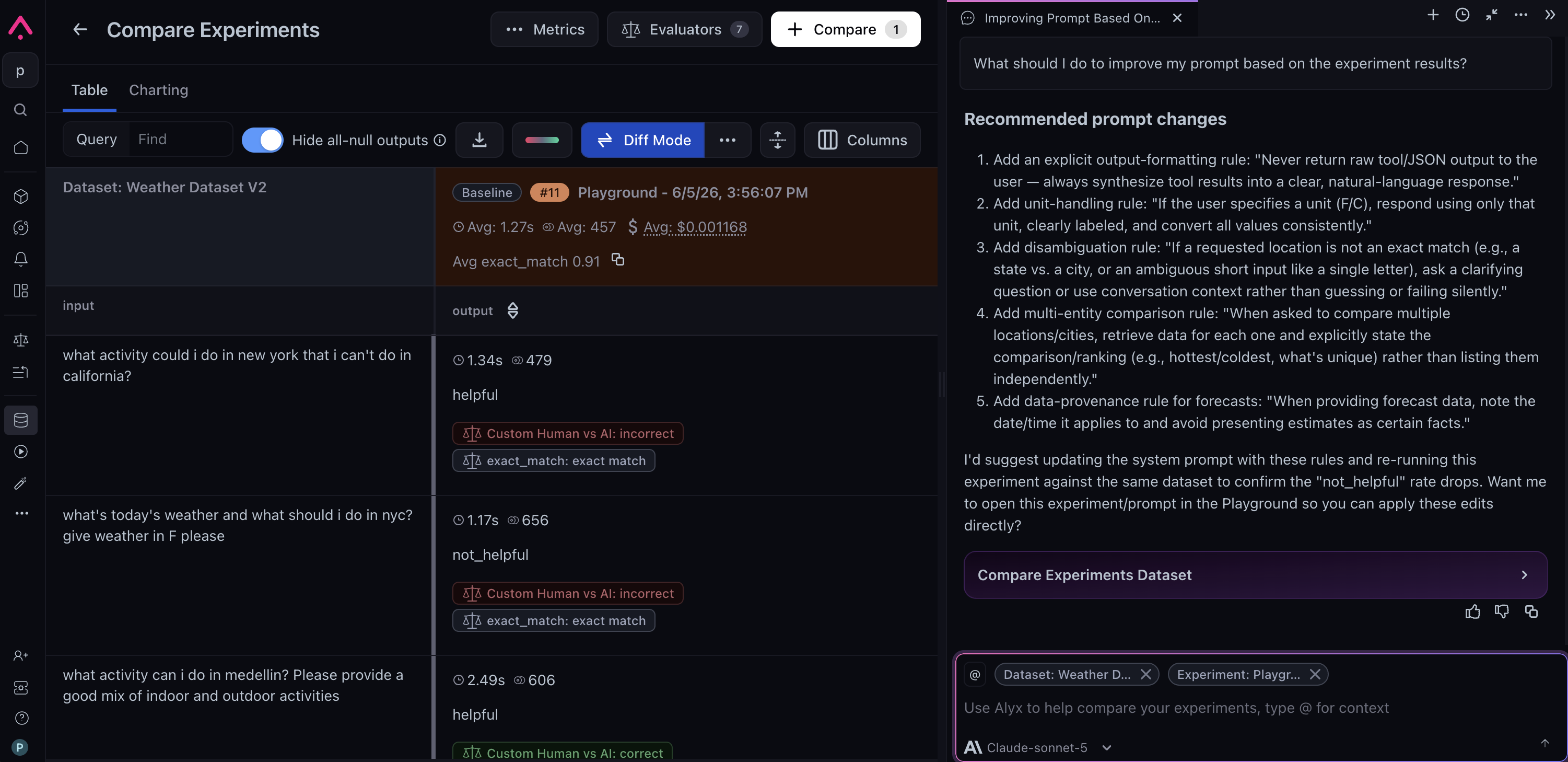
Prompt iteration involves more than writing prompts. It means attaching datasets, mapping columns, wiring evals, running experiments, and keeping track of what changed between runs. Alyx holds the full context of your prompt, dataset, evals, and experiment history in one thread so each iteration builds on the last.
### Skills
| Theme | Skill | Description | Example prompt |
| --------------------------- | ----------------------------- | ---------------------------------------------------------------------- | ----------------------------------------------------------------------- |
| **Diagnose & understand** | **Trace preview** | Get an overview of the trace structure and span hierarchy | "Give me an overview of this trace" |
| | **Find in trace** | Search for specific content across the trace | "Find where the search tool was called in this trace" |
| | **Display query params** | Show the current filter and time range | "What filter and time range am I looking at?" |
| | **Span data** | Inspect detailed input/output, latency, and attributes for any span | "Show the input and output for the slowest span" |
| **Analyze & aggregate** | **Aggregate metrics** | Compute averages, sums, and other stats across traces | "Compute the average latency of all traces in the last week" |
| | **Group and aggregate** | Run SQL-like group-by aggregations | "Show total cost per user email" |
| | **Categorize** | Extract categories from free text, such as grouping error messages | "Categorize my errors" |
| **Custom metrics** | **Manage metrics** | List, create, and update custom metrics from natural language | "Create a metric for the percentage of traces over 50s latency" |
| **Custom views** | **Create trace view** | Build a custom trace view, such as cumulative token use across a trace | "Create a custom trace view with cumulative token use across the spans" |
| | **Create session view** | Build a custom session view | "Build a session view grouped by user" |
| **Assess quality** | **Build eval** | Write a custom LLM-as-a-judge eval for your use case | "Build an eval to check if the response answers the question" |
| | **Choose evals** | Select or attach evals; list dataset evals and online tasks | "Which evals are attached to this project?" |
| **Curate training data** | **Create dataset from spans** | Create a dataset from selected trace spans | "Create a dataset from the spans with errors" |
| | **Append spans to dataset** | Add spans from this trace to an existing dataset | "Add these spans to my regression-test dataset" |
| | **Synthetic datasets** | Create or append synthetic data for testing | "Generate 50 synthetic examples for testing" |
| **Version & reuse prompts** | **Prompt Hub** | List, load, and save prompts; save new versions | "Save this prompt to the hub as a new version" |
| **Find anything fast** | **Search** | Build filters or find spans via natural language | "Find all spans that call the search tool" |
Setting up an eval means picking a template, mapping variables, and wiring a data source before you've even started thinking about what good looks like. Alyx understands your project or experiment and builds the eval for you, and even maps variables in a way that makes sense for your data. It also handles the human side of evaluation, creating annotation configs and annotating spans so reviewer feedback can power your programmatic evals.
### Skills
| Theme | Skill | Description | Example prompt |
| ------------------------------ | ------------------------------- | ----------------------------------------------------------- | ------------------------------------------------------------------------------------ |
| **Target the right data** | **List datasets / experiments** | List datasets and projects for task targeting | "List the projects I can run this task on" |
| | **Dataset preview** | Inspect structure and sample rows to choose columns | "Show a sample of this dataset" |
| | **Get dataset evaluations** | Fetch the evaluation results attached to a dataset | "What are the eval results on this dataset?" |
| **Build eval** | **Build eval** | Write an eval based on your goals and data structure | "Build an eval that checks if the response answers the question" |
| | **List evaluators** | List all evaluators available in the space | "List the evaluators in this space" |
| | **Create / update eval form** | Configure eval parameters and columns | "What columns should I use for input and output?" |
| | **Align eval from experiment** | Improve an evaluator based on experiment results | "Align this evaluator using my labeled experiment results" |
| **Run & manage tasks** | **Configure dataset task** | Set dataset, filters, and sampling for a dataset-based task | "Change this task to use the customer-support dataset" |
| | **Configure project task** | Set project, filters, and sampling for a trace-based task | "Point this task at the production traces project" |
| | **Run online task** | Start an online evaluation task | "Start the online evaluation task" |
| | **List active tasks** | List the online tasks currently running | "Which online tasks are running?" |
| | **Check task status & logs** | View a task's run status and logs | "Show the logs for this task" |
| | **Fix task mappings** | Correct variable mappings for a task | "Fix the variable mappings for this task" |
| | **Choose evals** | Select or attach evals | "Attach the hallucination eval to this task" |
| | **Propose task name** | Suggest a descriptive name for the task | "Suggest a name for this task" |
| **Human review & annotations** | **View annotations** | View annotations and available annotation configs | "Show the annotations on this span" |
| | **Create annotation config** | Create an annotation config with custom labels and values | "Create an annotation config called helpfulness with values helpful and not helpful" |
| | **Annotate spans** | Annotate a single span or batch-annotate many spans | "Annotate all the error spans" |
| | **Create labeling-queue view** | Build a custom labeling-queue view for reviewers | "Build a labeling-queue view for my reviewers" |
Prompt iteration involves more than writing prompts. It means attaching datasets, mapping columns, wiring evals, running experiments, and keeping track of what changed between runs. Alyx holds the full context of your prompt, dataset, evals, and experiment history in one thread so each iteration builds on the last.
 ### Skills
| Theme | Skill | Description | Example prompt |
| ------------------------ | ----------------------------------- | ------------------------------------------------------- | --------------------------------------------------------------------------------- |
| **Set up your data** | **List datasets** | List available datasets | "List my datasets" |
| | **Dataset preview** | Inspect dataset structure and sample rows | "Show me a sample of the regression-test dataset" |
| | **Attach dataset / select columns** | Attach a dataset and choose which columns to use | "Attach the regression-test dataset and use only the question and answer columns" |
| | **Filter dataset rows** | Create a filter to find rows within a dataset | "Filter the dataset to rows where the answer is empty" |
| **Curate training data** | **Create synthetic dataset** | Create a new dataset with synthetic examples | "Create a synthetic dataset with 100 examples for regression testing" |
| | **Append synthetic data** | Add synthetic examples to an existing dataset | "Add 20 more synthetic examples to this dataset" |
| | **Create dataset from spans** | Build a dataset from trace spans | "Build a dataset from the error spans" |
| | **Append spans to dataset** | Add spans from traces to an existing dataset | "Append these spans to my eval dataset" |
| **Iterate on prompts** | **Create or edit prompt** | Modify the prompt in the playground | "Rewrite this prompt to be more concise" |
| | **Update prompt instances** | Update playground prompts across instances A, B, and C | "Apply this change to prompts A, B, and C" |
| | **Create multiple prompts** | Create several prompts at once in the playground | "Create three prompt variations in the playground to compare" |
| | **Optimize or align prompt** | Improve prompt based on eval performance or goals | "Optimize this prompt to reduce hallucinations" |
| | **Load / save prompts** | Load from hub, save to hub, save new versions | "Save this prompt to the hub as a new version" |
| **Assess quality** | **Build eval** | Write a custom eval for your application | "Build an eval to check if the response is helpful" |
| | **Choose evals** | Select or attach evals; list evals attached to datasets | "Which evals are attached to this dataset?" |
| | **Calculate eval performance** | Compute eval performance for prompts in the playground | "How does prompt B score on the helpfulness eval?" |
| **Run & compare** | **Run experiment** | Execute an experiment; get results and compare runs | "Run an experiment and compare the results to the last run" |
| | **Run in background** | Trigger an experiment run in the background | "Run this experiment in the background" |
| | **Set experiment size** | Choose how many dataset rows to run the experiment on | "Run the experiment on 50 rows" |
| | **Poll experiment** | Check the status of a recently triggered experiment | "Is my experiment done yet?" |
| | **Get experiments** | Fetch experiment data for analysis and comparison | "What's the difference in token usage between experiment A and B?" |
## Use your own integrations with Alyx
You can run Alyx on your own LLM providers. Configure them in **Settings**, then **Account Settings**, then **Integrations**, and select a configured model from the model selector in the Alyx chat. For setup details see [AI provider integrations](/ax/security-and-settings/integrations-playground/overview).
Alyx supports the following providers:
* **OpenAI**
* **Anthropic**
* **Gemini**
* **Azure OpenAI**
* **Vertex AI**
* **AWS Bedrock**
* **NVIDIA NIM**
* **Custom endpoints**, for any OpenAI-compatible model endpoint
## Data privacy
Alyx is built on Arize-hosted models (Azure OpenAI and Claude) for their security and compliance features, keeping your data protected and away from third-party providers.
**Data processing:** Azure OpenAI and Anthropic act as data processors for prompts and outputs sent to and generated by Alyx, depending on which Arize-hosted model is used. The models are stateless, meaning no prompts or outputs are stored.
**No data sharing or model improvement:** Your inputs and outputs are not used to improve OpenAI models, any Microsoft or third-party products, Azure OpenAI models, or Anthropic models.
**Microsoft and Azure OpenAI:** The Azure OpenAI Service is fully controlled by Microsoft and hosted in Microsoft's Azure environment. It does not interact with any other OpenAI-operated services such as ChatGPT or the OpenAI API.
**Anthropic and Claude:** When Alyx uses Claude, Anthropic processes requests on Anthropic infrastructure under Anthropic's security and data commitments for enterprise API use, separate from unrelated consumer products.
**Security and compliance:** Azure OpenAI and Anthropic help Arize meet industry-standard security and compliance measures throughout the process.

For more detail see [Azure OpenAI Service data, privacy, and security](https://learn.microsoft.com/en-us/legal/cognitive-services/openai/data-privacy?tabs=azure-portal) in Microsoft's documentation, [Anthropic's trust and privacy documentation](https://trust.anthropic.com/), or contact [support@arize.com](mailto:support@arize.com).
### Third-party integrations
Alyx includes a support skill that answers user questions. When you ask a support-related question, that question is sent to RunLLM for processing.
Only the specific question you ask is shared with RunLLM. No additional model information or user data is included. You retain control over your interaction with this skill and can revoke consent at any time by contacting [support@arize.com](mailto:support@arize.com). Before using the support skill for the first time you will be asked to acknowledge a one-time disclaimer outlining RunLLM's involvement.
### Skills
| Theme | Skill | Description | Example prompt |
| ------------------------ | ----------------------------------- | ------------------------------------------------------- | --------------------------------------------------------------------------------- |
| **Set up your data** | **List datasets** | List available datasets | "List my datasets" |
| | **Dataset preview** | Inspect dataset structure and sample rows | "Show me a sample of the regression-test dataset" |
| | **Attach dataset / select columns** | Attach a dataset and choose which columns to use | "Attach the regression-test dataset and use only the question and answer columns" |
| | **Filter dataset rows** | Create a filter to find rows within a dataset | "Filter the dataset to rows where the answer is empty" |
| **Curate training data** | **Create synthetic dataset** | Create a new dataset with synthetic examples | "Create a synthetic dataset with 100 examples for regression testing" |
| | **Append synthetic data** | Add synthetic examples to an existing dataset | "Add 20 more synthetic examples to this dataset" |
| | **Create dataset from spans** | Build a dataset from trace spans | "Build a dataset from the error spans" |
| | **Append spans to dataset** | Add spans from traces to an existing dataset | "Append these spans to my eval dataset" |
| **Iterate on prompts** | **Create or edit prompt** | Modify the prompt in the playground | "Rewrite this prompt to be more concise" |
| | **Update prompt instances** | Update playground prompts across instances A, B, and C | "Apply this change to prompts A, B, and C" |
| | **Create multiple prompts** | Create several prompts at once in the playground | "Create three prompt variations in the playground to compare" |
| | **Optimize or align prompt** | Improve prompt based on eval performance or goals | "Optimize this prompt to reduce hallucinations" |
| | **Load / save prompts** | Load from hub, save to hub, save new versions | "Save this prompt to the hub as a new version" |
| **Assess quality** | **Build eval** | Write a custom eval for your application | "Build an eval to check if the response is helpful" |
| | **Choose evals** | Select or attach evals; list evals attached to datasets | "Which evals are attached to this dataset?" |
| | **Calculate eval performance** | Compute eval performance for prompts in the playground | "How does prompt B score on the helpfulness eval?" |
| **Run & compare** | **Run experiment** | Execute an experiment; get results and compare runs | "Run an experiment and compare the results to the last run" |
| | **Run in background** | Trigger an experiment run in the background | "Run this experiment in the background" |
| | **Set experiment size** | Choose how many dataset rows to run the experiment on | "Run the experiment on 50 rows" |
| | **Poll experiment** | Check the status of a recently triggered experiment | "Is my experiment done yet?" |
| | **Get experiments** | Fetch experiment data for analysis and comparison | "What's the difference in token usage between experiment A and B?" |
## Use your own integrations with Alyx
You can run Alyx on your own LLM providers. Configure them in **Settings**, then **Account Settings**, then **Integrations**, and select a configured model from the model selector in the Alyx chat. For setup details see [AI provider integrations](/ax/security-and-settings/integrations-playground/overview).
Alyx supports the following providers:
* **OpenAI**
* **Anthropic**
* **Gemini**
* **Azure OpenAI**
* **Vertex AI**
* **AWS Bedrock**
* **NVIDIA NIM**
* **Custom endpoints**, for any OpenAI-compatible model endpoint
## Data privacy
Alyx is built on Arize-hosted models (Azure OpenAI and Claude) for their security and compliance features, keeping your data protected and away from third-party providers.
**Data processing:** Azure OpenAI and Anthropic act as data processors for prompts and outputs sent to and generated by Alyx, depending on which Arize-hosted model is used. The models are stateless, meaning no prompts or outputs are stored.
**No data sharing or model improvement:** Your inputs and outputs are not used to improve OpenAI models, any Microsoft or third-party products, Azure OpenAI models, or Anthropic models.
**Microsoft and Azure OpenAI:** The Azure OpenAI Service is fully controlled by Microsoft and hosted in Microsoft's Azure environment. It does not interact with any other OpenAI-operated services such as ChatGPT or the OpenAI API.
**Anthropic and Claude:** When Alyx uses Claude, Anthropic processes requests on Anthropic infrastructure under Anthropic's security and data commitments for enterprise API use, separate from unrelated consumer products.
**Security and compliance:** Azure OpenAI and Anthropic help Arize meet industry-standard security and compliance measures throughout the process.

For more detail see [Azure OpenAI Service data, privacy, and security](https://learn.microsoft.com/en-us/legal/cognitive-services/openai/data-privacy?tabs=azure-portal) in Microsoft's documentation, [Anthropic's trust and privacy documentation](https://trust.anthropic.com/), or contact [support@arize.com](mailto:support@arize.com).
### Third-party integrations
Alyx includes a support skill that answers user questions. When you ask a support-related question, that question is sent to RunLLM for processing.
Only the specific question you ask is shared with RunLLM. No additional model information or user data is included. You retain control over your interaction with this skill and can revoke consent at any time by contacting [support@arize.com](mailto:support@arize.com). Before using the support skill for the first time you will be asked to acknowledge a one-time disclaimer outlining RunLLM's involvement.