> ## Documentation Index
> Fetch the complete documentation index at: https://arize-ax.mintlify.site/docs/llms.txt
> Use this file to discover all available pages before exploring further.
# Datasets for Prompt Iteration
> Three ways to build a dataset for prompt iteration, why ground truth is high-leverage, and how labeling queues bring subject-matter experts into the loop.
You can't iterate on a prompt in a vacuum. You need data — a representative set of inputs that exercise the prompt — and ideally a way to measure quality on each row. That's what datasets are for.
This page covers what datasets are conceptually for prompt iteration, the three ways to build them, the role of ground truth, and how labeling queues let subject-matter experts contribute labels.
# What a dataset is, in this context
A **dataset** is a table. Each row is one example you want your prompt to handle. Each column is either:
* An **input column** that maps to a `{variable}` in the prompt template, or
* A **reference column** (ground truth) used to score the prompt's output, or
* A **metadata column** carried along for filtering or grouping.
When you load a dataset into the [Playground](/docs/ax/concepts/prompts/prompt-playground), the columns bind to the template's variables and the prompt runs once per row.
# The three origins
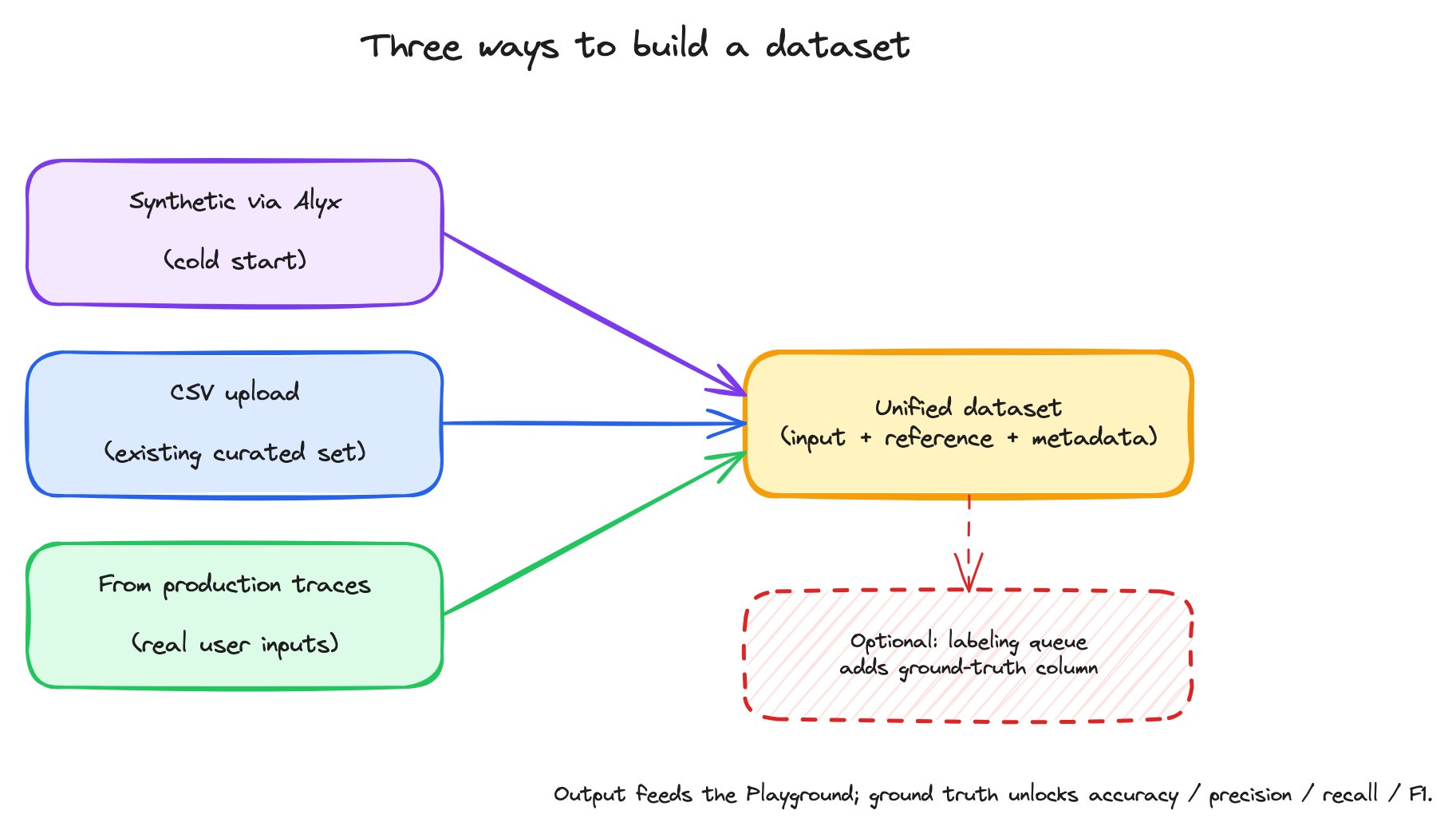 | Origin | When to use | What you get |
| :------------------------- | :----------------------------------------------------------------------------------------------------------------------- | :----------------------------------------------------------------------------------------------------------------------------------------------- |
| **Synthetic via Alyx** | Cold start — no real data yet. You want to validate a prompt idea before you have production traffic. | Alyx generates N rows from a natural-language description ("10 customer support queries about returns"). Fast, useful for first-pass validation. |
| **CSV upload** | You already have a curated test set elsewhere — from an earlier project, from a domain expert, from a benchmark dataset. | Direct import. Each CSV column becomes a dataset column. |
| **From production traces** | You want real production examples — actual user inputs that hit your application. | In the Spans tab, filter to the spans you want, multi-select, and add to a dataset. Span attributes become dataset columns. |
The three paths produce the same artifact. Once a dataset exists, the rest of the workflow is identical regardless of origin.
## Cold start with Alyx
When you don't have real data yet, Alyx is the unblock. Tell Alyx what kind of examples you want and how many, and it generates them. For a tool-selection router, that might be *"10 example user queries that should each route to one of these four tools."* Alyx considers the prompt context, asks clarifying questions if needed, and writes the dataset into Datasets and Experiments where you can use it like any other.
This is more useful than it sounds. Most prompt work starts before there's real traffic — synthetic data lets you start iterating on day one and replace it with real data later.
## CSV upload
When you already have a curated test set — exported from a benchmark, written by a domain expert, or shaped in a spreadsheet — uploading the file directly is the fastest path. Each CSV column becomes a dataset column, and the column headers become the names the prompt's `{placeholders}` bind to at run time.
You can upload from any of:
* The **UI** — under **Datasets & Experiments**, create a new dataset and drop the CSV in.
* The **CLI** — `ax datasets create --name my-set --space --file examples.csv`. JSON, JSONL, and Parquet files are accepted by the same flag.
* The **SDK** — load the file into a pandas DataFrame (or a list of dicts) and call `client.datasets.create(space=..., name=..., examples=df)`. The Python client takes the parsed data, not a file path.
Once the dataset is in Arize AX, it behaves like any other regardless of which path uploaded it.
## From production traces
Once you have an application sending traces to Arize AX, those traces are your most valuable dataset source. They're real user inputs, including the long tail you wouldn't think to write by hand.
The workflow:
1. Open the **Spans tab** of the project that contains the data you want.
2. Apply filters — by span kind, by span name, by input-contains expression, by date range — to narrow to the spans relevant to the prompt you're iterating on.
3. Multi-select the rows and add them to a dataset.
4. The span's input attributes become dataset columns; you can choose which to include.
| Origin | When to use | What you get |
| :------------------------- | :----------------------------------------------------------------------------------------------------------------------- | :----------------------------------------------------------------------------------------------------------------------------------------------- |
| **Synthetic via Alyx** | Cold start — no real data yet. You want to validate a prompt idea before you have production traffic. | Alyx generates N rows from a natural-language description ("10 customer support queries about returns"). Fast, useful for first-pass validation. |
| **CSV upload** | You already have a curated test set elsewhere — from an earlier project, from a domain expert, from a benchmark dataset. | Direct import. Each CSV column becomes a dataset column. |
| **From production traces** | You want real production examples — actual user inputs that hit your application. | In the Spans tab, filter to the spans you want, multi-select, and add to a dataset. Span attributes become dataset columns. |
The three paths produce the same artifact. Once a dataset exists, the rest of the workflow is identical regardless of origin.
## Cold start with Alyx
When you don't have real data yet, Alyx is the unblock. Tell Alyx what kind of examples you want and how many, and it generates them. For a tool-selection router, that might be *"10 example user queries that should each route to one of these four tools."* Alyx considers the prompt context, asks clarifying questions if needed, and writes the dataset into Datasets and Experiments where you can use it like any other.
This is more useful than it sounds. Most prompt work starts before there's real traffic — synthetic data lets you start iterating on day one and replace it with real data later.
## CSV upload
When you already have a curated test set — exported from a benchmark, written by a domain expert, or shaped in a spreadsheet — uploading the file directly is the fastest path. Each CSV column becomes a dataset column, and the column headers become the names the prompt's `{placeholders}` bind to at run time.
You can upload from any of:
* The **UI** — under **Datasets & Experiments**, create a new dataset and drop the CSV in.
* The **CLI** — `ax datasets create --name my-set --space --file examples.csv`. JSON, JSONL, and Parquet files are accepted by the same flag.
* The **SDK** — load the file into a pandas DataFrame (or a list of dicts) and call `client.datasets.create(space=..., name=..., examples=df)`. The Python client takes the parsed data, not a file path.
Once the dataset is in Arize AX, it behaves like any other regardless of which path uploaded it.
## From production traces
Once you have an application sending traces to Arize AX, those traces are your most valuable dataset source. They're real user inputs, including the long tail you wouldn't think to write by hand.
The workflow:
1. Open the **Spans tab** of the project that contains the data you want.
2. Apply filters — by span kind, by span name, by input-contains expression, by date range — to narrow to the spans relevant to the prompt you're iterating on.
3. Multi-select the rows and add them to a dataset.
4. The span's input attributes become dataset columns; you can choose which to include.
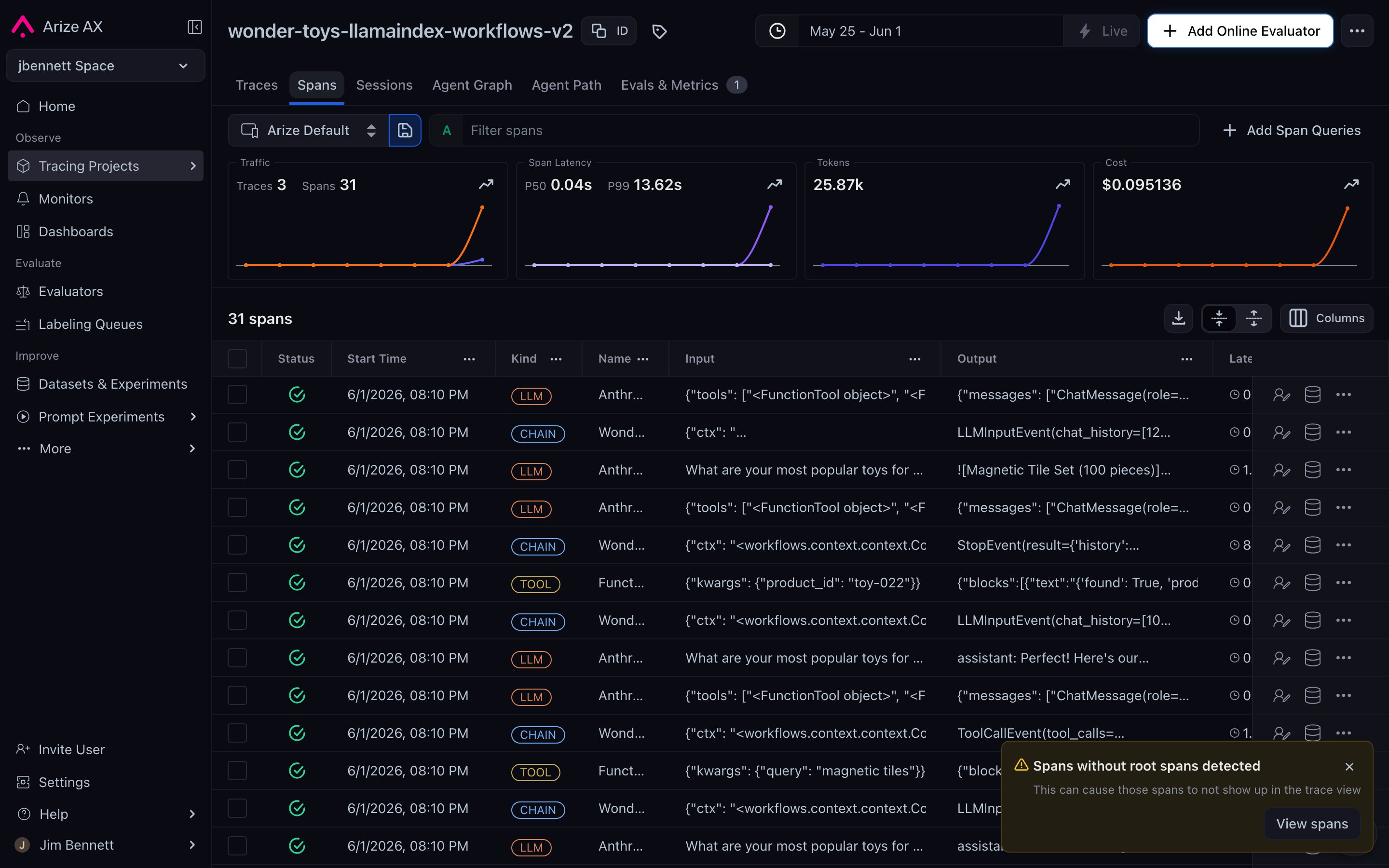 This is the "real-data" path. It produces the highest-signal datasets because every row is an actual production case the prompt will encounter.
# Ground truth and the reference column
A dataset can carry a **reference column** — the "correct" answer for each row. When set, the reference column unlocks a different class of evaluation:
| Without reference column | With reference column |
| :----------------------------------------------------------------------- | :------------------------------------------------------------------------------------------------------------------------ |
| Score outputs with LLM-as-a-judge, custom code evaluators, or heuristics | All of those, plus exact-match, accuracy, precision, recall, F1, and any other metric that compares output to a reference |
Setting the reference column is done from **Edit Dataset → Metric Settings** in the dataset detail view. You pick which dataset column is the ground truth, which column holds the prompt's output, and (for classification metrics) the positive class.
Ground truth is optional but high-leverage. A prompt without a reference column gets you "this output looks plausible." A prompt with a reference column gets you "this output is correct (or it isn't)." For any classification-shaped task, the difference is meaningful.
# Labeling queues for subject-matter experts
Where does ground truth come from? Sometimes the dataset already has it (you exported a benchmark). Sometimes you generate it (a strong baseline LLM). And sometimes you need humans — subject-matter experts who know what "correct" means for your domain.
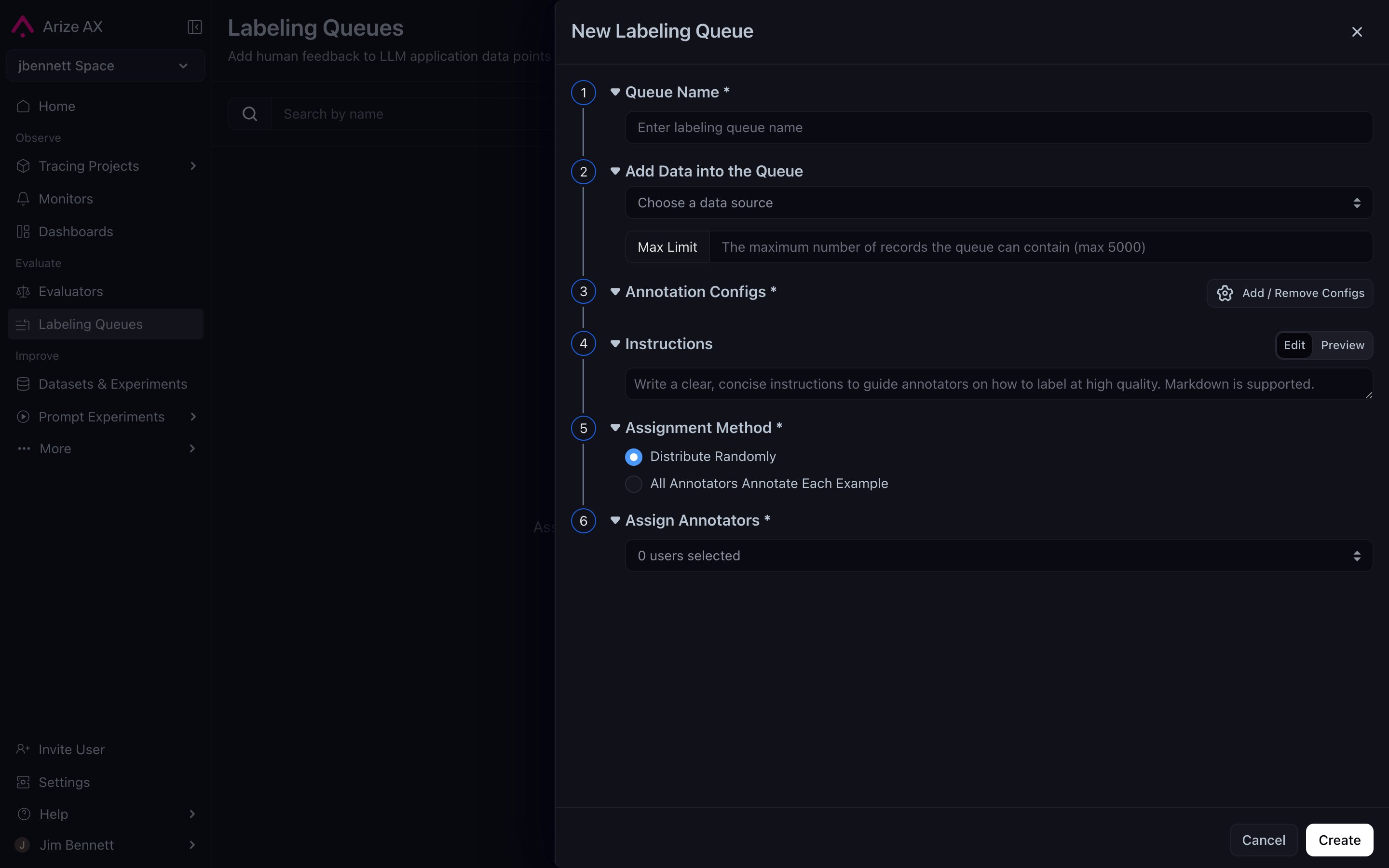
A **labeling queue** is a dataset-attached workflow that assigns rows to specific annotators for labeling. Annotators can be scoped to see only their labeling queue — useful when SMEs shouldn't have full platform access.
The annotator's task is shaped by **annotation configs**. Three flavors are supported:
| Config type | What the annotator picks | Example |
| :----------------- | :----------------------------- | :------------------------------------------------------------------------------------- |
| **Categorical** | A label from a fixed set | `text_summarizer` / `language_translator` / `grammar_corrector` / `sentiment_analyzer` |
| **Continuous** | A numeric score within a range | `1.0` to `5.0` for response quality |
| **Free-form text** | Open-ended text | Explanation of *why* a label was chosen |
Multiple configs can stack on the same dataset — categorical label plus a free-form explanation, for instance. The annotator sees both prompts and supplies both signals per row.
Once the queue is complete, the labels land as additional columns on the dataset. You can then point Metric Settings at the label column as the reference and unlock the full set of comparison metrics.
This is the "real-data" path. It produces the highest-signal datasets because every row is an actual production case the prompt will encounter.
# Ground truth and the reference column
A dataset can carry a **reference column** — the "correct" answer for each row. When set, the reference column unlocks a different class of evaluation:
| Without reference column | With reference column |
| :----------------------------------------------------------------------- | :------------------------------------------------------------------------------------------------------------------------ |
| Score outputs with LLM-as-a-judge, custom code evaluators, or heuristics | All of those, plus exact-match, accuracy, precision, recall, F1, and any other metric that compares output to a reference |
Setting the reference column is done from **Edit Dataset → Metric Settings** in the dataset detail view. You pick which dataset column is the ground truth, which column holds the prompt's output, and (for classification metrics) the positive class.
Ground truth is optional but high-leverage. A prompt without a reference column gets you "this output looks plausible." A prompt with a reference column gets you "this output is correct (or it isn't)." For any classification-shaped task, the difference is meaningful.
# Labeling queues for subject-matter experts
Where does ground truth come from? Sometimes the dataset already has it (you exported a benchmark). Sometimes you generate it (a strong baseline LLM). And sometimes you need humans — subject-matter experts who know what "correct" means for your domain.
A **labeling queue** is a dataset-attached workflow that assigns rows to specific annotators for labeling. Annotators can be scoped to see only their labeling queue — useful when SMEs shouldn't have full platform access.
The annotator's task is shaped by **annotation configs**. Three flavors are supported:
| Config type | What the annotator picks | Example |
| :----------------- | :----------------------------- | :------------------------------------------------------------------------------------- |
| **Categorical** | A label from a fixed set | `text_summarizer` / `language_translator` / `grammar_corrector` / `sentiment_analyzer` |
| **Continuous** | A numeric score within a range | `1.0` to `5.0` for response quality |
| **Free-form text** | Open-ended text | Explanation of *why* a label was chosen |
Multiple configs can stack on the same dataset — categorical label plus a free-form explanation, for instance. The annotator sees both prompts and supplies both signals per row.
Once the queue is complete, the labels land as additional columns on the dataset. You can then point Metric Settings at the label column as the reference and unlock the full set of comparison metrics.
 # Why this matters for prompt iteration
The dataset is half the iteration loop. The prompt is the variable you're changing; the dataset is the constant you're measuring against. Two implications:
* **Dataset quality bounds eval quality.** A dataset that only covers easy cases will say every prompt is great. A dataset that covers the hard cases — including edge cases drawn from production failures — is what catches regressions.
* **Datasets are reusable.** A well-built dataset works across many prompts, model swaps, and over time. Investing in dataset coverage pays back for every prompt iteration after it.
When you graduate from a synthetic dataset to a real-traces dataset to a real-traces-plus-human-labels dataset, the iteration loop's quality improves at every step. That progression is the operational maturity arc for any prompt you run in production.
***
## Next step
Datasets feed the Playground. Each Playground run is an experiment. The next page covers how Arize AX treats experiments as the unit of comparison.
# Why this matters for prompt iteration
The dataset is half the iteration loop. The prompt is the variable you're changing; the dataset is the constant you're measuring against. Two implications:
* **Dataset quality bounds eval quality.** A dataset that only covers easy cases will say every prompt is great. A dataset that covers the hard cases — including edge cases drawn from production failures — is what catches regressions.
* **Datasets are reusable.** A well-built dataset works across many prompts, model swaps, and over time. Investing in dataset coverage pays back for every prompt iteration after it.
When you graduate from a synthetic dataset to a real-traces dataset to a real-traces-plus-human-labels dataset, the iteration loop's quality improves at every step. That progression is the operational maturity arc for any prompt you run in production.
***
## Next step
Datasets feed the Playground. Each Playground run is an experiment. The next page covers how Arize AX treats experiments as the unit of comparison.