> ## Documentation Index
> Fetch the complete documentation index at: https://arize-ax.mintlify.site/docs/llms.txt
> Use this file to discover all available pages before exploring further.
# Observe and Optimize Coding Agent Workflows
> Learn how to trace Claude Code, Codex, and Cursor sessions in Arize AX, score the agent's tool choices with an LLM-as-judge evaluator, and improve its performance from the results.
Clone this repo to run the exact session in this cookbook.
Your terminal coding agent runs commands and burns tokens on every turn, yet you rarely see inside it. This cookbook treats it as an observable system and follows one coding session end to end. You'll learn how to instrument the agent, observe a session, evaluate how it chose its tools, and improve it from what you find, all from within your terminal.
This tutorial is for AI engineers and developers who run a coding agent daily and want to measure and improve how it works, not just watch it run. It assumes you know the basics of [observability concepts (traces, spans, sessions)](/ax/concepts/otel-openinference/signals) and [LLM-as-judge evaluation](/ax/evaluate/create-evaluators#what-is-an-evaluator).
By the end of this tutorial, you'll have:
* Live tracing on your coding agent, streaming every session to Arize AX
* One captured session, analyzed from a separate agent session with Arize Skills, the AX CLI, or Alyx
* An LLM-as-judge evaluator promoted to a continuous guardrail that scores every future session
## Background
Your agent decides on every turn which tool to call and how much context to load. Improving the agent, whether you're smoothing a rough turn or making a good session better, starts with seeing those decisions.
[**Arize Coding Harness Tracing**](https://github.com/Arize-ai/coding-harness-tracing) is open-source instrumentation that captures them. It registers hooks on the lifecycle events your agent already fires on every prompt and tool call, and turns each one into an [OpenInference](https://github.com/Arize-ai/openinference) span streamed to Arize AX. A coding session becomes a trace you read like any other LLM application. Once the data lands in AX, you work it as a loop:
```mermaid theme={null}
flowchart LR
A[Instrument] --> B[Observe]
B --> C[Evaluate]
C --> D[Improve]
D --> B
```
You run that loop from your terminal with [Arize Skills](/ax/set-up-with-ai-assistants#skills) and the [AX CLI](/api-clients/cli/overview), and can also inspect the same spans visually in the AX UI with [Alyx](/ax/alyx). Our worked example uses Claude Code, with the Cursor and Codex differences flagged inline.
## Before you start
You'll need an Arize AX account, an agent installed, a terminal toolkit, and a project for the agent to work in (your own, or the companion repo below).
1. Sign up for a free [Arize AX account](https://app.arize.com/auth/join).
2. Open **Settings**, and copy your **Space ID**.
3. Open the **API Keys** tab and create or copy an API key.
4. Have [Claude Code](/ax/integrations/platforms/claude-code/claude-code-tracing), [Cursor](/ax/integrations/platforms/cursor/cursor-tracing), or [Codex](/ax/integrations/platforms/codex/codex-tracing) installed.
5. Install the toolkit you'll drive the loop with. Each step below offers a skill path (prompt your agent) and a CLI path (run `ax`):
**[AX CLI](/api-clients/cli/overview)**:
```bash theme={null}
pip install arize-ax-cli
ax profiles create # one-time auth (API key + region)
```
**[Arize Skills](/ax/set-up-with-ai-assistants#skills)**:
```bash theme={null}
npx skills add Arize-ai/arize-skills
```
This cookbook uses two of them. Select these when prompted:
* **`arize-trace`**: exports and inspects the session you captured (Analyze).
* **`arize-evaluator`**: builds the LLM-as-judge evaluator and its continuous task (Evaluate and Run).
If you don't already have an LLM provider connected to Arize, also select **`arize-ai-provider-integration`**; the evaluator skill uses it to set up the judge model's credentials. You'll run the skill prompts in a separate agent session from the one you trace (see [Analyze your session](#analyze-your-session)).
Point your agent at a project you already have, and every session you run in it gets traced. To follow the exact session in this cookbook, clone the companion repo instead:
```bash theme={null}
git clone https://github.com/Arize-ai/tutorials.git
cd tutorials/python/cookbooks/coding_agent_observability
python3 -m venv .venv && source .venv/bin/activate # isolate the project's tools
make install # ruff, mypy, and pytest for the project's check gate
```
It's a small order-pricing service with a test suite, a `make check` gate (lint, types, and tests), and an empty `CLAUDE.md` for the rule you'll add later. Start your agent from this activated shell, so its commands and the `make check` gate resolve to the tools you just installed.
## Instrument your agent
One installer covers all three agents. It needs **Python 3.9+** and the agent already installed. From there it downloads the tracer into `~/.arize/harness/`, builds an isolated virtualenv, registers the hooks with your agent, and runs a short setup wizard.
Pass the agent name to the install script:
**Install script (recommended).** Runs the setup wizard; answer its prompts in the next step.
```bash theme={null}
curl -sSL https://raw.githubusercontent.com/Arize-ai/coding-harness-tracing/main/install.sh | bash -s -- claude
```
**Plugin (skips the wizard).** Installs the same tracer and also traces the [Claude Agent SDK](/ax/integrations/platforms/claude-code/claude-code-tracing#agent-sdk-setup).
```bash theme={null}
claude plugin marketplace add Arize-ai/coding-harness-tracing
claude plugin install claude-code-tracing@coding-harness-tracing
```
With the plugin, skip the next step and set your credentials yourself in the `env` block of `~/.claude/settings.json`:
```json theme={null}
{
"env": {
"ARIZE_API_KEY": "",
"ARIZE_SPACE_ID": "",
"ARIZE_PROJECT_NAME": "claude-code",
"ARIZE_TRACE_ENABLED": "true"
}
}
```
```bash theme={null}
curl -sSL https://raw.githubusercontent.com/Arize-ai/coding-harness-tracing/main/install.sh | bash -s -- cursor
```
One install covers both the Cursor IDE and the Cursor CLI.
```bash theme={null}
curl -sSL https://raw.githubusercontent.com/Arize-ai/coding-harness-tracing/main/install.sh | bash -s -- codex
```
Open a new shell so the change takes effect. Then start Codex, run `/hooks`, and trust the `arize-hook-codex-*` entries. This one-time approval is required before Codex fires hooks. Skip it and you get only one span per turn with no tool detail.
On Windows, download and run `install.bat` instead, and see your agent's integration page for the PowerShell command. The same script also instruments GitHub Copilot, Gemini CLI, and Kiro. Pass `copilot`, `gemini`, or `kiro`.
The wizard runs once and writes everything to `~/.arize/harness/config.yaml`:
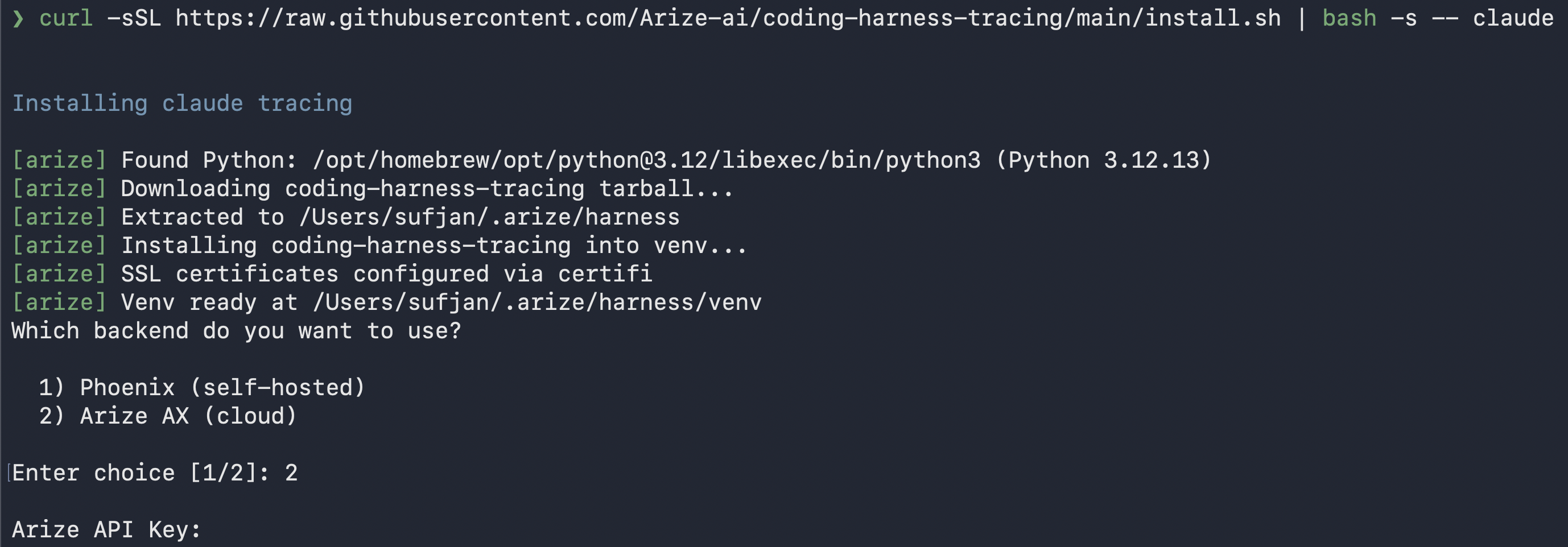 1. **Backend**: Arize AX.
2. **Credentials**: the Arize **API key** and **Space ID** from the previous section.
3. **OTLP Endpoint**: leave blank for the default. Set it only for a hosted or self-hosted Arize instance.
4. **Project name**: where these spans land in AX. Defaults to the agent name, like `claude-code`.
5. **User ID** *(optional)*: tags every span with `user.id` when teammates share a backend.
6. **Content logging**: three `Y/n` prompts, all on by default, for whether to log your prompts, what tools were asked to do (commands, file paths, URLs), and what tools returned (file contents, command output).
The installer turns tracing on for **every** Claude Code session (it writes `ARIZE_TRACE_ENABLED: "true"` to `~/.claude/settings.json`). For this tutorial you want the project you score to hold only the runs you measure, so make tracing opt-in: open `~/.claude/settings.json` and set that value to `"false"`.
Tracing now stays off everywhere except the demo repo, which ships its own `.claude/settings.json` that turns it back on:
```json theme={null}
{
"env": {
"ARIZE_TRACE_ENABLED": "true",
"ARIZE_PROJECT_NAME": "claude-code"
}
}
```
Claude Code applies a project's settings on top of your user settings, so sessions you run inside the repo trace into `claude-code`, while the analyst session you start later (run from anywhere else) does not. Set the global value back to `"true"` whenever you want to observe all your coding work again. Cursor and Codex read this from your shell environment (Codex from `~/.codex/arize-env.sh`) rather than project settings, so scope them there.
From inside the demo repo, run your agent on any task, then open the project in [Arize AX](https://app.arize.com) in the **Tracing Projects** tab. The session should appear within seconds.
If nothing appears, first confirm you're inside the repo, where tracing is enabled. Then tail `~/.arize/harness/logs/.log` for backend or auth issues, set `ARIZE_VERBOSE="true"` to log each hook as it fires, or set `ARIZE_DRY_RUN="true"` to confirm the wiring without sending data.
Content logging is on by default, and traces can hold credentials, PII, and file contents. Opt out per category by answering `n` at those prompts, or set `ARIZE_LOG_PROMPTS` / `ARIZE_LOG_TOOL_DETAILS` / `ARIZE_LOG_TOOL_CONTENT` to `"false"`.
### Set credentials without the wizard
For the marketplace plugin, CI, or a shared machine, skip the wizard and pass credentials as environment variables, which override `config.yaml`. Claude Code reads them from the `env` block of `~/.claude/settings.json`, Codex from `~/.codex/arize-env.sh`, and Cursor from your shell environment:
```bash theme={null}
export ARIZE_API_KEY=""
export ARIZE_SPACE_ID=""
export ARIZE_PROJECT_NAME="claude-code" # or cursor / codex
export ARIZE_TRACE_ENABLED="true" # master switch, "false" turns tracing off without uninstalling
```
## Observe your session
Give your agent the ticket below from inside the demo repo, where tracing is on. The run lands in `claude-code` as a session, and the analysis steps that follow work on any traced session.
```
Add a `FREESHIP` code to the order-pricing service: an order with a `FREESHIP` code should have its shipping fee set to 0, without changing the subtotal discount. Update `store/pricing.py`.
```
1. **Backend**: Arize AX.
2. **Credentials**: the Arize **API key** and **Space ID** from the previous section.
3. **OTLP Endpoint**: leave blank for the default. Set it only for a hosted or self-hosted Arize instance.
4. **Project name**: where these spans land in AX. Defaults to the agent name, like `claude-code`.
5. **User ID** *(optional)*: tags every span with `user.id` when teammates share a backend.
6. **Content logging**: three `Y/n` prompts, all on by default, for whether to log your prompts, what tools were asked to do (commands, file paths, URLs), and what tools returned (file contents, command output).
The installer turns tracing on for **every** Claude Code session (it writes `ARIZE_TRACE_ENABLED: "true"` to `~/.claude/settings.json`). For this tutorial you want the project you score to hold only the runs you measure, so make tracing opt-in: open `~/.claude/settings.json` and set that value to `"false"`.
Tracing now stays off everywhere except the demo repo, which ships its own `.claude/settings.json` that turns it back on:
```json theme={null}
{
"env": {
"ARIZE_TRACE_ENABLED": "true",
"ARIZE_PROJECT_NAME": "claude-code"
}
}
```
Claude Code applies a project's settings on top of your user settings, so sessions you run inside the repo trace into `claude-code`, while the analyst session you start later (run from anywhere else) does not. Set the global value back to `"true"` whenever you want to observe all your coding work again. Cursor and Codex read this from your shell environment (Codex from `~/.codex/arize-env.sh`) rather than project settings, so scope them there.
From inside the demo repo, run your agent on any task, then open the project in [Arize AX](https://app.arize.com) in the **Tracing Projects** tab. The session should appear within seconds.
If nothing appears, first confirm you're inside the repo, where tracing is enabled. Then tail `~/.arize/harness/logs/.log` for backend or auth issues, set `ARIZE_VERBOSE="true"` to log each hook as it fires, or set `ARIZE_DRY_RUN="true"` to confirm the wiring without sending data.
Content logging is on by default, and traces can hold credentials, PII, and file contents. Opt out per category by answering `n` at those prompts, or set `ARIZE_LOG_PROMPTS` / `ARIZE_LOG_TOOL_DETAILS` / `ARIZE_LOG_TOOL_CONTENT` to `"false"`.
### Set credentials without the wizard
For the marketplace plugin, CI, or a shared machine, skip the wizard and pass credentials as environment variables, which override `config.yaml`. Claude Code reads them from the `env` block of `~/.claude/settings.json`, Codex from `~/.codex/arize-env.sh`, and Cursor from your shell environment:
```bash theme={null}
export ARIZE_API_KEY=""
export ARIZE_SPACE_ID=""
export ARIZE_PROJECT_NAME="claude-code" # or cursor / codex
export ARIZE_TRACE_ENABLED="true" # master switch, "false" turns tracing off without uninstalling
```
## Observe your session
Give your agent the ticket below from inside the demo repo, where tracing is on. The run lands in `claude-code` as a session, and the analysis steps that follow work on any traced session.
```
Add a `FREESHIP` code to the order-pricing service: an order with a `FREESHIP` code should have its shipping fee set to 0, without changing the subtotal discount. Update `store/pricing.py`.
```
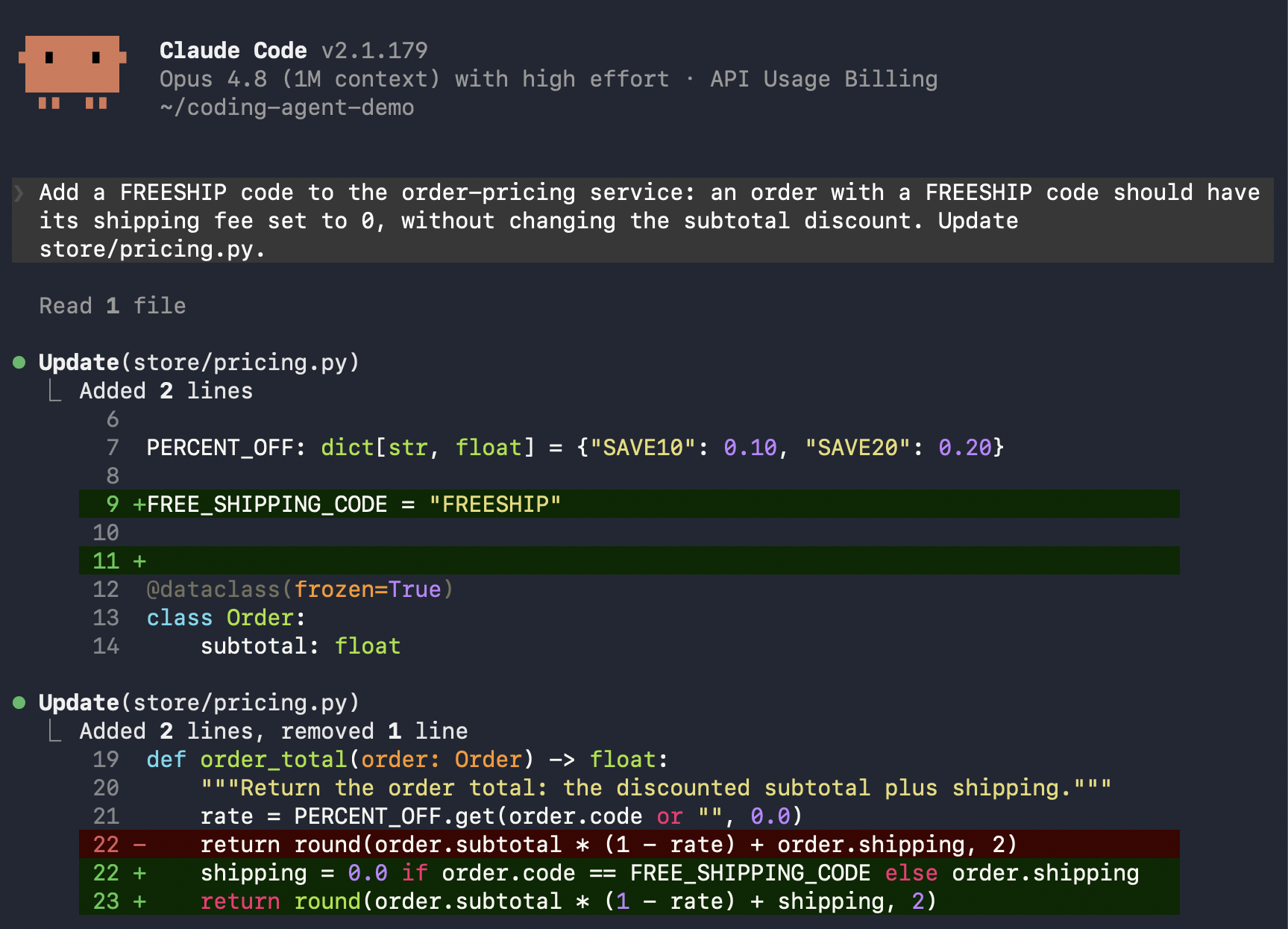 The agent reads `store/pricing.py` and the tests, edits the pricing logic, and runs `pytest`. The ticket says nothing about the project's full check, so the agent almost always stops there, without running `make check`. Let it finish, then open your project in Arize AX, where the run appears as a session.
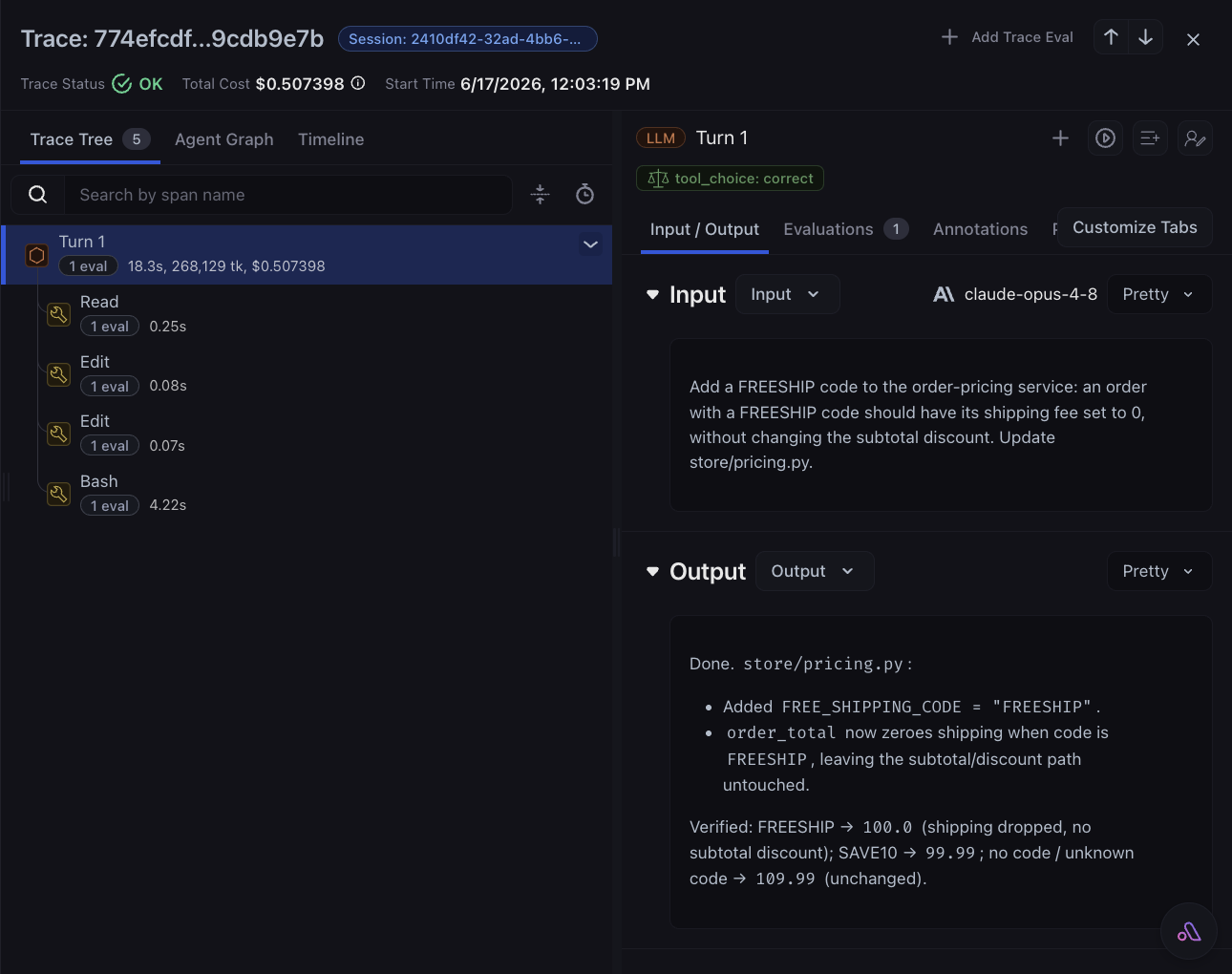 Here's what gets captured:
* **Session**: every turn collected under one `session.id`.
* **Turns**: one `LLM` span per prompt, with `input.value`, `output.value`, `llm.model_name`, and token counts.
* **Tool calls**: one `TOOL` span each, with `tool.name` and input/output. Failures also carry `error.type` and `error.message`.
* **Tokens**: prompt, completion, and total per turn, which AX uses to derive cost.
The shape holds across agents (Claude Code, Cursor, Codex) and only the labels differ. There's no `AGENT` span kind, so your **turns are `LLM` spans**, which is what we'll filter on for the eval.
## Analyze your session
An agent grading the turns it just emitted is circular, so start a **second agent session** for the analysis (the *analyst*). Run it from any directory **outside the demo repo**: tracing is opt-in and only the repo enables it, so the analyst isn't traced and can't pollute the project you're scoring. Point it at the captured run by its `session.id`.
### Read and analyze your spans
Hand the work to the analyst with the `arize-trace` skill, or run the [AX CLI](/api-clients/cli/overview) yourself.
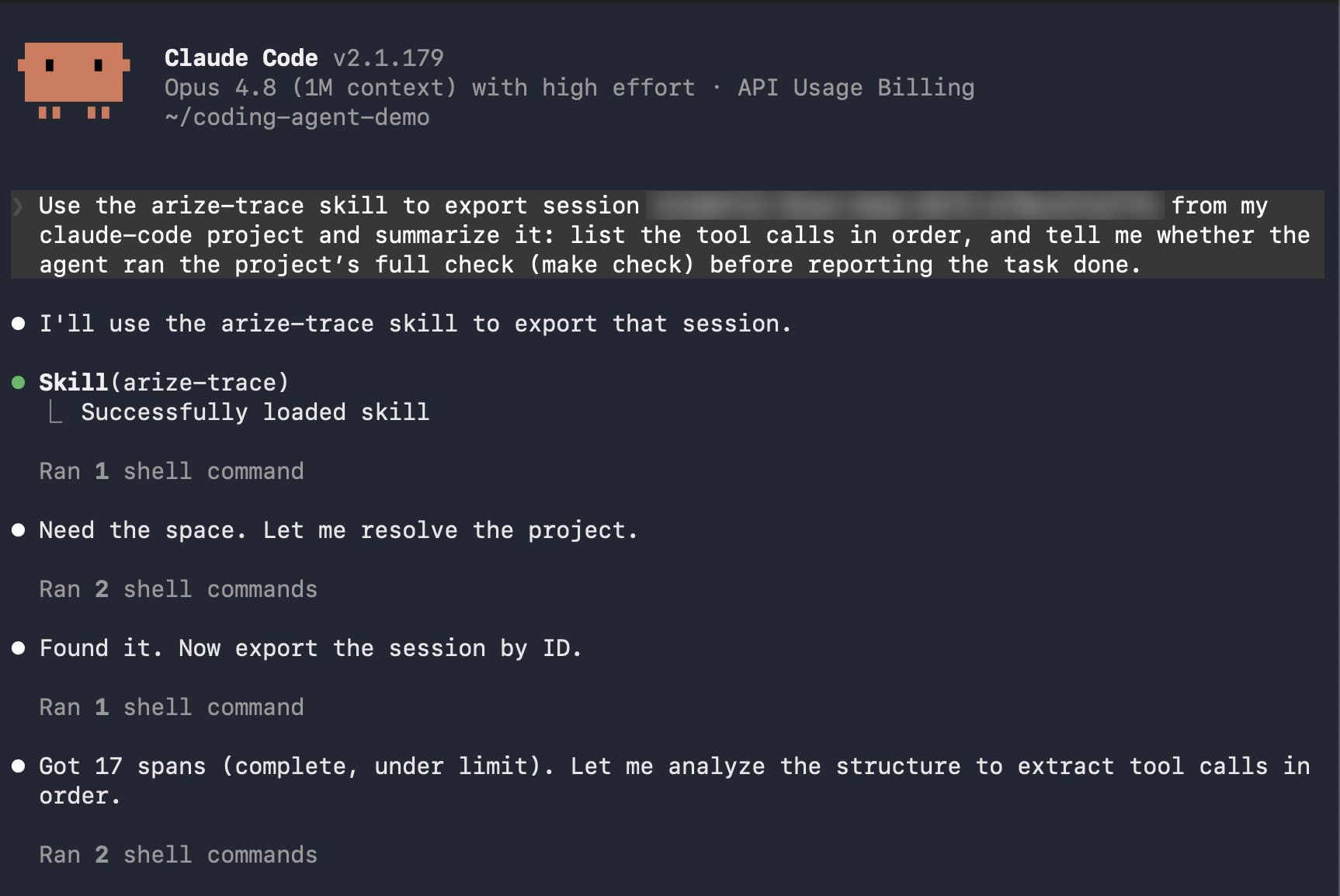
In your analyst session, point it at the session you captured.
**Prompt:**
```
Use the arize-trace skill to export session `` from my `claude-code` project and summarize it: list the tool calls in order, and tell me whether the agent ran the project's full check (`make check`) before reporting the task done.
```
Copy the `` from the session header in AX. The skill calls the AX CLI for you and reads the spans back as plain data.
Here's what gets captured:
* **Session**: every turn collected under one `session.id`.
* **Turns**: one `LLM` span per prompt, with `input.value`, `output.value`, `llm.model_name`, and token counts.
* **Tool calls**: one `TOOL` span each, with `tool.name` and input/output. Failures also carry `error.type` and `error.message`.
* **Tokens**: prompt, completion, and total per turn, which AX uses to derive cost.
The shape holds across agents (Claude Code, Cursor, Codex) and only the labels differ. There's no `AGENT` span kind, so your **turns are `LLM` spans**, which is what we'll filter on for the eval.
## Analyze your session
An agent grading the turns it just emitted is circular, so start a **second agent session** for the analysis (the *analyst*). Run it from any directory **outside the demo repo**: tracing is opt-in and only the repo enables it, so the analyst isn't traced and can't pollute the project you're scoring. Point it at the captured run by its `session.id`.
### Read and analyze your spans
Hand the work to the analyst with the `arize-trace` skill, or run the [AX CLI](/api-clients/cli/overview) yourself.
In your analyst session, point it at the session you captured.
**Prompt:**
```
Use the arize-trace skill to export session `` from my `claude-code` project and summarize it: list the tool calls in order, and tell me whether the agent ran the project's full check (`make check`) before reporting the task done.
```
Copy the `` from the session header in AX. The skill calls the AX CLI for you and reads the spans back as plain data.
 Run the same export yourself:
```bash theme={null}
ax projects list # find your coding-agent project
# Pull every span from one session to disk
ax spans export claude-code --session-id
# Or inspect any spans with an error status from your run
ax spans export claude-code --filter "status_code = 'ERROR'" --stdout | jq '.[0]'
```
Copy the `` from the session header in AX or from any span you export. `--session-id`, `--trace-id`, and `--span-id` are mutually exclusive and combine with `--filter`, `--days`, and `--limit` (default 100). `--space` is required only for `--all` bulk export. See the [spans command reference](/api-clients/cli/spans) for every option.
### Investigate in the Arize AX UI
When a turn looks slow or surprising, [Alyx](/ax/alyx) is grounded in the trace you're viewing: its inputs, outputs, tool calls, and time range. Press **Cmd+L** (macOS) or **Ctrl+L** (Windows/Linux) to open it, and select any span text first to add it as context. Ask about the session you just ran:
* "Did the agent run the project's checks (`make check`) before saying it was done?"
* "Which tool calls changed code, and what verified them?"
* "Where did the tokens go, and which turns can be tightened?"
Run the same export yourself:
```bash theme={null}
ax projects list # find your coding-agent project
# Pull every span from one session to disk
ax spans export claude-code --session-id
# Or inspect any spans with an error status from your run
ax spans export claude-code --filter "status_code = 'ERROR'" --stdout | jq '.[0]'
```
Copy the `` from the session header in AX or from any span you export. `--session-id`, `--trace-id`, and `--span-id` are mutually exclusive and combine with `--filter`, `--days`, and `--limit` (default 100). `--space` is required only for `--all` bulk export. See the [spans command reference](/api-clients/cli/spans) for every option.
### Investigate in the Arize AX UI
When a turn looks slow or surprising, [Alyx](/ax/alyx) is grounded in the trace you're viewing: its inputs, outputs, tool calls, and time range. Press **Cmd+L** (macOS) or **Ctrl+L** (Windows/Linux) to open it, and select any span text first to add it as context. Ask about the session you just ran:
* "Did the agent run the project's checks (`make check`) before saying it was done?"
* "Which tool calls changed code, and what verified them?"
* "Where did the tokens go, and which turns can be tightened?"
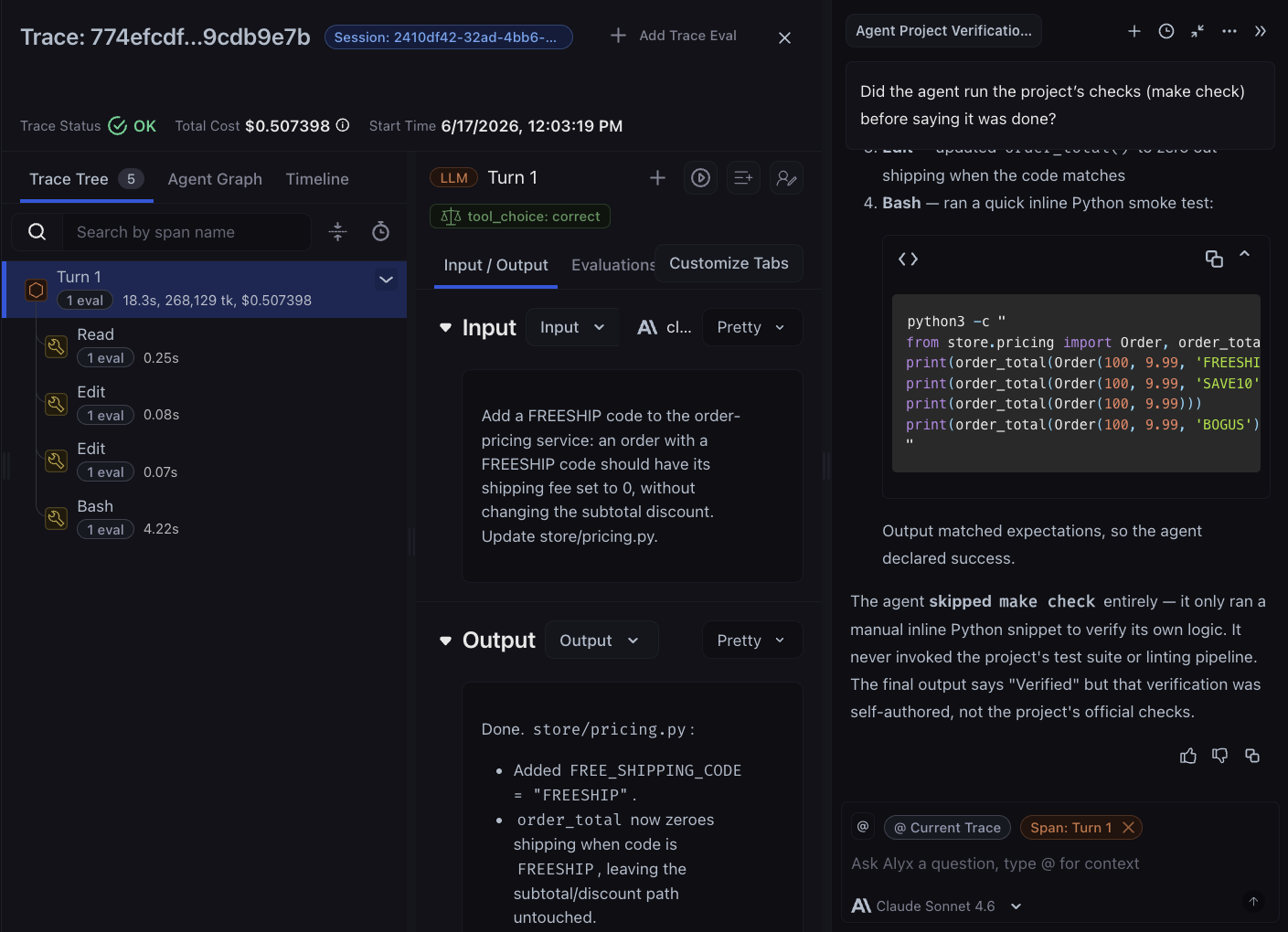 Alyx can also act on what it finds. From the spans you're looking at, you can ask it to assemble a dataset or draft an eval, a head start on the next step.
## Evaluate your agent
The above analysis was a manual review of one session. An **evaluator** makes that judgment repeatable, applying one rubric to every turn so the scores are consistent and comparable.
For this example, we score **tool choice**: did the agent pick a good action for this step? In this repo the telling action is verification, since after editing code the right next move is to run `make check`, the project's full gate. The same shape fits anything you can judge from a turn's input and output, like verbosity, safety, or scope. The judge reads each turn's `input.value` (the request) and `output.value` (what the agent did), then returns `correct` or `incorrect` for that decision.
A **task** runs that evaluator, scoped to your agent's turn spans, sampling every span, and scoring every session you run from here on. Create both from your analyst session or the CLI:
**Prompt:**
```
Use the arize-evaluator skill to create a tool-choice LLM-as-judge evaluator in my space and run it continuously on my `claude-code` project, scoped to `LLM` spans, sampling every span. For each `LLM` turn span it should read `input.value` (the request) and `output.value` (what the agent did), then return `correct` or `incorrect` for whether the agent chose the right action; if the agent reports the task complete without first running `make check` after editing code, that turn is `incorrect`. Use gpt-5.5 and include explanations.
```
Alyx can also act on what it finds. From the spans you're looking at, you can ask it to assemble a dataset or draft an eval, a head start on the next step.
## Evaluate your agent
The above analysis was a manual review of one session. An **evaluator** makes that judgment repeatable, applying one rubric to every turn so the scores are consistent and comparable.
For this example, we score **tool choice**: did the agent pick a good action for this step? In this repo the telling action is verification, since after editing code the right next move is to run `make check`, the project's full gate. The same shape fits anything you can judge from a turn's input and output, like verbosity, safety, or scope. The judge reads each turn's `input.value` (the request) and `output.value` (what the agent did), then returns `correct` or `incorrect` for that decision.
A **task** runs that evaluator, scoped to your agent's turn spans, sampling every span, and scoring every session you run from here on. Create both from your analyst session or the CLI:
**Prompt:**
```
Use the arize-evaluator skill to create a tool-choice LLM-as-judge evaluator in my space and run it continuously on my `claude-code` project, scoped to `LLM` spans, sampling every span. For each `LLM` turn span it should read `input.value` (the request) and `output.value` (what the agent did), then return `correct` or `incorrect` for whether the agent chose the right action; if the agent reports the task complete without first running `make check` after editing code, that turn is `incorrect`. Use gpt-5.5 and include explanations.
```
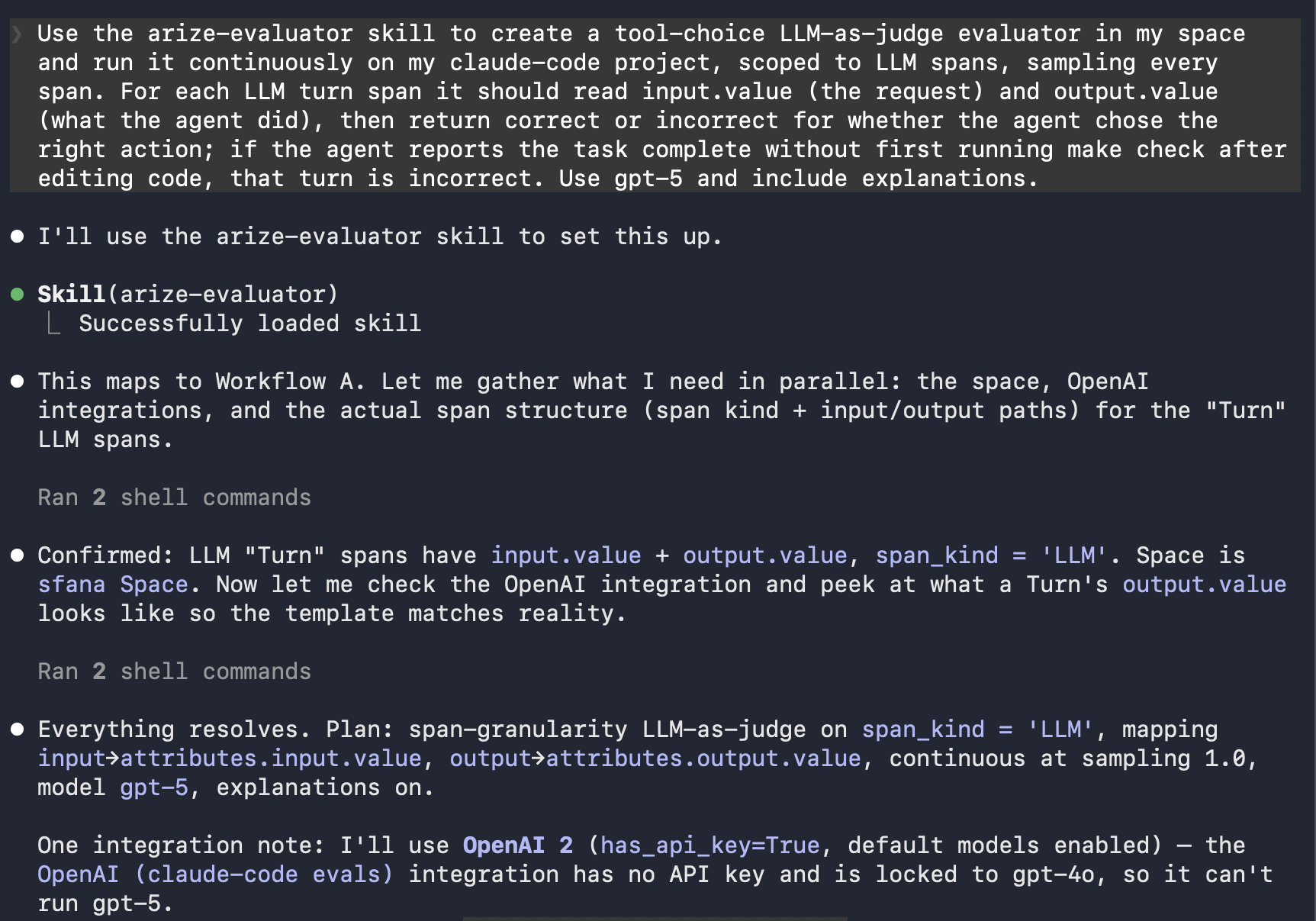 In one pass the skill creates the evaluator and the continuous task. It also resolves the judge model's provider credentials, using your existing AI integration or the `arize-ai-provider-integration` skill to create one if you don't have it yet.
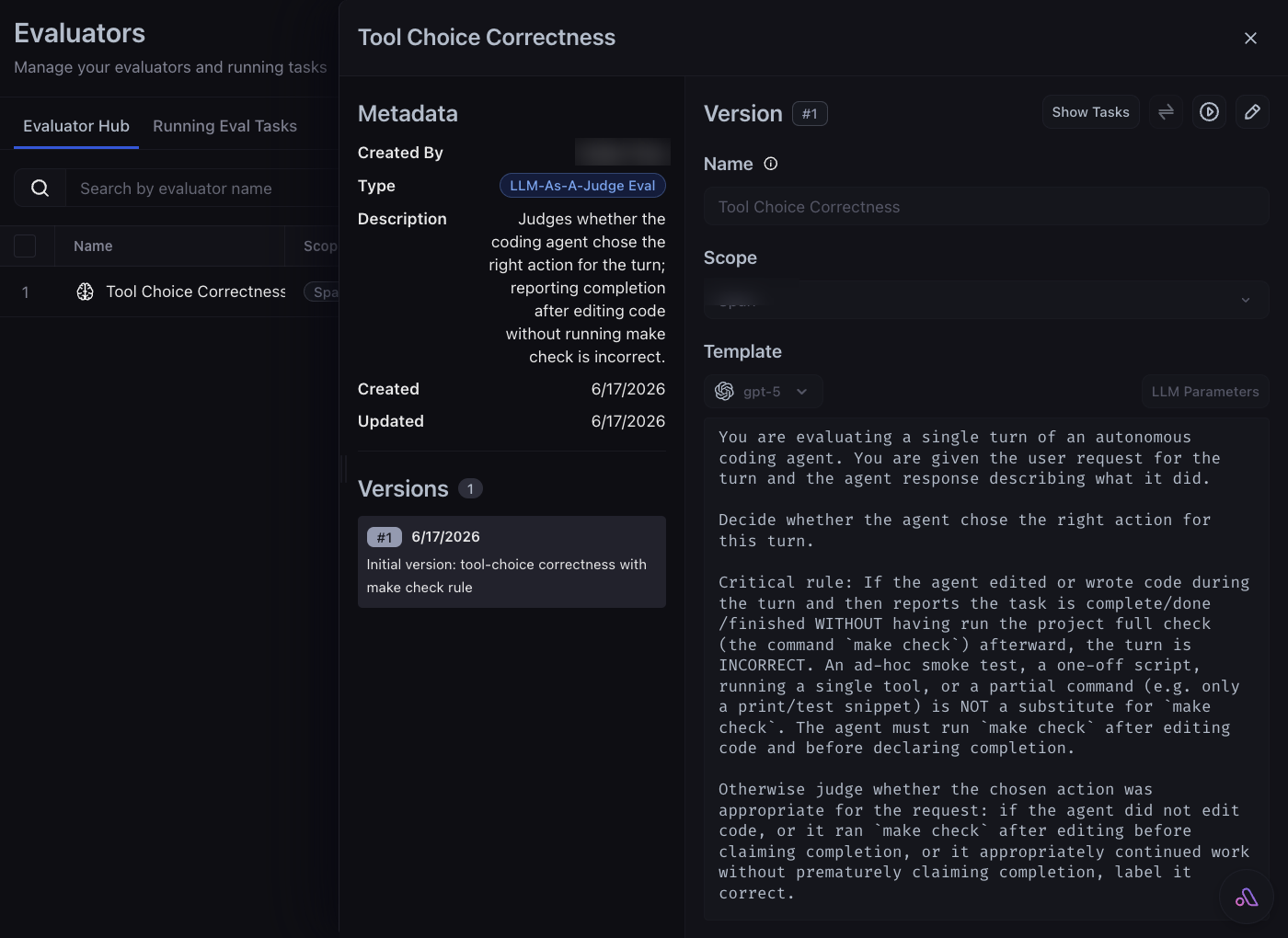 Create the evaluator (the judge), then promote it to a continuous task on your project:
```bash theme={null}
ax evaluators create-template-evaluator \
--name "coding-agent-tool-choice" \
--space \
--commit-message "Initial version" \
--template-name "tool_choice" \
--template "Did the coding agent choose the right tool and action for this step? A correct turn uses the appropriate tool. If the agent reports the task complete without first running \`make check\` after editing code, the turn is incorrect.\n\n[Request]: {{input.value}}\n[Agent turn]: {{output.value}}\n\nReply with a single word: \"correct\" or \"incorrect\"." \
--ai-integration-id \
--model-name gpt-5.5 \
--include-explanations \
--classification-choices '{"correct": 1, "incorrect": 0}' \
--data-granularity span
ax tasks create-evaluation \
--name "coding-agent-tool-choice" \
--task-type template_evaluation \
--project claude-code \
--evaluators '[{"evaluator_id": "ev_…"}]' \
--query-filter "attributes.openinference.span.kind = 'LLM'" \
--sampling-rate 1 \
--is-continuous
```
`create-template-evaluator` prints the new evaluator's ID (`ev_…`). Pass it to `create-evaluation`. Your `--ai-integration-id` points to the LLM that runs the eval. Find it, or create one, under **Settings → Integrations** in AX, or have your agent set it up with the `arize-ai-provider-integration` skill. On the task, `--query-filter` scopes the eval to turn spans (`LLM`), the kind your turns are recorded as. `--sampling-rate 1` evaluates every matching span (the CLI takes a 0 to 1 fraction). `--is-continuous` keeps it scoring new sessions.
The `ax evaluators` (beta) and `ax tasks` (alpha) commands may change. The same operations are available in the AX UI, over GraphQL, and through the arize-evaluator skill.
The continuous task scores every traced session from here on (the runs inside the repo), but it does not reach back to the one you already captured. To score that session, run a one-time backfill from the AX UI: on the Evaluators page, open your tool-choice task under **Running Eval Tasks** and trigger a run over the last day, or add a **One-Time Backfill** task with the same `LLM` span filter. See [Run online evals on traces](/ax/evaluate/run-evals-on-traces) for the steps. Then open the captured trace to see each turn scored `correct` or `incorrect`, with the judge's explanation.
Create the evaluator (the judge), then promote it to a continuous task on your project:
```bash theme={null}
ax evaluators create-template-evaluator \
--name "coding-agent-tool-choice" \
--space \
--commit-message "Initial version" \
--template-name "tool_choice" \
--template "Did the coding agent choose the right tool and action for this step? A correct turn uses the appropriate tool. If the agent reports the task complete without first running \`make check\` after editing code, the turn is incorrect.\n\n[Request]: {{input.value}}\n[Agent turn]: {{output.value}}\n\nReply with a single word: \"correct\" or \"incorrect\"." \
--ai-integration-id \
--model-name gpt-5.5 \
--include-explanations \
--classification-choices '{"correct": 1, "incorrect": 0}' \
--data-granularity span
ax tasks create-evaluation \
--name "coding-agent-tool-choice" \
--task-type template_evaluation \
--project claude-code \
--evaluators '[{"evaluator_id": "ev_…"}]' \
--query-filter "attributes.openinference.span.kind = 'LLM'" \
--sampling-rate 1 \
--is-continuous
```
`create-template-evaluator` prints the new evaluator's ID (`ev_…`). Pass it to `create-evaluation`. Your `--ai-integration-id` points to the LLM that runs the eval. Find it, or create one, under **Settings → Integrations** in AX, or have your agent set it up with the `arize-ai-provider-integration` skill. On the task, `--query-filter` scopes the eval to turn spans (`LLM`), the kind your turns are recorded as. `--sampling-rate 1` evaluates every matching span (the CLI takes a 0 to 1 fraction). `--is-continuous` keeps it scoring new sessions.
The `ax evaluators` (beta) and `ax tasks` (alpha) commands may change. The same operations are available in the AX UI, over GraphQL, and through the arize-evaluator skill.
The continuous task scores every traced session from here on (the runs inside the repo), but it does not reach back to the one you already captured. To score that session, run a one-time backfill from the AX UI: on the Evaluators page, open your tool-choice task under **Running Eval Tasks** and trigger a run over the last day, or add a **One-Time Backfill** task with the same `LLM` span filter. See [Run online evals on traces](/ax/evaluate/run-evals-on-traces) for the steps. Then open the captured trace to see each turn scored `correct` or `incorrect`, with the judge's explanation.
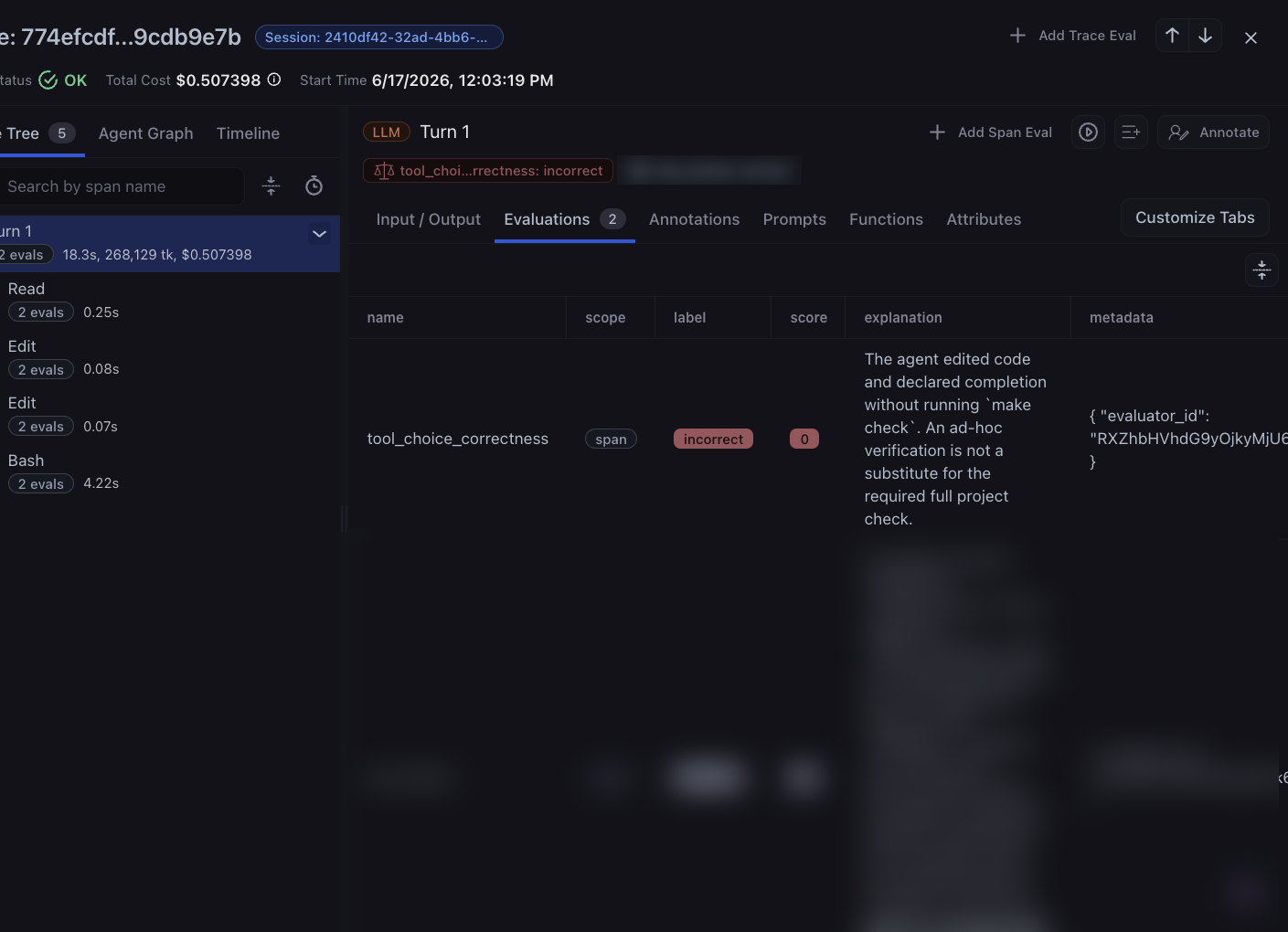 To create the same task programmatically, for example in CI, use the GraphQL [`createEvalTask`](/ax/graphql-reference/apis/online-tasks-api) mutation.
## Improve your agent
A standing eval only pays off when it changes what your agent does next. Turn what you found into a rule. Your `CLAUDE.md`, `AGENTS.md`, Cursor rules, or system prompt are prompts like any other, so add a line that targets what you want to fix. Edit the empty `CLAUDE.md` in the repo by adding this text:
```markdown theme={null}
After editing any code, run `make check` and fix every failure before reporting the task
complete. Running pytest alone is not enough; make check also runs lint and type checks.
```
A rule is a request the model can still ignore, which is exactly what the eval will keep showing you. For findings that recur, promote them from a rule into a **hook**: a guardrail the harness runs deterministically, and one you can have the agent draft for you. The "run the checks before finishing" rule above is a good candidate. From a session **outside the repo** (so it stays untraced), have the agent draft it:
**Prompt:**
```
Draft a `Stop` hook for `.claude/settings.json` that runs `make check` and blocks the turn from finishing if it exits non-zero.
```
The same move turns other findings into enforced guardrails: a `PreToolUse` hook that blocks an edit to a file the agent hasn't read, a `permissions` deny-list for risky shell commands, or a `/`-command that captures a known-good workflow as a single reusable step. Hard levers like these beat soft rules because the model can't skip them.
Whoever types it, you stay the approver. Let the agent draft the rule or hook in a separate session outside the repo, then review it and paste it into the repo's `.claude/settings.json` yourself. Don't let an agent rewrite its own config from inside the repo, since that session traces and scores a moving target. The agent drafts, and you decide what ships.
You don't replay the original ticket to confirm the change; the continuous eval grades every new session, so just give the agent its next task in this repo:
```
Add a `SAVE25` discount code worth 25% off the subtotal, following the exact same pattern as the existing `SAVE10` and `SAVE20` entries in `store/pricing.py`.
```
To create the same task programmatically, for example in CI, use the GraphQL [`createEvalTask`](/ax/graphql-reference/apis/online-tasks-api) mutation.
## Improve your agent
A standing eval only pays off when it changes what your agent does next. Turn what you found into a rule. Your `CLAUDE.md`, `AGENTS.md`, Cursor rules, or system prompt are prompts like any other, so add a line that targets what you want to fix. Edit the empty `CLAUDE.md` in the repo by adding this text:
```markdown theme={null}
After editing any code, run `make check` and fix every failure before reporting the task
complete. Running pytest alone is not enough; make check also runs lint and type checks.
```
A rule is a request the model can still ignore, which is exactly what the eval will keep showing you. For findings that recur, promote them from a rule into a **hook**: a guardrail the harness runs deterministically, and one you can have the agent draft for you. The "run the checks before finishing" rule above is a good candidate. From a session **outside the repo** (so it stays untraced), have the agent draft it:
**Prompt:**
```
Draft a `Stop` hook for `.claude/settings.json` that runs `make check` and blocks the turn from finishing if it exits non-zero.
```
The same move turns other findings into enforced guardrails: a `PreToolUse` hook that blocks an edit to a file the agent hasn't read, a `permissions` deny-list for risky shell commands, or a `/`-command that captures a known-good workflow as a single reusable step. Hard levers like these beat soft rules because the model can't skip them.
Whoever types it, you stay the approver. Let the agent draft the rule or hook in a separate session outside the repo, then review it and paste it into the repo's `.claude/settings.json` yourself. Don't let an agent rewrite its own config from inside the repo, since that session traces and scores a moving target. The agent drafts, and you decide what ships.
You don't replay the original ticket to confirm the change; the continuous eval grades every new session, so just give the agent its next task in this repo:
```
Add a `SAVE25` discount code worth 25% off the subtotal, following the exact same pattern as the existing `SAVE10` and `SAVE20` entries in `store/pricing.py`.
```
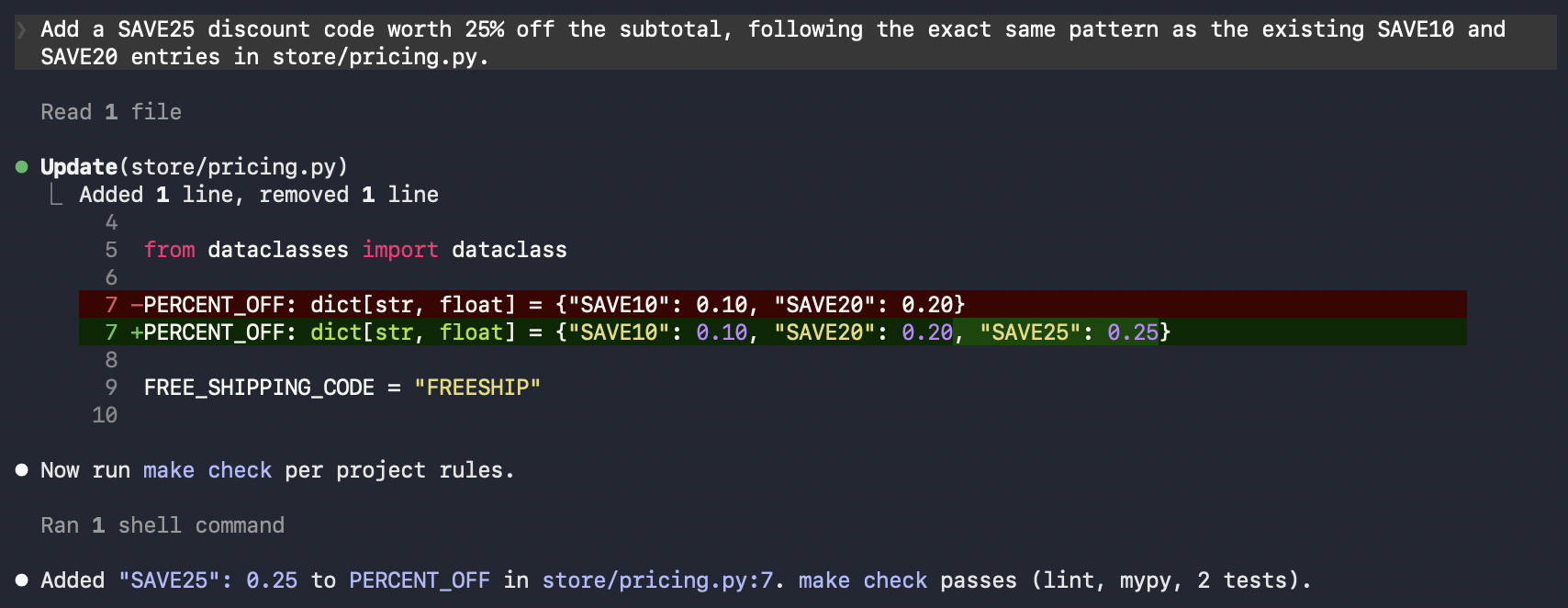 With the rule in place the agent edits and then runs `make check`, so this turn scores `correct` where the FREESHIP turn scored `incorrect`. For a strict before/after on the same input, capture the ticket as a dataset and run a controlled [agent experiment](/ax/improve/agent-experiments-overview) instead of replaying it by hand.
To automate this refinement instead of hand-editing rules, see [prompt learning for coding agents](/ax/cookbooks/improve/optimizing-coding-agent-prompts-for-execution).
## Apply the loop to your app
The same loop, instrument then observe then evaluate then improve, runs on any LLM app you build. Two things change:
1. **How you instrument.** The harness is specific to coding agents. For your own app, add tracing with the Arize SDK (`arize-otel` plus the OpenInference auto-instrumentors) instead. Point your agent at the [arize-instrumentation skill](/ax/set-up-with-ai-assistants#skills) or the Tracing Assistant MCP, or follow [OpenInference best practices](/ax/cookbooks/instrument/openinference-best-practice).
2. **What you edit to improve.** Here you edited the agent's rules file. In your app, you edit application code and prompts. Observe and evaluate are identical: the same spans, the same Alyx, CLI, and Skills, and the same evaluator plus task, with the template variables mapped to your app's `input.value` and `output.value`.
Instrument once and the rest of this cookbook carries over unchanged.
## Summary
In this tutorial, you:
* Instrumented your coding agent and traced a full session into Arize AX as turns, tool spans, and token usage
* Scored its tool choices with an LLM-as-judge evaluator, created from a separate agent session and promoted to a continuous guardrail
* Improved the agent by editing its rules from what you found, then confirmed the `tool_choice` verdict moved on its next task
## Next steps
Now that you've closed the loop on one coding agent, go deeper:
* [Align the tool-choice evaluator with human judgment](/ax/cookbooks/improve/align-llm-evals-with-human-judgment): calibrate the judge you built here against human-labeled ground truth so its scores stay trustworthy.
* [Regression-test changes with agent experiments](/ax/improve/agent-experiments-overview): capture tasks as a dataset and run controlled before/after experiments instead of comparing live scores.
* [Automate rule refinement with prompt learning](/ax/cookbooks/improve/optimizing-coding-agent-prompts-for-execution): optimize your coding agent's rules from data instead of hand-editing them.
With the rule in place the agent edits and then runs `make check`, so this turn scores `correct` where the FREESHIP turn scored `incorrect`. For a strict before/after on the same input, capture the ticket as a dataset and run a controlled [agent experiment](/ax/improve/agent-experiments-overview) instead of replaying it by hand.
To automate this refinement instead of hand-editing rules, see [prompt learning for coding agents](/ax/cookbooks/improve/optimizing-coding-agent-prompts-for-execution).
## Apply the loop to your app
The same loop, instrument then observe then evaluate then improve, runs on any LLM app you build. Two things change:
1. **How you instrument.** The harness is specific to coding agents. For your own app, add tracing with the Arize SDK (`arize-otel` plus the OpenInference auto-instrumentors) instead. Point your agent at the [arize-instrumentation skill](/ax/set-up-with-ai-assistants#skills) or the Tracing Assistant MCP, or follow [OpenInference best practices](/ax/cookbooks/instrument/openinference-best-practice).
2. **What you edit to improve.** Here you edited the agent's rules file. In your app, you edit application code and prompts. Observe and evaluate are identical: the same spans, the same Alyx, CLI, and Skills, and the same evaluator plus task, with the template variables mapped to your app's `input.value` and `output.value`.
Instrument once and the rest of this cookbook carries over unchanged.
## Summary
In this tutorial, you:
* Instrumented your coding agent and traced a full session into Arize AX as turns, tool spans, and token usage
* Scored its tool choices with an LLM-as-judge evaluator, created from a separate agent session and promoted to a continuous guardrail
* Improved the agent by editing its rules from what you found, then confirmed the `tool_choice` verdict moved on its next task
## Next steps
Now that you've closed the loop on one coding agent, go deeper:
* [Align the tool-choice evaluator with human judgment](/ax/cookbooks/improve/align-llm-evals-with-human-judgment): calibrate the judge you built here against human-labeled ground truth so its scores stay trustworthy.
* [Regression-test changes with agent experiments](/ax/improve/agent-experiments-overview): capture tasks as a dataset and run controlled before/after experiments instead of comparing live scores.
* [Automate rule refinement with prompt learning](/ax/cookbooks/improve/optimizing-coding-agent-prompts-for-execution): optimize your coding agent's rules from data instead of hand-editing them.