> ## Documentation Index
> Fetch the complete documentation index at: https://arize-ax.mintlify.site/docs/llms.txt
> Use this file to discover all available pages before exploring further.
# Human review
> Annotation configs, labeling workflows, and structured feedback on traces and datasets—turn labels into ground truth for evals.
## Begin with human judgment
Automated evals are only as good as your understanding of what actually matters. Start by reviewing real interactions in your [tracing project](/docs/ax/observe/tracing/view-and-manage-traces), identifying failure patterns, and grouping them into a taxonomy. The labels you collect become ground truth, and that process tells you which evals to build. When you are ready to automate, see [create evaluators](/docs/ax/evaluate/create-evaluators).
 ## What is an annotation
An annotation is a human label attached to a span, dataset example, or experiment result. It can be a category (e.g. Correct / Incorrect), a numeric score (e.g. 0-1), or freeform text feedback. Annotation configs define reusable schemas for these labels, keeping evaluations consistent and comparable over time.
To add your first annotation config, navigate to **Annotation Configs** in the left navigation and click **New Annotation Config**. You'll define:
* **Name:** a clear label for the annotation (e.g. "Correctness")
* **Type:** categorical, numeric score, or freeform text
* **Optimization direction:** Set to **maximize** if a higher score is better (e.g. accuracy), or **minimize** if a lower score is better (e.g. error rate). This determines how scores are color-coded in the UI.
* **Labels and score range:** e.g. Correct (1) / Incorrect (0)
## What is an annotation
An annotation is a human label attached to a span, dataset example, or experiment result. It can be a category (e.g. Correct / Incorrect), a numeric score (e.g. 0-1), or freeform text feedback. Annotation configs define reusable schemas for these labels, keeping evaluations consistent and comparable over time.
To add your first annotation config, navigate to **Annotation Configs** in the left navigation and click **New Annotation Config**. You'll define:
* **Name:** a clear label for the annotation (e.g. "Correctness")
* **Type:** categorical, numeric score, or freeform text
* **Optimization direction:** Set to **maximize** if a higher score is better (e.g. accuracy), or **minimize** if a lower score is better (e.g. error rate). This determines how scores are color-coded in the UI.
* **Labels and score range:** e.g. Correct (1) / Incorrect (0)
 **Let Alyx set it up for you.** Press **Cmd+L** (macOS) or **Ctrl+L** (Windows/Linux) to open [Alyx](/docs/ax/alyx) and try: *"Create an annotation config called helpfulness with values helpful and not helpful"* or *"Annotate all the error spans"*
Annotate your spans
There are several ways to review and annotate your spans.
Use the [Arize skills plugin](/docs/ax/agents/arize-skills) in your coding agent to manage annotation configs and apply annotations without leaving your editor. See the full [arize-annotation skill documentation](https://github.com/Arize-ai/arize-skills/blob/main/skills/arize-annotation/SKILL.md) for supported commands. Then ask your agent:
* "Create a categorical annotation config called Correctness with correct/incorrect labels"
* "List all annotation configs in my space"
* "Bulk annotate these spans with their correctness labels"
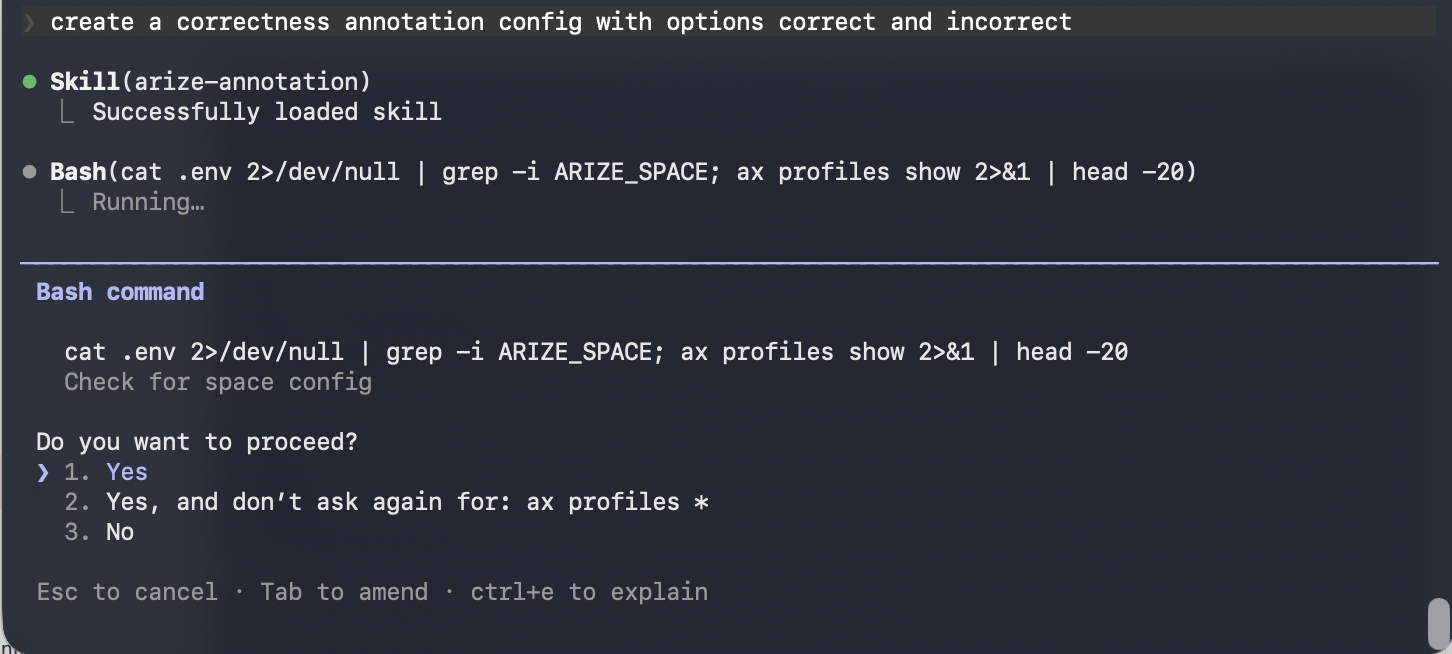
Use [Alyx](/docs/ax/alyx/meet-alyx) to help you find common error patterns across your traces. From there you can ask Alyx to annotate spans directly:
* "Show me the most common failure patterns in my traces"
* "Create an annotation config capturing good and bad responses"
* "Annotate spans where the output looks incorrect — a good response is factually accurate and directly answers the user's question, a bad response is vague, hallucinated, or off-topic"
 Open the [Spans](/docs/ax/observe/tracing/spans) view and review real outputs. Optionally use filters to focus on a specific span kind, time range, or status. To annotate a span, click the annotate button, and select your config.
 Apply annotations via the Python SDK to attach human feedback programmatically.
Note: Annotations can be applied on spans up to 31 days prior to the current day. To apply annotations beyond this lookback window, please reach out to [support@arize.com](mailto:support@arize.com)
These are our sample annotations to be logged:
```python theme={null}
import pandas as pd
# Sample annotation df with multiple annotations
annotations_dataframe = pd.DataFrame({
"context.span_id": [
"12345",
"67890",
],
# Categorical annotation: quality
"annotation.quality.label": ["good", "excellent"],
"annotation.quality.updated_by": ["annotator_1", "annotator_2"],
# Optional notes for each span
"annotation.notes": [
"User confirmed the summary was helpful.",
"Response was clear and accurate.",
],
})
```
```python Python SDK v8 theme={null}
from arize import ArizeClient
client = ArizeClient(api_key="your-arize-api-key")
response = client.spans.update_annotations(
space_id="your-arize-space-id",
project_name="your-project-name",
dataframe=annotations_dataframe,
validate=True,
)
```
```python Python SDK v7 theme={null}
from arize.pandas.logger import Client
arize_client = Client(
space_id="your-arize-space-id",
api_key="your-arize-api-key",
)
response = arize_client.log_annotations(
dataframe=annotations_dataframe,
project_name="your-project-name",
validate=True,
)
```
The `annotations_dataframe` requires the following columns:
1. `context.span_id`: The unique identifier of the span to which the annotations should be attached.
2. Annotation columns use the pattern `annotation.NAME.SUFFIX`, where **NAME** is your annotation key (for example `quality`, `correctness`, or `sentiment`) using only letters, numbers, and underscores, and **SUFFIX** is one of the field types below:
* **SUFFIX** defines the type and metadata of the annotation. Valid suffixes are:
* `label`: For categorical annotations (for example, `_good_`, `_bad_`, `_spam_`). The value should be a string.
* `score`: For numerical annotations (for example, a rating from 1–5). The value should be numeric (int or float).
* You must provide at least one `annotation.NAME.label` or `annotation.NAME.score` column for each annotation you want to log.
* `updated_by` (Optional): A string indicating who made the annotation (for example, `user_id_123` or `annotator_team_a`). If not provided, the SDK automatically sets this to `SDK Logger`.
* `updated_at` (Optional): A timestamp indicating when the annotation was made, represented as milliseconds since the Unix epoch (integer). If not provided, the SDK automatically sets this to the current UTC time.
* `annotation.notes` (Optional): A column containing free-form text notes that apply to the entire span, not a specific annotation label or score. The value should be a string.
An example annotation data dictionary would look like:
```python theme={null}
# Assume TARGET_SPAN_ID holds the ID of the span you want to annotate
TARGET_SPAN_ID = "3461a49d-e0c3-469a-837b-d83f4a606543"
annotation_data = {
"context.span_id": [TARGET_SPAN_ID],
# Annotation 1: Categorical label, let SDK autogenerate updated_by/updated_at
"annotation.quality.label": ["good"],
# Annotation 2: Categorical label, manually set updated_by
"annotation.relevance.label": ["relevant"],
"annotation.relevance.updated_by": ["human_annotator_1"],
# Annotation 3: Numerical score, let SDK autogenerate updated_by/updated_at
"annotation.sentiment_score.score": [4.5],
# Optional notes for the span
"annotation.notes": ["User confirmed the summary was helpful."],
}
annotations_dataframe = pd.DataFrame(annotation_data)
```
For routed review workflows and curating labeled examples into a benchmark dataset, see [Labeling Queues](/docs/ax/evaluate/labeling-queues).
## What's next
To automate quality checks, [create evaluators](/docs/ax/evaluate/create-evaluators). If you'd prefer additional human review at scale, see [create a labeling queue](/docs/ax/evaluate/labeling-queues).
## Further reading
* [Hamel Husain: Why is "error analysis" so important in LLM evals?](https://hamel.dev/blog/posts/evals-faq/#q-why-is-error-analysis-so-important-in-llm-evals-and-how-is-it-performed)
Apply annotations via the Python SDK to attach human feedback programmatically.
Note: Annotations can be applied on spans up to 31 days prior to the current day. To apply annotations beyond this lookback window, please reach out to [support@arize.com](mailto:support@arize.com)
These are our sample annotations to be logged:
```python theme={null}
import pandas as pd
# Sample annotation df with multiple annotations
annotations_dataframe = pd.DataFrame({
"context.span_id": [
"12345",
"67890",
],
# Categorical annotation: quality
"annotation.quality.label": ["good", "excellent"],
"annotation.quality.updated_by": ["annotator_1", "annotator_2"],
# Optional notes for each span
"annotation.notes": [
"User confirmed the summary was helpful.",
"Response was clear and accurate.",
],
})
```
```python Python SDK v8 theme={null}
from arize import ArizeClient
client = ArizeClient(api_key="your-arize-api-key")
response = client.spans.update_annotations(
space_id="your-arize-space-id",
project_name="your-project-name",
dataframe=annotations_dataframe,
validate=True,
)
```
```python Python SDK v7 theme={null}
from arize.pandas.logger import Client
arize_client = Client(
space_id="your-arize-space-id",
api_key="your-arize-api-key",
)
response = arize_client.log_annotations(
dataframe=annotations_dataframe,
project_name="your-project-name",
validate=True,
)
```
The `annotations_dataframe` requires the following columns:
1. `context.span_id`: The unique identifier of the span to which the annotations should be attached.
2. Annotation columns use the pattern `annotation.NAME.SUFFIX`, where **NAME** is your annotation key (for example `quality`, `correctness`, or `sentiment`) using only letters, numbers, and underscores, and **SUFFIX** is one of the field types below:
* **SUFFIX** defines the type and metadata of the annotation. Valid suffixes are:
* `label`: For categorical annotations (for example, `_good_`, `_bad_`, `_spam_`). The value should be a string.
* `score`: For numerical annotations (for example, a rating from 1–5). The value should be numeric (int or float).
* You must provide at least one `annotation.NAME.label` or `annotation.NAME.score` column for each annotation you want to log.
* `updated_by` (Optional): A string indicating who made the annotation (for example, `user_id_123` or `annotator_team_a`). If not provided, the SDK automatically sets this to `SDK Logger`.
* `updated_at` (Optional): A timestamp indicating when the annotation was made, represented as milliseconds since the Unix epoch (integer). If not provided, the SDK automatically sets this to the current UTC time.
* `annotation.notes` (Optional): A column containing free-form text notes that apply to the entire span, not a specific annotation label or score. The value should be a string.
An example annotation data dictionary would look like:
```python theme={null}
# Assume TARGET_SPAN_ID holds the ID of the span you want to annotate
TARGET_SPAN_ID = "3461a49d-e0c3-469a-837b-d83f4a606543"
annotation_data = {
"context.span_id": [TARGET_SPAN_ID],
# Annotation 1: Categorical label, let SDK autogenerate updated_by/updated_at
"annotation.quality.label": ["good"],
# Annotation 2: Categorical label, manually set updated_by
"annotation.relevance.label": ["relevant"],
"annotation.relevance.updated_by": ["human_annotator_1"],
# Annotation 3: Numerical score, let SDK autogenerate updated_by/updated_at
"annotation.sentiment_score.score": [4.5],
# Optional notes for the span
"annotation.notes": ["User confirmed the summary was helpful."],
}
annotations_dataframe = pd.DataFrame(annotation_data)
```
For routed review workflows and curating labeled examples into a benchmark dataset, see [Labeling Queues](/docs/ax/evaluate/labeling-queues).
## What's next
To automate quality checks, [create evaluators](/docs/ax/evaluate/create-evaluators). If you'd prefer additional human review at scale, see [create a labeling queue](/docs/ax/evaluate/labeling-queues).
## Further reading
* [Hamel Husain: Why is "error analysis" so important in LLM evals?](https://hamel.dev/blog/posts/evals-faq/#q-why-is-error-analysis-so-important-in-llm-evals-and-how-is-it-performed)