> ## Documentation Index
> Fetch the complete documentation index at: https://arize-ax.mintlify.site/docs/llms.txt
> Use this file to discover all available pages before exploring further.
# Evaluate Your Agent
> Set up automated evaluations so every response is scored without manual review
In the [previous guide](/ax/get-started/get-started-tracing), you instrumented your chatbot and explored its traces. That works for a handful of test queries - but you can't read every response yourself.
[**Evaluations**](/ax/evaluate/evals-overview) solve this. An evaluation is an automated check - either an LLM judging another LLM's output, or a deterministic code check - that runs on your production data continuously. By the end of this guide, every response will be automatically scored and you'll be able to filter to find the ones that need attention.
 This is **Part 2** of the Arize AX Get Started series. You should have completed the [Tracing guide](/ax/get-started/get-started-tracing) first, with traces flowing into your project.
## Choose how you want to work
Use [Arize Skills](/ax/agents/arize-skills) to have your coding agent run [evaluations](/ax/evaluate/evals-overview) from your editor, [Alyx](/ax/alyx) for a conversational approach inside the Arize platform, the UI for a hands-on step-by-step experience, or **Code** to run them programmatically.
Use [Arize Skills](/ax/agents/arize-skills) with your coding agent to create an [evaluator](/ax/evaluate/create-evaluators), run it on traces as a [task](/ax/evaluate/run-evals-on-traces#create-a-task), and export spans to inspect failures. Install the skills plugin and follow [Set up Arize with AI coding agents](/ax/set-up-with-ai-assistants) for authentication and CLI setup. Then, follow the flow below.
### Step 1: Create eval
[`arize-evaluator`](https://github.com/Arize-ai/arize-skills/blob/main/skills/arize-evaluator/SKILL.md)
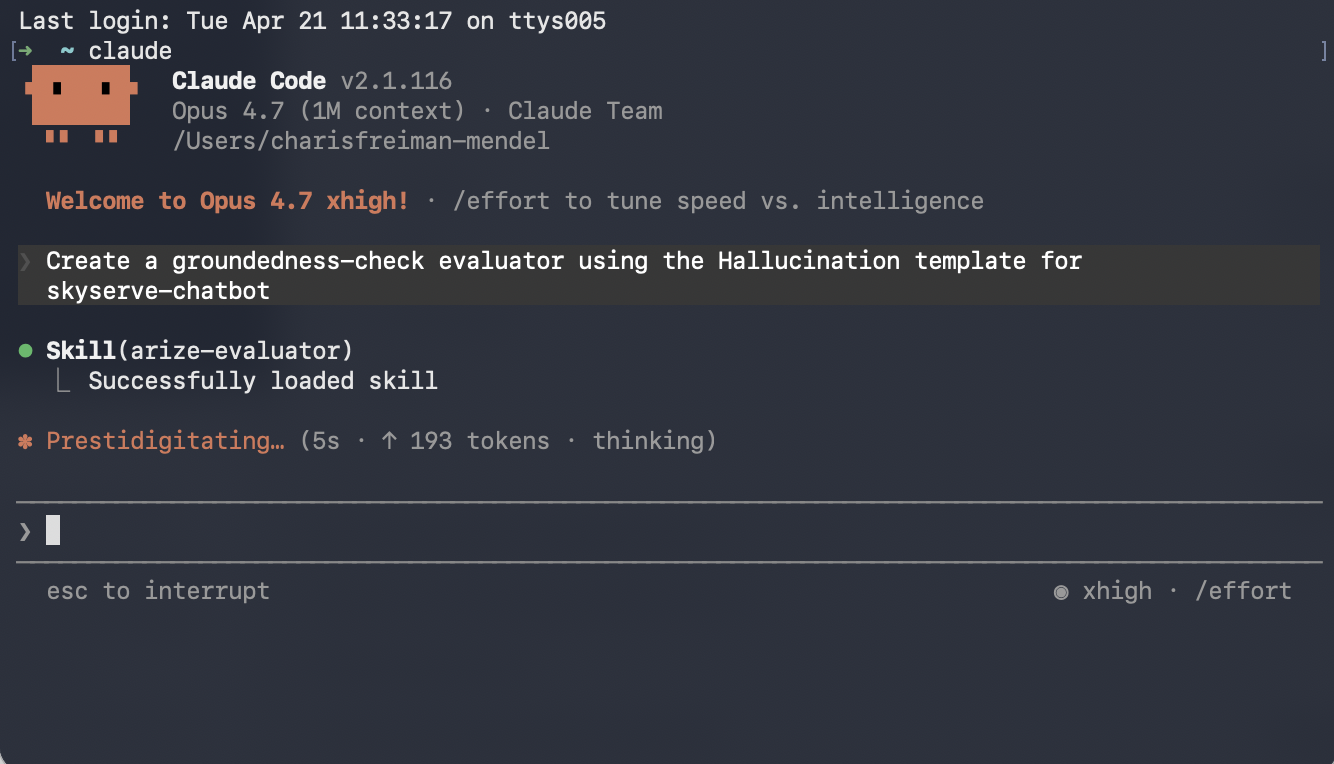
The skill covers **[LLM-as-a-Judge evaluators](/ax/evaluate/create-evaluators)** only. In your prompt, say which template you need (for example Hallucination) and which project the evaluator is for. For example, you might say:
> Create a groundedness-check evaluator using the Hallucination template for my project. The input column is question, the output column is response, and the context column is retrieved\_documents.
Note that templates are a starting point - most teams customize the prompt criteria to match their specific rubric. Once the evaluator is created, you can ask your agent to revise it, such as:
> Update the groundedness-check evaluator to only flag hallucinations when the claim contradicts a retrieved document, not when it's just unsupported.
This is **Part 2** of the Arize AX Get Started series. You should have completed the [Tracing guide](/ax/get-started/get-started-tracing) first, with traces flowing into your project.
## Choose how you want to work
Use [Arize Skills](/ax/agents/arize-skills) to have your coding agent run [evaluations](/ax/evaluate/evals-overview) from your editor, [Alyx](/ax/alyx) for a conversational approach inside the Arize platform, the UI for a hands-on step-by-step experience, or **Code** to run them programmatically.
Use [Arize Skills](/ax/agents/arize-skills) with your coding agent to create an [evaluator](/ax/evaluate/create-evaluators), run it on traces as a [task](/ax/evaluate/run-evals-on-traces#create-a-task), and export spans to inspect failures. Install the skills plugin and follow [Set up Arize with AI coding agents](/ax/set-up-with-ai-assistants) for authentication and CLI setup. Then, follow the flow below.
### Step 1: Create eval
[`arize-evaluator`](https://github.com/Arize-ai/arize-skills/blob/main/skills/arize-evaluator/SKILL.md)
The skill covers **[LLM-as-a-Judge evaluators](/ax/evaluate/create-evaluators)** only. In your prompt, say which template you need (for example Hallucination) and which project the evaluator is for. For example, you might say:
> Create a groundedness-check evaluator using the Hallucination template for my project. The input column is question, the output column is response, and the context column is retrieved\_documents.
Note that templates are a starting point - most teams customize the prompt criteria to match their specific rubric. Once the evaluator is created, you can ask your agent to revise it, such as:
> Update the groundedness-check evaluator to only flag hallucinations when the claim contradicts a retrieved document, not when it's just unsupported.
 ### Step 2: Create a task to run your evaluator
[`arize-evaluator`](https://github.com/Arize-ai/arize-skills/blob/main/skills/arize-evaluator/SKILL.md)
A [task](/ax/evaluate/run-evals-on-traces#create-a-task) connects an [evaluator](/ax/evaluate/create-evaluators) to your project and defines cadence and sampling. See [Run online evals on traces](/ax/evaluate/run-evals-on-traces) for the full UI and configuration options.
For example, you might say:
> Set up a task to run groundedness-check continuously on incoming traces.
### Step 2: Create a task to run your evaluator
[`arize-evaluator`](https://github.com/Arize-ai/arize-skills/blob/main/skills/arize-evaluator/SKILL.md)
A [task](/ax/evaluate/run-evals-on-traces#create-a-task) connects an [evaluator](/ax/evaluate/create-evaluators) to your project and defines cadence and sampling. See [Run online evals on traces](/ax/evaluate/run-evals-on-traces) for the full UI and configuration options.
For example, you might say:
> Set up a task to run groundedness-check continuously on incoming traces.
 ### Step 3: See evaluation results on your traces
[`arize-trace`](https://github.com/Arize-ai/arize-skills/blob/main/skills/arize-trace/SKILL.md)
After an [eval task](/ax/evaluate/run-evals-on-traces#create-a-task) has written labels to spans, export failures for triage. See [Viewing results](/ax/evaluate/run-evals-on-traces#viewing-results) for where scores appear in the UI.
For example, you might say:
> Export spans from my project where groundedness-check failed this week
Open [Alyx](/ax/alyx) anywhere in the Arize platform and describe what you want in plain text. Alyx will guide you through each step - creating [evaluators](/ax/evaluate/create-evaluators), setting up [tasks](/ax/evaluate/run-evals-on-traces#create-a-task), and analyzing results - conversationally.
### Step 1: Create eval
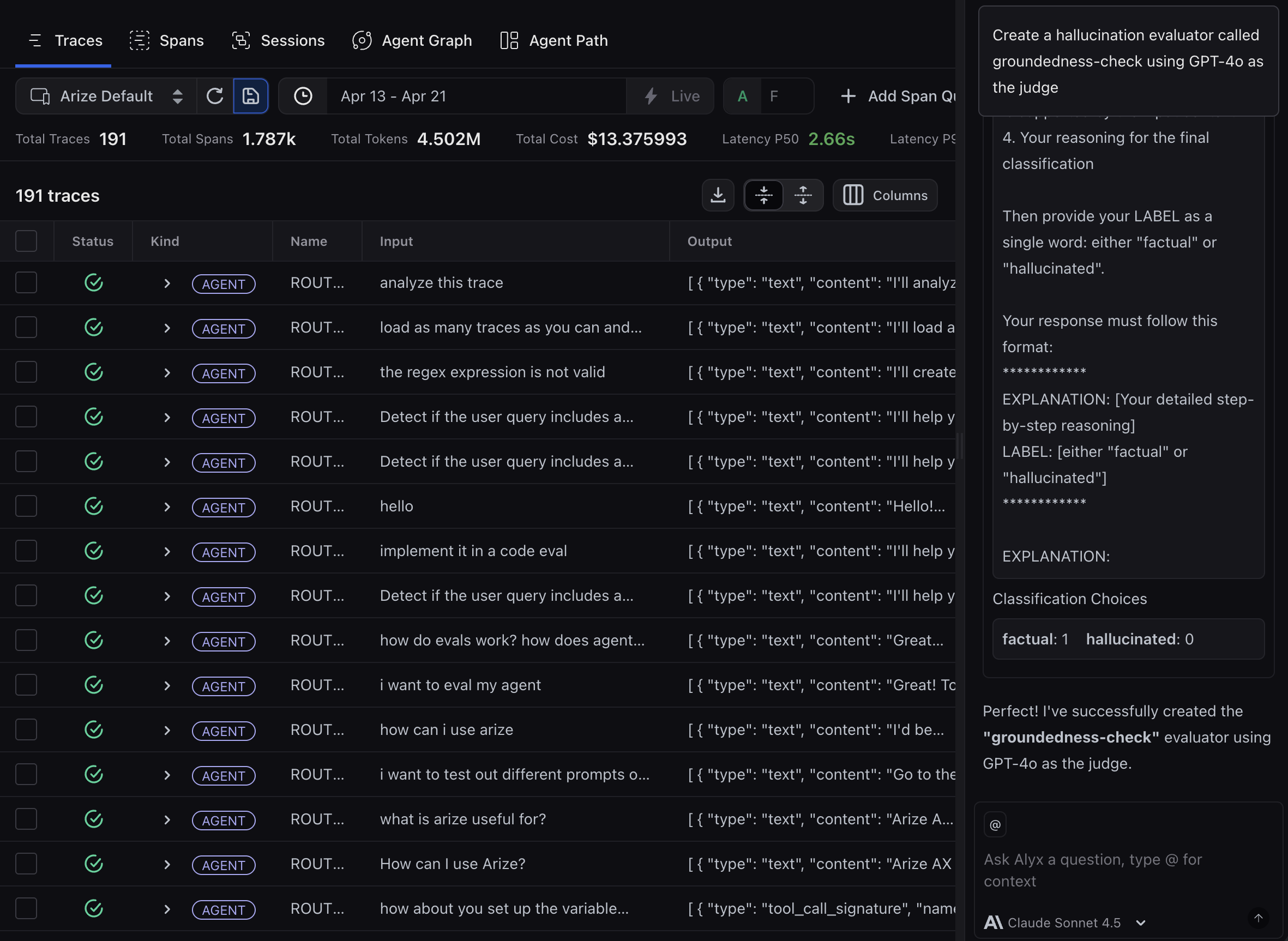
Describe what you need in plain text for an **LLM-as-a-Judge** [evaluator](/ax/evaluate/create-evaluators) (for example a Hallucination template), including eval name, judge model, and which span columns map to input, output, and context. For **code-based evaluators**, use **Evaluators** → **New Evaluator** → **Code** in the UI or see [Code evaluations](/ax/evaluate/evaluators/code-evaluations). For example, you might say:
> Create a groundedness-check hallucination evaluator using GPT-4o as the judge. The input column is question, the output column is response, and the context column is retrieved\_documents.
Note that templates are a starting point - most teams customize the prompt criteria to match their specific rubric. Once the evaluator is created, you can ask Alyx to revise it, such as:
> Update the groundedness-check evaluator to only flag hallucinations when the claim contradicts a retrieved document, not when it's just unsupported. The input column is question, the output column is response, and the context column is retrieved\_documents.
### Step 3: See evaluation results on your traces
[`arize-trace`](https://github.com/Arize-ai/arize-skills/blob/main/skills/arize-trace/SKILL.md)
After an [eval task](/ax/evaluate/run-evals-on-traces#create-a-task) has written labels to spans, export failures for triage. See [Viewing results](/ax/evaluate/run-evals-on-traces#viewing-results) for where scores appear in the UI.
For example, you might say:
> Export spans from my project where groundedness-check failed this week
Open [Alyx](/ax/alyx) anywhere in the Arize platform and describe what you want in plain text. Alyx will guide you through each step - creating [evaluators](/ax/evaluate/create-evaluators), setting up [tasks](/ax/evaluate/run-evals-on-traces#create-a-task), and analyzing results - conversationally.
### Step 1: Create eval
Describe what you need in plain text for an **LLM-as-a-Judge** [evaluator](/ax/evaluate/create-evaluators) (for example a Hallucination template), including eval name, judge model, and which span columns map to input, output, and context. For **code-based evaluators**, use **Evaluators** → **New Evaluator** → **Code** in the UI or see [Code evaluations](/ax/evaluate/evaluators/code-evaluations). For example, you might say:
> Create a groundedness-check hallucination evaluator using GPT-4o as the judge. The input column is question, the output column is response, and the context column is retrieved\_documents.
Note that templates are a starting point - most teams customize the prompt criteria to match their specific rubric. Once the evaluator is created, you can ask Alyx to revise it, such as:
> Update the groundedness-check evaluator to only flag hallucinations when the claim contradicts a retrieved document, not when it's just unsupported. The input column is question, the output column is response, and the context column is retrieved\_documents.
 ### Step 2: Create a task to run your evaluator
This mirrors creating a [task](/ax/evaluate/run-evals-on-traces#create-a-task) in the Evaluators UI. See [Run online evals on traces](/ax/evaluate/run-evals-on-traces).
For example, you might say:
> Create a task to run groundedness-check on my project continuously on new traces at 100% sampling
### Step 3: See evaluation results on your traces
Alyx can filter on the same [evaluation](/ax/evaluate/run-evals-on-traces#viewing-results) fields that [tasks](/ax/evaluate/run-evals-on-traces#create-a-task) write to each trace.
For example, you might say:
> Show me traces that failed the groundedness check this week and explain what went wrong
### Step 2: Create a task to run your evaluator
This mirrors creating a [task](/ax/evaluate/run-evals-on-traces#create-a-task) in the Evaluators UI. See [Run online evals on traces](/ax/evaluate/run-evals-on-traces).
For example, you might say:
> Create a task to run groundedness-check on my project continuously on new traces at 100% sampling
### Step 3: See evaluation results on your traces
Alyx can filter on the same [evaluation](/ax/evaluate/run-evals-on-traces#viewing-results) fields that [tasks](/ax/evaluate/run-evals-on-traces#create-a-task) write to each trace.
For example, you might say:
> Show me traces that failed the groundedness check this week and explain what went wrong
 Use the Arize AX UI in **Evaluators** and **Traces** to configure your project's [evals](/ax/evaluate/evals-overview) end to end.
### Step 1: Understand the two types of evaluations
Arize AX supports two kinds of evaluators. **[LLM-as-a-Judge evaluators](/ax/evaluate/create-evaluators)** use an LLM to assess quality - great for subjective dimensions like helpfulness or groundedness that are hard to check with code. **Code-based** [evaluators](/ax/evaluate/create-evaluators) are deterministic Python checks, ideal for objective conditions like empty responses or keyword presence. We'll focus on LLM-as-a-Judge for this example. For code-based evaluators, see [Create evaluators](/ax/evaluate/create-evaluators).
### Step 2: Create an LLM-as-a-Judge evaluator
This example uses **LLM-as-a-Judge** only. In the left sidebar, click **Evaluators**, then **New Evaluator**. Select **LLM-as-a-Judge** and choose the **Hallucination** template. This checks whether the response contains claims not supported by the retrieved context.
Use the Arize AX UI in **Evaluators** and **Traces** to configure your project's [evals](/ax/evaluate/evals-overview) end to end.
### Step 1: Understand the two types of evaluations
Arize AX supports two kinds of evaluators. **[LLM-as-a-Judge evaluators](/ax/evaluate/create-evaluators)** use an LLM to assess quality - great for subjective dimensions like helpfulness or groundedness that are hard to check with code. **Code-based** [evaluators](/ax/evaluate/create-evaluators) are deterministic Python checks, ideal for objective conditions like empty responses or keyword presence. We'll focus on LLM-as-a-Judge for this example. For code-based evaluators, see [Create evaluators](/ax/evaluate/create-evaluators).
### Step 2: Create an LLM-as-a-Judge evaluator
This example uses **LLM-as-a-Judge** only. In the left sidebar, click **Evaluators**, then **New Evaluator**. Select **LLM-as-a-Judge** and choose the **Hallucination** template. This checks whether the response contains claims not supported by the retrieved context.
 1. Give it a name: `groundedness-check`
2. Select your LLM provider and model (e.g., OpenAI GPT-4o)
3. Review the template and customize the criteria to match your rubric, or leave it as-is to get started quickly
4. Click **Create Evaluator**
1. Give it a name: `groundedness-check`
2. Select your LLM provider and model (e.g., OpenAI GPT-4o)
3. Review the template and customize the criteria to match your rubric, or leave it as-is to get started quickly
4. Click **Create Evaluator**
 ### Step 3: Create a task to run your evaluator
An evaluator on its own is just a template. To run it on your data, create a [**task**](/ax/evaluate/run-evals-on-traces#what-is-a-task), an automation that applies your evaluator to incoming traces.
1. Click **New Task** and select **LLM-as-a-Judge**
2. Click **Add Evaluator** and select `groundedness-check`
3. Set data source to your project, cadence to **Run continuously on new incoming data**, and sampling to **100%**
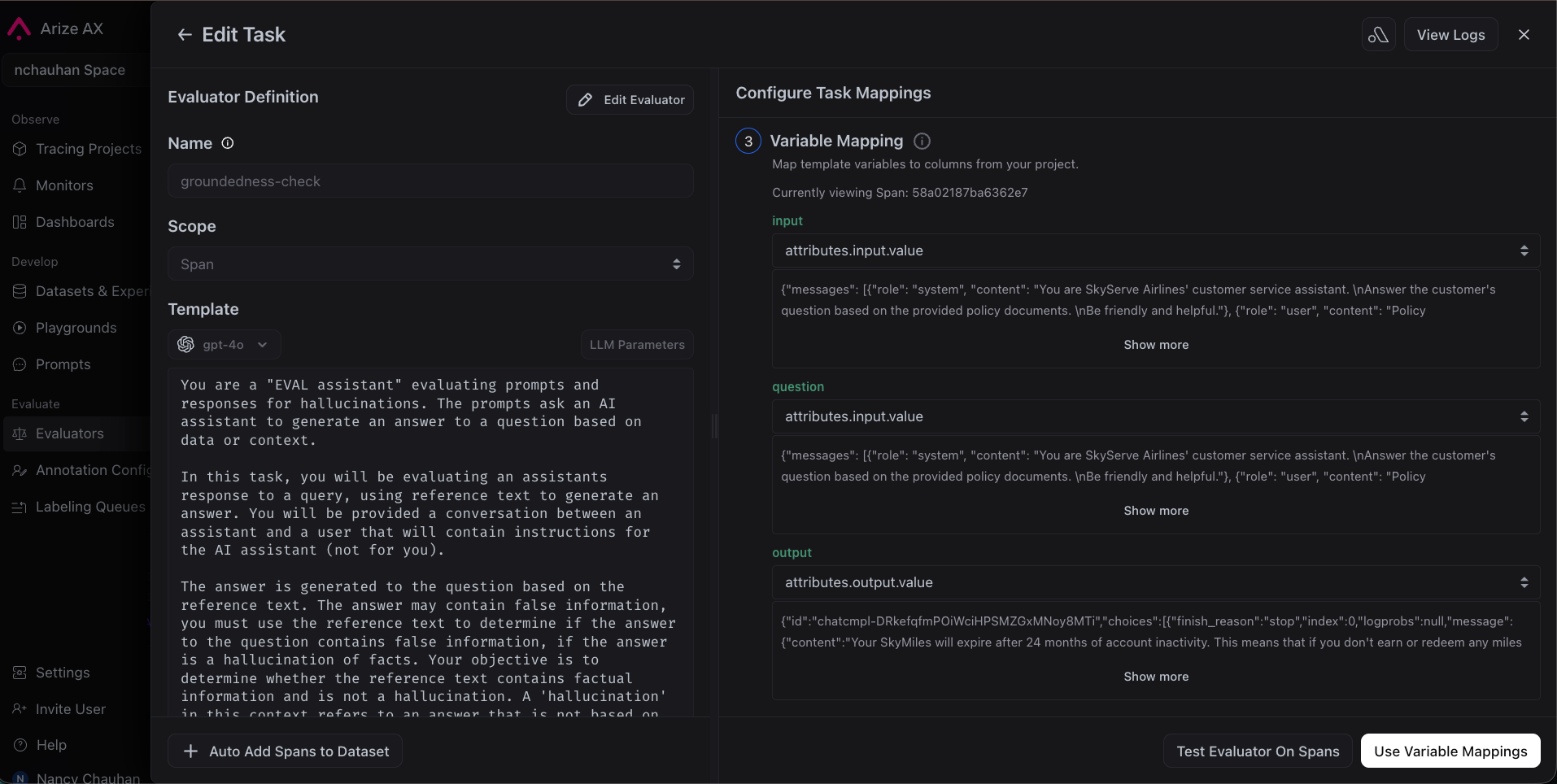
4. Map your span attributes to the template variables
5. Click **Create Task**
### Step 3: Create a task to run your evaluator
An evaluator on its own is just a template. To run it on your data, create a [**task**](/ax/evaluate/run-evals-on-traces#what-is-a-task), an automation that applies your evaluator to incoming traces.
1. Click **New Task** and select **LLM-as-a-Judge**
2. Click **Add Evaluator** and select `groundedness-check`
3. Set data source to your project, cadence to **Run continuously on new incoming data**, and sampling to **100%**
4. Map your span attributes to the template variables
5. Click **Create Task**
 ### Step 4: See evaluation results on your traces
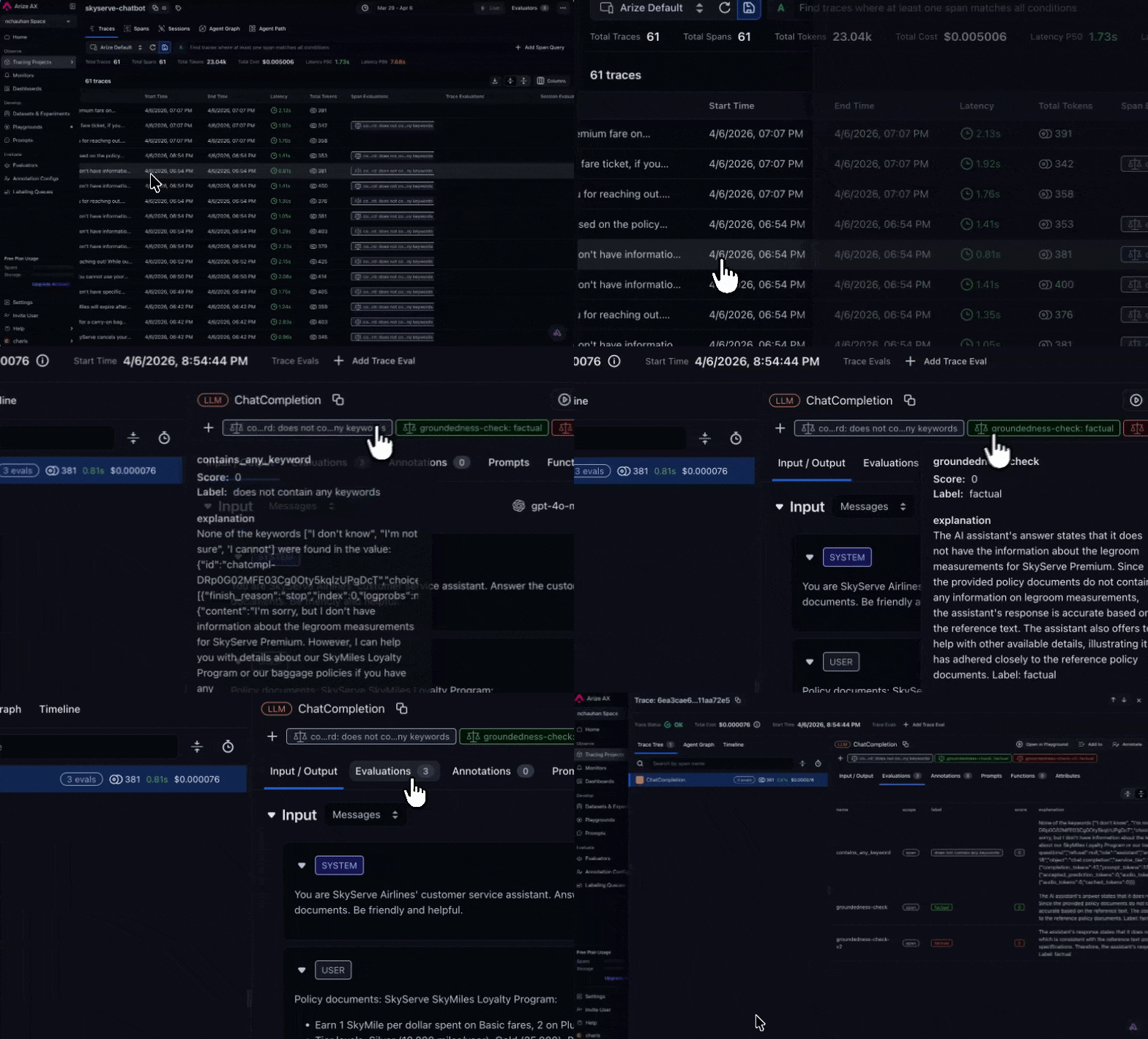
Wait a couple of minutes, then go back to your project. You'll see [evaluation](/ax/evaluate/run-evals-on-traces#viewing-results) scores on each trace. Filter by score to find failures and click into any trace to see the evaluator's label, score, and explanation.
### Step 4: See evaluation results on your traces
Wait a couple of minutes, then go back to your project. You'll see [evaluation](/ax/evaluate/run-evals-on-traces#viewing-results) scores on each trace. Filter by score to find failures and click into any trace to see the evaluator's label, score, and explanation.

 Run this workflow from the [Python SDK](/api-clients/python/overview), [TypeScript SDK](/api-clients/typescript/version-1/overview), or [`ax` CLI](/api-clients/cli/overview). Some features are in alpha or beta - please check individual reference pages for details.
| Step | Python SDK | TypeScript SDK | CLI |
| ------------------------------------- | ------------------------------------------------------------------------------------- | ----------------------------------------------------------------------------------------- | -------------------------------------------------------- |
| Create an evaluator | [Link](/api-clients/python/version-8/client-resources/evaluators#create-an-evaluator) | [Link](/api-clients/typescript/version-1/client-resources/evaluators#create-an-evaluator) | [Link](/api-clients/cli/evaluators#ax-evaluators-create) |
| Create a task to run your evaluator | [Link](/api-clients/python/version-8/client-resources/tasks#create-a-task) | [Link](/api-clients/typescript/version-1/client-resources/tasks#create-a-task) | [Link](/api-clients/cli/tasks#ax-tasks-create) |
| See evaluation results on your traces | [Link](/api-clients/python/version-8/client-resources/spans#filter-spans) | [Link](/api-clients/typescript/version-1/client-resources/spans#list-spans) | [Link](/api-clients/cli/spans#ax-spans-export) |
## Congratulations!
Every response your chatbot generates is now automatically scored for quality. You've gone from *"I think it's working"* to *"I can measure exactly how well it's working."* Instead of manually reviewing traces, you can filter to just the ones that failed, and you have an explanation of what went wrong.
Your [evaluations](/ax/evaluate/evals-overview) have probably revealed a pattern: some responses score poorly because the chatbot makes claims that aren't in the policy documents. The system prompt says "be helpful," but it doesn't say "only use information from the provided documents." That's a prompt problem, and it's exactly what we'll fix next.
**Next up:** We'll walk through how to improve your agent using Arize's Prompt Playground and Experiments features.
Run this workflow from the [Python SDK](/api-clients/python/overview), [TypeScript SDK](/api-clients/typescript/version-1/overview), or [`ax` CLI](/api-clients/cli/overview). Some features are in alpha or beta - please check individual reference pages for details.
| Step | Python SDK | TypeScript SDK | CLI |
| ------------------------------------- | ------------------------------------------------------------------------------------- | ----------------------------------------------------------------------------------------- | -------------------------------------------------------- |
| Create an evaluator | [Link](/api-clients/python/version-8/client-resources/evaluators#create-an-evaluator) | [Link](/api-clients/typescript/version-1/client-resources/evaluators#create-an-evaluator) | [Link](/api-clients/cli/evaluators#ax-evaluators-create) |
| Create a task to run your evaluator | [Link](/api-clients/python/version-8/client-resources/tasks#create-a-task) | [Link](/api-clients/typescript/version-1/client-resources/tasks#create-a-task) | [Link](/api-clients/cli/tasks#ax-tasks-create) |
| See evaluation results on your traces | [Link](/api-clients/python/version-8/client-resources/spans#filter-spans) | [Link](/api-clients/typescript/version-1/client-resources/spans#list-spans) | [Link](/api-clients/cli/spans#ax-spans-export) |
## Congratulations!
Every response your chatbot generates is now automatically scored for quality. You've gone from *"I think it's working"* to *"I can measure exactly how well it's working."* Instead of manually reviewing traces, you can filter to just the ones that failed, and you have an explanation of what went wrong.
Your [evaluations](/ax/evaluate/evals-overview) have probably revealed a pattern: some responses score poorly because the chatbot makes claims that aren't in the policy documents. The system prompt says "be helpful," but it doesn't say "only use information from the provided documents." That's a prompt problem, and it's exactly what we'll fix next.
**Next up:** We'll walk through how to improve your agent using Arize's Prompt Playground and Experiments features.