> ## Documentation Index
> Fetch the complete documentation index at: https://arize-ax.mintlify.site/docs/llms.txt
> Use this file to discover all available pages before exploring further.
# Set Up Traces for Your Agent
> Instrument your LLM app and get full visibility into every request
You've built a customer-service chatbot. It retrieves policy documents, sends them to an LLM, and generates answers. It works... most of the time. But when a customer gets a wrong answer, like being told they can get a refund when they can't, you have no way to figure out *why*. Was the wrong document retrieved? Did the LLM ignore the context? Did the prompt not give clear enough instructions?
Without visibility into what's happening inside your app, every bug is a guessing game. **Tracing** solves this by capturing every step of every request (retrieval, LLM calls, inputs, outputs, latency, token counts) so you can see exactly what happened and where things went wrong.
In this guide, you'll instrument a simple RAG chatbot and send traces to Arize AX. By the end, you'll have full visibility into every request your app handles.
This is **Part 1** of the Arize AX Get Started series. Each guide builds on the previous one.
## Before you start
You'll need:
* An [Arize AX account](https://app.arize.com/auth/join) (free)
* An [OpenAI API key](https://platform.openai.com/api-keys)
* Python 3.9+
We've prepared a **companion notebook** that builds the example chatbot used throughout this series. You can [download it here](https://github.com/Arize-ai/tutorials/tree/main/python/quickstart/tutorial-notebook.ipynb) or [open it in Colab](https://colab.research.google.com/github/Arize-ai/tutorials/blob/main/python/quickstart/tutorial-notebook.ipynb) and follow along, or adapt the steps to your own application.
The example app in the notebook is a simple airline customer-service chatbot that uses ChromaDB for retrieval and OpenAI for generation. The steps below work for any app; adapt the project name and instrumentation package to match your own.
**Get your Arize credentials.** Once you're logged in, navigate to **Settings** in the left sidebar, then open the **API Keys** page. Copy your **Space ID** from the **Current SpaceID** field, and create an **API Key**. Give it a **Key Name** and click **Create Key**, then save the key somewhere safe. You'll plug both into whichever path you choose below.
 ## Choose how you want to work
You can start right from the Arize AX UI: create a **New Tracing Project** and the setup wizard walks you through **Choose From 30+ Integrations**, then hands you a code snippet, pre-filled with your **Space ID**, to copy into your app.
## Choose how you want to work
You can start right from the Arize AX UI: create a **New Tracing Project** and the setup wizard walks you through **Choose From 30+ Integrations**, then hands you a code snippet, pre-filled with your **Space ID**, to copy into your app.
 Or pick a path below: use [Arize Skills](/ax/agents/arize-skills) to have your coding agent instrument your app from your editor, or **Code** to wire up the SDK yourself. Every path sends traces to the same project in Arize AX.
Use [Arize Skills](/ax/agents/arize-skills) with your coding agent to add tracing without writing the instrumentation yourself. Install the skills plugin and follow [Set up Arize with AI coding agents](/ax/set-up-with-ai-assistants) for authentication and CLI setup. Then, follow the flow below.
### Step 1: Instrument your app
[`arize-instrumentation`](https://github.com/Arize-ai/arize-skills/blob/main/skills/arize-instrumentation/SKILL.md)
Install the skill and set your credentials so it can wire them in:
```bash theme={null}
npx skills add Arize-ai/arize-skills --skill "arize-instrumentation" --yes
export ARIZE_API_KEY="YOUR_API_KEY"
export ARIZE_SPACE_ID="YOUR_SPACE_ID" # the Space ID from Settings > API Keys
```
Then **open your coding agent from your project's root directory**. The skill reads and edits the code in that folder, so it has to be pointed at the app you want to instrument. Ask it to set up tracing. For example, you might say:
> Set up Arize tracing in my application
The skill analyzes your stack, picks the right OpenInference package, wires it in (plus manual CHAIN and RETRIEVER/TOOL spans where your app does retrieval or calls tools), and tells you exactly how to verify traces are flowing. Works with Cursor, Claude Code, Codex, and more.
Or pick a path below: use [Arize Skills](/ax/agents/arize-skills) to have your coding agent instrument your app from your editor, or **Code** to wire up the SDK yourself. Every path sends traces to the same project in Arize AX.
Use [Arize Skills](/ax/agents/arize-skills) with your coding agent to add tracing without writing the instrumentation yourself. Install the skills plugin and follow [Set up Arize with AI coding agents](/ax/set-up-with-ai-assistants) for authentication and CLI setup. Then, follow the flow below.
### Step 1: Instrument your app
[`arize-instrumentation`](https://github.com/Arize-ai/arize-skills/blob/main/skills/arize-instrumentation/SKILL.md)
Install the skill and set your credentials so it can wire them in:
```bash theme={null}
npx skills add Arize-ai/arize-skills --skill "arize-instrumentation" --yes
export ARIZE_API_KEY="YOUR_API_KEY"
export ARIZE_SPACE_ID="YOUR_SPACE_ID" # the Space ID from Settings > API Keys
```
Then **open your coding agent from your project's root directory**. The skill reads and edits the code in that folder, so it has to be pointed at the app you want to instrument. Ask it to set up tracing. For example, you might say:
> Set up Arize tracing in my application
The skill analyzes your stack, picks the right OpenInference package, wires it in (plus manual CHAIN and RETRIEVER/TOOL spans where your app does retrieval or calls tools), and tells you exactly how to verify traces are flowing. Works with Cursor, Claude Code, Codex, and more.
 ### Step 2: Generate some traces
[`arize-instrumentation`](https://github.com/Arize-ai/arize-skills/blob/main/skills/arize-instrumentation/SKILL.md)
As part of its verification phase, the skill runs your app and triggers a request to confirm spans are flowing. To send a representative batch (straightforward questions plus tricky edge cases), ask your agent to run it again. For example, you might say:
> Run the app and send a few sample requests so we get traces in Arize AX
### Step 3: See your traces in Arize AX
[`arize-trace`](https://github.com/Arize-ai/arize-skills/blob/main/skills/arize-trace/SKILL.md)
Export recent spans from your project to inspect what each request did (what was retrieved, the LLM call, inputs and outputs) right in your editor, without leaving your agent. For example, you might say:
> Export the latest traces from my project and summarize what each request retrieved and answered
### Step 2: Generate some traces
[`arize-instrumentation`](https://github.com/Arize-ai/arize-skills/blob/main/skills/arize-instrumentation/SKILL.md)
As part of its verification phase, the skill runs your app and triggers a request to confirm spans are flowing. To send a representative batch (straightforward questions plus tricky edge cases), ask your agent to run it again. For example, you might say:
> Run the app and send a few sample requests so we get traces in Arize AX
### Step 3: See your traces in Arize AX
[`arize-trace`](https://github.com/Arize-ai/arize-skills/blob/main/skills/arize-trace/SKILL.md)
Export recent spans from your project to inspect what each request did (what was retrieved, the LLM call, inputs and outputs) right in your editor, without leaving your agent. For example, you might say:
> Export the latest traces from my project and summarize what each request retrieved and answered
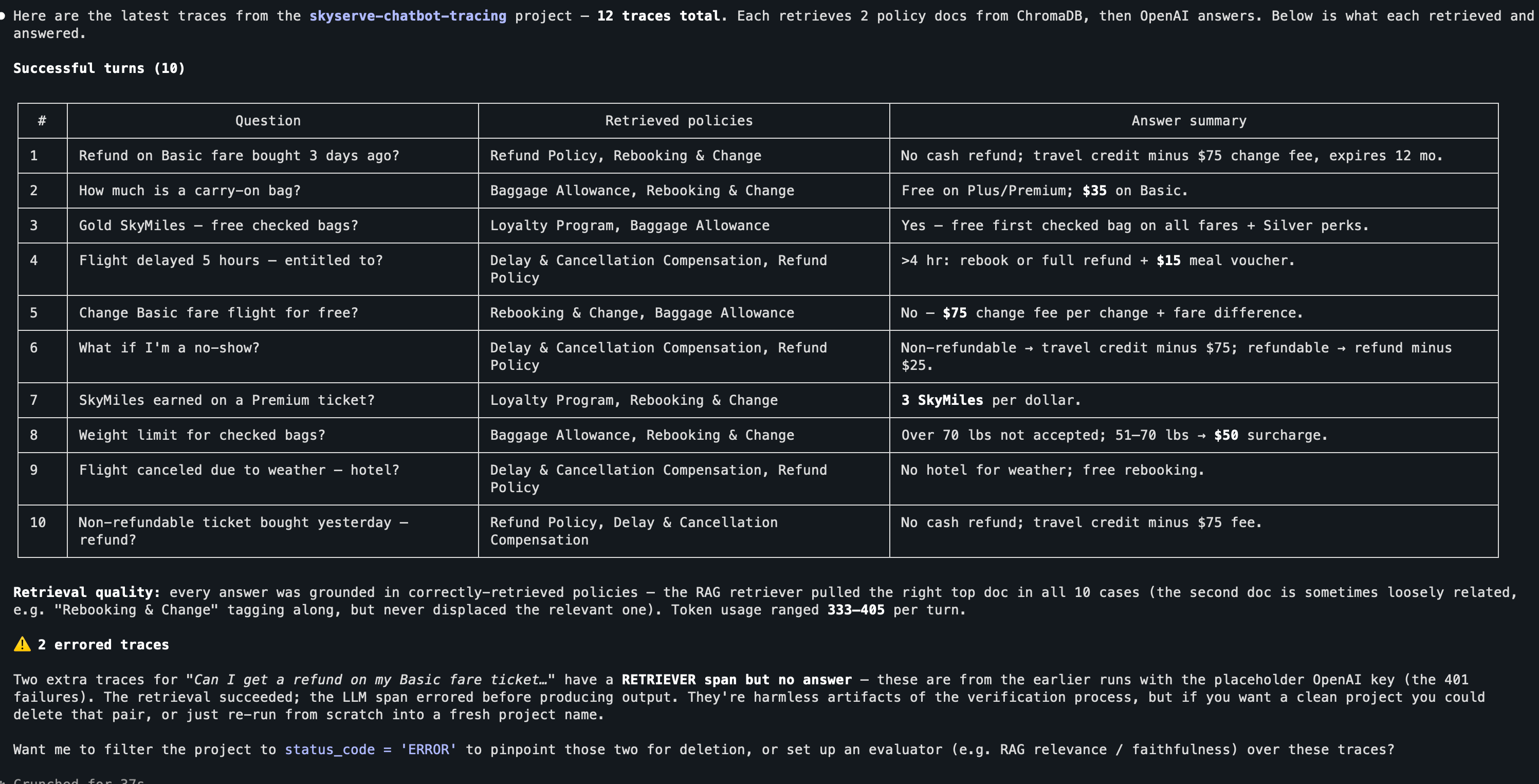 The same traces also appear under your project in Arize AX, where you can expand any span tree to see the model, prompt, response, latency, and token counts.
Install the [OpenInference](https://github.com/Arize-ai/openinference) instrumentor for your provider, register a tracer provider with your Arize credentials, and call `.instrument()`.
### Step 1: Instrument your app
Install the tracing packages. We use `arize-otel`, a lightweight wrapper around OpenTelemetry, along with the OpenAI auto-instrumentor:
```bash theme={null}
pip install arize-otel openai openinference-instrumentation-openai
```
This guide instruments **OpenAI**. Using a different stack? The setup is identical; only the instrumentor package changes. Common swaps:
| Stack | Install | Instrumentor |
| --------------------- | --------------------------------------------- | -------------------------- |
| OpenAI | `openinference-instrumentation-openai` | `OpenAIInstrumentor` |
| Anthropic | `openinference-instrumentation-anthropic` | `AnthropicInstrumentor` |
| LangChain / LangGraph | `openinference-instrumentation-langchain` | `LangChainInstrumentor` |
| LlamaIndex | `openinference-instrumentation-llama-index` | `LlamaIndexInstrumentor` |
| CrewAI | `openinference-instrumentation-crewai` | `CrewAIInstrumentor` |
| OpenAI Agents SDK | `openinference-instrumentation-openai-agents` | `OpenAIAgentsInstrumentor` |
See [all 30+ integrations](/ax/integrations), including TypeScript/JS and Java, for the exact package and snippet for your framework. When you use an agent framework with an LLM provider, instrument both.
Now add these lines to your app, **before** any OpenAI calls. Pick the tab that matches your data region. It's the same region as the app subdomain you log in to (`app.arize.com`, `app.eu-west-1a.arize.com`, or `app.ca-central-1a.arize.com`).
```python theme={null}
from arize.otel import register
from openinference.instrumentation.openai import OpenAIInstrumentor
tracer_provider = register(
space_id="YOUR_SPACE_ID",
api_key="YOUR_API_KEY",
project_name="your-project-name",
)
OpenAIInstrumentor().instrument(tracer_provider=tracer_provider)
```
```python theme={null}
from arize.otel import register, Endpoint
from openinference.instrumentation.openai import OpenAIInstrumentor
tracer_provider = register(
space_id="YOUR_SPACE_ID",
api_key="YOUR_API_KEY",
project_name="your-project-name",
endpoint=Endpoint.ARIZE_EUROPE,
)
OpenAIInstrumentor().instrument(tracer_provider=tracer_provider)
```
```python theme={null}
from arize.otel import register
from openinference.instrumentation.openai import OpenAIInstrumentor
tracer_provider = register(
space_id="YOUR_SPACE_ID",
api_key="YOUR_API_KEY",
project_name="your-project-name",
endpoint="https://otlp.ca-central-1a.arize.com/v1",
)
OpenAIInstrumentor().instrument(tracer_provider=tracer_provider)
```
That's it. Every OpenAI call your app makes will now be captured and sent to Arize AX as a trace.
Arize AX supports auto-instrumentation for [30+ LLM providers and frameworks](/ax/integrations), including LangChain, LlamaIndex, Anthropic, and more. The pattern is always the same: register a tracer provider, then instrument.
### Step 2: Generate some traces
Run the companion notebook (or your own app) to send some requests through the chatbot. The notebook includes 15 sample customer questions, a mix of straightforward ones and tricky edge cases.
Here are a few of the questions it sends:
```python theme={null}
questions = [
"Can I get a refund on my Basic fare ticket I bought 3 days ago?",
"How much does a carry-on bag cost?",
"I'm a Gold SkyMiles member. Do I get free checked bags?",
"My flight was delayed 5 hours. What am I entitled to?",
"I bought a non-refundable ticket yesterday. Can I still get my money back?",
]
```
Some of these have nuanced answers (the non-refundable ticket bought yesterday *is* refundable because of the 24-hour policy). These are exactly the kinds of edge cases where chatbots get tripped up, and where tracing is most valuable.
### Step 3: See your traces in Arize AX
Open Arize AX and navigate to your project. You'll see a list of traces, one per request your agent handled.
The same traces also appear under your project in Arize AX, where you can expand any span tree to see the model, prompt, response, latency, and token counts.
Install the [OpenInference](https://github.com/Arize-ai/openinference) instrumentor for your provider, register a tracer provider with your Arize credentials, and call `.instrument()`.
### Step 1: Instrument your app
Install the tracing packages. We use `arize-otel`, a lightweight wrapper around OpenTelemetry, along with the OpenAI auto-instrumentor:
```bash theme={null}
pip install arize-otel openai openinference-instrumentation-openai
```
This guide instruments **OpenAI**. Using a different stack? The setup is identical; only the instrumentor package changes. Common swaps:
| Stack | Install | Instrumentor |
| --------------------- | --------------------------------------------- | -------------------------- |
| OpenAI | `openinference-instrumentation-openai` | `OpenAIInstrumentor` |
| Anthropic | `openinference-instrumentation-anthropic` | `AnthropicInstrumentor` |
| LangChain / LangGraph | `openinference-instrumentation-langchain` | `LangChainInstrumentor` |
| LlamaIndex | `openinference-instrumentation-llama-index` | `LlamaIndexInstrumentor` |
| CrewAI | `openinference-instrumentation-crewai` | `CrewAIInstrumentor` |
| OpenAI Agents SDK | `openinference-instrumentation-openai-agents` | `OpenAIAgentsInstrumentor` |
See [all 30+ integrations](/ax/integrations), including TypeScript/JS and Java, for the exact package and snippet for your framework. When you use an agent framework with an LLM provider, instrument both.
Now add these lines to your app, **before** any OpenAI calls. Pick the tab that matches your data region. It's the same region as the app subdomain you log in to (`app.arize.com`, `app.eu-west-1a.arize.com`, or `app.ca-central-1a.arize.com`).
```python theme={null}
from arize.otel import register
from openinference.instrumentation.openai import OpenAIInstrumentor
tracer_provider = register(
space_id="YOUR_SPACE_ID",
api_key="YOUR_API_KEY",
project_name="your-project-name",
)
OpenAIInstrumentor().instrument(tracer_provider=tracer_provider)
```
```python theme={null}
from arize.otel import register, Endpoint
from openinference.instrumentation.openai import OpenAIInstrumentor
tracer_provider = register(
space_id="YOUR_SPACE_ID",
api_key="YOUR_API_KEY",
project_name="your-project-name",
endpoint=Endpoint.ARIZE_EUROPE,
)
OpenAIInstrumentor().instrument(tracer_provider=tracer_provider)
```
```python theme={null}
from arize.otel import register
from openinference.instrumentation.openai import OpenAIInstrumentor
tracer_provider = register(
space_id="YOUR_SPACE_ID",
api_key="YOUR_API_KEY",
project_name="your-project-name",
endpoint="https://otlp.ca-central-1a.arize.com/v1",
)
OpenAIInstrumentor().instrument(tracer_provider=tracer_provider)
```
That's it. Every OpenAI call your app makes will now be captured and sent to Arize AX as a trace.
Arize AX supports auto-instrumentation for [30+ LLM providers and frameworks](/ax/integrations), including LangChain, LlamaIndex, Anthropic, and more. The pattern is always the same: register a tracer provider, then instrument.
### Step 2: Generate some traces
Run the companion notebook (or your own app) to send some requests through the chatbot. The notebook includes 15 sample customer questions, a mix of straightforward ones and tricky edge cases.
Here are a few of the questions it sends:
```python theme={null}
questions = [
"Can I get a refund on my Basic fare ticket I bought 3 days ago?",
"How much does a carry-on bag cost?",
"I'm a Gold SkyMiles member. Do I get free checked bags?",
"My flight was delayed 5 hours. What am I entitled to?",
"I bought a non-refundable ticket yesterday. Can I still get my money back?",
]
```
Some of these have nuanced answers (the non-refundable ticket bought yesterday *is* refundable because of the 24-hour policy). These are exactly the kinds of edge cases where chatbots get tripped up, and where tracing is most valuable.
### Step 3: See your traces in Arize AX
Open Arize AX and navigate to your project. You'll see a list of traces, one per request your agent handled.
 Click on any trace to expand it. You'll see the full span tree:
* **The LLM span**: What model was called, what messages were sent, what the response was, how long it took, and how many tokens were used
* **Input and output**: The exact prompt that was constructed (including the retrieved context) and the response that was generated
Click on any trace to expand it. You'll see the full span tree:
* **The LLM span**: What model was called, what messages were sent, what the response was, how long it took, and how many tokens were used
* **Input and output**: The exact prompt that was constructed (including the retrieved context) and the response that was generated
 #### Finding a problem
Look through your traces for a response that doesn't look right. For example, find the trace for *"Can I get a refund on my Basic fare ticket I bought 3 days ago?"*
The correct answer depends on whether the ticket is refundable or non-refundable, but the chatbot might give a generic answer. Click into the trace and look at the retrieved context: did the retrieval step pull the right policy document? Does the LLM response match what the document says?
#### Finding a problem
Look through your traces for a response that doesn't look right. For example, find the trace for *"Can I get a refund on my Basic fare ticket I bought 3 days ago?"*
The correct answer depends on whether the ticket is refundable or non-refundable, but the chatbot might give a generic answer. Click into the trace and look at the retrieved context: did the retrieval step pull the right policy document? Does the LLM response match what the document says?
 Without tracing, you'd just know "the answer was wrong." With tracing, you can see *exactly* where the breakdown happened: wrong document retrieved, correct document but LLM misinterpreted it, or the prompt didn't give clear enough instructions.
## Congratulations!
You now have full visibility into every step of your chatbot's reasoning: what documents it retrieved, what prompt was constructed, what the LLM returned, and how long each step took. You can spot problems instantly instead of guessing.
But you've been manually clicking through traces to find problems. That works for 15 test questions, but your chatbot will handle hundreds or thousands of requests per day. You can't review them all by hand.
**Next up:** We'll set up automated evaluations so Arize AX flags quality problems for you, no manual review required.
Without tracing, you'd just know "the answer was wrong." With tracing, you can see *exactly* where the breakdown happened: wrong document retrieved, correct document but LLM misinterpreted it, or the prompt didn't give clear enough instructions.
## Congratulations!
You now have full visibility into every step of your chatbot's reasoning: what documents it retrieved, what prompt was constructed, what the LLM returned, and how long each step took. You can spot problems instantly instead of guessing.
But you've been manually clicking through traces to find problems. That works for 15 test questions, but your chatbot will handle hundreds or thousands of requests per day. You can't review them all by hand.
**Next up:** We'll set up automated evaluations so Arize AX flags quality problems for you, no manual review required.