> ## Documentation Index
> Fetch the complete documentation index at: https://arize-ax.mintlify.site/docs/llms.txt
> Use this file to discover all available pages before exploring further.
# Build a Prompt
> Learn what prompts are, how to build, test, improve, and save versioned prompts in Arize AX's Prompt Hub.
In Arize, a prompt is managed as a **Prompt Object** — messages, model settings, tools/functions, and response format together as one versioned artifact. For the conceptual breakdown of what's in a Prompt Object and why everything travels together, see [The Prompt Object](/docs/ax/concepts/prompts/prompt-object).
**Let Alyx build it for you.** Press **Cmd+L** (macOS) or **Ctrl+L** (Windows/Linux) to open [Alyx](/docs/ax/alyx) and try: *"Create three prompt variations to compare"*
## Build and improve a prompt
Start in **Playground** with a draft prompt, then refine it for clarity, correctness, and brevity.
### Create a prompt
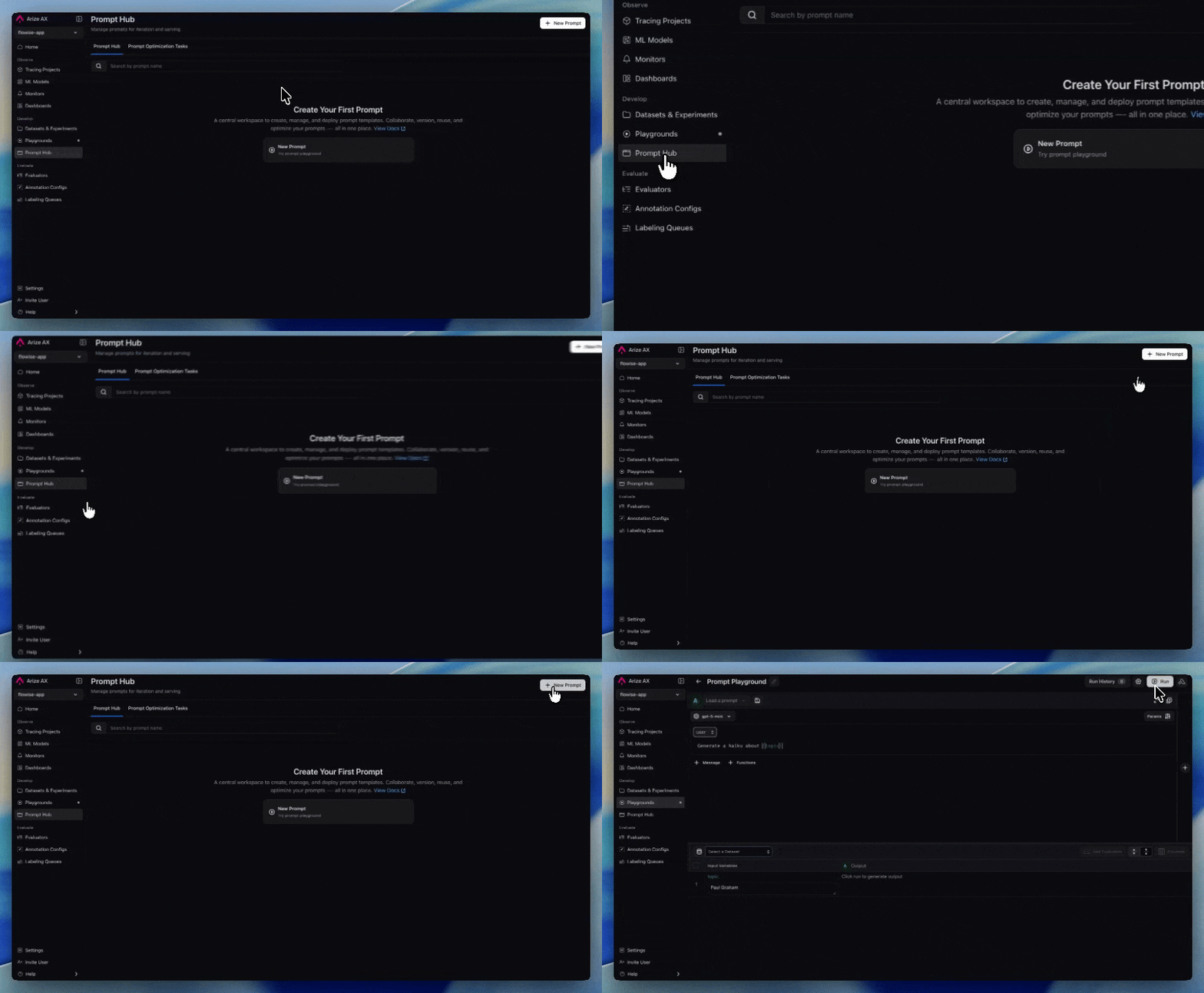 Navigate to **Playgrounds** and click **New Playground** to create a new playground. You can also start from the home page, and **Alyx** will create a playground for you.
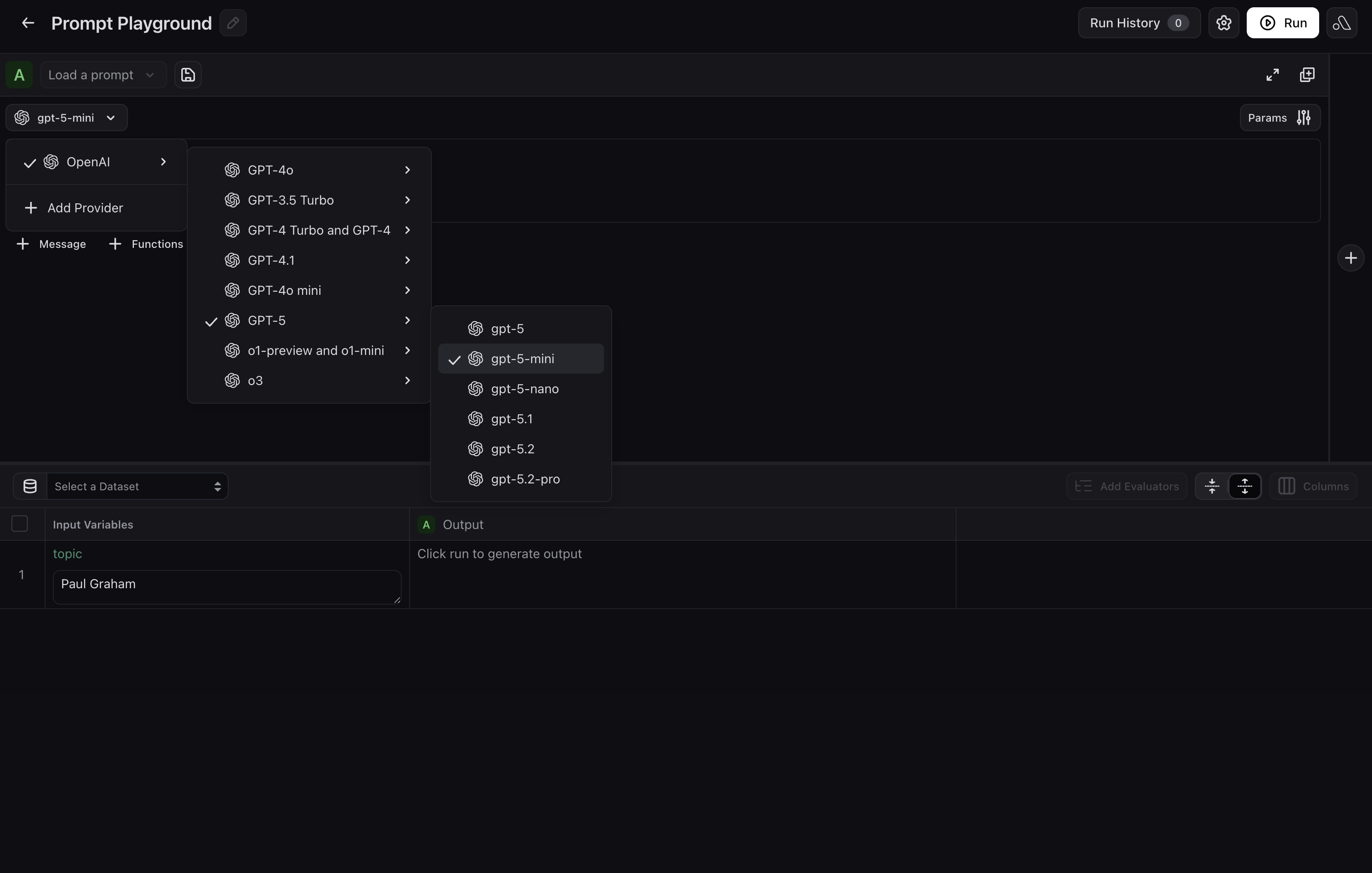
If you have not already added one, select your LLM provider and model in the Playground before you draft or run. Options include OpenAI, Azure, Vertex AI, AWS Bedrock, and others.
Navigate to **Playgrounds** and click **New Playground** to create a new playground. You can also start from the home page, and **Alyx** will create a playground for you.
If you have not already added one, select your LLM provider and model in the Playground before you draft or run. Options include OpenAI, Azure, Vertex AI, AWS Bedrock, and others.
 Describe your use case in plain language in the **Alyx** panel on the right. Include details about what your prompt should capture, desired output format, tone, length, etc. **Alyx** will wire them in automatically.
For example, you could say:
> Create a prompt for a customer support agent that handles returns and escalations. Use `{customer_input}` and `{order_id}` as variables.
Give feedback on Alyx's drafts and keep iterating until you are satisfied with the prompt.
If you added a dataset or test cases, **run the prompt** over rows to check outputs. If you skipped that step, exercise the prompt with manual inputs or keep iterating with Alyx. For a fuller testing workflow, see [**Test a prompt**](#test-a-prompt).
Navigate to **Playgrounds** and click **New Playground** to create a new playground.
Select your LLM provider and model from OpenAI, Azure, Vertex AI, AWS Bedrock, and others.
Add any system, user, or assistant messages. Use curly braces around names (for example, `{destination}`) for template variables filled dynamically at run time.
Click **Functions** and paste tool definitions as JSON. Function descriptions must be in JSON format. To add multiple functions, add entries to the JSON list with the proper attributes. Set **Function Selection** to give the model instructions on when to invoke each function.
Describe your use case in plain language in the **Alyx** panel on the right. Include details about what your prompt should capture, desired output format, tone, length, etc. **Alyx** will wire them in automatically.
For example, you could say:
> Create a prompt for a customer support agent that handles returns and escalations. Use `{customer_input}` and `{order_id}` as variables.
Give feedback on Alyx's drafts and keep iterating until you are satisfied with the prompt.
If you added a dataset or test cases, **run the prompt** over rows to check outputs. If you skipped that step, exercise the prompt with manual inputs or keep iterating with Alyx. For a fuller testing workflow, see [**Test a prompt**](#test-a-prompt).
Navigate to **Playgrounds** and click **New Playground** to create a new playground.
Select your LLM provider and model from OpenAI, Azure, Vertex AI, AWS Bedrock, and others.
Add any system, user, or assistant messages. Use curly braces around names (for example, `{destination}`) for template variables filled dynamically at run time.
Click **Functions** and paste tool definitions as JSON. Function descriptions must be in JSON format. To add multiple functions, add entries to the JSON list with the proper attributes. Set **Function Selection** to give the model instructions on when to invoke each function.
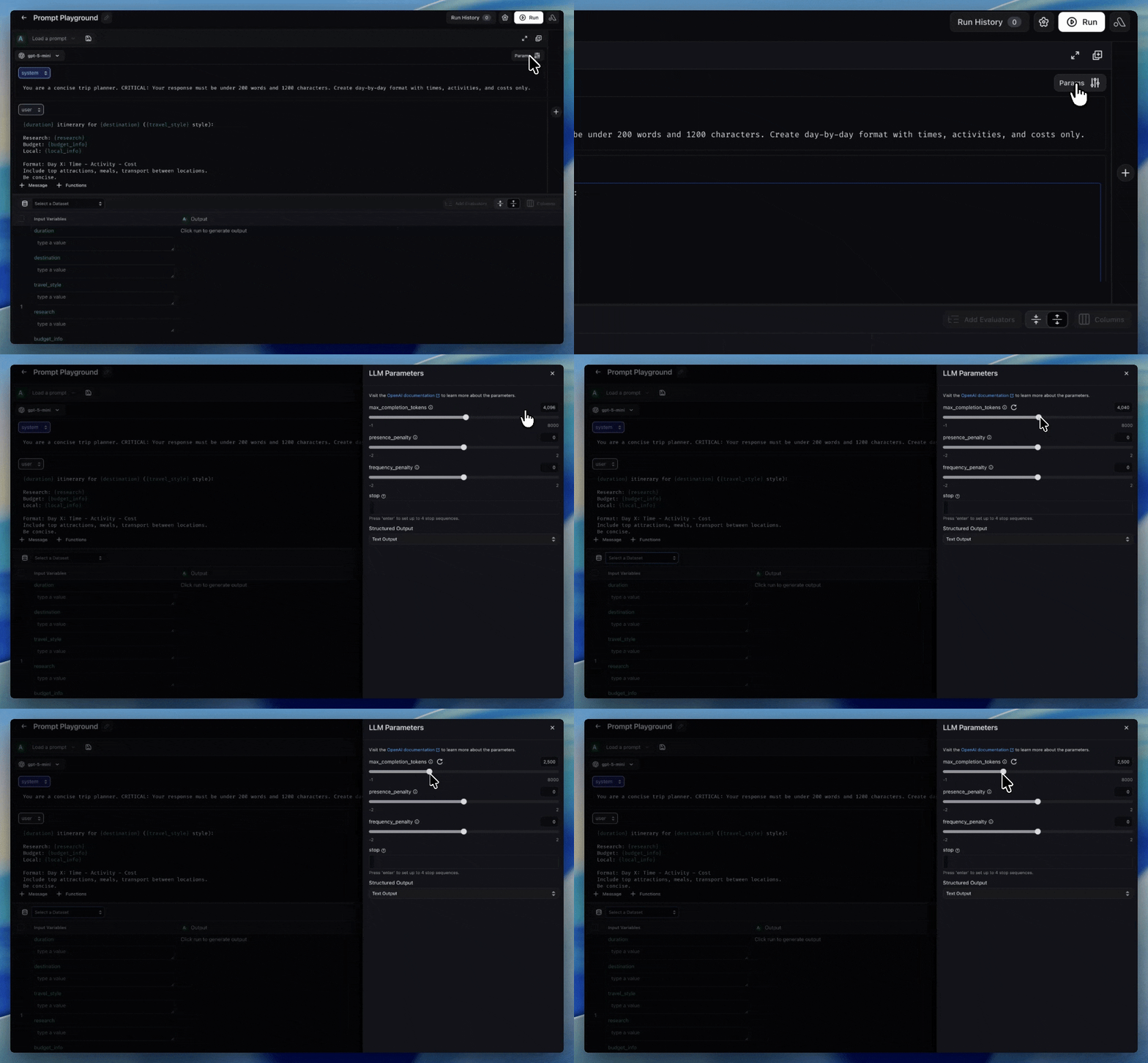 Click **Params** to configure temperature, max completion tokens, frequency penalty, and more. Different LLM providers expose different hyperparameters that affect the output.
Create a prompt and initial version from code. Use the reference for your stack:
Full options (providers, invocation params, tools): [Create a Prompt](/docs/api-clients/python/version-8/client-resources/prompts#create-a-prompt) in the Python v8 Prompts API.
```python theme={null}
from arize.prompts.types import InputVariableFormat, LlmProvider, LLMMessage, MessageRole
prompt = client.prompts.create(
space="your-space-name-or-id",
name="customer-support-agent",
description="Handles returns and escalations",
commit_message="Initial version",
input_variable_format=InputVariableFormat.F_STRING,
provider=LlmProvider.OPEN_AI,
model="gpt-4o",
messages=[
LLMMessage(role=MessageRole.SYSTEM, content="You are a support agent for {company}."),
LLMMessage(role=MessageRole.USER, content="{ticket_text}"),
],
)
print(prompt.id, prompt.name)
```
Full options: [Create a Prompt](/docs/api-clients/typescript/version-1/client-resources/prompts#create-a-prompt) in the TypeScript Prompts API.
```typescript theme={null}
import { createPrompt } from "@arizeai/ax-client";
const prompt = await createPrompt({
space: "my-space",
name: "customer-support",
description: "Handles returns and escalations",
version: {
commitMessage: "Initial version",
inputVariableFormat: "f_string",
provider: "openAI",
model: "gpt-4o",
messages: [
{ role: "system", content: "You are a support agent for {company_name}." },
{ role: "user", content: "{ticket_text}" },
],
},
});
```
Flags and message JSON shape: [`ax prompts create`](/docs/api-clients/cli/prompts#ax-prompts-create) in the CLI reference.
```bash theme={null}
ax prompts create \
--name "customer-support-agent" \
--space sp_abc123 \
--provider openAI \
--input-variable-format f_string \
--messages '[{"role":"system","content":"You are a support agent for {company}."},{"role":"user","content":"{ticket_text}"}]' \
--model gpt-4o \
--description "Handles returns and escalations" \
--commit-message "Initial version"
```
### Test a prompt
Test your prompt against real examples before shipping.
Open **Alyx** and load your data, or ask it to generate examples from your use case.
Ask Alyx to load a prompt from Prompt Hub and align `{variables}` with your dataset columns.
Ask Alyx to draft an [evaluator](/docs/ax/evaluate/evaluators), then run the experiment.
Open **View Experiment** to compare outputs, latency, tokens, and evaluator labels.
Choose your dataset in the Playground and confirm variable mapping.
Load from Prompt Hub or draft a new prompt with `{variables}` from your dataset.
Add [evaluators](/docs/ax/evaluate/evaluators) to score each row.
Click **Run**, then open **View Experiment** to inspect regressions and wins.
Click **Params** to configure temperature, max completion tokens, frequency penalty, and more. Different LLM providers expose different hyperparameters that affect the output.
Create a prompt and initial version from code. Use the reference for your stack:
Full options (providers, invocation params, tools): [Create a Prompt](/docs/api-clients/python/version-8/client-resources/prompts#create-a-prompt) in the Python v8 Prompts API.
```python theme={null}
from arize.prompts.types import InputVariableFormat, LlmProvider, LLMMessage, MessageRole
prompt = client.prompts.create(
space="your-space-name-or-id",
name="customer-support-agent",
description="Handles returns and escalations",
commit_message="Initial version",
input_variable_format=InputVariableFormat.F_STRING,
provider=LlmProvider.OPEN_AI,
model="gpt-4o",
messages=[
LLMMessage(role=MessageRole.SYSTEM, content="You are a support agent for {company}."),
LLMMessage(role=MessageRole.USER, content="{ticket_text}"),
],
)
print(prompt.id, prompt.name)
```
Full options: [Create a Prompt](/docs/api-clients/typescript/version-1/client-resources/prompts#create-a-prompt) in the TypeScript Prompts API.
```typescript theme={null}
import { createPrompt } from "@arizeai/ax-client";
const prompt = await createPrompt({
space: "my-space",
name: "customer-support",
description: "Handles returns and escalations",
version: {
commitMessage: "Initial version",
inputVariableFormat: "f_string",
provider: "openAI",
model: "gpt-4o",
messages: [
{ role: "system", content: "You are a support agent for {company_name}." },
{ role: "user", content: "{ticket_text}" },
],
},
});
```
Flags and message JSON shape: [`ax prompts create`](/docs/api-clients/cli/prompts#ax-prompts-create) in the CLI reference.
```bash theme={null}
ax prompts create \
--name "customer-support-agent" \
--space sp_abc123 \
--provider openAI \
--input-variable-format f_string \
--messages '[{"role":"system","content":"You are a support agent for {company}."},{"role":"user","content":"{ticket_text}"}]' \
--model gpt-4o \
--description "Handles returns and escalations" \
--commit-message "Initial version"
```
### Test a prompt
Test your prompt against real examples before shipping.
Open **Alyx** and load your data, or ask it to generate examples from your use case.
Ask Alyx to load a prompt from Prompt Hub and align `{variables}` with your dataset columns.
Ask Alyx to draft an [evaluator](/docs/ax/evaluate/evaluators), then run the experiment.
Open **View Experiment** to compare outputs, latency, tokens, and evaluator labels.
Choose your dataset in the Playground and confirm variable mapping.
Load from Prompt Hub or draft a new prompt with `{variables}` from your dataset.
Add [evaluators](/docs/ax/evaluate/evaluators) to score each row.
Click **Run**, then open **View Experiment** to inspect regressions and wins.
 For programmatic testing and run comparison, use:
* [Set up an experiment](/docs/ax/improve/set-up-an-experiment)
* [Run an experiment](/docs/ax/improve/experiment-in-code#run-an-experiment)
* [Log experiment results](/docs/ax/improve/experiment-in-code#log-an-experiment)
For full run-and-compare workflow details, go to [Experiment in Playground](/docs/ax/improve/experiment-in-playground).
## Save and version prompts
When a variant wins, save it to **Prompt Hub** so your team can track and deploy it safely.
For programmatic testing and run comparison, use:
* [Set up an experiment](/docs/ax/improve/set-up-an-experiment)
* [Run an experiment](/docs/ax/improve/experiment-in-code#run-an-experiment)
* [Log experiment results](/docs/ax/improve/experiment-in-code#log-an-experiment)
For full run-and-compare workflow details, go to [Experiment in Playground](/docs/ax/improve/experiment-in-playground).
## Save and version prompts
When a variant wins, save it to **Prompt Hub** so your team can track and deploy it safely.
 In the **Prompt Playground**, you can ask **Alyx** to persist the prompt you have been editing, for example:
> Save this prompt to Prompt Hub as `support-agent-v2` with a description that we tightened escalation rules.
Alyx can help you refine messages, parameters, and tools first; when you are ready, ask it to **save** (or click **Save Prompt** yourself) so a new immutable version is written to **Prompt Hub** with the name, description, and tags you want.
Click **Save Prompt** in the Playground to store the current state (messages, parameters, tools, and response format) as a new immutable version in Prompt Hub.
Open Prompt Hub to compare versions, review diffs, and track what changed over time.
Tag the winning version as **Production** (or your deployment label) so your app resolves the approved prompt at runtime.
| Step | Python | TypeScript | CLI |
| -------------------- | --------------------------------------------------------------------------------------------------- | ------------------------------------------------------------------------------------------------------- | --------------------------------------------------------------------------------- |
| List versions | [List versions](/docs/api-clients/python/version-8/client-resources/prompts#list-versions) | [List versions](/docs/api-clients/typescript/version-1/client-resources/prompts#list-versions) | [`ax prompts list-versions`](/docs/api-clients/cli/prompts#ax-prompts-list-versions) |
| Create a new version | [Create a new version](/docs/api-clients/python/version-8/client-resources/prompts#create-a-new-version) | [Create a new version](/docs/api-clients/typescript/version-1/client-resources/prompts#create-a-new-version) | [`ax prompts create-version`](/docs/api-clients/cli/prompts#ax-prompts-create-version) |
For deeper version-control and SDK workflows, see [Save and version prompts](/docs/ax/improve/save-and-version-prompts).
In the **Prompt Playground**, you can ask **Alyx** to persist the prompt you have been editing, for example:
> Save this prompt to Prompt Hub as `support-agent-v2` with a description that we tightened escalation rules.
Alyx can help you refine messages, parameters, and tools first; when you are ready, ask it to **save** (or click **Save Prompt** yourself) so a new immutable version is written to **Prompt Hub** with the name, description, and tags you want.
Click **Save Prompt** in the Playground to store the current state (messages, parameters, tools, and response format) as a new immutable version in Prompt Hub.
Open Prompt Hub to compare versions, review diffs, and track what changed over time.
Tag the winning version as **Production** (or your deployment label) so your app resolves the approved prompt at runtime.
| Step | Python | TypeScript | CLI |
| -------------------- | --------------------------------------------------------------------------------------------------- | ------------------------------------------------------------------------------------------------------- | --------------------------------------------------------------------------------- |
| List versions | [List versions](/docs/api-clients/python/version-8/client-resources/prompts#list-versions) | [List versions](/docs/api-clients/typescript/version-1/client-resources/prompts#list-versions) | [`ax prompts list-versions`](/docs/api-clients/cli/prompts#ax-prompts-list-versions) |
| Create a new version | [Create a new version](/docs/api-clients/python/version-8/client-resources/prompts#create-a-new-version) | [Create a new version](/docs/api-clients/typescript/version-1/client-resources/prompts#create-a-new-version) | [`ax prompts create-version`](/docs/api-clients/cli/prompts#ax-prompts-create-version) |
For deeper version-control and SDK workflows, see [Save and version prompts](/docs/ax/improve/save-and-version-prompts).