> ## Documentation Index
> Fetch the complete documentation index at: https://arize-ax.mintlify.site/docs/llms.txt
> Use this file to discover all available pages before exploring further.
# Auto-Instrumentation
> Auto-instrument your LLM application with pre-built integrations for 30+ providers and frameworks
Start where it's automatic. For supported providers and frameworks, install an instrumentor package, attach it once (`.instrument()` in Python, `registerInstrumentations({...})` / package-specific setup in JS/TS, or `option.WithMiddleware(...)` on the SDK client in Go), and every call is traced — no per-call code changes.
**Instrument the AI framework or model client itself — not just the layer around it.** Your LLM, agent, and tool spans come from the OpenInference instrumentor for the library that makes the model calls and drives the tools.
Instrumenting only the surrounding layer — a web server (FastAPI, Flask, Express), a CLI or job runner, or an HTTP client — records transport and plumbing activity, **not** the agent's reasoning, and is not a substitute for it. Pick the integration that matches the framework or provider doing the LLM work and attach its instrumentor.
If your app wraps that framework in a web server you can instrument both, but the framework (or model-client) instrumentor is the one that produces LLM observability.
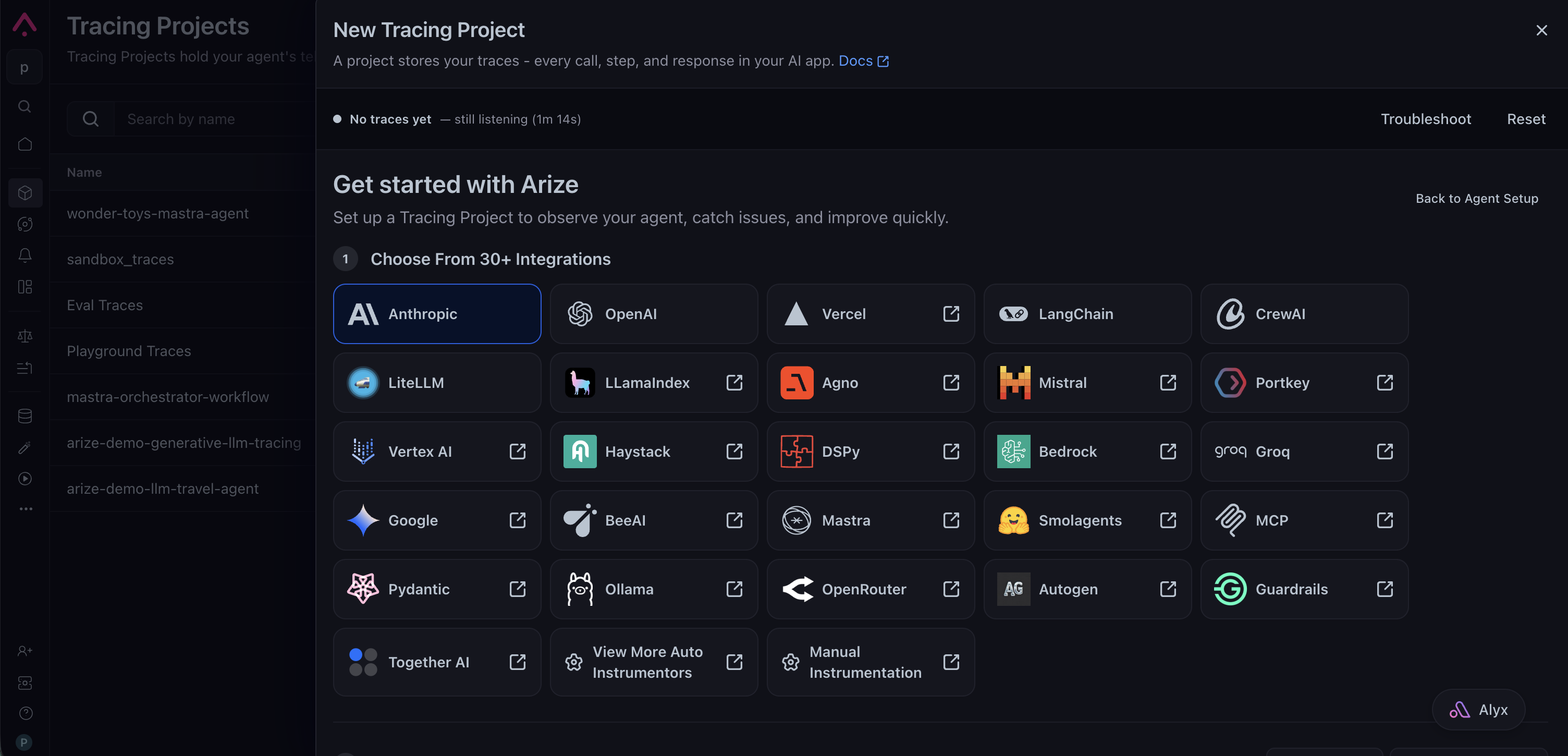
You can start from the Arize AX UI. When you create a new tracing project, Arize AX defaults to **Agent Setup**, which instruments your app through your coding agent; switch to **Instrument Manually** to pick your integration and copy the code:
 Or follow the steps below.
**AI agent requirement.** If you are using Codex, Cursor, Claude Code, or another coding agent, install and consult the Arize [`arize-instrumentation` skill](/docs/ax/set-up-with-ai-assistants#skills) **before modifying application code**. It detects your stack and automatically wires up the right OpenInference setup for your use case — teams that instrument with our skills succeed far more often than agents left to infer the setup from docs or intuition.
```bash theme={null}
npx skills add Arize-ai/arize-skills --skill "arize-instrumentation" --yes
```
Use the code steps below as a fallback only if skill installation fails or your environment cannot install skills. [Learn more about coding-agent setup →](/docs/ax/set-up-with-ai-assistants)
# Set Up with Skills or Code
**AI agent requirement.** If you are using Codex, Cursor, Claude Code, or another coding agent, install and consult the Arize [`arize-instrumentation` skill](/docs/ax/set-up-with-ai-assistants#skills) **before modifying application code**. It detects your stack and automatically wires up the right OpenInference setup for your use case — teams that instrument with our skills succeed far more often than agents left to infer the setup from docs or intuition.
```bash theme={null}
npx skills add Arize-ai/arize-skills --skill "arize-instrumentation" --yes
```
Use the code steps below as a fallback only if skill installation fails or your environment cannot install skills. [Learn more about coding-agent setup →](/docs/ax/set-up-with-ai-assistants)
Three steps to instrument with your AI coding agent:
**Install skill**
```bash theme={null}
npx skills add Arize-ai/arize-skills --skill "arize-instrumentation" --yes
```
**Set up authentication**
```bash theme={null}
export ARIZE_API_KEY="YOUR_API_KEY"
export ARIZE_SPACE_ID="YOUR_SPACE_ID"
```
**Instrument your app**
```bash theme={null}
# Ask your AI coding agent:
"Set up Arize tracing in my application"
```
Works with Cursor, Claude Code, Codex, and more. The skill analyzes your stack, picks the right OpenInference package, wires it in, and tells you exactly how to verify traces are flowing:
Or follow the steps below.
**AI agent requirement.** If you are using Codex, Cursor, Claude Code, or another coding agent, install and consult the Arize [`arize-instrumentation` skill](/docs/ax/set-up-with-ai-assistants#skills) **before modifying application code**. It detects your stack and automatically wires up the right OpenInference setup for your use case — teams that instrument with our skills succeed far more often than agents left to infer the setup from docs or intuition.
```bash theme={null}
npx skills add Arize-ai/arize-skills --skill "arize-instrumentation" --yes
```
Use the code steps below as a fallback only if skill installation fails or your environment cannot install skills. [Learn more about coding-agent setup →](/docs/ax/set-up-with-ai-assistants)
# Set Up with Skills or Code
**AI agent requirement.** If you are using Codex, Cursor, Claude Code, or another coding agent, install and consult the Arize [`arize-instrumentation` skill](/docs/ax/set-up-with-ai-assistants#skills) **before modifying application code**. It detects your stack and automatically wires up the right OpenInference setup for your use case — teams that instrument with our skills succeed far more often than agents left to infer the setup from docs or intuition.
```bash theme={null}
npx skills add Arize-ai/arize-skills --skill "arize-instrumentation" --yes
```
Use the code steps below as a fallback only if skill installation fails or your environment cannot install skills. [Learn more about coding-agent setup →](/docs/ax/set-up-with-ai-assistants)
Three steps to instrument with your AI coding agent:
**Install skill**
```bash theme={null}
npx skills add Arize-ai/arize-skills --skill "arize-instrumentation" --yes
```
**Set up authentication**
```bash theme={null}
export ARIZE_API_KEY="YOUR_API_KEY"
export ARIZE_SPACE_ID="YOUR_SPACE_ID"
```
**Instrument your app**
```bash theme={null}
# Ask your AI coding agent:
"Set up Arize tracing in my application"
```
Works with Cursor, Claude Code, Codex, and more. The skill analyzes your stack, picks the right OpenInference package, wires it in, and tells you exactly how to verify traces are flowing:
 Install the [OpenInference](https://github.com/Arize-ai/openinference) instrumentor for your provider, register a tracer provider with your Arize credentials, and attach the instrumentor — `.instrument()` in Python, `registerInstrumentations({...})` / package-specific setup in JS/TS, or `option.WithMiddleware(...)` on the SDK client in Go.
```bash theme={null}
pip install arize-otel openinference-instrumentation-openai openai
```
```bash theme={null}
npm install @arizeai/openinference-instrumentation-openai openai @opentelemetry/sdk-trace-node @opentelemetry/exporter-trace-otlp-proto @opentelemetry/resources @opentelemetry/instrumentation
```
Requires Go 1.25+. Install [`arize-otel-go`](https://github.com/Arize-ai/arize-otel-go) for tracer setup plus the [`openinference-instrumentation-openai-go`](https://github.com/Arize-ai/openinference/tree/main/go/openinference-instrumentation-openai-go) middleware for the official [`openai/openai-go`](https://github.com/openai/openai-go) SDK:
```bash theme={null}
go get \
github.com/Arize-ai/arize-otel-go \
github.com/Arize-ai/openinference/go/openinference-instrumentation-openai-go \
github.com/openai/openai-go
```
For Anthropic, swap the instrumentor for [`openinference-instrumentation-anthropic-sdk-go`](https://github.com/Arize-ai/openinference/tree/main/go/openinference-instrumentation-anthropic-sdk-go) and the SDK for [`anthropics/anthropic-sdk-go`](https://github.com/anthropics/anthropic-sdk-go). For clients without a first-party instrumentor, use [Manual instrumentation](/docs/ax/instrument/manual-instrumentation).
```python theme={null}
from arize.otel import register
from openinference.instrumentation.openai import OpenAIInstrumentor
tracer_provider = register(
space_id="YOUR_SPACE_ID", # copy from your project's setup page
api_key="YOUR_API_KEY", # click Create API Key on the setup page
project_name="my-project",
)
OpenAIInstrumentor().instrument(tracer_provider=tracer_provider)
```
```typescript theme={null}
import { NodeTracerProvider, SimpleSpanProcessor } from "@opentelemetry/sdk-trace-node";
import { registerInstrumentations } from "@opentelemetry/instrumentation";
import { resourceFromAttributes } from "@opentelemetry/resources";
import { OTLPTraceExporter } from "@opentelemetry/exporter-trace-otlp-proto";
import OpenAI from "openai";
import { OpenAIInstrumentation } from "@arizeai/openinference-instrumentation-openai";
const provider = new NodeTracerProvider({
resource: resourceFromAttributes({
["openinference.project.name"]: "my-project",
}),
spanProcessors: [
new SimpleSpanProcessor(
new OTLPTraceExporter({
url: "https://otlp.arize.com/v1/traces",
headers: {
'arize-space-id': 'YOUR_SPACE_ID',
'arize-api-key': 'YOUR_API_KEY',
},
}),
),
],
});
const instrumentation = new OpenAIInstrumentation();
instrumentation.manuallyInstrument(OpenAI);
registerInstrumentations({ instrumentations: [instrumentation] });
provider.register();
```
`arizeotel.Register` returns a configured `*sdktrace.TracerProvider`, installs it as the global, and reads `ARIZE_SPACE_ID` / `ARIZE_API_KEY` from the environment when the matching `Options` fields are unset. Attach the OpenAI middleware via `option.WithMiddleware`:
```go theme={null}
import (
"context"
"log"
"os"
"time"
arizeotel "github.com/Arize-ai/arize-otel-go"
openaiotel "github.com/Arize-ai/openinference/go/openinference-instrumentation-openai-go"
"github.com/openai/openai-go"
"github.com/openai/openai-go/option"
"go.opentelemetry.io/otel"
)
tp, err := arizeotel.Register(ctx, arizeotel.Options{
ProjectName: "my-project",
})
if err != nil { log.Printf("register tracer: %v", err); return }
defer func() {
shutdownCtx, cancel := context.WithTimeout(context.Background(), 5*time.Second)
defer cancel()
_ = tp.Shutdown(shutdownCtx)
}()
client := openai.NewClient(
option.WithAPIKey(os.Getenv("OPENAI_API_KEY")),
option.WithMiddleware(openaiotel.Middleware(otel.Tracer("my-project"))),
)
```
Every OpenAI call is now traced automatically:
```python theme={null}
import openai
client = openai.OpenAI()
response = client.chat.completions.create(
model="gpt-5.5",
messages=[{"role": "user", "content": "What is observability?"}],
)
```
```typescript theme={null}
const client = new OpenAI();
const response = await client.chat.completions.create({
model: "gpt-5.5",
messages: [{ role: "user", content: "What is observability?" }],
});
```
The middleware auto-emits an LLM-kind span around every `/v1/chat/completions` request — prompt, response, token counts, and finish reason are all set for you.
```go theme={null}
import (
"github.com/openai/openai-go"
"github.com/openai/openai-go/shared"
)
resp, err := client.Chat.Completions.New(ctx, openai.ChatCompletionNewParams{
Model: shared.ChatModel("gpt-5.5"),
Messages: []openai.ChatCompletionMessageParamUnion{
openai.UserMessage("What is observability?"),
},
})
```
This example uses OpenAI, but the same pattern works for any provider — install the instrumentor and attach it (`.instrument()` in Python, `registerInstrumentations({...})` in JS/TS, or `option.WithMiddleware(...)` in Go).
For some frameworks (CrewAI, LangChain, AutoGen, LlamaIndex), `.instrument()` must run **before** importing the library — they patch methods at runtime, so objects created earlier will not emit spans. See each integration page for specifics.
# Supported Integrations
Arize has 30+ native integrations across LLM providers, Python and TypeScript agent frameworks, and Java. The most common ones:
For a primer on the underlying OpenTelemetry concepts these integrations build on, see [OTel primitives](https://opentelemetry.io/docs/concepts/signals/traces/).
# Learn More
* **What auto captures** — auto-instrumentors set [OpenInference semantic conventions](https://github.com/Arize-ai/openinference) automatically: model name, messages, token counts, inputs, outputs.
* **Group traces into conversations** — add `session.id` and `user.id` to follow multi-turn interactions. See [Set up sessions](/docs/ax/instrument/set-up-sessions).
* **Enrich traces with custom data** — attach metadata, tags, and custom attributes to auto-instrumented spans. See [Customize your traces](/docs/ax/instrument/customize-your-traces).
* **Control what's captured** — hide sensitive inputs, suppress tracing for specific calls, or truncate images with `TraceConfig`. See [Mask and redact data](/docs/ax/instrument/mask-and-redact-data).
* **Augment what auto didn't capture** — add manual spans for anything auto-instrumentation missed. See [Manual instrumentation](/docs/ax/instrument/manual-instrumentation) or [Combine auto + manual](/docs/ax/instrument/combining-auto-and-manual).
***
## Next step
For custom logic that auto-instrumentors can't capture, add manual spans:
Install the [OpenInference](https://github.com/Arize-ai/openinference) instrumentor for your provider, register a tracer provider with your Arize credentials, and attach the instrumentor — `.instrument()` in Python, `registerInstrumentations({...})` / package-specific setup in JS/TS, or `option.WithMiddleware(...)` on the SDK client in Go.
```bash theme={null}
pip install arize-otel openinference-instrumentation-openai openai
```
```bash theme={null}
npm install @arizeai/openinference-instrumentation-openai openai @opentelemetry/sdk-trace-node @opentelemetry/exporter-trace-otlp-proto @opentelemetry/resources @opentelemetry/instrumentation
```
Requires Go 1.25+. Install [`arize-otel-go`](https://github.com/Arize-ai/arize-otel-go) for tracer setup plus the [`openinference-instrumentation-openai-go`](https://github.com/Arize-ai/openinference/tree/main/go/openinference-instrumentation-openai-go) middleware for the official [`openai/openai-go`](https://github.com/openai/openai-go) SDK:
```bash theme={null}
go get \
github.com/Arize-ai/arize-otel-go \
github.com/Arize-ai/openinference/go/openinference-instrumentation-openai-go \
github.com/openai/openai-go
```
For Anthropic, swap the instrumentor for [`openinference-instrumentation-anthropic-sdk-go`](https://github.com/Arize-ai/openinference/tree/main/go/openinference-instrumentation-anthropic-sdk-go) and the SDK for [`anthropics/anthropic-sdk-go`](https://github.com/anthropics/anthropic-sdk-go). For clients without a first-party instrumentor, use [Manual instrumentation](/docs/ax/instrument/manual-instrumentation).
```python theme={null}
from arize.otel import register
from openinference.instrumentation.openai import OpenAIInstrumentor
tracer_provider = register(
space_id="YOUR_SPACE_ID", # copy from your project's setup page
api_key="YOUR_API_KEY", # click Create API Key on the setup page
project_name="my-project",
)
OpenAIInstrumentor().instrument(tracer_provider=tracer_provider)
```
```typescript theme={null}
import { NodeTracerProvider, SimpleSpanProcessor } from "@opentelemetry/sdk-trace-node";
import { registerInstrumentations } from "@opentelemetry/instrumentation";
import { resourceFromAttributes } from "@opentelemetry/resources";
import { OTLPTraceExporter } from "@opentelemetry/exporter-trace-otlp-proto";
import OpenAI from "openai";
import { OpenAIInstrumentation } from "@arizeai/openinference-instrumentation-openai";
const provider = new NodeTracerProvider({
resource: resourceFromAttributes({
["openinference.project.name"]: "my-project",
}),
spanProcessors: [
new SimpleSpanProcessor(
new OTLPTraceExporter({
url: "https://otlp.arize.com/v1/traces",
headers: {
'arize-space-id': 'YOUR_SPACE_ID',
'arize-api-key': 'YOUR_API_KEY',
},
}),
),
],
});
const instrumentation = new OpenAIInstrumentation();
instrumentation.manuallyInstrument(OpenAI);
registerInstrumentations({ instrumentations: [instrumentation] });
provider.register();
```
`arizeotel.Register` returns a configured `*sdktrace.TracerProvider`, installs it as the global, and reads `ARIZE_SPACE_ID` / `ARIZE_API_KEY` from the environment when the matching `Options` fields are unset. Attach the OpenAI middleware via `option.WithMiddleware`:
```go theme={null}
import (
"context"
"log"
"os"
"time"
arizeotel "github.com/Arize-ai/arize-otel-go"
openaiotel "github.com/Arize-ai/openinference/go/openinference-instrumentation-openai-go"
"github.com/openai/openai-go"
"github.com/openai/openai-go/option"
"go.opentelemetry.io/otel"
)
tp, err := arizeotel.Register(ctx, arizeotel.Options{
ProjectName: "my-project",
})
if err != nil { log.Printf("register tracer: %v", err); return }
defer func() {
shutdownCtx, cancel := context.WithTimeout(context.Background(), 5*time.Second)
defer cancel()
_ = tp.Shutdown(shutdownCtx)
}()
client := openai.NewClient(
option.WithAPIKey(os.Getenv("OPENAI_API_KEY")),
option.WithMiddleware(openaiotel.Middleware(otel.Tracer("my-project"))),
)
```
Every OpenAI call is now traced automatically:
```python theme={null}
import openai
client = openai.OpenAI()
response = client.chat.completions.create(
model="gpt-5.5",
messages=[{"role": "user", "content": "What is observability?"}],
)
```
```typescript theme={null}
const client = new OpenAI();
const response = await client.chat.completions.create({
model: "gpt-5.5",
messages: [{ role: "user", content: "What is observability?" }],
});
```
The middleware auto-emits an LLM-kind span around every `/v1/chat/completions` request — prompt, response, token counts, and finish reason are all set for you.
```go theme={null}
import (
"github.com/openai/openai-go"
"github.com/openai/openai-go/shared"
)
resp, err := client.Chat.Completions.New(ctx, openai.ChatCompletionNewParams{
Model: shared.ChatModel("gpt-5.5"),
Messages: []openai.ChatCompletionMessageParamUnion{
openai.UserMessage("What is observability?"),
},
})
```
This example uses OpenAI, but the same pattern works for any provider — install the instrumentor and attach it (`.instrument()` in Python, `registerInstrumentations({...})` in JS/TS, or `option.WithMiddleware(...)` in Go).
For some frameworks (CrewAI, LangChain, AutoGen, LlamaIndex), `.instrument()` must run **before** importing the library — they patch methods at runtime, so objects created earlier will not emit spans. See each integration page for specifics.
# Supported Integrations
Arize has 30+ native integrations across LLM providers, Python and TypeScript agent frameworks, and Java. The most common ones:
For a primer on the underlying OpenTelemetry concepts these integrations build on, see [OTel primitives](https://opentelemetry.io/docs/concepts/signals/traces/).
# Learn More
* **What auto captures** — auto-instrumentors set [OpenInference semantic conventions](https://github.com/Arize-ai/openinference) automatically: model name, messages, token counts, inputs, outputs.
* **Group traces into conversations** — add `session.id` and `user.id` to follow multi-turn interactions. See [Set up sessions](/docs/ax/instrument/set-up-sessions).
* **Enrich traces with custom data** — attach metadata, tags, and custom attributes to auto-instrumented spans. See [Customize your traces](/docs/ax/instrument/customize-your-traces).
* **Control what's captured** — hide sensitive inputs, suppress tracing for specific calls, or truncate images with `TraceConfig`. See [Mask and redact data](/docs/ax/instrument/mask-and-redact-data).
* **Augment what auto didn't capture** — add manual spans for anything auto-instrumentation missed. See [Manual instrumentation](/docs/ax/instrument/manual-instrumentation) or [Combine auto + manual](/docs/ax/instrument/combining-auto-and-manual).
***
## Next step
For custom logic that auto-instrumentors can't capture, add manual spans: