> ## Documentation Index
> Fetch the complete documentation index at: https://arize-ax.mintlify.dev/docs/llms.txt
> Use this file to discover all available pages before exploring further.

# Azure OpenAI

> Integrate with Azure OpenAI as an AI Provider

Add your Azure OpenAI base URL and key to begin using OpenAI models in the platform.

<Note>
  By adding this integration, your data may be sent to your Azure OpenAI deployment for certain actions within Arize AX (e.g., prompt playground) and your account may be billed for usage.
</Note>

## Add the Integration Using the Arize Skills

Add an Azure OpenAI integration from your coding agent using the [Arize Skills](/ax/agents/arize-skills):

<Prompt description="Create an Azure OpenAI integration named 'my-azure-openai' with my base URL https://my-resource.services.ai.azure.com/api/projects/my-project/openai/v1 and API key F1...">
  Create an Azure OpenAI integration named 'my-azure-openai' with my base URL [https://my-resource.services.ai.azure.com/api/projects/my-project/openai/v1](https://my-resource.services.ai.azure.com/api/projects/my-project/openai/v1) and API key F1...
</Prompt>

## Add the Integration from Arize AX

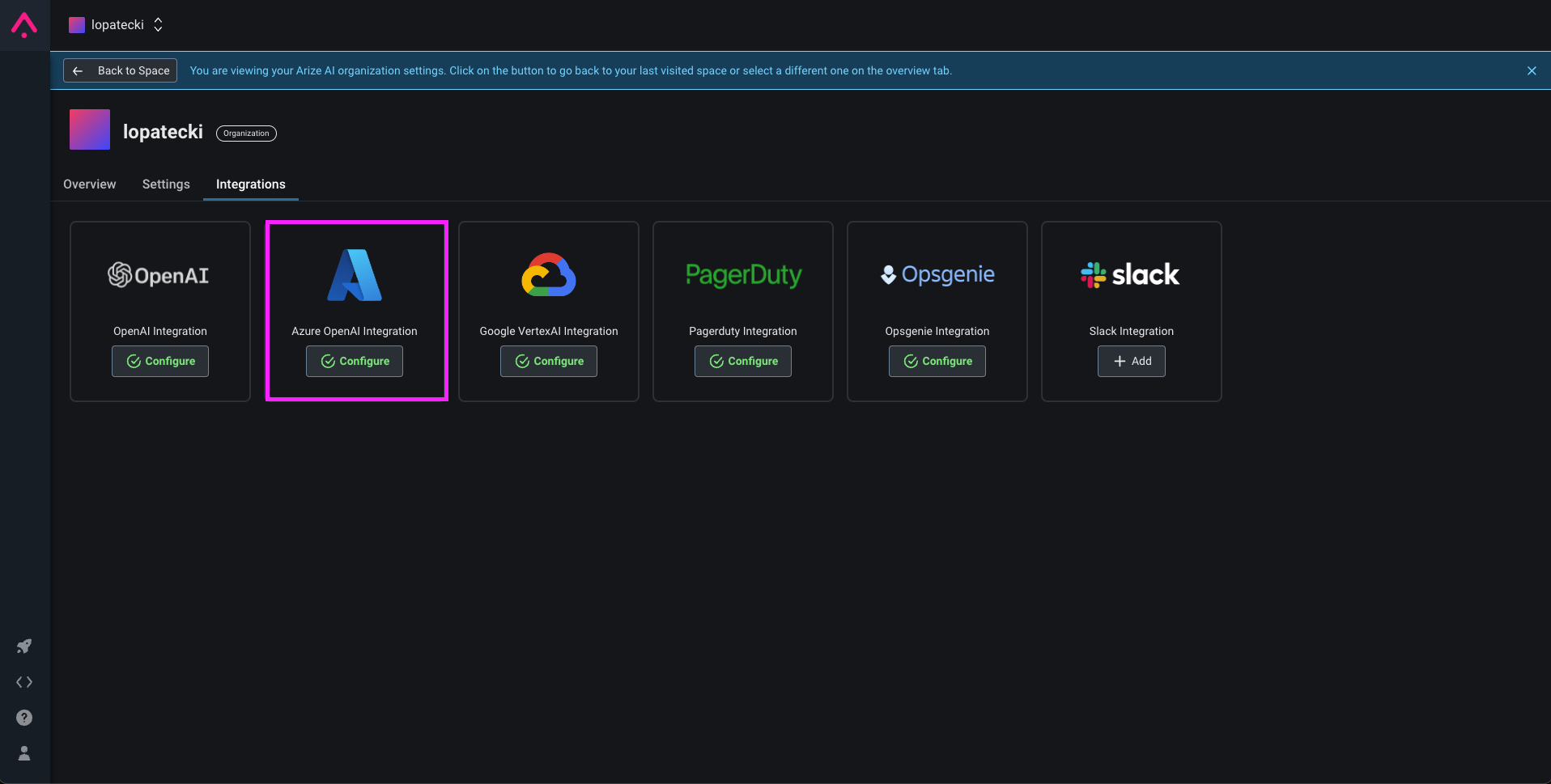
### Select Azure OpenAI from the Providers List

<Frame caption="The AI Provider integrations tab">
  ![The AI Provider integrations tab](https://storage.googleapis.com/arize-phoenix-assets/assets/images/arize-docs-images/ai-integration-providers-azure-openai.png)
</Frame>

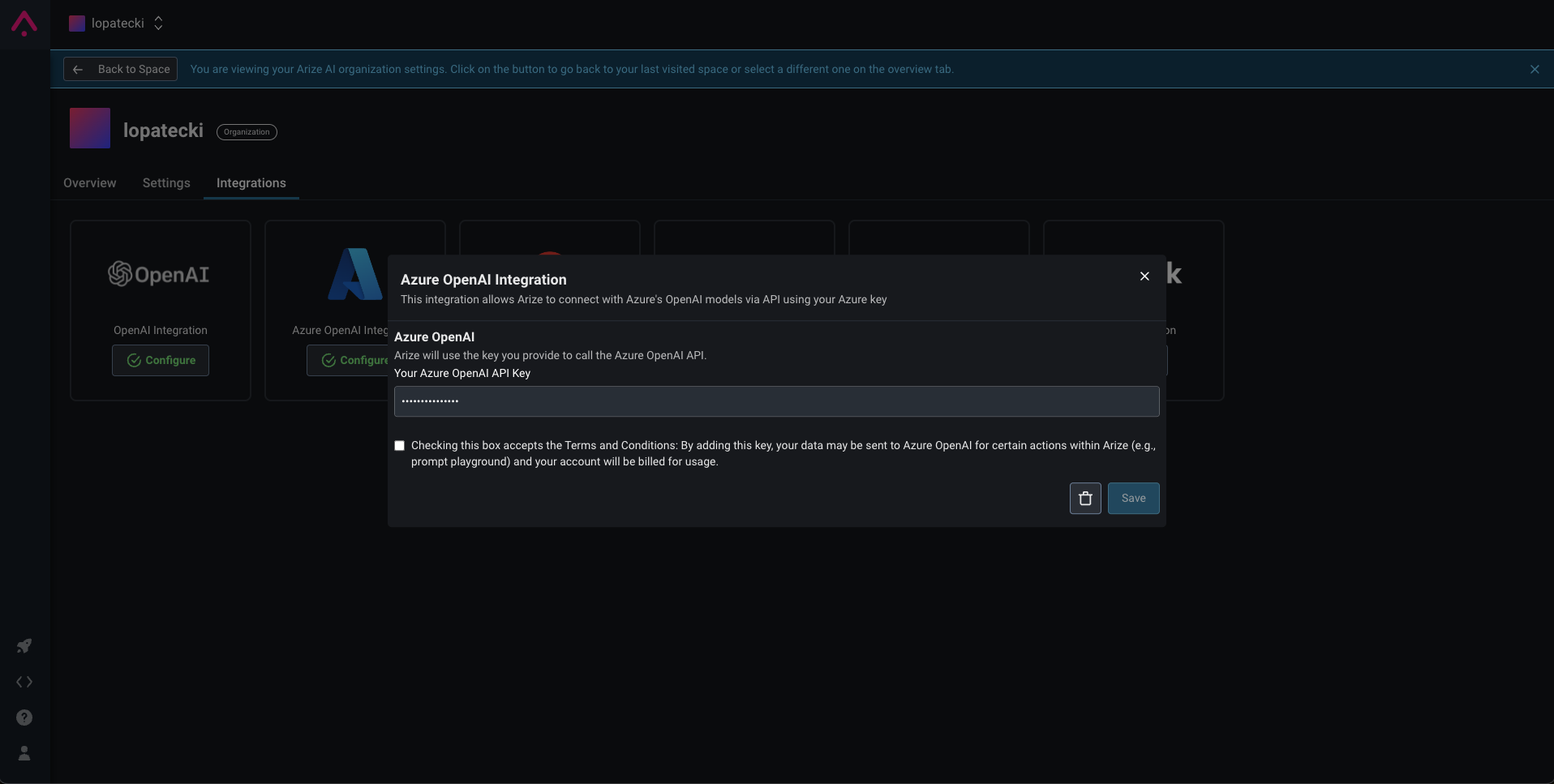
### Fill Out Your Integration Details

<Frame caption="The Azure OpenAI integration configuration pane">
  ![The AI integration details tab](https://storage.googleapis.com/arize-phoenix-assets/assets/images/arize-docs-images/ai-integration-providers-azure-openai-details.png)
</Frame>

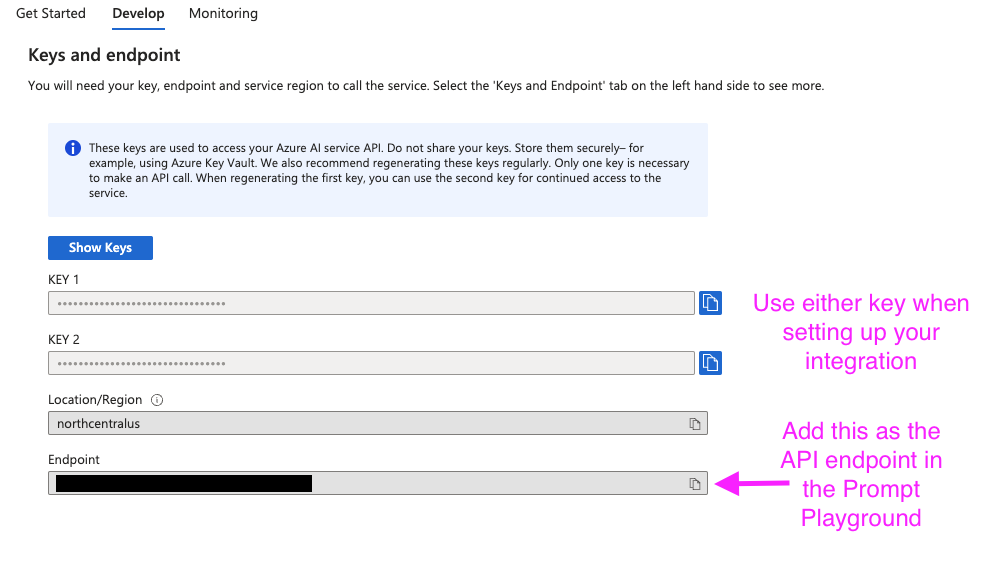
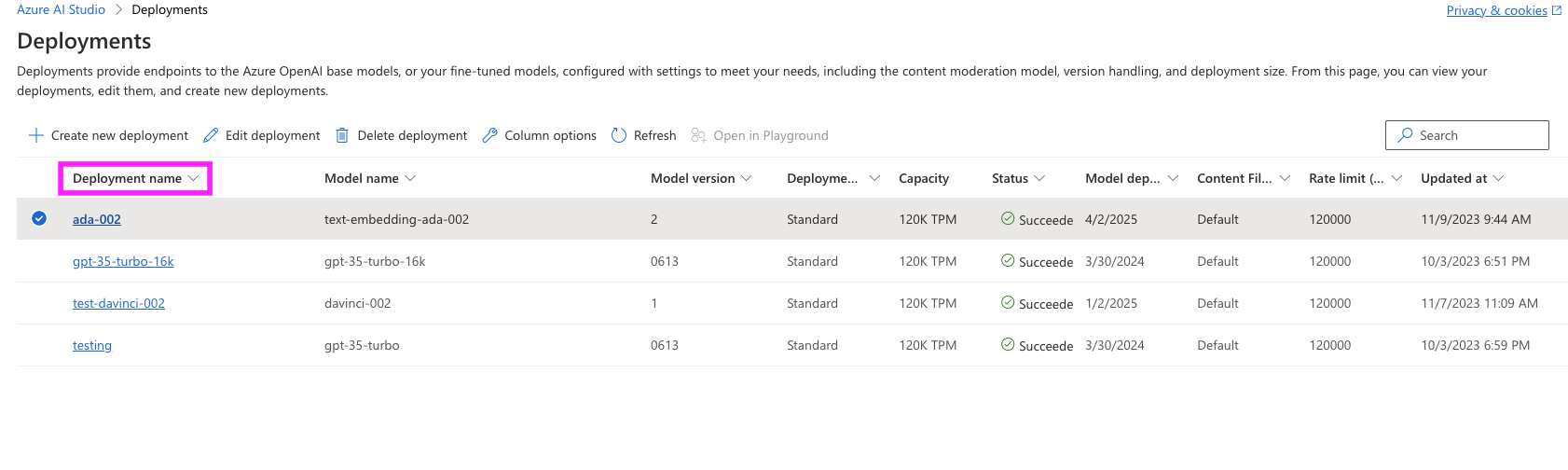
Give your integration a name. Then set your base URL and API key from your deployment in either Azure OpenAI service or Microsoft Foundry.

> Enter the base URL including the version path (e.g., `https://my-resource.services.ai.azure.com/api/projects/my-project/openai/v1`). **Do not** include endpoint paths like `/chat/completions` as these are appended automatically.

If you need to send any extra headers to every request, set these.

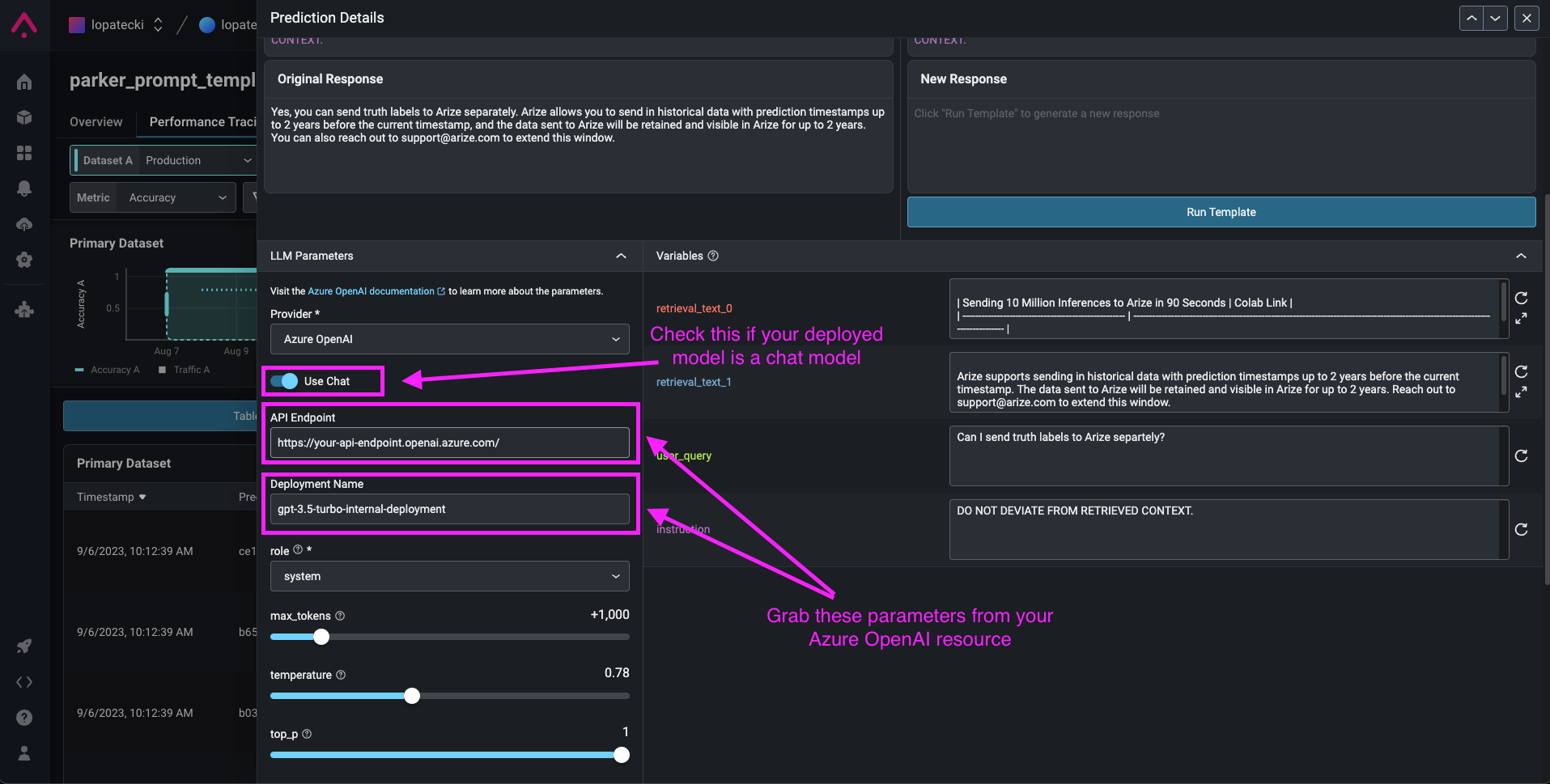
You then need to define the available model deployments. If you have all the default OpenAI models available then you can enable OpenAI default models. Otherwise add your deployment name as a custom model name.

### Advanced Settings

<Frame caption="The Advanced Settings configuration pane">
  ![The AI integration details tab](https://storage.googleapis.com/arize-phoenix-assets/assets/images/arize-docs-images/ai-integration-providers-advanced-settings.png)
</Frame>

Expand the **Advanced Settings** section to configure the following:

* **Supports Function Calling** - Turn this on to allow the integration to use function calling features. This is on by default.
* **Authorized Orgs** - Configure which organizations have access to this integration.
* **Authorized Spaces** - Configure which spaces have access to this integration.

## Add the Integration

Finally check the box to agree to the terms and conditions, then select the **Add Integration** button to create the integration.