> ## Documentation Index
> Fetch the complete documentation index at: https://arize-ax.mintlify.site/docs/llms.txt
> Use this file to discover all available pages before exploring further.
# LiteLLM
> Integrate with LiteLLM as an AI Provider
Use models from your [LiteLLM](https://docs.litellm.ai/) proxy in the prompt playground and evals.
By adding this integration, your data may be sent through your LiteLLM deployment to the underlying model provider for certain actions within Arize AX (e.g., prompt playground) and your account may be billed for usage.
## Add the Integration Using the Arize Skills
Add a LiteLLM integration from your coding agent using the [Arize Skills](/docs/ax/skills/overview):
Create a LiteLLM integration named 'my-litellm' with my proxy URL and key sk-...
## Add the Integration from Arize AX
### Select LiteLLM from the Providers List
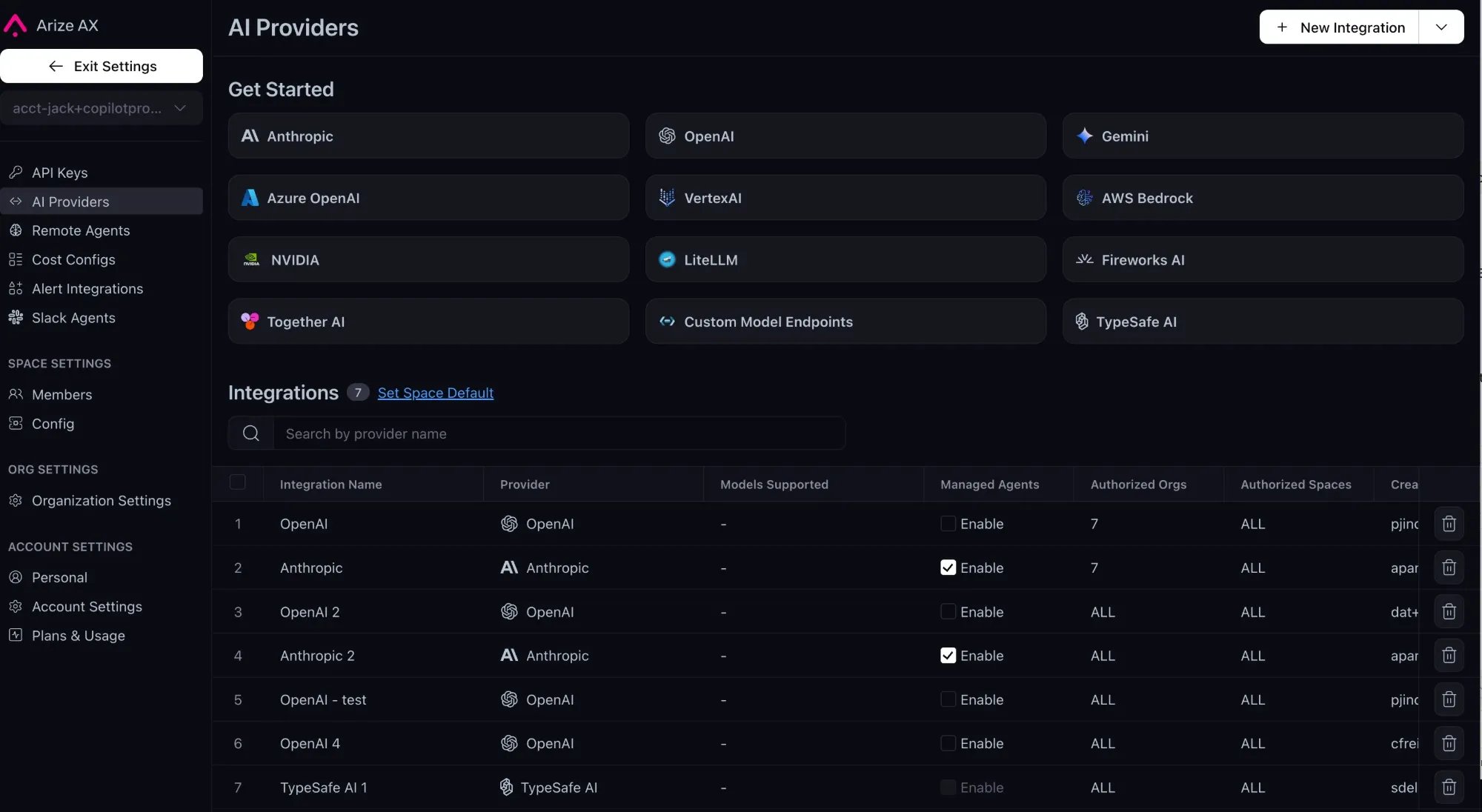
**Navigate to Settings -> [AI Providers](https://app.arize.com/account/ai-providers)** and select **LiteLLM**.
 ### Fill Out Your Integration Details
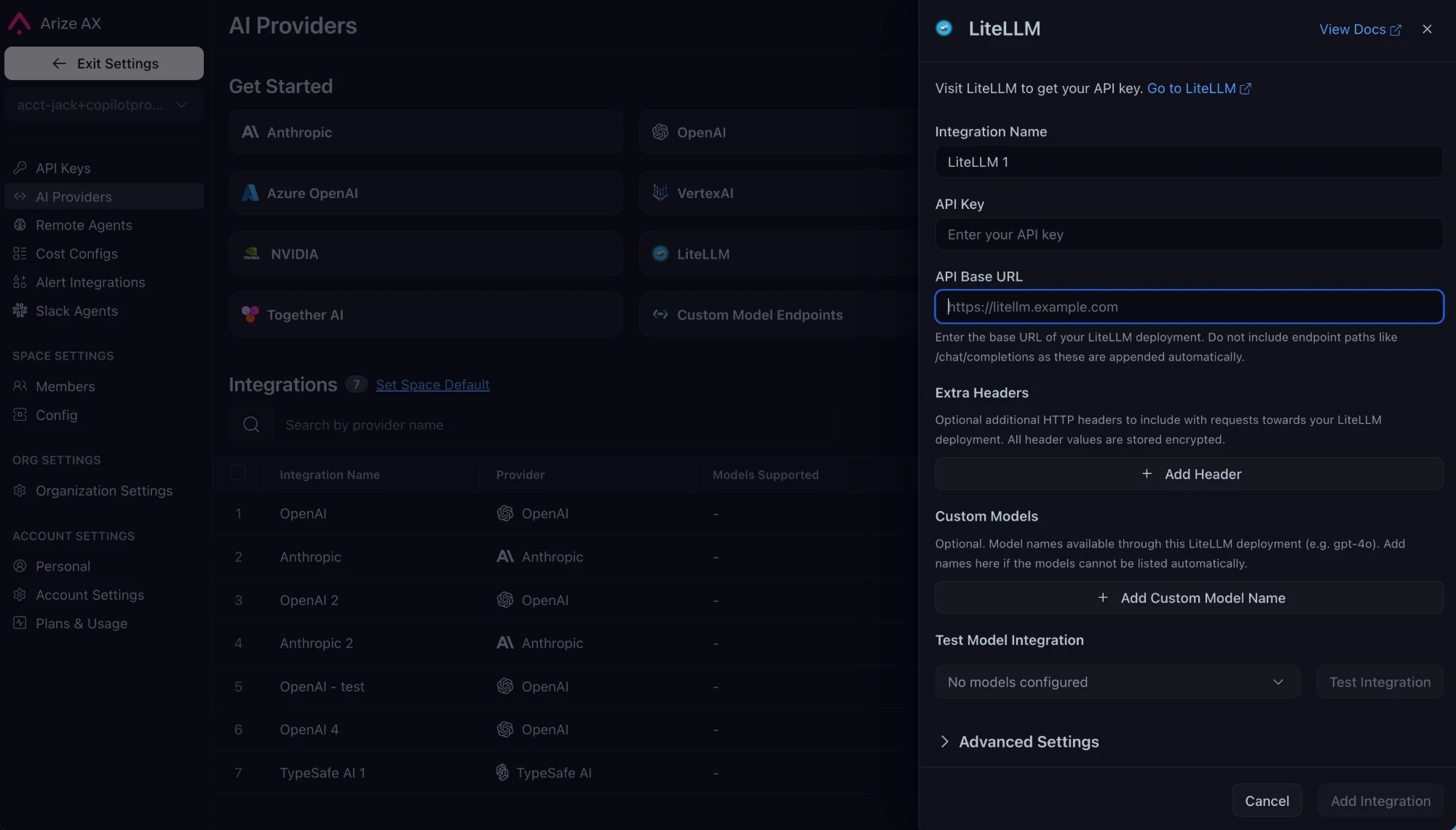 Enter a name, your **API Key** (a [LiteLLM virtual key](https://docs.litellm.ai/docs/proxy/virtual_keys)), and the **API Base URL** of your LiteLLM deployment, without `/chat/completions`.
### Advanced Settings

Expand the **Advanced Settings** section to configure the following:
* **Supports Function Calling** - Turn this on to allow the integration to use function calling features. This is on by default.
* **Authorized Orgs** - Configure which organizations have access to this integration.
* **Authorized Spaces** - Configure which spaces have access to this integration.
## Add the Integration
Finally check the box to agree to the terms and conditions, then select the **Add Integration** button to create the integration.
Enter a name, your **API Key** (a [LiteLLM virtual key](https://docs.litellm.ai/docs/proxy/virtual_keys)), and the **API Base URL** of your LiteLLM deployment, without `/chat/completions`.
### Advanced Settings

Expand the **Advanced Settings** section to configure the following:
* **Supports Function Calling** - Turn this on to allow the integration to use function calling features. This is on by default.
* **Authorized Orgs** - Configure which organizations have access to this integration.
* **Authorized Spaces** - Configure which spaces have access to this integration.
## Add the Integration
Finally check the box to agree to the terms and conditions, then select the **Add Integration** button to create the integration.