> ## Documentation Index
> Fetch the complete documentation index at: https://arizeai-433a7140.mintlify.site/llms.txt
> Use this file to discover all available pages before exploring further.
# PXI
> PXI (Phoenix Intelligence) is the AI engineering agent built into Phoenix. Hand it an investigation instead of digging through traces, prompts, evaluations, and experiments yourself — it understands the context you are already looking at.

PXI is in **beta**. It can and will make mistakes, and it should be used with
care — especially on production data. Agent assistance is **opt-in and
controllable**: see [You stay in control](#you-stay-in-control).
**PXI** (pronounced *"pixie"*, short for **Phoenix Intelligence**) is an AI
engineering agent built into Phoenix. Instead of manually digging through traces,
prompts, evaluations, and experiments, you hand the investigation to an agent that
already understands the context you are looking at — the trace you opened, the
prompt you are editing, the filters you applied.
Think of it as a coding agent, but pointed at your observability data instead of a
codebase. It inspects traces, investigates failures, iterates on prompts, runs
experiments, authors evaluators, annotates spans, and navigates Phoenix for you.
## Get started
PXI needs a model to talk to. Set credentials for at least one provider
(`OPENAI_API_KEY`, `ANTHROPIC_API_KEY`, `GEMINI_API_KEY`, AWS Bedrock
credentials, or a custom provider under **Settings → Models**). See
[Setup](#setup) for the validated model list.
Open the assistant from any Phoenix page. The first time, you review the
session-trace settings and acknowledge to enable the chat surface for your
browser.
From a failing trace, try *"why did this fail?"* From the prompt playground,
try *"make this prompt more robust to empty input."* PXI uses the page you
are on as context — no need to paste IDs or copy data.
## Use PXI from the terminal
PXI is also available as an interactive terminal chat, shipped with the
[Phoenix CLI](/docs/phoenix/tracing/how-to-tracing/importing-and-exporting-traces/retrieve-traces-via-cli)
(`@arizeai/phoenix-cli`). It is the same server-side agent that powers the
in-browser experience — the CLI connects to a running Phoenix instance, so model
credentials, skills, and permissions are configured on the server exactly as
described under [Setup](#setup).
Run it without installing:
```bash theme={null}
npx -y @arizeai/phoenix-cli pxi
```
Or install the CLI globally and use the `pxi` command directly:
```bash theme={null}
npm install -g @arizeai/phoenix-cli
pxi
```
Point it at your Phoenix instance with the `PHOENIX_HOST` (and `PHOENIX_API_KEY`
if your deployment requires auth) environment variables, or pass `--endpoint` /
`--api-key` flags:
```bash theme={null}
export PHOENIX_HOST=http://localhost:6006
pxi
```
Pick the model with `--provider` and `--model` (defaults to Anthropic
`claude-opus-4-8`):
```bash theme={null}
pxi --endpoint http://localhost:6006 --provider OPENAI --model gpt-5.4
```
The terminal client talks to the same `/agents/server` endpoint as the browser
agent, so it requires a running Phoenix server with a configured model provider.
On launch it runs a preflight check against the server's model catalog and
credentials, surfacing configuration problems as a clean error before the chat
opens.
| Flag | Effect |
| ---------------------------- | ------------------------------------------------------------------------------------------------------------------------ |
| `--endpoint ` | Phoenix endpoint URL (overrides `PHOENIX_HOST`). |
| `--api-key ` | Phoenix API key (overrides `PHOENIX_API_KEY`). |
| `--profile ` | Use a saved Phoenix CLI profile. |
| `--provider ` | Built-in model provider (e.g. `ANTHROPIC`, `OPENAI`, `GOOGLE`). |
| `--model ` | Model name (defaults to `claude-opus-4-8`). |
| `--custom-provider-id ` | Use a custom provider configured under **Settings → Models** (requires `--model`). |
| `--bypass-edits` | Apply edits without manual approval (see [You stay in control](#you-stay-in-control)). |
| `--enable-web-access` | Allow PXI to consult the web for grounding. |
| `--enable-subagents` | Allow the server to attach subagents (including the server-side bash tool). |
| `--enable-graphql-mutations` | Allow PXI to run state-changing GraphQL mutations. |
| `--ingest-traces` | Persist this session's PXI traces locally in Phoenix. |
| `--export-remote-traces` | Export this session's PXI traces to a configured remote collector. |
| `--attach-user-id` | Attach the authenticated Phoenix user to PXI traces (opt-in; see the **Privacy, safety & configuration** section below). |
| `--skip-model-preflight` | Skip the model catalog and credential checks before launch. |
Each capability flag is still subject to the server's own settings — for
example, `--enable-subagents` has no effect when
`PHOENIX_AGENTS_DISABLE_BASH=true`, and `--export-remote-traces` requires a
configured collector and an administrator who has allowed export.
## Slash commands
Inside the terminal chat, lines beginning with `/` are handled locally by the
client and never sent to the model.
| Command | Effect |
| -------- | --------------------------------------------------------- |
| `/help` | List the available slash commands. |
| `/clear` | Clear the conversation history and start a fresh session. |
| `/exit` | Exit the terminal client. |
## Status line
While a turn streams, PXI shows a live **thinking indicator** and, once the
response arrives, a bottom-right **token-usage line** — the total tokens for the
turn, preceded by a cache-activity summary when the provider reports cache
reads or writes. The active model name is shown next to the input prompt so you
always know which provider and model the session is talking to.
## What it does
* **Drives the product** — navigates, filters, and pivots through your Phoenix
data the same way you would.
* **Investigates failures** — walks failing traces and proposes root causes
instead of leaving you to grep through spans.
* **Iterates on prompts** — reads, edits, and tests playground prompts, with
every change shown as a diff you approve.
* **Reasons over your data** — a sandboxed runtime lets PXI query your Phoenix
instance to answer questions evals and dashboards cannot.
* **Knows the product** — Phoenix's own documentation is wired in as a
first-class source, so answers are grounded rather than guessed.
PXI is **context-aware**: it has access to the history already in Phoenix —
prompt versions, experiment results, datasets, evaluations, annotations, and
trace data — and its capabilities adapt to the page you are on. What it can do on
a trace differs from what it can do in the prompt playground.
## Skills
A **skill** is a reusable, multi-step procedure for one Phoenix workflow — what to
look at, in what order, and what the output should be. PXI loads the matching
skill on demand rather than improvising each investigation from scratch.
The library is under active development and grows each release — track progress on
the [Phoenix roadmap milestone](https://github.com/Arize-ai/phoenix/milestone/13).
Walk failing traces against a failure-mode checklist for prioritized
root-cause hypotheses. *Available today.*
Co-author and optimize prompts, with every edit shown as a diff to approve.
*Available today.*
Annotate spans and apply labels in bulk across a trace or project.
*Available today.*
Draft and refine LLM-as-a-judge evaluators against your data.
*Available today.*
Turn the failures you find into curated datasets for experiments and evals.
*Under development.*
Because skills are context-aware, PXI surfaces the right one for the page and
task you are on.
## You stay in control
Agent assistance is opt-in. PXI can be turned off completely, runs under an
explicit permission model, and only reaches the internet when you let it.
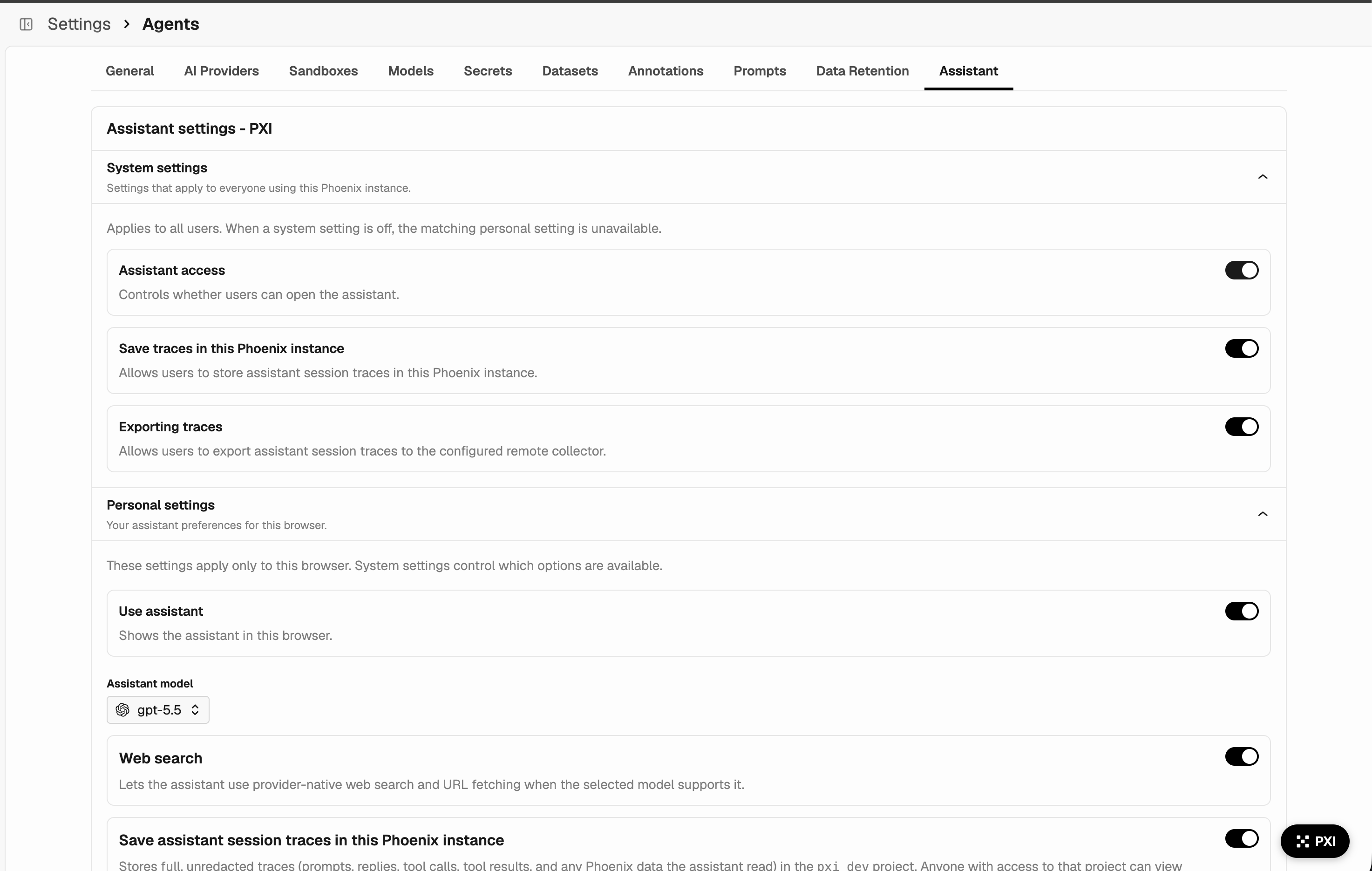
* **Turn it fully off.** Disable PXI per deployment
(`PHOENIX_DISABLE_AGENT_ASSISTANT=true`), per instance
(**Settings → Assistant → System settings**), or per browser
(**Settings → Assistant → Personal settings → Use assistant**).
* **Nothing changes without your approval.** Any state-changing action — editing
a prompt, saving a prompt, annotating spans — is gated by an edit-approval
mode you pick from the chat input (or cycle with `Ctrl+T`). Read-only actions
run freely.
* **Add web grounding when you want it.** Toggle **web access** with the globe
button in the chat input to let PXI consult the live internet for additional
grounding. The toggle is per session and only appears when an administrator
allows it; leave it off to keep the session entirely inside your Phoenix
instance.
| Edit-approval mode | Behavior |
| ------------------------------- | ------------------------------------------------------------------------------------------------------ |
| **Manual Approval** *(default)* | PXI proposes the change as a reviewable diff and waits. Nothing is applied until you click **Accept**. |
| **Bypass Approval** | Edits are applied without asking. The selector shows a warning treatment while active. |
## Setup
Configure credentials for at least one provider via environment variables or
Phoenix secrets (`OPENAI_API_KEY`, `ANTHROPIC_API_KEY`, `GEMINI_API_KEY`, AWS
Bedrock credentials, or a custom provider under **Settings → Models**). The
consent gate shown the first time you open PXI enables the chat surface for that
browser; it does not override system settings.
PXI relies heavily on **tool calling** — almost every action it takes is a tool
call. Models that are weak at tool use produce broken sessions even if they
handle free-form chat well. Pick one of these validated models unless you have a
specific reason not to:
* **Anthropic** — `claude-opus-4-8`, `claude-opus-4-6`, `claude-sonnet-4-6`
* **OpenAI** — `gpt-5.5`, `gpt-5.4`, `gpt-5.4-mini`
* **Google** — `gemini-3.1-pro-preview`, `gemini-3.5-flash`
Other built-in or custom-provider models can be selected from the model menu,
but they are untested with PXI and may fail to invoke tools correctly.
## How it works
PXI is split between the Phoenix server, which owns everything the model sees
(tool definitions, system prompt, skills, capability guidance), and the browser,
which executes tool calls that touch the page. Capabilities are gated by
**context** — PXI only advertises a tool when the required Phoenix UI context is
present, so it does not offer an action that cannot succeed on your current page.
```mermaid theme={null}
flowchart LR
User((User))
subgraph Browser["Browser"]
direction TB
ChatUI["Chat UI"]
Bash["bash sandbox"]
PhoenixGQL["phoenix-gql CLI"]
ChatUI ~~~ Bash
Bash --> PhoenixGQL
end
subgraph Server["Phoenix Server"]
direction TB
GraphQL["GraphQL API"]
Agent["PXI Agent"]
Tools["Tools"]
Skills["Skills"]
MCP["MCP"]
Agent --> Tools
Agent --> Skills
Agent --> MCP
end
LLM["LLM Provider"]
Docs["Mintlify Docs MCP"]
User <--> ChatUI
ChatUI <--> Agent
PhoenixGQL --> GraphQL
Agent <--> LLM
MCP --> Docs
```
The browser owns the chat UI and a sandboxed **bash** environment. Inside it,
PXI uses the **phoenix-gql** CLI to query the Phoenix **GraphQL API** — the
same authenticated endpoint a logged-in user hits. The server hosts the agent
and its model-facing surface (**tools**, **skills**, an **MCP** client) and
calls your LLM provider with your API key. When external resources are
allowed, the server also reaches the Mintlify-hosted Phoenix docs MCP.
PXI runs **inside the Phoenix process you are already running**:
* Tool calls execute against your Phoenix server and your data — no separate
Arize service is involved.
* The LLM is **your model provider**, called with **your API key**. Arize is
not in the request path.
* Documentation lookups go to the **Mintlify-hosted Phoenix docs MCP server**
when external resources are allowed — the same public docs you can read in a
browser, serving docs only.
* Remote trace export happens **only if every gate is enabled**: a remote
collector is configured, an administrator allows export in system settings,
and the user enables it in personal settings.
## Privacy, safety & configuration
PXI can capture conversations as Phoenix traces, controlled by both system
settings and per-browser preferences. From **Settings → Assistant**,
administrators can turn assistant access on or off for everyone, allow users to
save session traces locally, and allow export to a configured remote collector;
each user can show or hide the assistant and opt into local or remote trace
recording when allowed.
By default the system settings allow **neither** local persistence nor remote
export. Local traces are written to the `assistant_agent` project (override
with `PHOENIX_AGENTS_ASSISTANT_PROJECT_NAME`). When recording is enabled, tool
inputs and outputs are recorded on the corresponding spans, so you can audit
what PXI did and evaluate it like any other agent in Phoenix.
**Attach your identity (opt-in).** Session traces are anonymous by default. If
you want to associate a session with the signed-in user — for example to
attribute recorded sessions to a specific person — enable **Attach your email
to session traces** under **Settings → Assistant → Personal settings**. From
the terminal client the same opt-in is the `--attach-user-id` flag. It is off
unless you turn it on.
* **Verify before you act.** PXI can apply filters, edit prompts, and run
bash. Review proposed changes — especially prompt edits — before accepting.
* **Two bash surfaces.** Beyond the browser-side sandbox shown above, the
server can attach a subagent that carries a **server-side** bash tool. Set
`PHOENIX_AGENTS_DISABLE_BASH=true` to disable that server-side tool (and hide
the subagents toggle in **Settings → Assistant**) without disabling PXI
entirely; the browser sandbox is unaffected.
* **Don't point it at sensitive production data without controls.** PXI sees
whatever the signed-in user can see.
* **Treat outputs as suggestions.** PXI hallucinates, especially on long
traces or unfamiliar frameworks.
| Environment variable | Effect |
| ---------------------------------------- | ------------------------------------------------------------------------------------------------------------------------------------------------------------------------------------------------------------------------------------------------------------------------------------- |
| `PHOENIX_DISABLE_AGENT_ASSISTANT=true` | Disable PXI for the whole deployment (requires restart). |
| `PHOENIX_ALLOW_EXTERNAL_RESOURCES=false` | Disable external resource access, including the Phoenix docs MCP lookups. |
| `PHOENIX_AGENTS_DISABLE_WEB_ACCESS=true` | Disable PXI's web search/fetch tools while leaving other external resources available. |
| `PHOENIX_AGENTS_DISABLE_BASH=true` | Disable PXI's **server-side** bash tool by preventing subagents from being attached to the assistant. The subagents toggle is also hidden from **Settings → Assistant**. The browser-side bash sandbox is unaffected; to turn PXI off entirely use `PHOENIX_DISABLE_AGENT_ASSISTANT`. |
| `PHOENIX_AGENTS_COLLECTOR_ENDPOINT` | Remote collector endpoint for assistant trace export. |
| `PHOENIX_AGENTS_COLLECTOR_API_KEY` | API key for the remote collector, if required. |
| `PHOENIX_AGENTS_ASSISTANT_PROJECT_NAME` | Project name for locally recorded assistant traces (default `assistant_agent`). |
## Feedback
PXI is in beta and will make mistakes. If you hit a rough edge or want to suggest
new capabilities, open an issue or start a discussion on
[GitHub](https://github.com/Arize-ai/phoenix).