

Only available for AX Enterprise accounts.
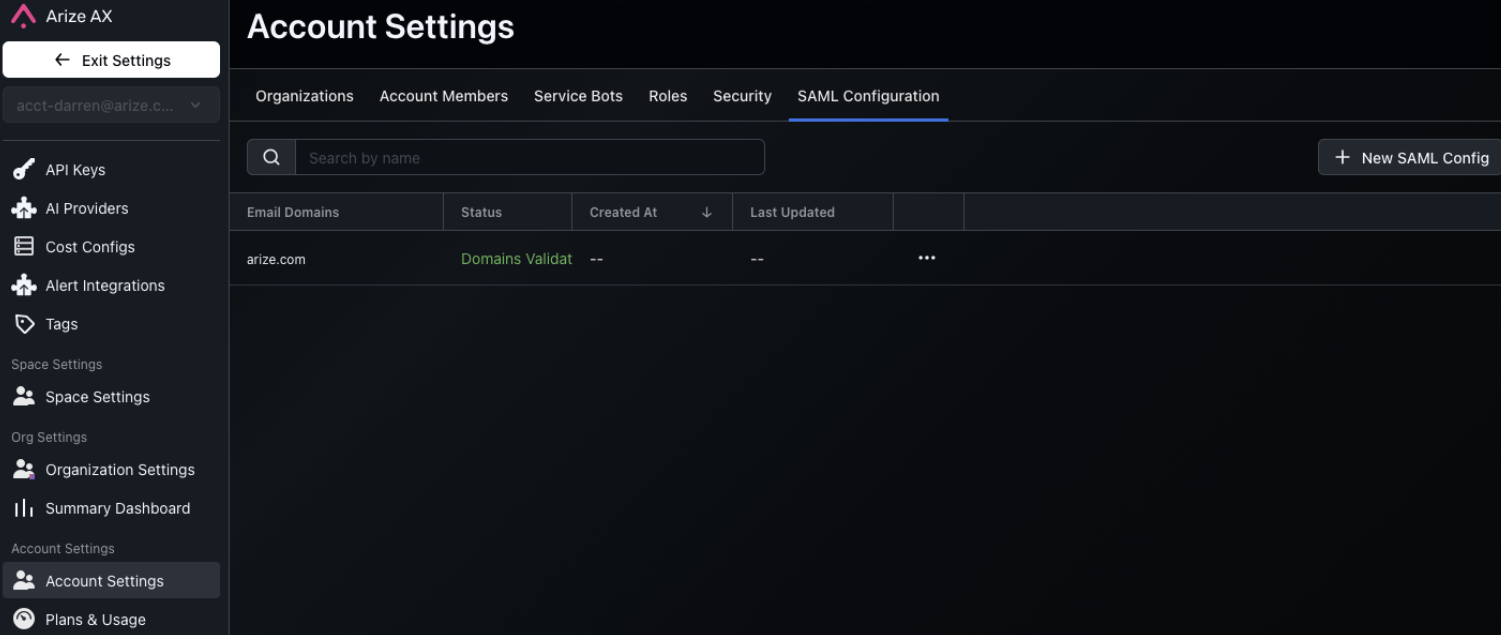
Configuration
When creating or editing existing entries, you’ll use a form with two tabs: General Configuration and Role Mapping. For new entries, you will be guided through the configuration process.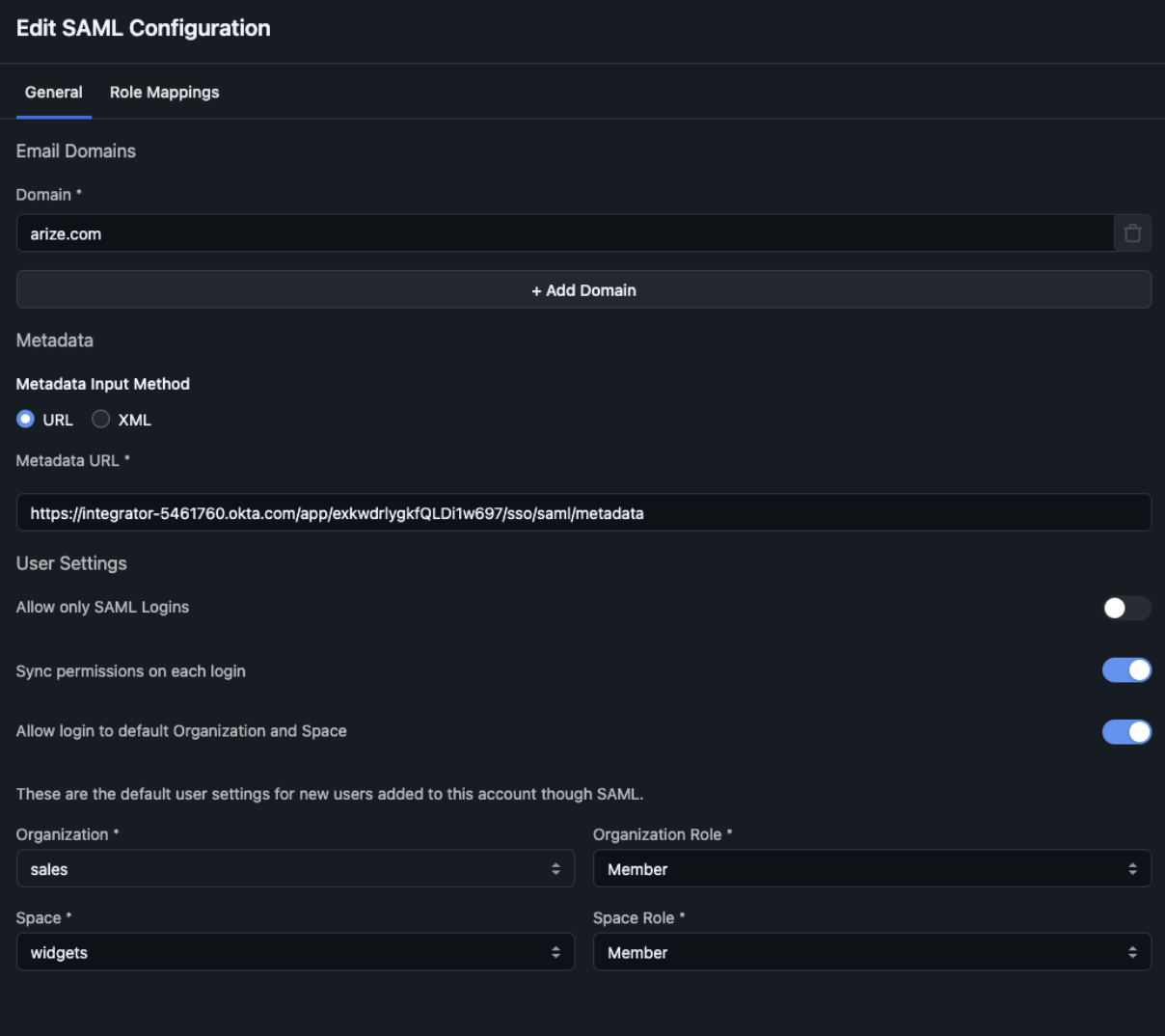
General Configuration
1. Email Domains Field
Add as many email domains that share the same configuration. An email domain must be unique among all IdP entries in the system (except they can overlap and override existing file-based entries). Validation status:- SaaS (Arize employee): Email domains are considered validated
- SaaS (Customer admin): Email domains are unvalidated until an Arize employee edits the entry, unless the domain is also found in a file-based entry
- File-based entries: Overlapping domains are considered validated
Due to caching, changes to email domain information may take up to a minute to take effect.
2. Metadata
Enter either the Metadata URL (preferred) or Metadata XML data. The Metadata URL is an option to automatically fetch the Metadata XML from your IdP. Alternatively, you can provide the Metadata XML directly. This information is available in the SAML configuration settings of your IdP.Due to caching, changes to metadata information may take up to a minute to take effect.
3. User Settings
Due to caching, changes to user settings may take up to a minute to take effect.
Allow Only SAML Logins
If enabled, users can only log in via SAML. This prevents anyone from logging in with a username/password combination.Effect on invites: When this setting is enabled, users log in directly via SSO and do not need to complete a separate sign-up. When disabled (even if SSO is configured), invited users complete sign-up via email as normal.
Sync Permissions on Each Login
When enabled, the user’s permissions are synced on every SAML login.Timing considerations: After making changes to role mappings, a user’s next SAML login might take up to 24 hours to reflect the changes due to access and refresh tokens keeping their last login session alive. If you want changes to role mappings to take effect immediately, users may need to log out to force a SAML login.
Allow Login to Default Organization and Space
When enabled:- If a new user logs in via SAML and does not match any role mappings, they are added as members of the default organization and space with the roles listed in this section
- These values are also used if
Allow only SAML Loginsis enabled and there is no role mapping match
Role Mappings
Role mappings are optional but recommended for automated user provisioning and access control. During the SAML protocol exchange, your Identity Provider (IdP, e.g., Okta) can be configured to send assertions about the user. These assertions can be used to determine how a new user should be created or how an existing user should be updated (ifSync permissions on each login is enabled).
Role mappings are a login-time feature. They have no effect on the user invitation flow — invites succeed or fail based on invite mode, email availability, and role assignment, not on whether role mappings are configured.
How Role Mappings Work
The assertion’s attributes (key/value pairs) can be matched against your role mappings to determine:- Account admin status: Whether the user should be an account administrator
- Organization and space placement: Which organization and optionally which spaces the user should be placed into
- Space role assignment: Which role to assign per space — either a built-in space role (Admin, Member, Read-only, Annotator) or a custom role with fine-grained permissions
- Project role assignment: Within a space, which restricted projects the user should have access to and what project role they receive
Allow login to default Organization and Space setting:
- If Enabled: Default organization and space are used
- If Disabled: Login will be rejected
If more than one attribute key/value pair is present in an individual role mapping, all those attributes must match the incoming assertion’s equivalent key/value settings.
Configuring a Role Mapping
Each role mapping consists of:-
SAML Attributes — One or more key/value pairs that must match the incoming SAML assertion. For example,
Department = Engineering. - Account Admin toggle — If enabled, matching users are granted Account Admin access. When this is on, organization and space assignments are not needed.
- Organization and Role — Select which organization the user should be placed into and their organization-level role (Admin, Member, or Read-only).
-
Space Assignments (optional) — For non-admin organization roles, you can add one or more space assignments. For each space, select a role from the dropdown:
- Built-in roles: Admin, Member, Read-only, or Annotator
- Custom roles: Any custom role defined in your account appears in the same dropdown, allowing you to assign fine-grained permissions per space during provisioning
-
Project Assignments (optional) — Within each space assignment, you can further specify project-level role bindings for restricted projects. For each restricted project in the space, select a project role:
- Built-in project roles: Project Viewer, Project Editor, Project Admin
- Custom roles: Any custom role scoped to the project level
Rolling out: Developer access is derived from the account role SAML assigns — the Account Admin toggle above and the account role your mapping matches. A manual per-user override to developer access is preserved when a login leaves the user’s account role unchanged; it is recomputed only when the account role actually changes. Any older per-mapping developer-access setting in your configuration is deprecated and ignored.

Caching
Database entries are cached in the backend application to reduce database calls. If no action has occurred on an entry recently, changes take effect immediately. The times below are the worst-case delays for changes to take effect:- Changing the metadata XML, metadata URL, or email domain fields: 1 minute
- Changing the role mappings or user settings: 1 minute