

Step 1: Open Prompt Hub and Create a New Prompt
Navigate to Prompt Hub from the left sidebar and click + New Prompt. This opens the Prompt Playground where you’ll define your prompt.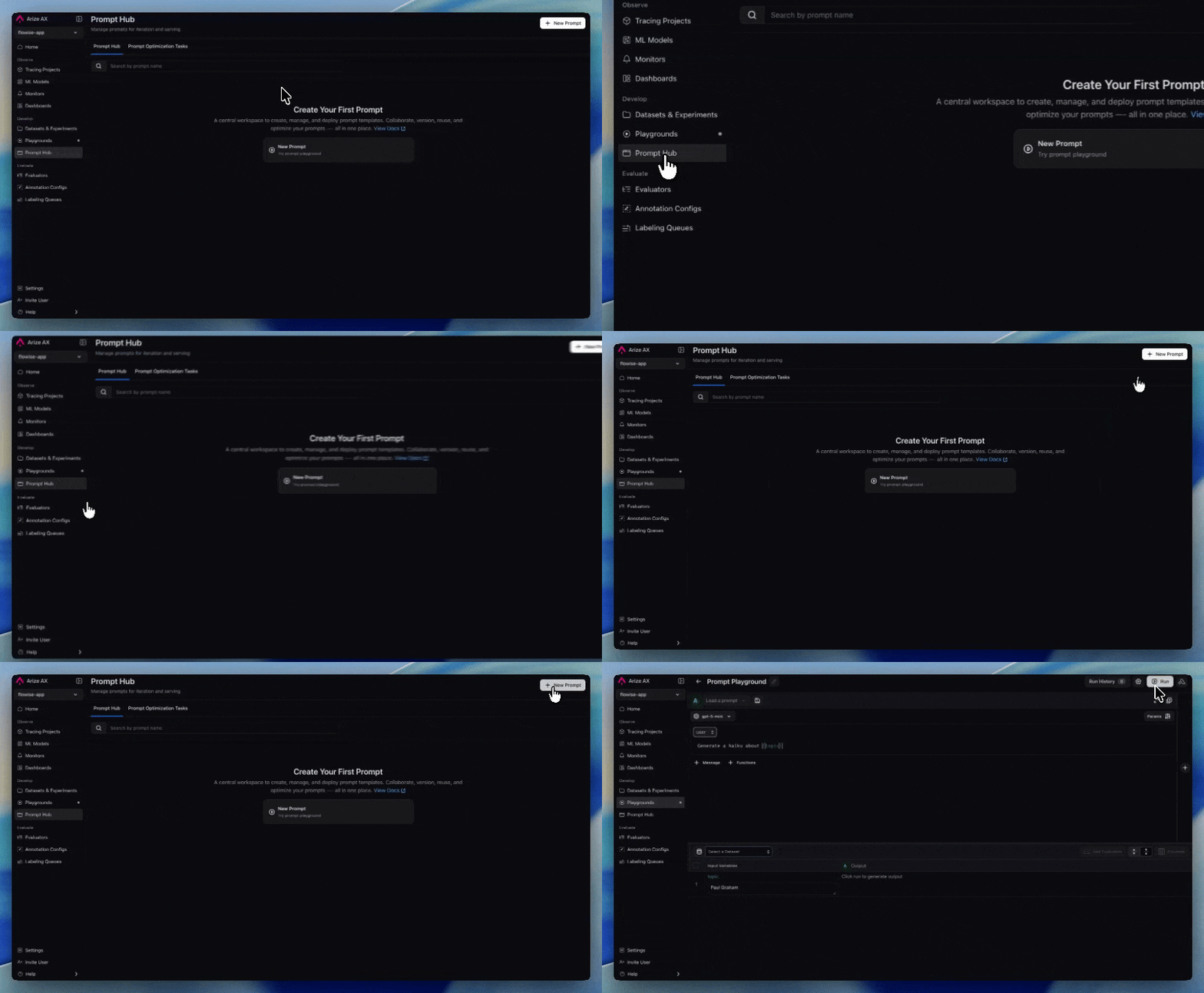
Step 2: Select Your LLM Provider
Choose the LLM provider and model you want to use for your prompt. For this tutorial, we’ll use OpenAI with the gpt-5-mini model. You can select a different provider or model based on your preference.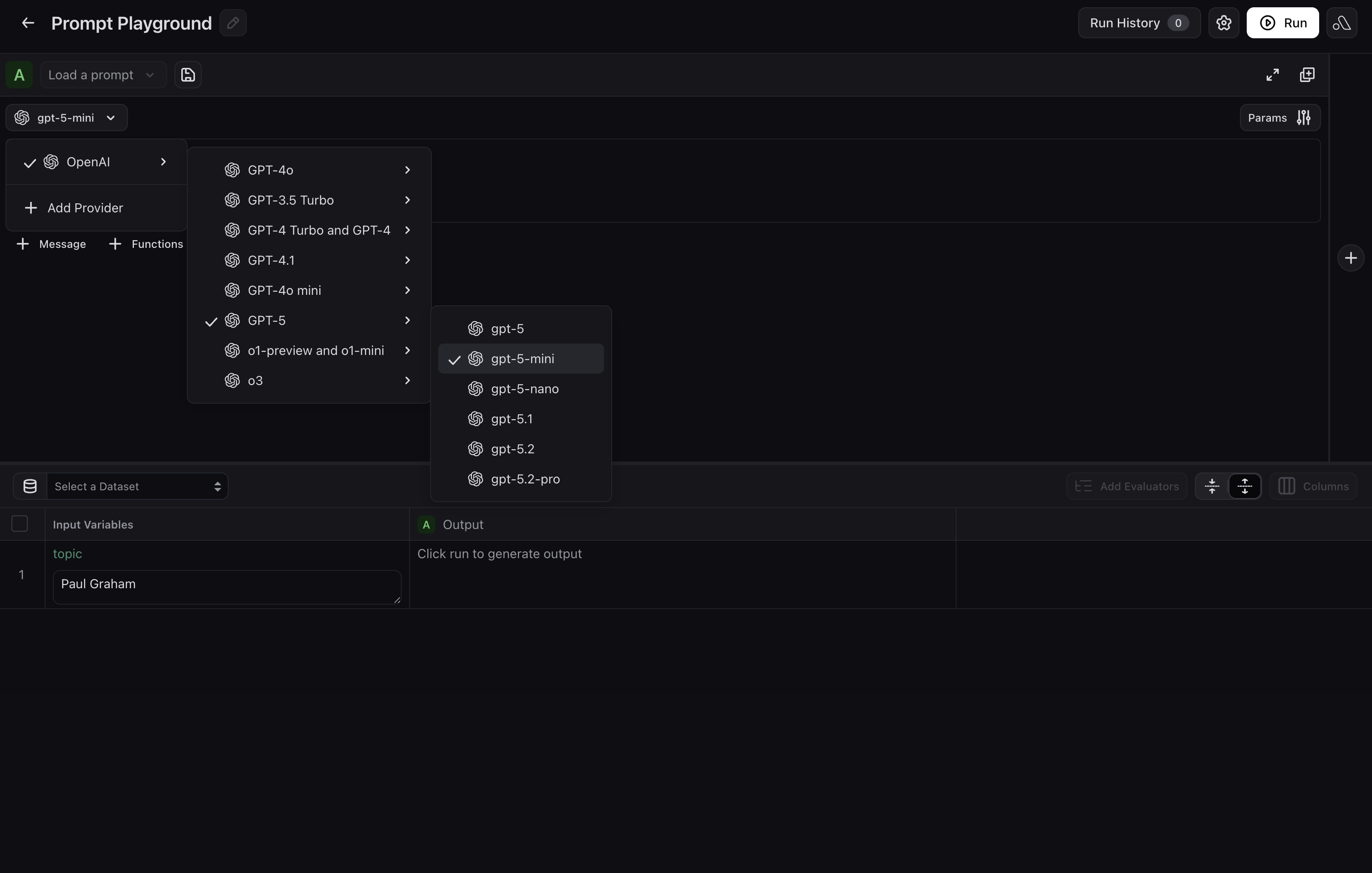
Step 3: Define the System Message and User Message Template
System Message
Add the following as a System message to set behavior and constraints for your trip planner:User Message Template
Click + Message below the system message to add a User message. Here you’ll add template variables that map to your dataset columns. These variables are wrapped in curly braces and will be filled in dynamically when you run experiments:| Variable | Description | Example |
|---|---|---|
{destination} | The travel destination | Istanbul, Turkey |
{duration} | Length of the trip | 2 weeks |
{travel_style} | Type of travel experience | Standard, family-friendly, romantic |
{research} | Weather, attractions, and travel tips | Best time to visit, top attractions |
{budget_info} | Cost breakdown for the trip | Accommodation, transport, food estimates |
{local_info} | Hidden gems and local recommendations | Restaurants, cultural tips |
Step 4: Configure Invocation Parameters
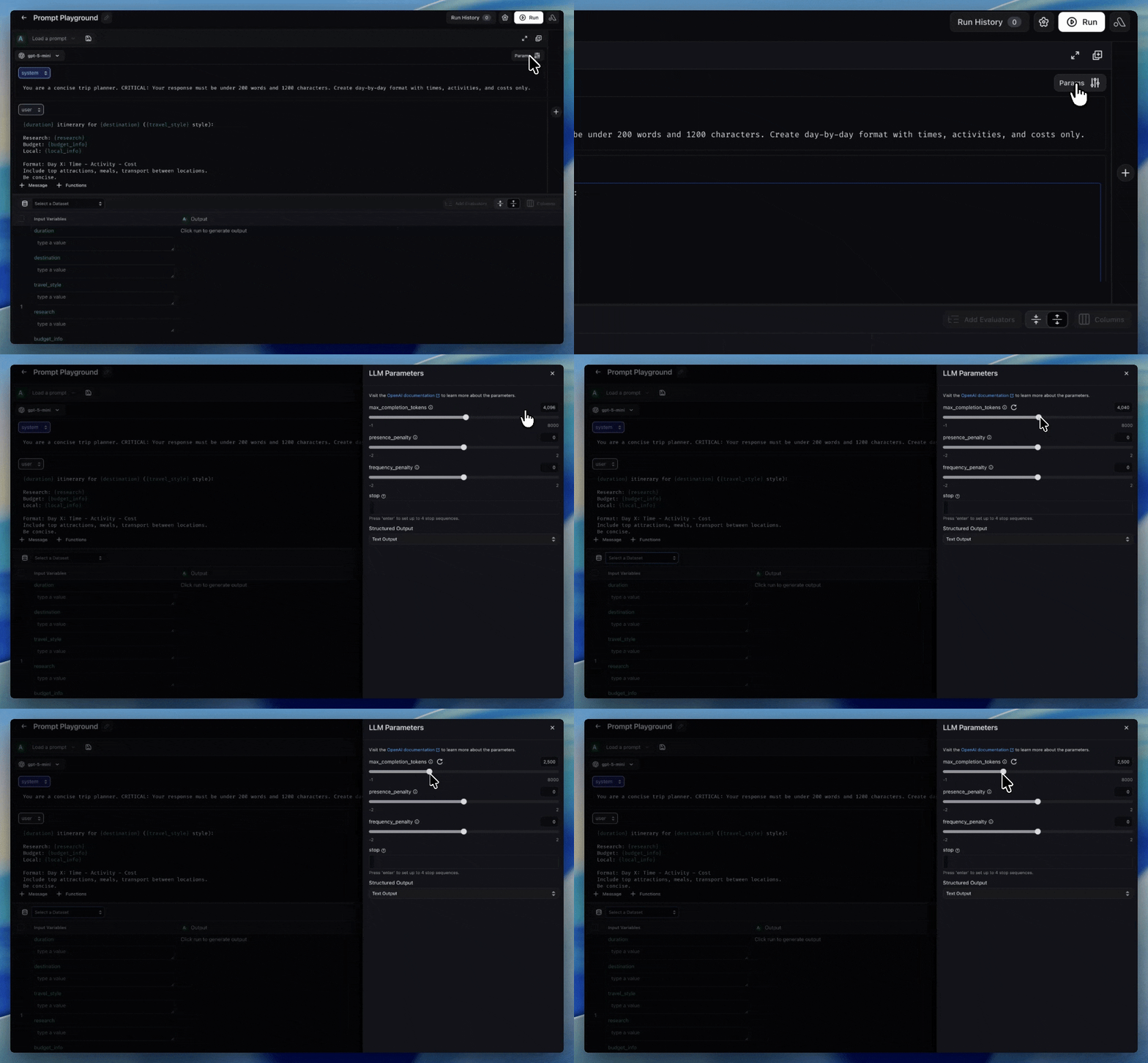
Click Params in the upper-right corner to open the invocation parameters. Set the following to control the model’s output:-
Max Completion Tokens:
2500— enough room to create a full itinerary - Other parameters such as Presence Penalty and Frequency Penalty are also available — adjust these as you see fit for your use case.
Step 5: Save Your Prompt
Click Save Prompt and give it a name liketrip-planner. Add a description such as “Generates concise day-by-day travel itineraries with times, activities, and costs.” You can also add tags like travel or testing to make it easy to find later.
Once saved, your prompt is stored in Prompt Hub with version control capabilities. All parameters and messages are saved as part of the prompt. Every future edit creates a new version, so you can always compare or revert changes.
Next Steps
You now have a versioned trip planner prompt in Prompt Hub that:- Takes in structured travel details as template variables
- Produces concise, day-by-day itineraries
- Is ready to be tested against a dataset of real travel scenarios