

Step 1: Create Your Dataset
Download Examples
Before testing in the Playground, you need a dataset in Arize AX. Navigate to Datasets and Experiments in the left sidebar. Upload this small trip planner dataset, which contains examples spanning destinations like Istanbul, Dubai, San Francisco, Bangkok, Reykjavik, Barcelona, Cape Town, and New York — each with different durations and travel styles.Download Trip Planner Dataset
The dataset also includes an
output_content column with existing model outputs. You can use this as a reference when evaluating your prompt’s performance.
Create Dataset in Arize AX
- Upload via UI
- Upload via SDK
In the Datasets and Experiments section, create a new dataset, name it (ex:
trip-planner-dataset), and upload the trip_planner_dataset.csv file you downloaded.Step 2: Open the Playground and Load Your Prompt
- Navigate to Playgrounds from the left sidebar.
- Create a new Playground View and name it (e.g.
trip-planner-test). - Use the Load a prompt dropdown to load the first version of your
trip-plannerprompt. - Your system message and user message template will populate automatically, including all the
{variable}placeholders.
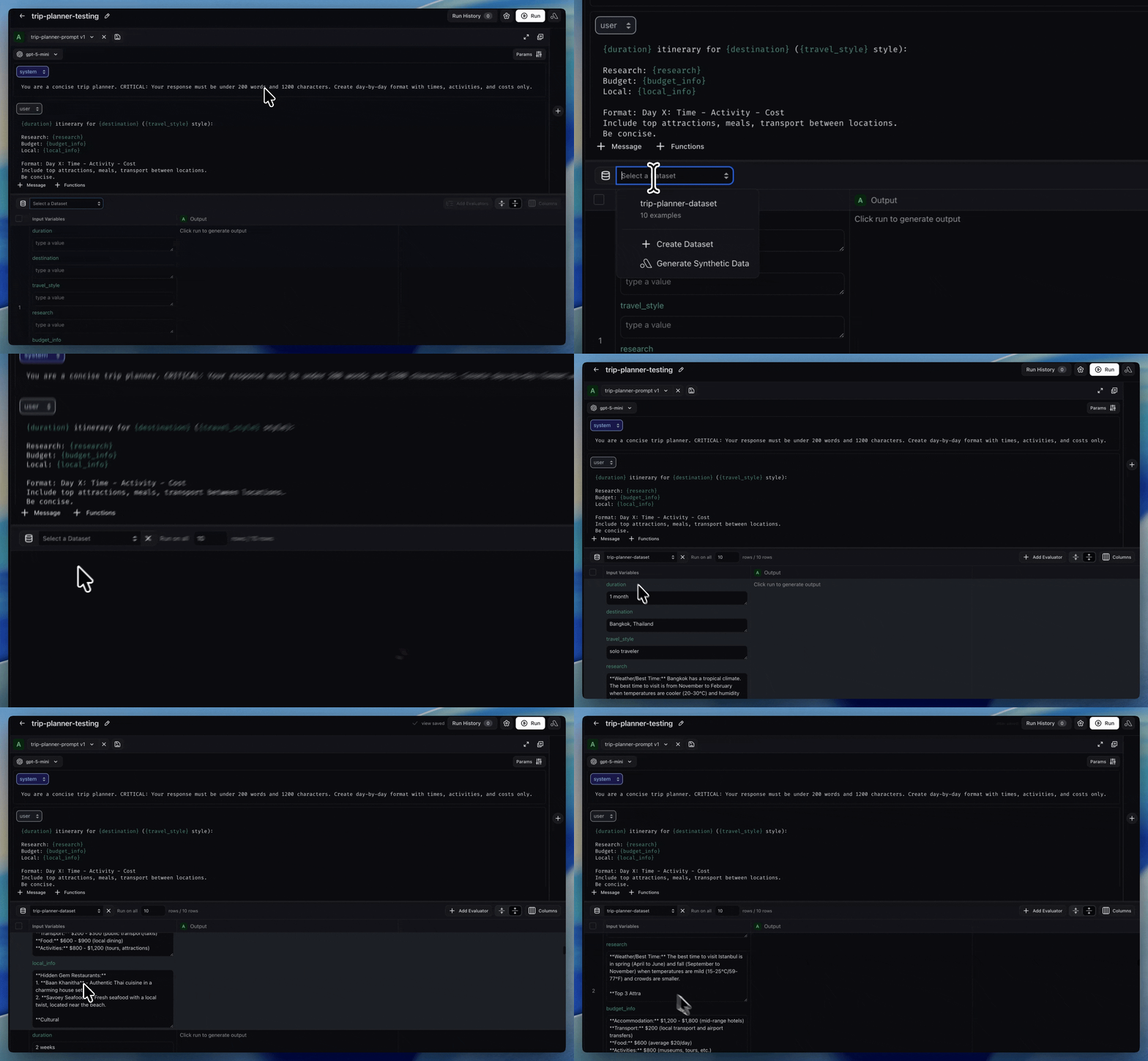
Step 3: Attach Your Dataset
- Use the Select a Dataset dropdown to choose
trip-planner-dataset - The Playground will map your dataset columns to the template variables in your prompt
Step 4: Add Evaluators
Before running the experiment, you can attach evaluators to measure the quality of the generated itineraries. In this tutorial, we’ll create a custom LLM-as-a-Judge evaluator that checks whether the trip planner’s output meets our specific quality criteria.Create a Custom LLM-as-a-Judge Evaluator
- Select Add Evaluator: Click Add Evaluator and choose LLM-as-a-Judge, then select Create From Blank to define your own evaluation criteria.
- Name the evaluator: Give it a descriptive name like “Trip Plan Completeness”. This name appears in your experiment results, so choose something that clearly communicates what the evaluator measures.
-
Pick a judge model: Select the LLM that will serve as the judge.
- Choose a model — use a different model than the one generating itineraries (e.g., use
gpt-5as the judge ifgpt-5-minigenerated the output)
- Choose a model — use a different model than the one generating itineraries (e.g., use
- Define the evaluation template: The prompt template is the core of your evaluator. It describes the judge’s role, the criteria for each label, and the data it will see. Here’s a template tailored to our trip planner:
LLM-as-a-Judge Prompt Template
-
Define labels: Set the output labels that constrain what the judge can return:
- correct (score: 1) — the response meets all criteria
- incorrect (score: 0) — the response fails one or more criteria
- Enable explanations: Toggle Explanations to On so the judge provides a brief rationale for each label. This helps you understand why specific itineraries passed or failed.
Step 5: Run the Experiment
With your prompt, dataset, and evaluator in place, you’re ready to run a Playground Experiment. Click Run to execute the experiment. The Playground will:- Iterate through each row in your dataset
- Fill in the template variables with the row’s values
- Send the completed prompt to your selected model
- Run each evaluator on the generated output
Step 6: Review Results
In the experiment results view, you can:- Compare outputs across examples: See how the prompt handles a 2-week Istanbul trip versus a long weekend in Reykjavik
- Check evaluator scores: Filter by evaluation labels to find which examples passed or failed
- Read judge explanations: Understand why specific outputs were scored the way they were
- Identify patterns: Look for systematic issues — does the prompt struggle with longer trips? Does it miss budget constraints for certain travel styles?
Compare Multiple Prompt Versions
If you want to test a revised prompt side-by-side with the original, use the + button to add another prompt object. You can compare up to 3 prompts simultaneously. This is useful for quickly validating whether a change improves or regresses performance. See Test multiple prompts at once for more details.Next Steps
You’ve now tested your trip planner prompt across a diverse dataset and have structured evaluation data showing:- Which examples the prompt handles well
- Where it struggles or produces outputs that don’t meet quality criteria
- Specific patterns in failures that can guide improvements