Turn a Signal issue into an evaluator that scores new traces for that failure, then filter to the runs that still fail.
In Enable Signal, you turned on issue detection and saw the recurring failures it files as issues. An issue tells you the pattern exists, but it doesn’t score every new response for that failure as it arrives.Evaluations solve this. An evaluation is an automated check, either an LLM judging another LLM’s output or a deterministic code check, that runs on your production data continuously. By the end of this guide, every response will be scored for the failure you care about, and you’ll be able to filter to the ones that need attention.This guide uses the hallucination evaluator template as its example. If Signal surfaced a different failure, pick the template that matches it instead, such as tool selection or task completion.
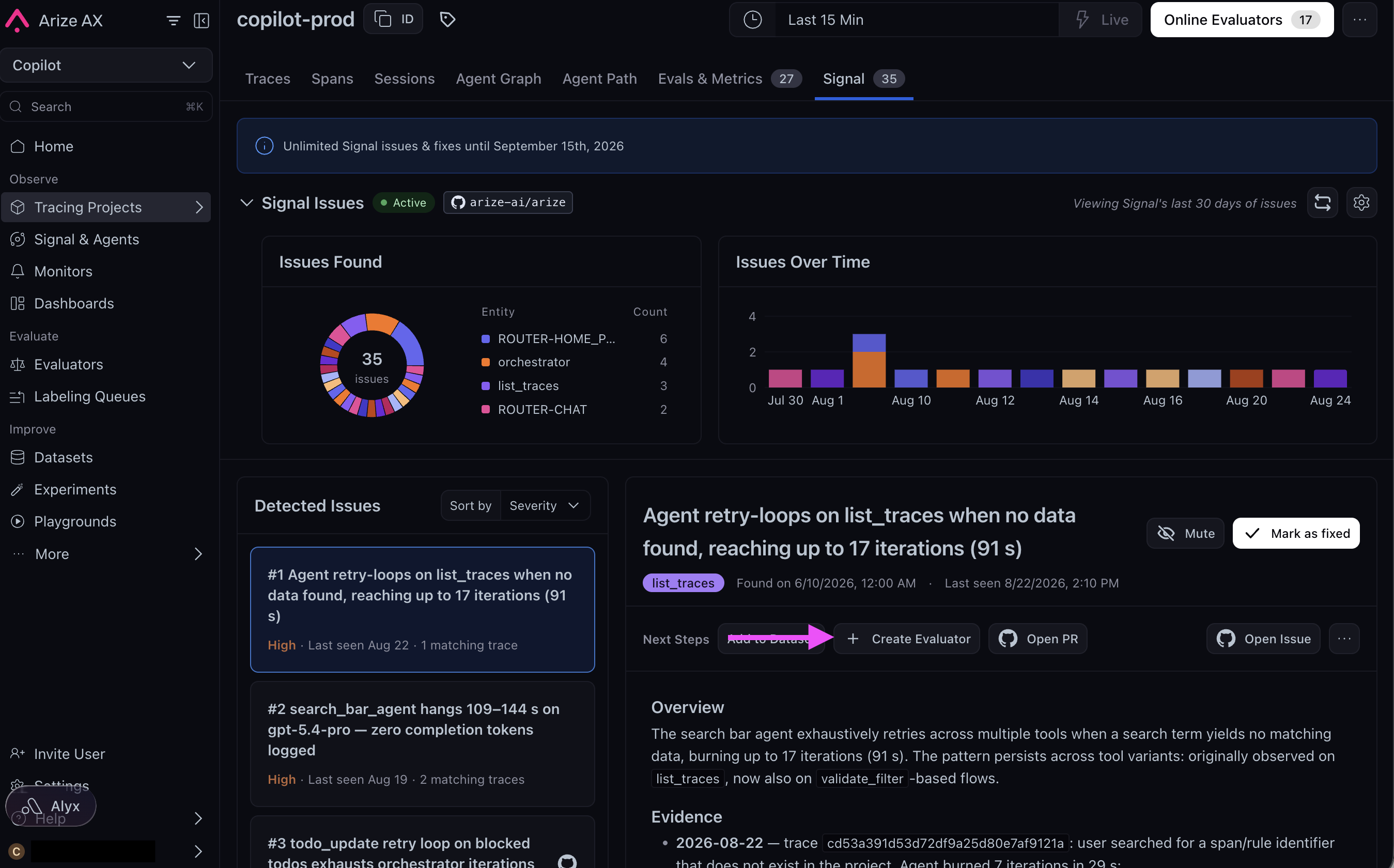
Creating an evaluator directly from a Signal issue.
This is Part 3 of 4: Instrument → Signal → Evaluate → Improve. Use the same project as Enable Signal. If Signal hasn’t filed an issue yet, you can still create the hallucination evaluator below on this project’s traces.
Use Arize Skills to have your coding agent run evaluations from your editor, Alyx for a conversational approach inside the Arize platform, the UI for a hands-on step-by-step experience, or Code to run them programmatically.
By Arize Skills
By Alyx
By UI
By Code
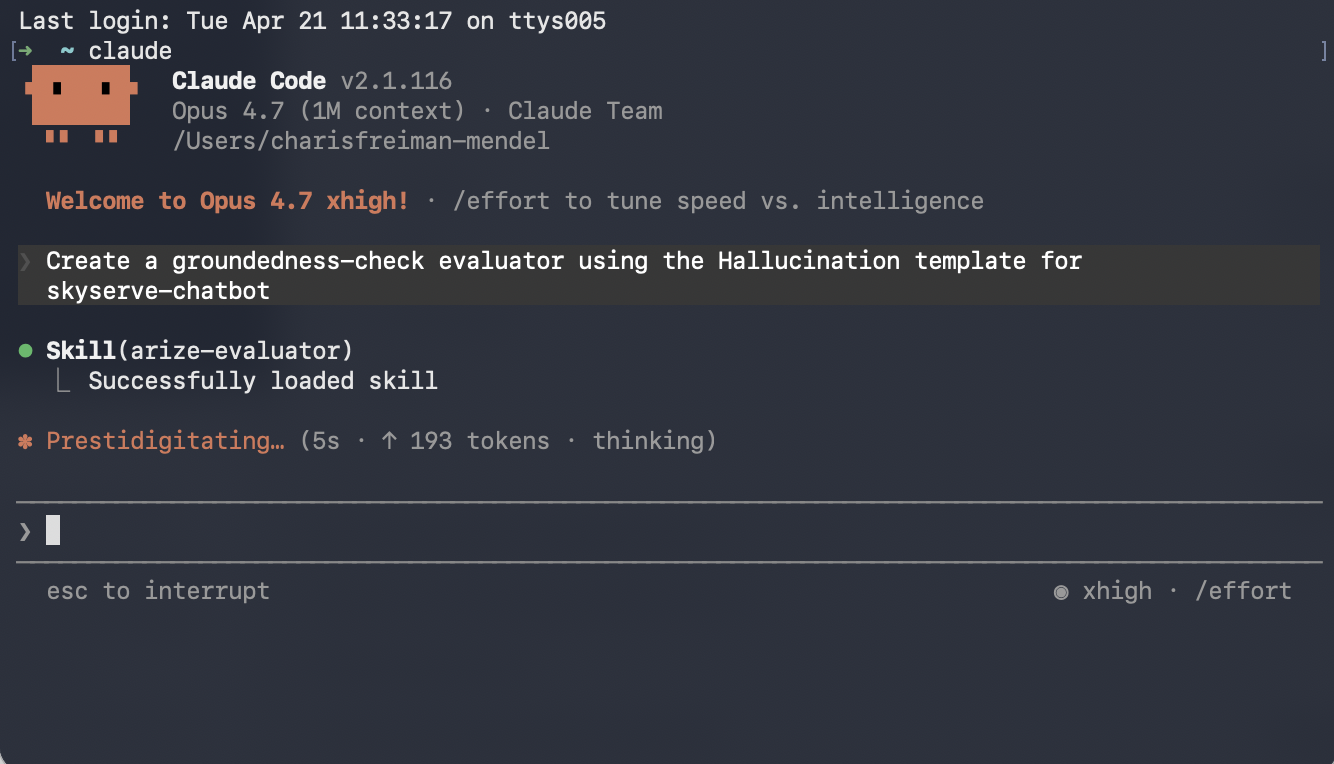
Use Arize Skills with your coding agent to create an evaluator, run it on traces as a task, and export spans to inspect failures. Install the skills plugin and follow Set up Arize with AI coding agents for authentication and CLI setup. Then, follow the flow below.
arize-evaluatorThe skill only covers LLM-as-a-Judge evaluators. In your prompt, name the evaluator, state which template fits what you want to test (for example tool selection, task completion, or hallucination), and tell it which project the evaluator is for and how your span columns map to the template’s inputs. For example, you might say:
Create a hallucination evaluator for my project using the hallucination template. Map the input, output, and context columns to my span attributes.
Note that templates are a starting point - most teams customize the prompt criteria to match their specific rubric. Once the evaluator is created, you can ask your agent to revise it, such as:
Update the evaluator’s criteria: label the output “hallucinated” if it makes any claim that isn’t supported by the provided context, and “factual” only if every claim can be traced back to the context.
The skill creating an evaluator that uses a hallucination template.
arize-traceAfter an eval task has written labels to spans, export failures for triage. See Viewing results for where scores appear in the UI.For example, you might say:
Export spans from my project where my evaluator failed this week
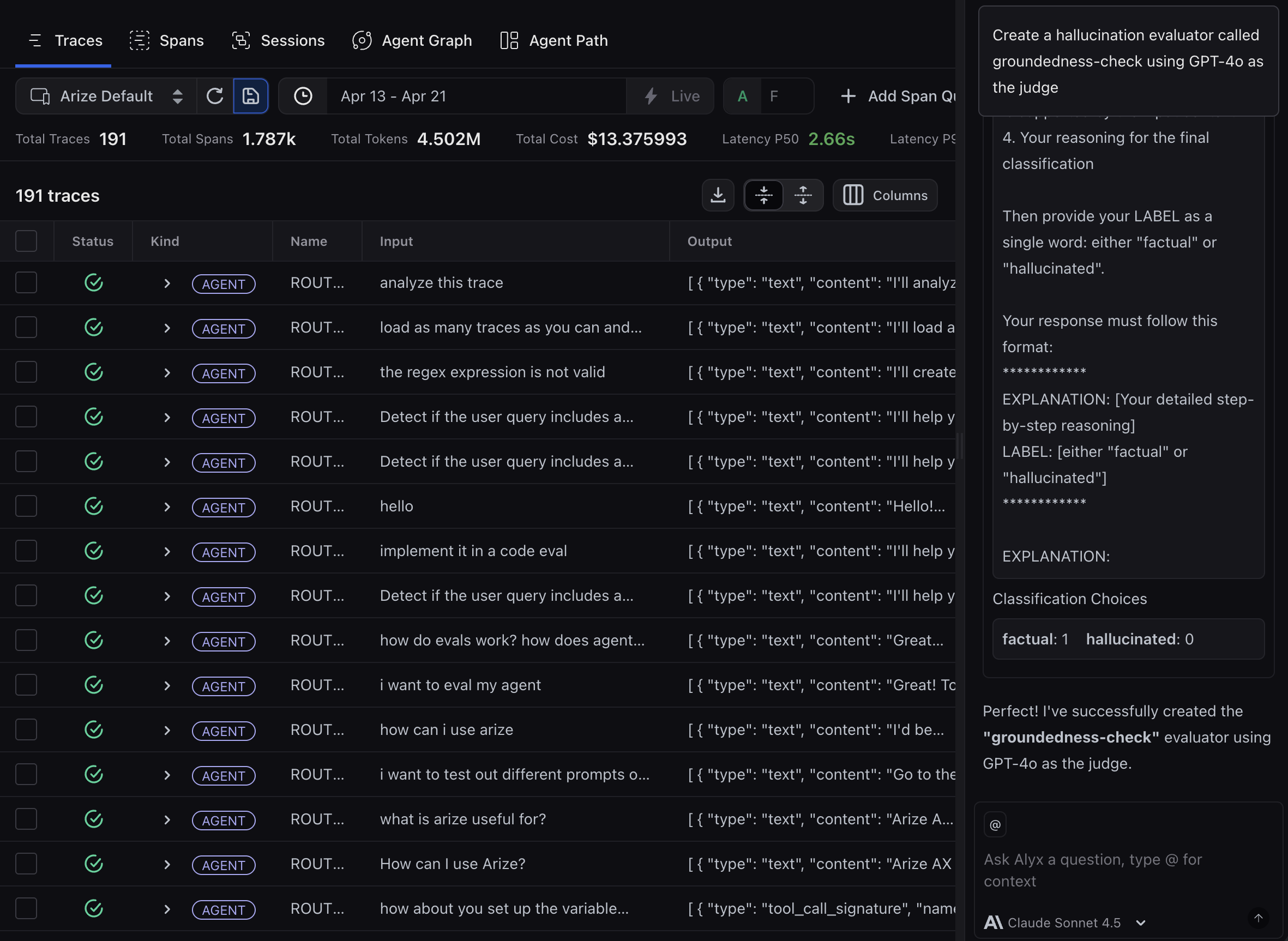
Open Alyx anywhere in the Arize platform and describe what you want in plain text. Alyx will guide you through each step - creating evaluators, setting up tasks, and analyzing results - conversationally.
Describe what you need in plain text for an LLM-as-a-Judgeevaluator, including the eval name, the template that fits what you want to test, the judge model, and which span columns map to input, output, and context. For code-based evaluators, use Evaluators → New Evaluator → Code in the UI or see Code evaluations. For example, you might say:
Create an evaluator using GPT-4o as the judge and the template that fits what I want to test, and map the input, output, and context columns to my span attributes.
Note that templates are a starting point - most teams customize the prompt criteria to match their specific rubric. Once the evaluator is created, you can ask Alyx to revise it, such as:
Update the evaluator’s criteria: label the output “hallucinated” if it makes any claim that isn’t supported by the provided context, and “factual” only if every claim can be traced back to the context.
Alyx creating an evaluator that uses a hallucination template with GPT-4o as the judge.
Arize AX supports two kinds of evaluators. LLM-as-a-Judge evaluators use an LLM to assess quality - great for subjective dimensions like helpfulness or groundedness that are hard to check with code. Code-basedevaluators are deterministic Python checks, ideal for objective conditions like empty responses or keyword presence. We’ll focus on LLM-as-a-Judge for this example. For code-based evaluators, see Create evaluators.
You can start from the Signal issue you found in Enable Signal, or create an evaluator from scratch.
From a Signal issue: On the Signal tab, open the issue and click Create Evaluator in the Next Steps section. Select the evaluator template that matches the failure. The form opens already scoped to your project’s traces and set to run continuously on new data, so this path also creates the Step 3 task for you.
Creating an evaluator directly from a Signal issue.
From scratch: In the left sidebar, click Evaluators, then New Evaluator. Select the evaluator template that best aligns with what you want to test. You might check whether the agent chose the right tool, completed the task, or returned a hallucinated response.
The template picker.
Then, configure the evaluator:
Give your evaluator a name.
Select your LLM provider and model (e.g., OpenAI GPT-4o)
Review the template and customize the criteria to match your rubric, or leave it as-is to get started quickly
Save and run the evaluator if you started from a Signal issue, or click Create Evaluator if you started from scratch.
If you created and ran your evaluator from a Signal issue, this step is already done: the same flow created the task. Skip to Step 4.An evaluator on its own is just a template. To run it on your data, create a task, an automation that applies your evaluator to incoming traces.
Click New Task and select the evaluator type you created.
Click Add Evaluator and select the evaluator you created in the previous step.
Set the data source as your project, the cadence to Run continuously on new incoming data, and sampling to 100%
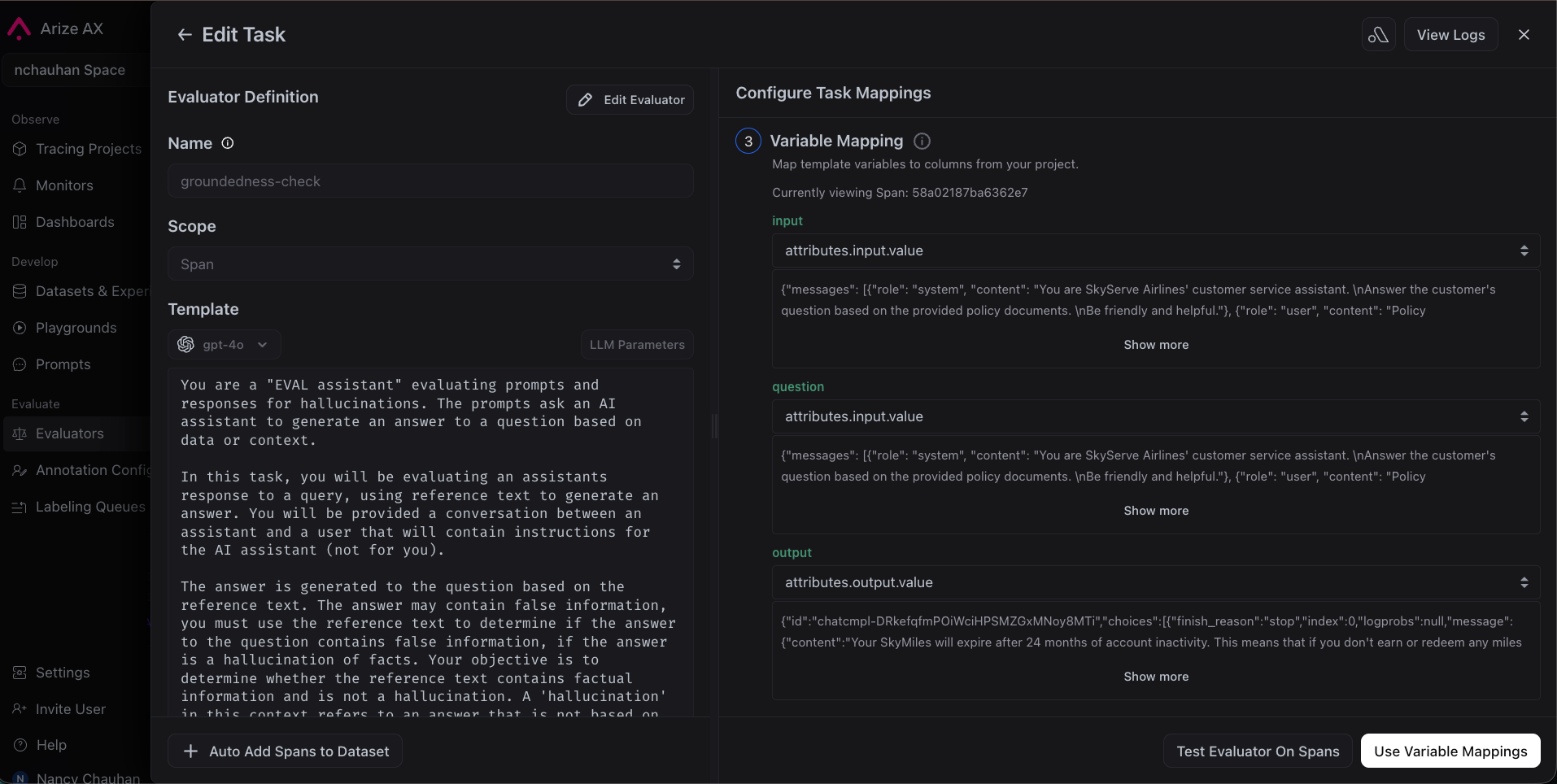
Map your span attributes to the template variables
Click Create Task
The Running Eval Tasks tab with an evaluator task active.
Wait a couple of minutes, then go back to your project. You’ll see evaluation scores on each trace. Filter by score to find failures and click into any trace to see the evaluator’s label, score, and explanation.
A traces list with evaluation score columns.
A trace detail with the evaluator's label, score, and explanation.
Run this workflow from the Python SDK, TypeScript SDK, or ax CLI. Some features are in alpha or beta - please check individual reference pages for details.
Every response your agent generates is now automatically scored for the failure you care about. Signal told you the issue exists; your evaluator now measures it on each new run, so you can filter straight to the responses that failed and see what went wrong. Learn more about how scoring works in the evaluators reference.Your scores have probably confirmed a pattern: some responses fail because your agent was never told how to avoid the failure. A common case: the system prompt says “be helpful” but never tells the agent to stick to retrieved context or to say “I don’t know.” That’s a prompt problem, and Signal may even have proposed a change already. Don’t ship it on faith: the next guide is how you prove it works first.Next up: build a dataset from the failing traces, fix the prompt in the Prompt Playground, and run experiments that compare this evaluator’s scores before and after the change.
Previous: Enable Signal
Next: Improve your agent
Was this page helpful?
Assistant
Responses are generated using AI and may contain mistakes.