Build a prompt in the Prompt Playground, run it across a dataset as an experiment, compare variants and models, then save the winner to Prompt Hub.
The Prompt Playground is where you build a prompt, run it across a dataset, score the outputs, and compare variants without writing code. This guide covers the full loop: drafting a prompt, running it as an experiment, comparing runs, and saving the winning version to Prompt Hub.In Arize AX a prompt is a versioned artifact holding its messages, model, invocation parameters, tools, and response format together. See the prompt object for what each version stores and why those pieces are versioned together.
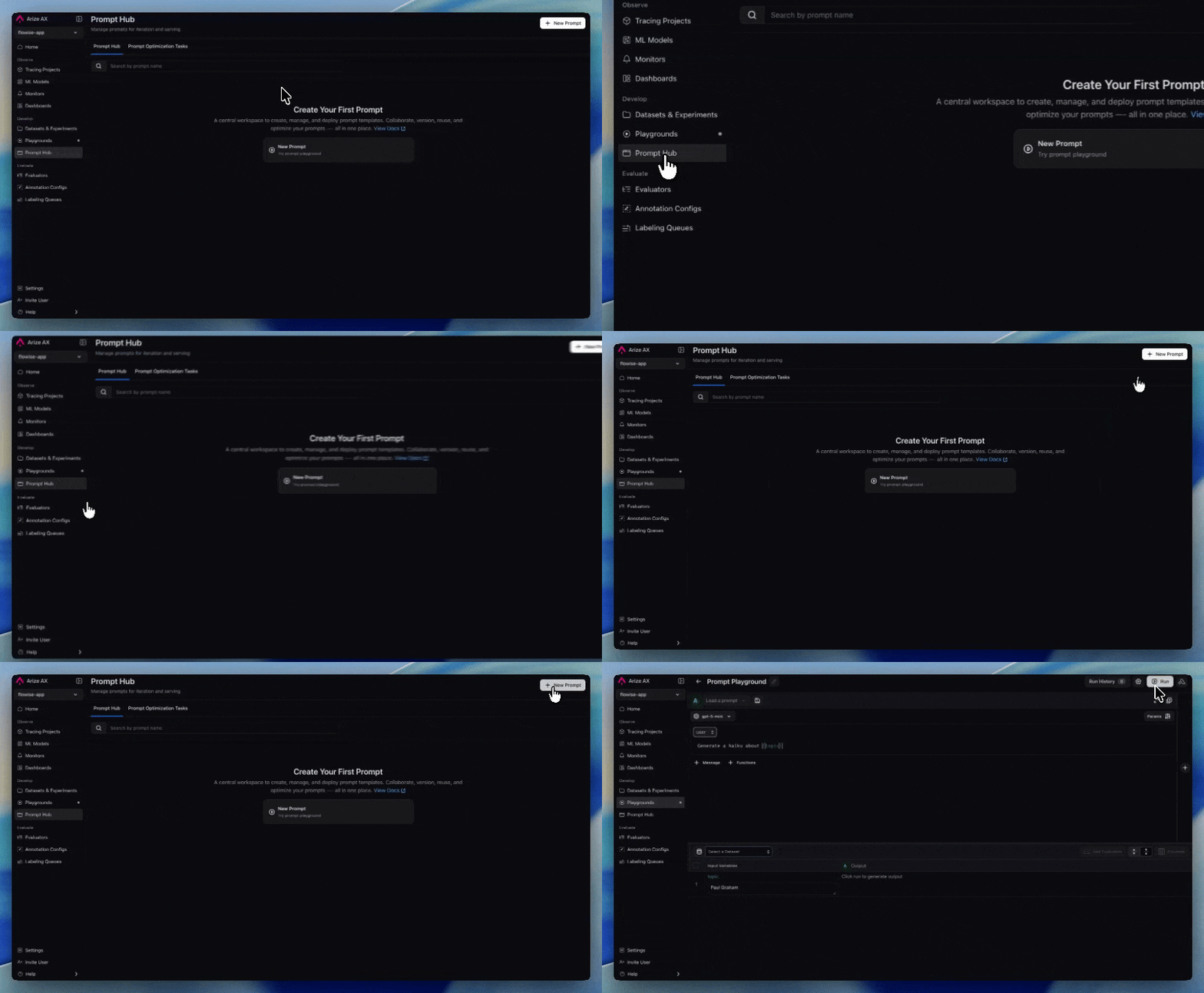
Open the Playgrounds page, click New Playground, and choose a prompt playground from the menu.
2
Choose a provider and model
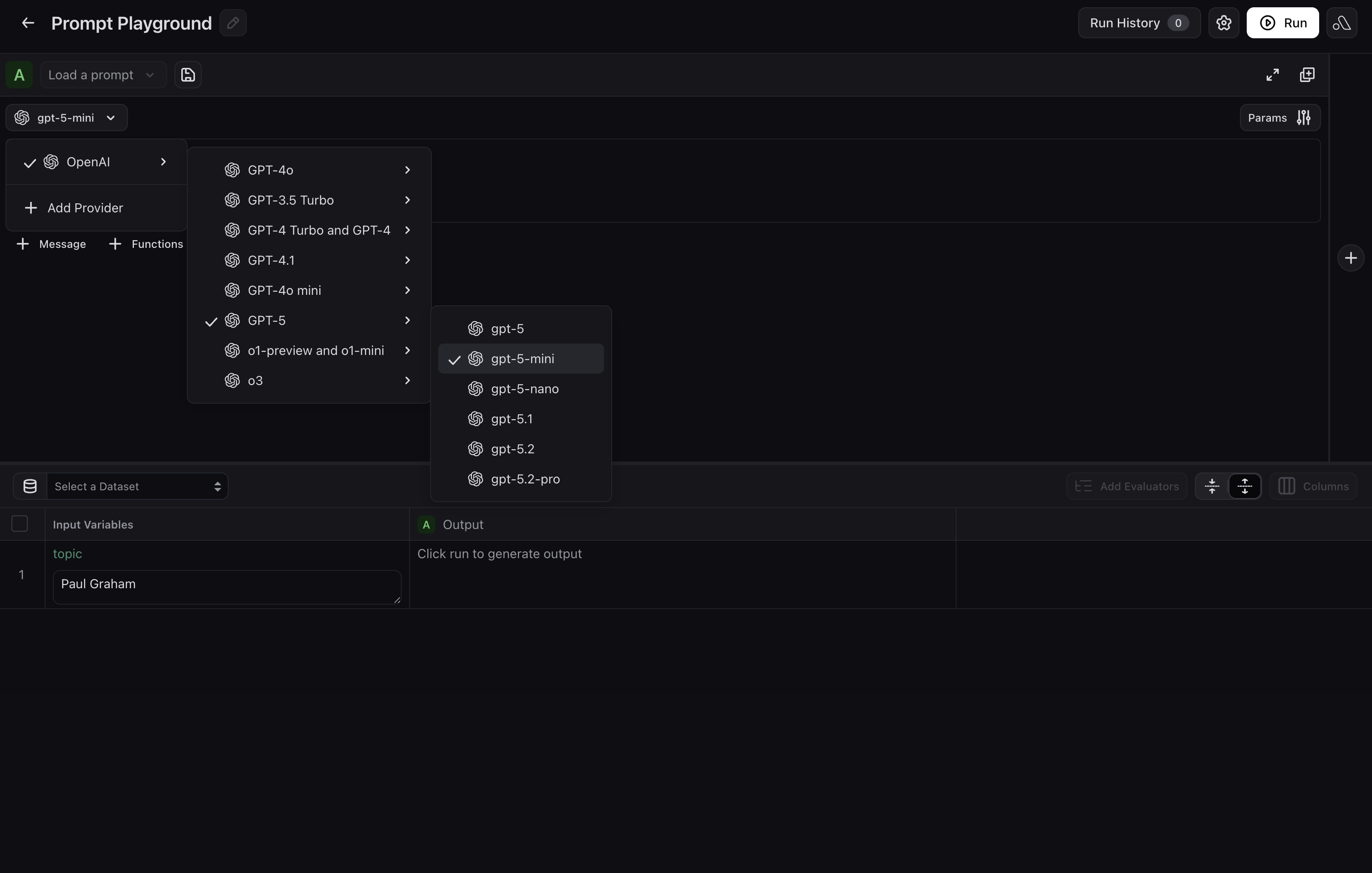
Select the LLM provider and model to run against. Options include OpenAI, Anthropic, Azure OpenAI, Gemini, AWS Bedrock, Google Cloud, NVIDIA NIM, and custom providers. Each provider needs credentials stored in the space before you can run against it, which an admin sets up under model provider integrations.
Provider and model selection in the Prompt Playground
3
Write the messages
Add the system, user, and assistant messages that make up the prompt. Wrap variable names in curly braces, such as {destination}, to fill them from dataset columns at run time.
System and user messages with template variables
4
Add tools (optional)
Open Functions and paste your tool definitions as JSON, adding one entry per tool. Use Functions Selection to tell the model when each tool should be called.
Tool definitions and function selection
5
Set invocation parameters
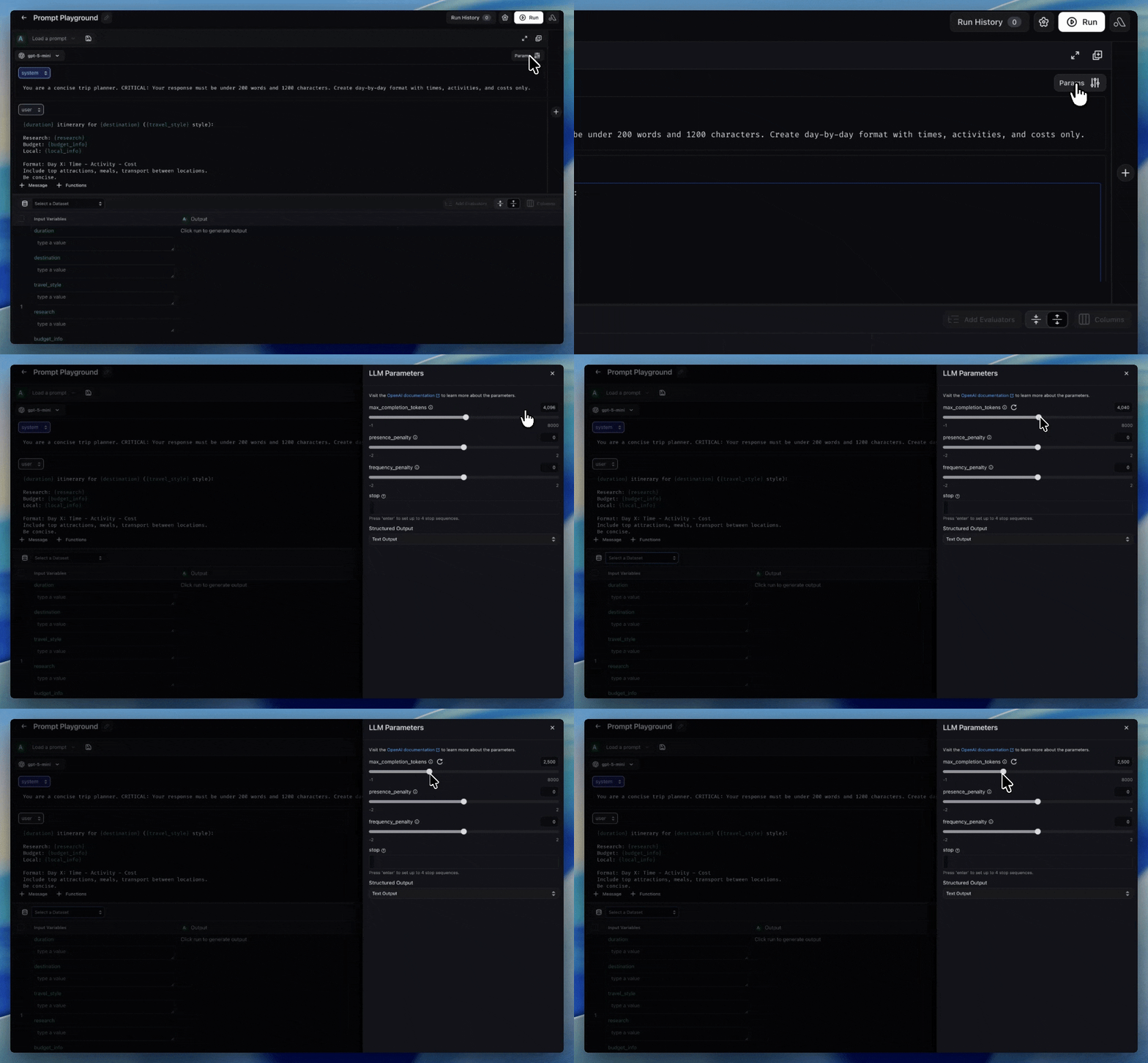
Open Params to set temperature, max completion tokens, stop sequences, and the other parameters your provider exposes. Available parameters differ by provider.
Invocation parameters in the Prompt Playground
To start from a prompt your team already has, use the Load a prompt selector in the playground header to pull it from Prompt Hub instead of drafting from scratch.
Create the playground and select a provider and model as above, or ask Alyx from the home page to create one for you. Alyx drafts against whichever model you selected, so set it before you start.
1
Describe the prompt you need
Describe your use case in the Alyx panel, including the output format, tone, length, and any variables. For example:
Create a prompt for a customer support agent that handles returns and escalations. Use {customer_input} and {order_id} as variables.
Give feedback on each draft and keep iterating in conversation until the prompt is right.
Drafting a prompt with Alyx in the Prompt Playground
2
Try it on real rows
Attach a dataset and ask Alyx to run the prompt over its rows, or exercise it with manual inputs while you iterate.
Create a prompt and its first version programmatically.
Python SDK
TypeScript SDK
CLI
For the full options, including providers, invocation parameters, and tools, see create a prompt.
from arize.prompts.types import InputVariableFormat, LlmProvider, LLMMessage, MessageRoleprompt = client.prompts.create( space="your-space-name-or-id", name="customer-support-agent", description="Handles returns and escalations", commit_message="Initial version", input_variable_format=InputVariableFormat.F_STRING, provider=LlmProvider.OPEN_AI, model="gpt-5.5", messages=[ LLMMessage(role=MessageRole.SYSTEM, content="You are a support agent for {company}."), LLMMessage(role=MessageRole.USER, content="{ticket_text}"), ],)print(prompt.id, prompt.name)
Running a prompt against a dataset creates an experiment on that dataset, so the results are directly comparable to your other runs.
Running a prompt against a dataset in the Prompt Playground
1
Select a dataset
Choose the dataset to run against, then confirm each {variable} in your messages maps to a dataset column. The Input Variables panel shows the mapping. To reach the playground with a dataset already selected, use New Experiment → Run in Prompt Playground from the dataset.
2
Attach evaluators
Click Add Evaluator to score every row automatically. Load an evaluator saved in the space or create one. See create evaluators.
3
Run
Click Run. With multiple prompts in the playground, the button becomes Run All and each prompt runs against the same rows. Outputs and evaluator scores stream into the table as they complete.
The playground compares variants you are editing now. The dataset’s Experiments tab compares completed runs, including runs produced by a different experiment type.Side by side in the playground. Add a second prompt to compare wording changes directly, or use Compare Models to run the same prompt against different models. Both hold the dataset fixed, so the wording or model change is the only variable. Open a row’s output, then click View Diff on Experiments to see that row’s change against a baseline.Across runs on the dataset. Open the dataset’s Experiments tab, select two or more runs, and click Compare Experiments for per-row output differences, evaluator deltas, and summary metrics per run. This is where a run from last week and a run from today become directly comparable, whichever experiment type produced them.
Comparison view with diff mode enabled against a baseline run
When your task returns a label rather than free-form text, accuracy, F1, precision, and recall are more useful than an output diff. Configure them once per dataset in Metrics Settings on the dataset’s Experiments tab:
Ground Truth Column, chosen from the dataset’s own columns.
Predicted Column, chosen from the experiment’s output columns.
Positive Class Value, the label that counts as positive.
With all three set, the metrics you select are computed for every experiment on that dataset, so classification runs become comparable on the same numbers.
When a variant wins, save it to Prompt Hub so your app can resolve it at runtime and your team can see what changed.
Prompt Hub with its prompt list, versions, and labels
1
Save from the playground
Click Save Prompt to write the current state, including messages, parameters, tools, and response format, as a new immutable version. Add a Commit Message describing what changed, the same way you would for code.
2
Review the version history
Open Prompt Hub to compare versions and see what changed between them.
3
Tag the version you ship
Tag the winning version with your deployment label, such as production, so your app resolves the approved prompt rather than a specific version number.
In More > Prompts, open the more options menu on the prompt’s row and select Edit metadata. Edit the Prompt Name field, then select Update Details. Prompt names must be unique. If the name already exists, Arize AX shows the error on the field and leaves the existing name unchanged.
Prompt version history and comparison in Prompt Hub
A playground view is a named snapshot of a playground session, holding its prompt messages and tools, model and parameter configuration, dataset selection, and results. Views let you return to a setup, hand it to a teammate, or branch a new variant without rebuilding it.Saved views are listed under Playgrounds, where All, Prompt, and Agent filter by playground type. Each view can be renamed, duplicated, or deleted, and Enable view auto-save keeps a view current as you work.
Saved playground views with rename, duplicate, and delete actions