

By adding this integration, your data may be sent to Google for certain actions within Arize AX (e.g., prompt playground) and your account may be billed for usage.
Add the Integration Using the Arize Skills
Add a VertexAI integration from your coding agent using the Arize Skills:Create a vertex integration called 'my-vertex' with the project id my-project, location us-central1 and arize integration key 12345
Add the Integration from Arize AX
Select VertexAI from the Providers List

The AI Provider integrations tab
Create an Arize Integration Key
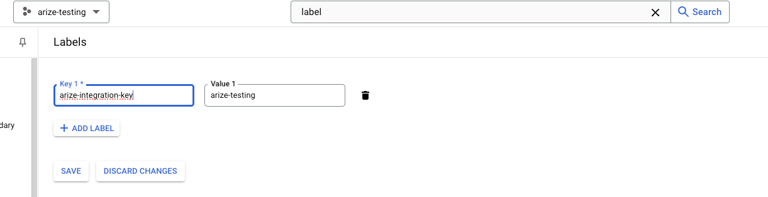
To verify ownership of your project form within Arize AX, we need to create a project access label on your GCP project. Arize AX will use this to ensure that the Arize organization you are running Vertex commands from has access to your GCP project. To create this go into your GCP and search for labels. Add a label with the keyarize-integration-key and whatever value you want.
Fill Out Your Integration Details

The VertexAI integration configuration pane
Create a Custom IAM Role Using the Code Provided
-
Copy the following IAM role
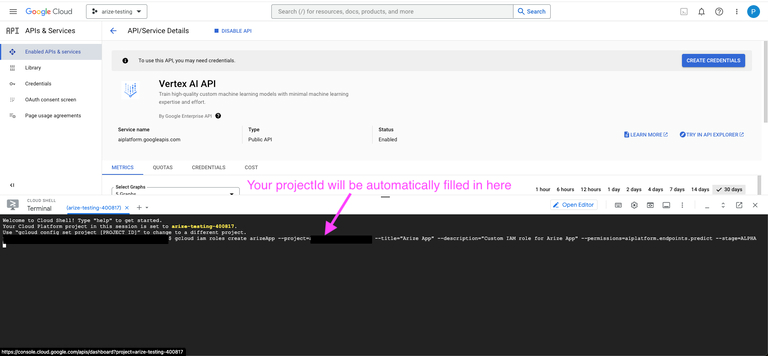
gcloudcommand to run in your GCP console:Sample commands: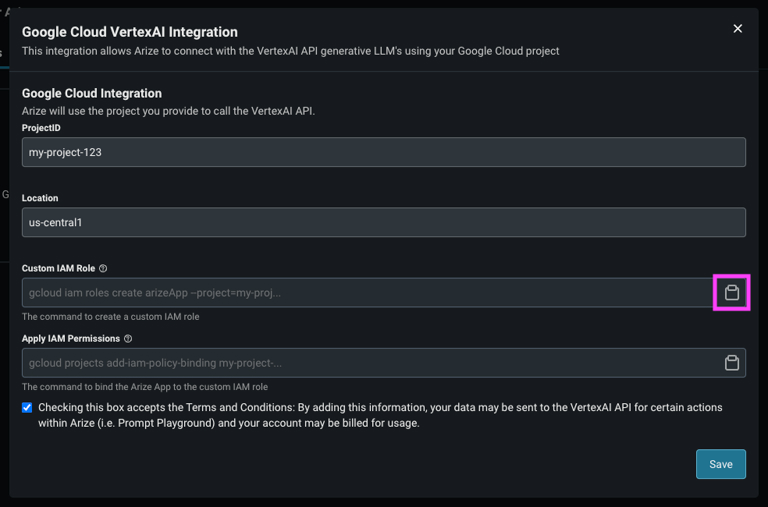 Create command (most cases):You must add your project ID to the commands below where it says
<my-project>. The commands pulled from Arize AX have your project ID prefilled.Update migration (uncommon): If you have a pre-existing integration and need to update it to add anarize-integration-keylabel, change thecreateportion of the command toupdate. -
Run the command in the GCP console:
Assign the Custom Role to the Arize Service Account
In order for Arize to send requests to the VertexAI API in your project, you must assign the Arize App Service Account that role.You will be using the Arize Service Account, you DO NOT NEED to create your own service account
-
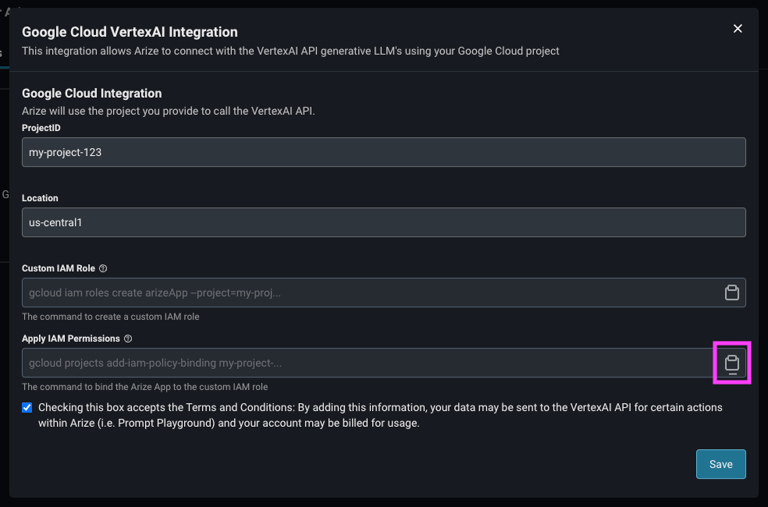
Copy the following IAM permissions gcloud command to run in your GCP console:
-
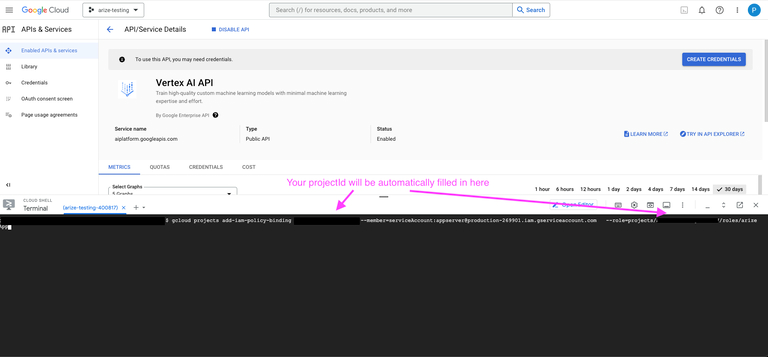
Run the command in the GCP console:
Advanced Settings

The Advanced Settings configuration pane
- Supports Function Calling - Turn this on to allow the integration to use function calling features. This is on by default.
- Authorized Orgs - Configure which organizations have access to this integration.
- Authorized Spaces - Configure which spaces have access to this integration.