

Trace Claude Code CLI sessions, tool usage, and token costs with Phoenix for full observability.Trace your Claude Code sessions in Phoenix with the coding-harness-tracing plugin — every turn shows up as a trace with the model call, each tool it runs, and token cost, grouped into its session. No application code changes required: the plugin hooks into Claude Code’s lifecycle events and streams OpenInference spans to Phoenix. Works with both the Claude Code CLI and the Claude Agent SDK.
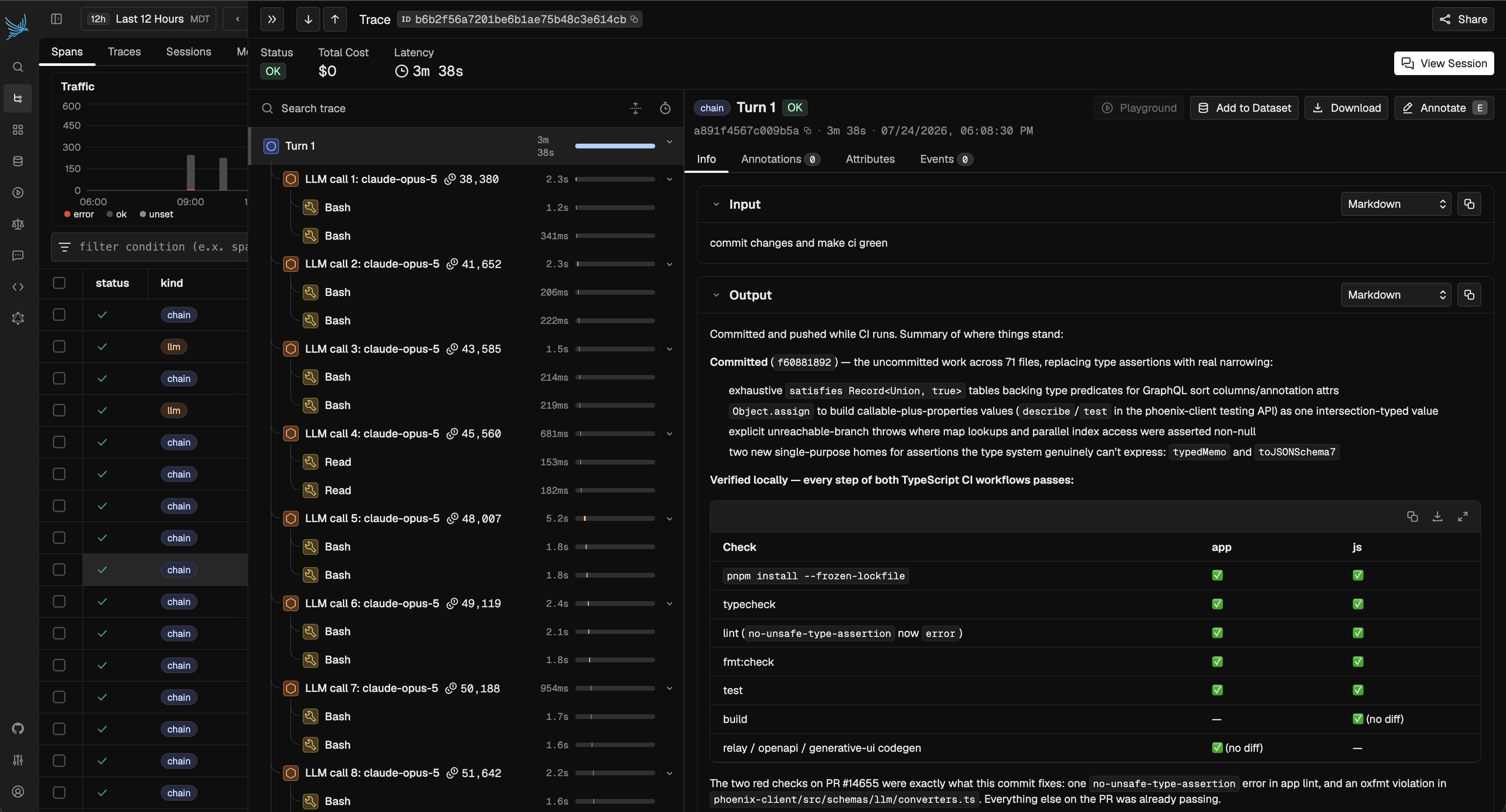
A single Claude Code turn in Phoenix — every model call and tool call in one trace
Use this to trace Claude Code (or Agent SDK) sessions via the plugin — enabled through a settings file, no in-code instrumentor. If instead you are building an application with the Claude Agent SDK and want standard OpenInference agent, tool, and LLM spans in your app’s code, use the Claude Agent SDK instrumentor instead.
Launch Phoenix
The fastest way to get started with Phoenix is by signing up for a free Phoenix Cloud account. If you prefer, you can also run Phoenix in a notebook, self-host it, or use it directly from your terminal. Go to the settings page in your Phoenix instance to find your endpoint and API key. A self-hosted Phoenix defaults tohttp://localhost:6006; the API key is only required when auth is enabled.
Install
Pick whichever fits how you work. The curl installer is the simplest — it runs a short wizard that saves your Phoenix credentials for you. Use the marketplace plugin if you already manage Claude Code plugins, or a local clone if you want the source on hand.Claude Code Marketplace
~/.claude/settings.json under env (see Configuration).
Curl installer (recommended)
macOS / Linux:~/.arize/harness/config.json, and registers the hooks in ~/.claude/settings.json.
Local clone
Configuration
The curl and local installers write credentials to~/.arize/harness/config.json. Environment variables in ~/.claude/settings.json take precedence and are required for the marketplace install path.
PHOENIX_API_KEY is optional — omit it when your Phoenix instance has no auth. On the Phoenix backend, set the project name with PHOENIX_PROJECT (or PHOENIX_PROJECT_NAME); ARIZE_PROJECT_NAME is Arize-only and ignored here. ARIZE_TRACE_ENABLED is a backend-agnostic harness setting and keeps the ARIZE_ prefix regardless of destination.
Redaction controls
EachARIZE_LOG_* flag accepts "true" or "false" and defaults to "true". Set to "false" to opt out per category:
Observe
Now that you have tracing set up, all Claude Code sessions stream to your Phoenix instance for observability and evaluation. You’ll see:- Turn traces — each conversation turn (user prompt → assistant response)
- LLM spans — Claude’s responses with model info and token counts
- Tool spans — nested spans for each tool call with inputs, outputs, and duration
- Subagent spans — activity from any subagents Claude spawns
- Session grouping — all turns from the same session grouped by
session_id
Browsing Claude Code turns in Phoenix and drilling into a single turn's span tree
input column — so you can scan a working session top to bottom, then open any turn to see exactly which tools ran and what they cost.
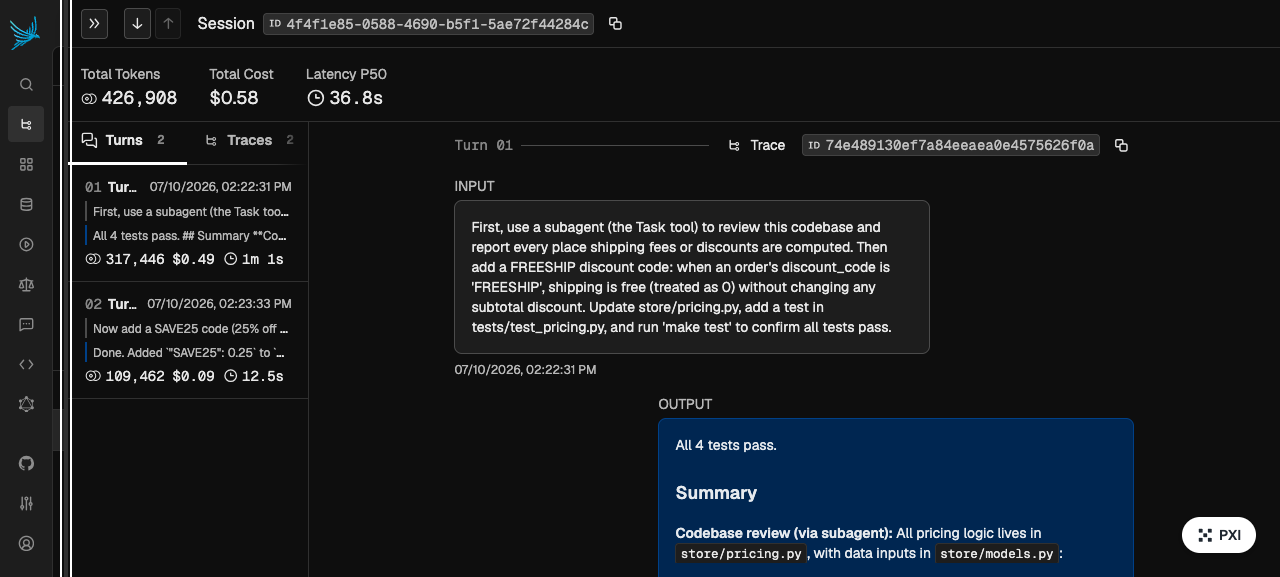
Claude Code turns grouped together in a single session view
Task delegation shows up as its own subtree with the tools that subagent ran and the tokens it burned.
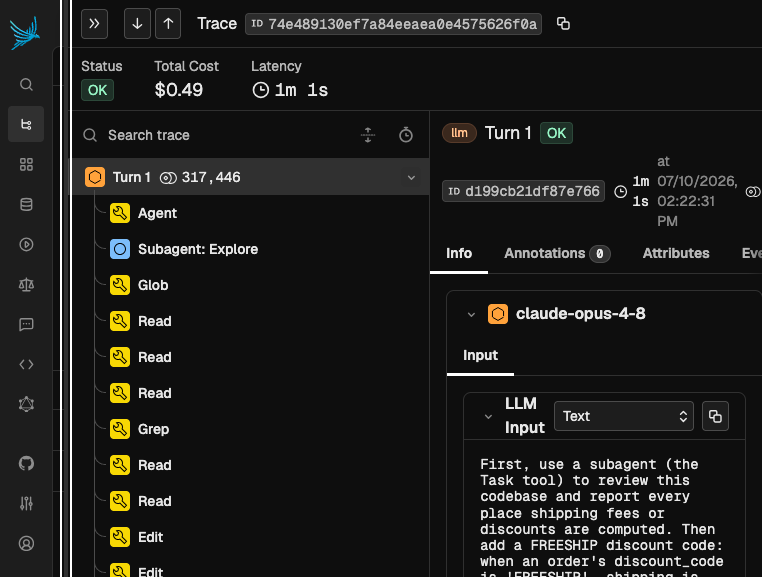
Subagent activity nested inside a Claude Code turn
Agent SDK Setup
The tracing plugin also works with the Claude Agent SDK in both Python and TypeScript. The SDK loads the plugin locally — no marketplace install is required — but the setup must be done in your application code before the SDK session starts, so the agent cannot configure it at runtime.1. Locate the plugin
The plugin path depends on how you installed the harness:-
Installed via the Claude Code CLI marketplace: the plugin is cached under
~/.claude/plugins/cache/coding-harness-tracing/claude-code-tracing/<version>/, where<version>matches the installed plugin version (for example1.0.3). -
Installed via the curl or local installer: the plugin lives at
~/.arize/harness/tracing/claude_code. -
Not installed: clone the repo into your project — the plugin path is
./coding-harness-tracing/claude-code-tracing:
2. Create a settings file
The SDK spawns a Claude Code subprocess that does not inherit your shell environment, so tracing env vars must be passed through a settings file referenced fromClaudeAgentOptions:
ARIZE_LOG_* redaction flags from Configuration apply here.
3. Wire the plugin into your app
Pass the plugin path and settings file toClaudeSDKClient:
- Python
- TypeScript
ClaudeAgentOptions (plugin path + setting_sources=["user"] so user-level Claude settings are honored):
Validate
Add"ARIZE_DRY_RUN": "true" to your settings file to verify hooks fire without sending data, and tail ~/.arize/harness/logs/claude-code.log to confirm activity.