

Setup
To first get started, you will first Configure AI Providers. In the playground view, create a valid prompt for the LLM and click Run on the top right (or themod + enter)
If successful you should see the LLM output stream out in the Output section of the UI.
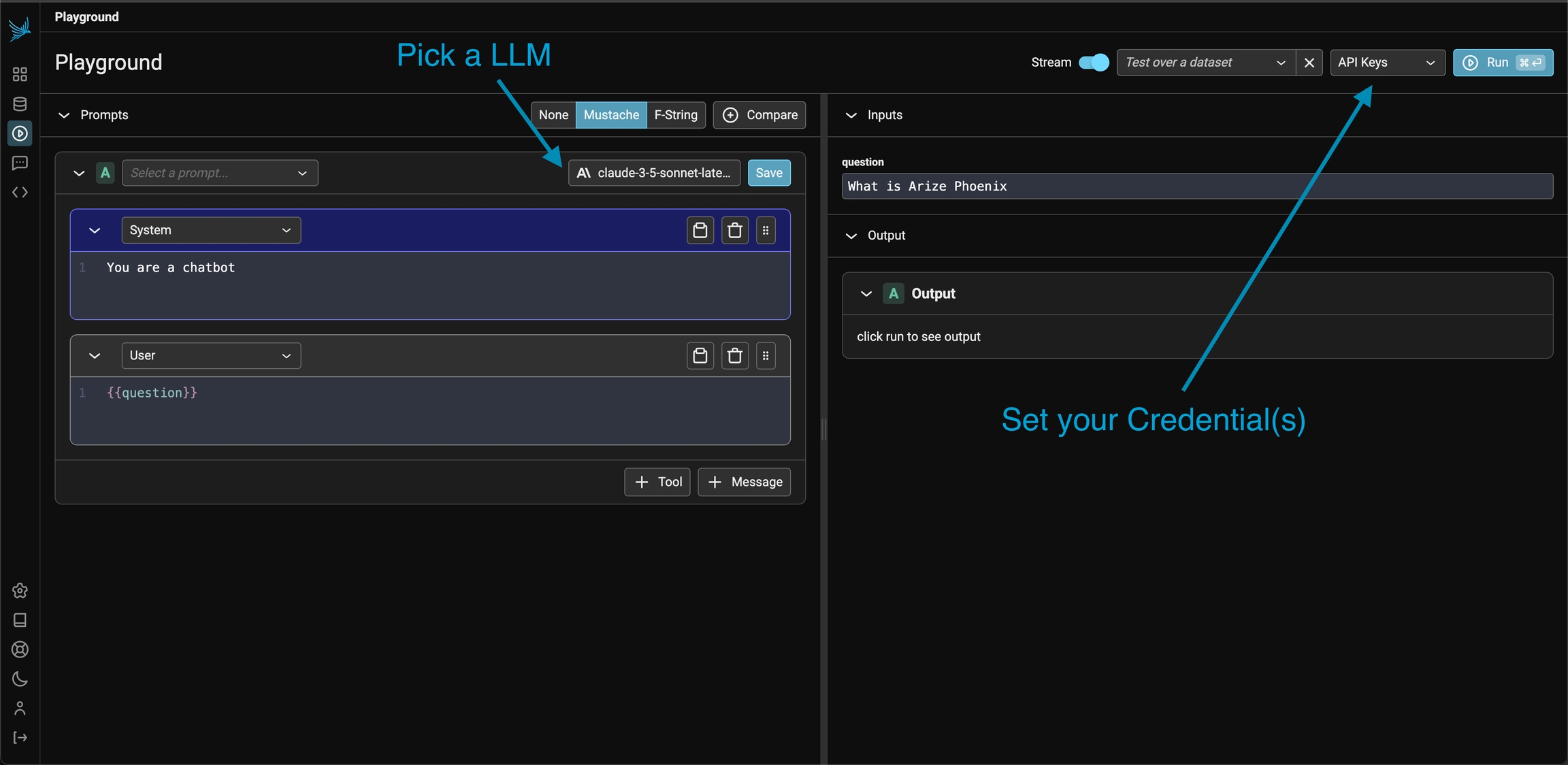
Pick an LLM and setup the API Key for that provider to get started
Prompt Editor
The prompt editor (typically on the left side of the screen) is where you define the Prompts Concepts. You select the template language (mustache or** f-string**) on the toolbar. Whenever you type a variable placeholder in the prompt (say {{question}} for mustache), the variable to fill will show up in the inputs section. Input variables must either be filled in by hand or can be filled in via a dataset (where each row has key / value pairs for the input).
Use the template language to create prompt template variables that can be applied during runtime
Model Configuration
Every prompt instance can be configured to use a specific LLM and set of invocation parameters. Click on the model configuration button at the top of the prompt editor and configure your LLM of choice. Click on the “save as default” option to make your configuration sticky across playground sessions.
Switch models and modify invocation params
For OpenAI and Azure OpenAI models, you can select the OpenAI API type in the model configuration panel. Choose Chat Completions (
chat.completions.create) or Responses (responses.create) depending on the model and feature set you need.Reasoning / extended thinking
For models that support reasoning, the model configuration panel exposes controls for how much the model thinks before responding:- Anthropic (Claude 3.7 Sonnet and later) — toggle extended thinking between disabled, adaptive (the default), and enabled with an explicit
budget_tokensallocation and a visibility toggle. You can also set output effort (high/medium/low). Enabling extended thinking automatically raisesmax_tokensto at leastbudget_tokens + 1. - Google (Gemini 2.5 models) — set a
thinkingBudgetand/orthinkingLevel(low/medium/high).
Comparing Prompts
The Prompt Playground offers the capability to compare multiple prompt variants directly within the playground. Simply click the + Compare button at the top of the first prompt to create duplicate instances. Each prompt variant manages its own independent template, model, and parameters. This allows you to quickly compare prompts (labeled A, B, C, and D in the UI) and run experiments to determine which prompt and model configuration is optimal for the given task.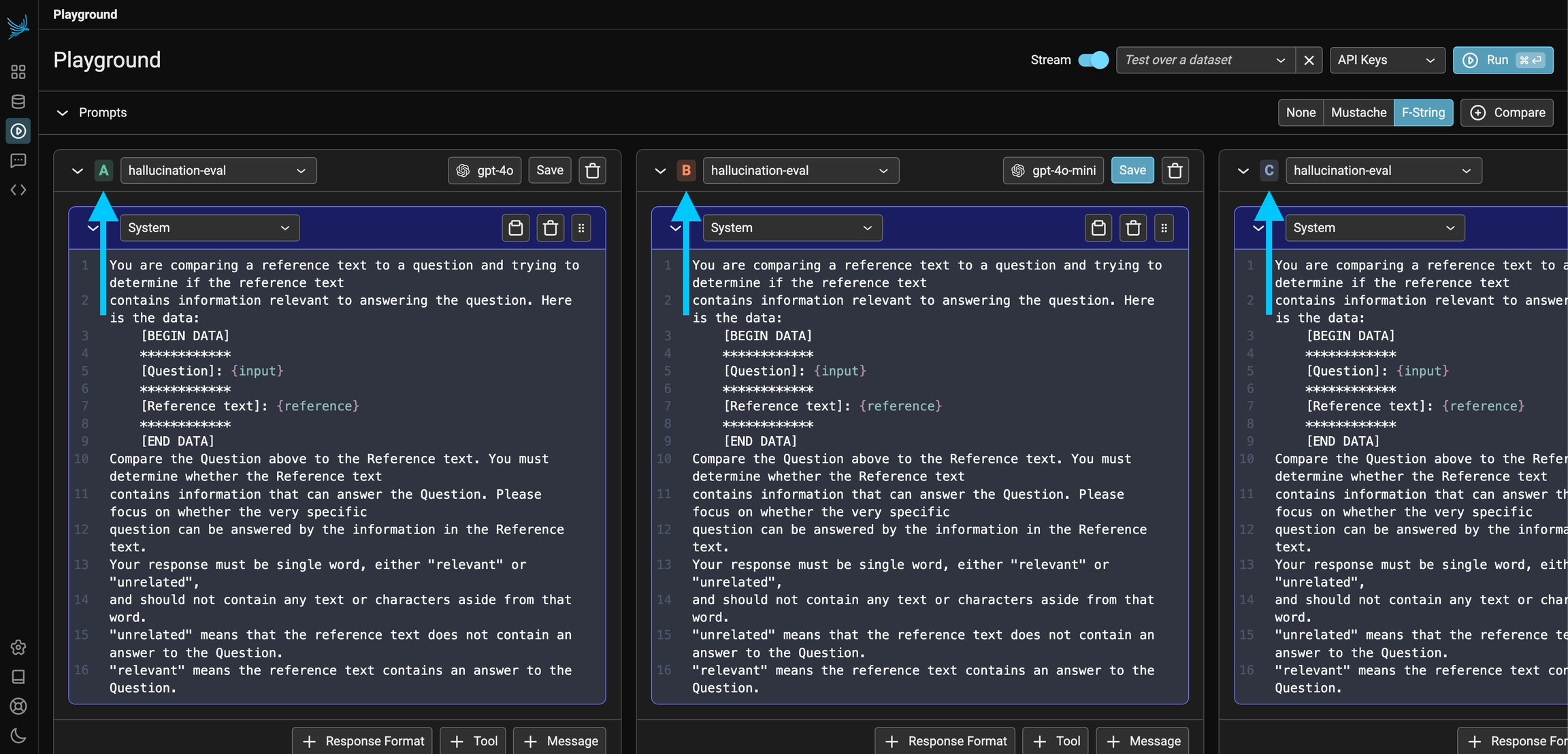
Compare multiple different prompt variants at once
Using Datasets with Prompts
Phoenix lets you run a prompt (or multiple prompts) on a dataset. Simply load a dataset containing the input variables you want to use in your prompt template. When you click Run, Phoenix will apply each configured prompt to every example in the dataset, invoking the LLM for all possible prompt-example combinations. The result of your playground runs will be tracked as an experiment under the loaded dataset (see Playground Traces)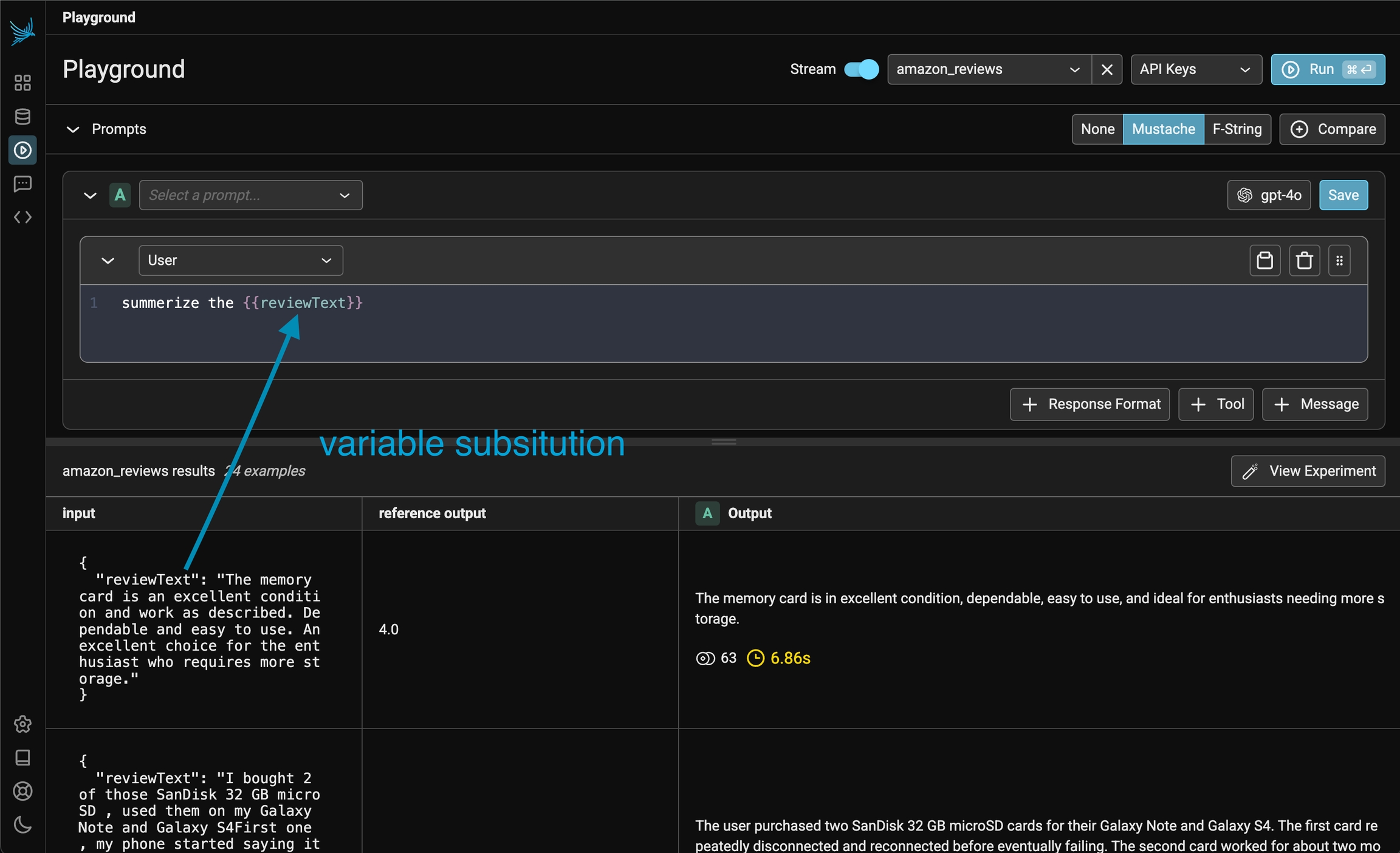
Each example's input is used to fill the prompt template
Configuring Dataset Paths
By default, the playground reads template variables frominput, so {question} will resolve against input.question automatically. If your dataset examples store inputs under a different nested object, you can configure where the playground should read prompt variables from:
- Load a dataset
- Click the settings button (gear icon) in the experiment toolbar next to the dataset selector
- Set the Prompt variable path to the dot-notation path that contains your template variables (e.g.,
inputorpayload.inputs)
{question} and your dataset example looks like:
input.
If you want to reference root-level fields directly (for example {input.question} and {output.response}), clear the prompt variable path so variables resolve from the root object. With this dataset example:
{input.question} and {output.response} in your prompt.
Appending Conversation History
When running experiments over datasets, you can append conversation messages from your dataset examples to the prompt. This is useful for:- A/B testing models: Compare how different models respond to the same conversation history
- Testing system prompts: Evaluate different system prompts against identical user conversations
- Multi-turn conversation experiments: Run experiments using existing conversation threads
Setting the Appended Messages Path
To use this feature:- Load a dataset that contains conversation messages in OpenAI format
- Click the settings button (gear icon) in the experiment toolbar next to the dataset selector
- Enter the dot-notation path to the messages array in your dataset examples (e.g.,
messagesorinput.messages)
Dataset Format
Your dataset examples should contain messages in OpenAI’s chat format:user- User messagesassistant- Assistant/AI responsessystem- System messagestool- Tool response messages (withtool_call_id)
input.messages.
Example: A/B Testing System Prompts
- Create a dataset with conversation examples (user messages and expected context)
- In the playground, configure two prompt variants (A and B) with different system prompts
- Load your dataset and set the appended messages path to
messages - Run the experiment to compare how each system prompt handles the same conversations
Playground Traces
All invocations of an LLM via the playground is recorded for analysis, annotations, evaluations, and dataset curation. If you simply run an LLM in the playground using the free form inputs (e.g. not using a dataset), Your spans will be recorded in a project aptly titled “playground”.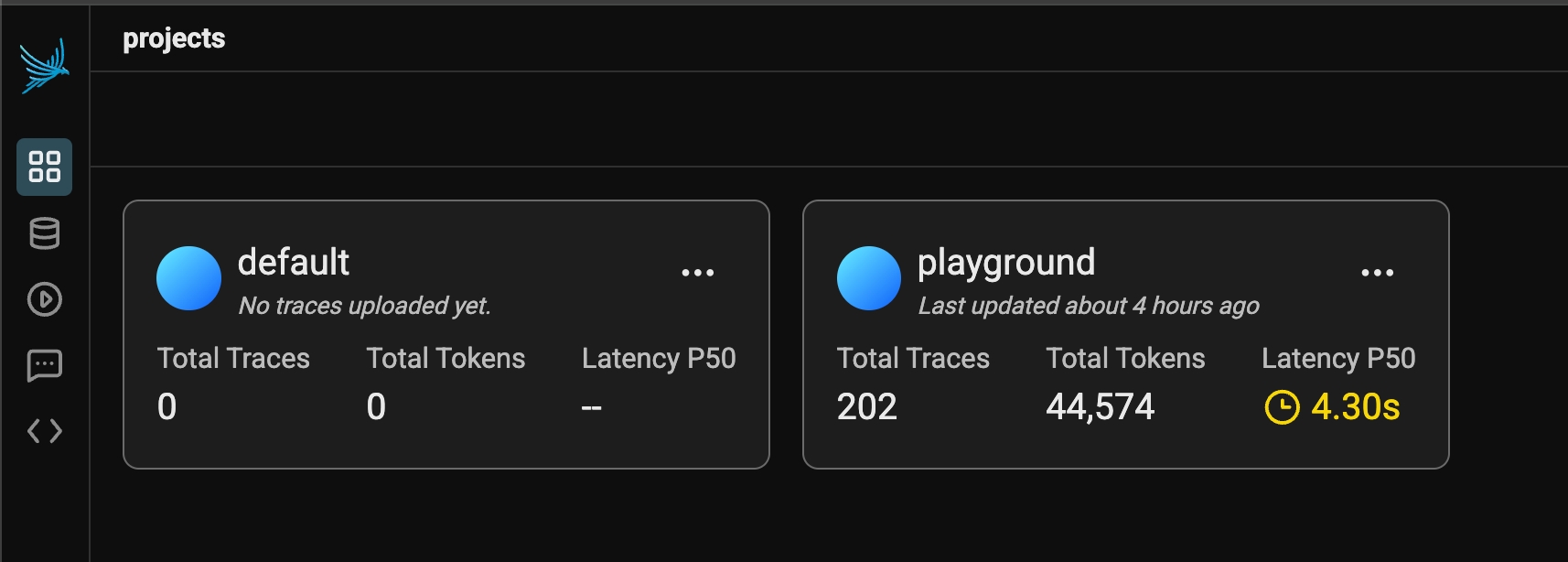
All free form playground runs are recorded under the playground project
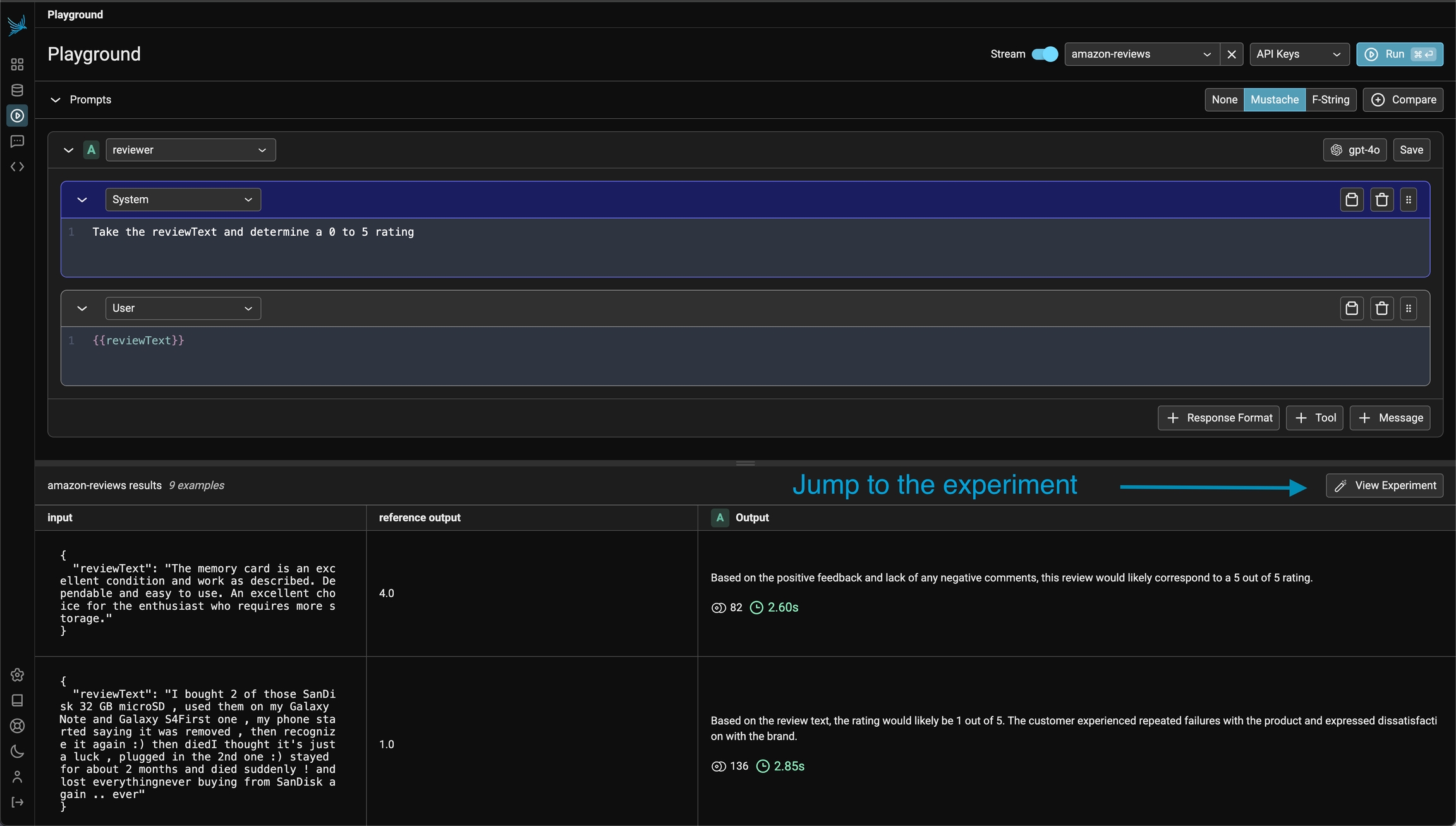
If you run over a dataset, the output and traces is tracked as a dataset experiment