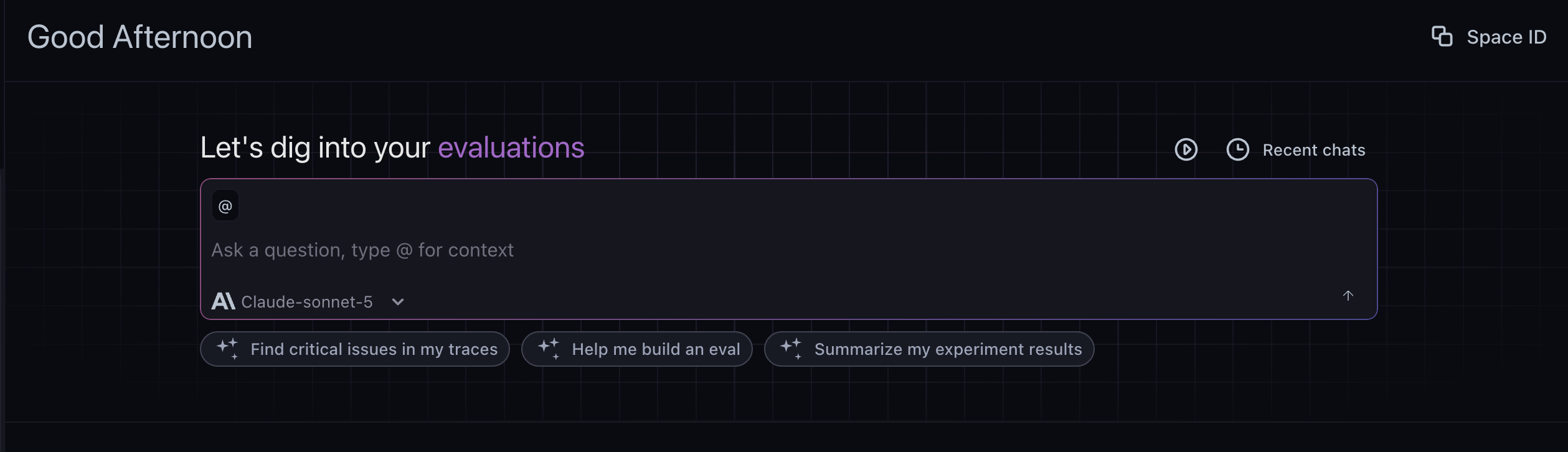
Alyx by surface
Alyx adapts to the surface you’re on and exposes different skills:| Surface | Where to find Alyx | Skills available |
|---|---|---|
| Alyx in the trace slideover | Open Alyx from a trace detail view | Trace troubleshooting, span analysis, annotations, build evals |
| Prompt Playground | Alyx chat in the Playground | Optimize prompts, build evals, run experiments |
| Eval Builder / Task Builder | Alyx on the eval or task builder page | Build custom evals, configure tasks |
| Traces table search bar | AI Search in the filter bar | Natural language to filter syntax |
| Traces page | Alyx on the main Traces page | Multi-trace analysis, pattern discovery |
| Datasets / Experiments | Alyx on Datasets or Experiments | Analyze experiments, manage datasets |
Cross-Cutting Skills
These skills are available across multiple surfaces:| Skill | Description |
|---|---|
| ArizeQL Generator | Translates natural language or existing code (SQL, Python) into AQL for custom metrics. |
| Optimize Prompts | Optimizes prompts for better quality or specific issues. |
ML & CV Models
Alyx supports embedding summarization (cluster summary) for ML and computer vision embedding views—select points or clusters on the embedding page and use “Summarize with Alyx” to get a summary of the selection. See Alyx: Embedding Summarization.Use your own integrations with Alyx
You can use your own LLM integrations with Alyx. Supported today: OpenAI models, Anthropic (via AWS Bedrock and Vertex AI). More are coming soon. Add and manage integrations in Settings → Account Settings → Integrations. For setup and reference, see AI provider integrations.
Adding context to Alyx
You can give Alyx explicit context so it focuses on the right data and answers with that in mind. There are three ways to add context:- Highlight — Select text anywhere on the page (e.g. a span attribute, an error message, or a prompt snippet), then press ⌘ + L (macOS) or Ctrl + L (Windows/Linux). Alyx opens (or stays open) and the selected text is added to your message as context. If nothing is selected, the shortcut just opens or closes Alyx.
- @ (mention) — In the Alyx input, type @ to open a menu. You can mention a dataset, experiment, project, or span (depending on the surface). Alyx receives the IDs for what you mention so it can scope the conversation to that data.
- Type it — You can include context in your message. For example, start with “Additional context:” and add lines of text, or reference a trace, dataset, or experiment by ID in your question. Alyx parses these references and uses them to scope its actions.

Alyx Settings
- macOS: ⌘ + L
- Windows / Linux: Ctrl + L

Data Privacy
Arize’s Alyx is built on Azure OpenAI because of its built-in security and compliance features. This ensures that customer data is protected and not directly exposed to third-party providers. Here’s how it works:- Data Processing: Azure acts as the data processor for the prompts and outputs sent to and generated by Alyx. The models are stateless, meaning no prompts or outputs are stored in the model.
- No Data Sharing or Model Improvement:
- Inputs and outputs of Alyx are NOT used to improve OpenAI models.
- They are NOT used to improve any Microsoft or third-party products or services.
- They are NOT used for automatically improving Azure OpenAI models.
- Full Control by Microsoft: The Azure OpenAI Service is fully controlled by Microsoft, and the OpenAI models are hosted in Microsoft’s Azure environment. The service does NOT interact with any other OpenAI-operated services, such as ChatGPT or the OpenAI API.
- Security & Compliance: Azure OpenAI ensures that we meet industry-standard security and compliance measures, protecting your data throughout the process.

Third-Party Integrations
Alyx includes a support skill designed to help answer user questions. When you ask a support-related question, the question itself is sent to a third-party service, RunLLM, for processing. It’s important to note that:- Limited Data Sharing: Only the specific question you ask is shared with RunLLM. No additional model information or user data is shared beyond the question itself.
- User Control: You retain control over your interaction with this skill. If at any time you wish to modify or revoke your consent to share support questions with RunLLM, please contact us at support@arize.com
- Disclaimer Acknowledgement: Before using the support skill, users must acknowledge a one-time disclaimer outlining the involvement of RunLLM.