

Why use saved views?
- Reuse a full layout — One selection restores filters, column visibility and order, sort, and time range.
- Personal default — Choose which view loads when you open Tracing for a project; other users keep their own defaults.
- Built-in starting points — Arize Default and Errors are always available; fork them with Save as new view when you need a custom variant.
- Fewer repeated steps — Stop reapplying the same column and sort setup after every session.
Where to find saved views
On the Tracing page for a model:- Look at the toolbar above the table.
- Find the Views control—it shows the current view name (e.g. Arize Default or Errors).
- Click it to open the list of views and manage them.
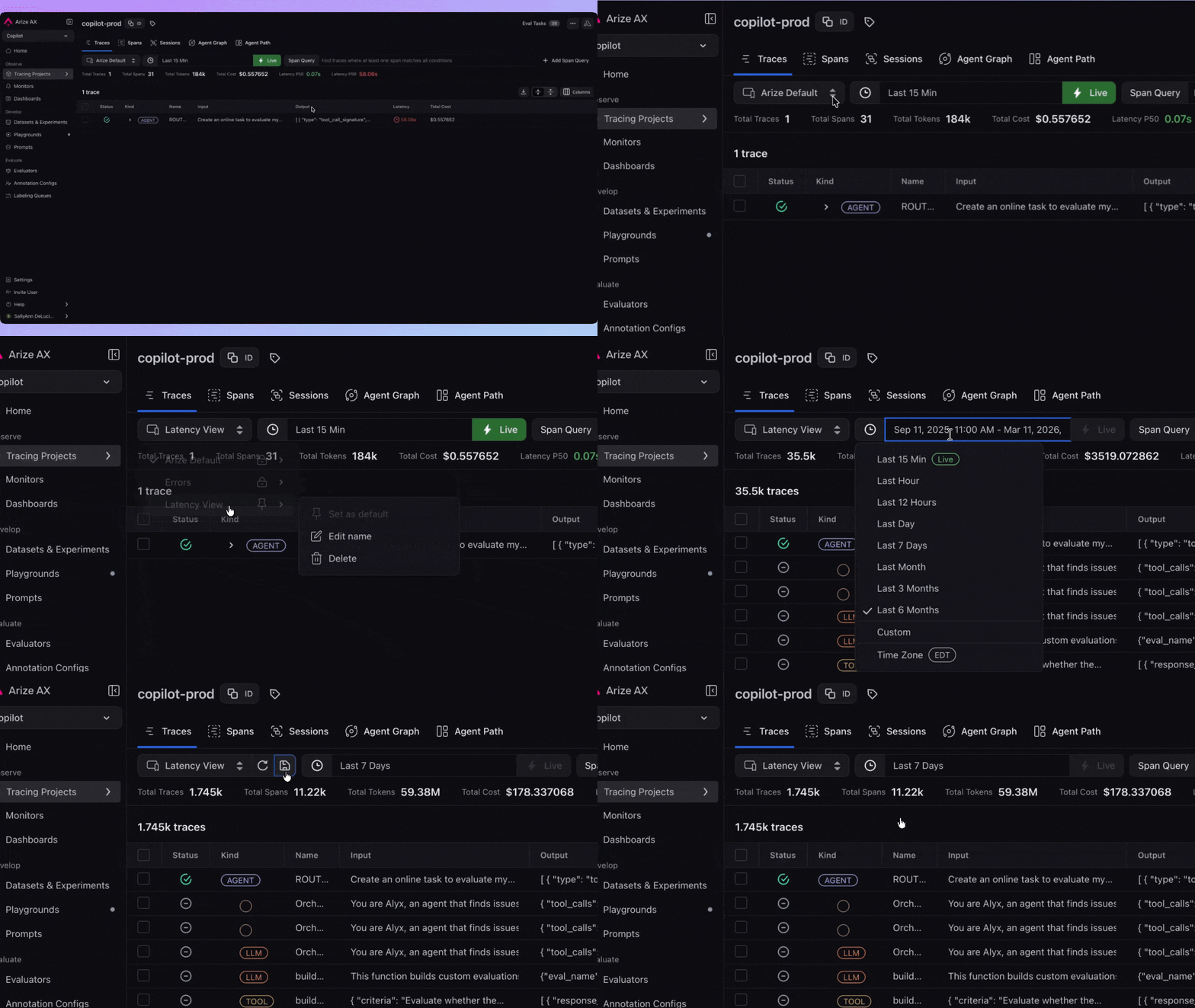
Switch between saved views to update filters, columns, sort, and time window
Built-in views
Arize AX provides two views out of the box. You can use them as-is or as a starting point. You cannot overwrite them—any changes must be saved as a new view.
Built-in views show a lock icon in the list. To keep changes you made while on one of them, use Save as new view.
Create, update, and switch views
Save as new view
- Set up the table (filters, columns, sort, time range).
- Open Views.
- Click the Save (disk) button.
- Choose Save as new view.
- Enter a name (and optionally a description), then Save View.
Update an existing view
When you’re on a custom saved view and you change the table (filters, columns, sort, or time range), those changes are unsaved until you persist them. You’ll see:- Reset — Discards your changes and restores the table to the last saved state of that view.
- Save — Opens options to persist your changes.
- Make your changes.
- Click Save → Update existing view only when you intend to change the shared view for all users.
Switch views
- Open Views (the label shows the current view).
- Click the view you want.
Set a default view
Your default is per project and only affects your account—other users set their own.- Open Views.
- Find the view you want.
- Click the > on that view’s row to open the actions submenu.
- Choose Set as default.
Manage your views
Each view in the list has a > on the row. Click it to open the actions submenu:- Edit name — Updates the label (and optional description); the saved configuration stays the same.
- Delete — Removes the view permanently. The table switches to another view (e.g. Arize Default). This cannot be undone.
What gets saved in a view
When you apply a view, all of the following are restored:
If the project no longer has a column that was saved in the view (e.g. after a schema change), that column is skipped and you may see a notice. The rest of the view still applies.