

Before you begin: You need permission to create a Workflow in your Teams channel (Power Automate enabled for your account), and a role in Arize that can manage Alert Integrations and Monitors.
Integration Setup
Build the Teams Workflow, format the alert card in Power Automate, then register the webhook in Arize.Integration Setup: Create Teams Workflow
Create a Teams Workflow that posts to your channel when it receives a webhook request — this generates the webhook URL you’ll register in Arize.1
Open Workflows in your channel
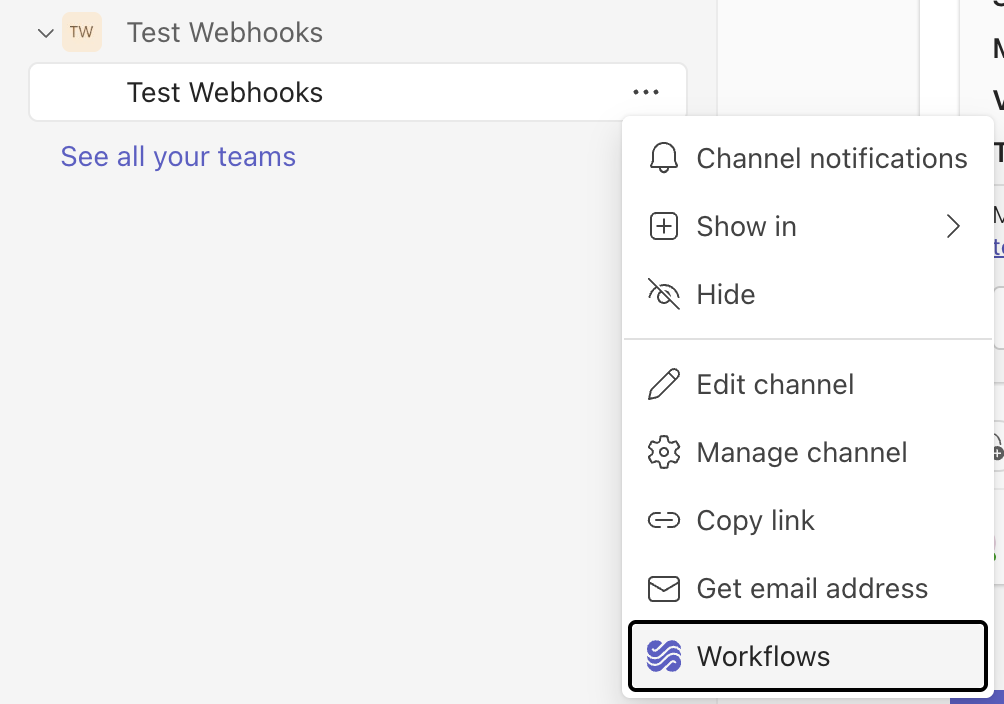
2
Select the webhook template
Select Send webhook alerts to a channel.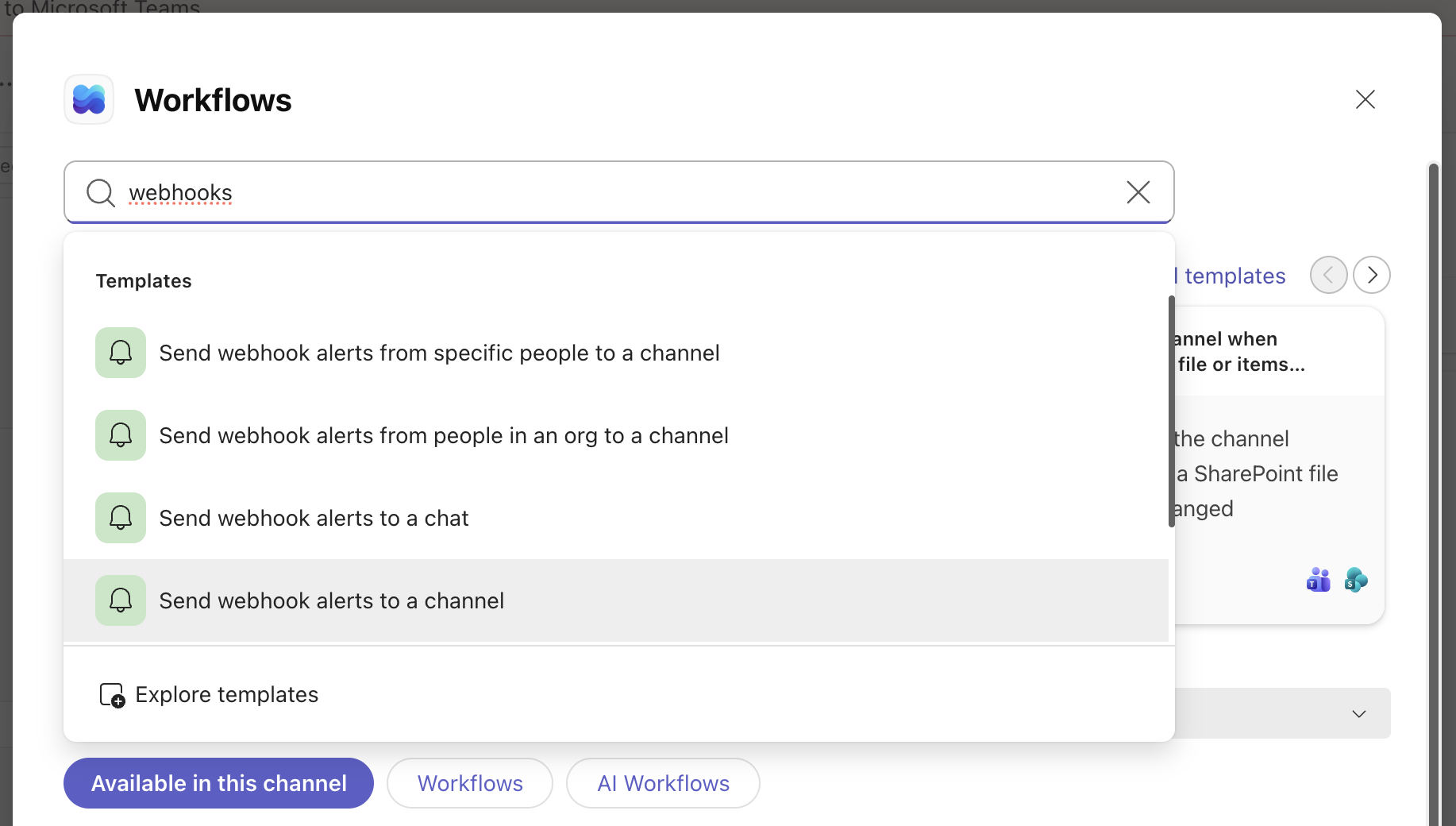
3
Choose the channel
Choose the channel that should receive the alert.
4
Copy the webhook URL
Copy the webhook URL — you’ll need it when you create the webhook integration in Arize. Treat it like a password: anyone with the URL can post to the channel.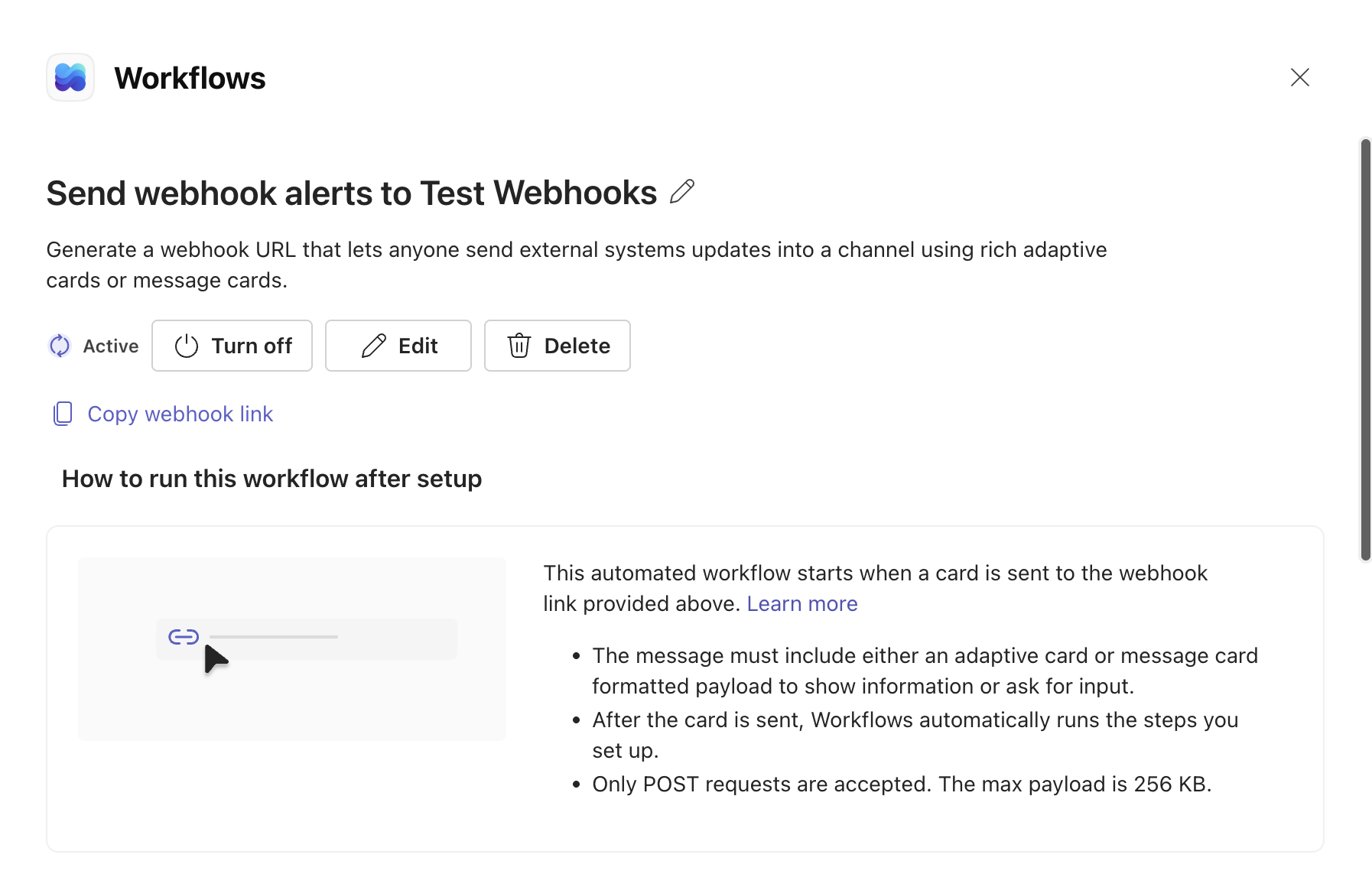
Integration Setup: Modify Workflow in Power Automate
The Teams Workflow expects an Adaptive Card, but Arize sends raw JSON. Edit the Workflow in Power Automate to build a custom alert card from the fields in Arize’s webhook payload.1
Open Power Automate
Go to make.powerautomate.com and sign in with the same credentials you use for Teams.
2
Open My flows
Select My flows.
3
Select your workflow
Select your webhook workflow.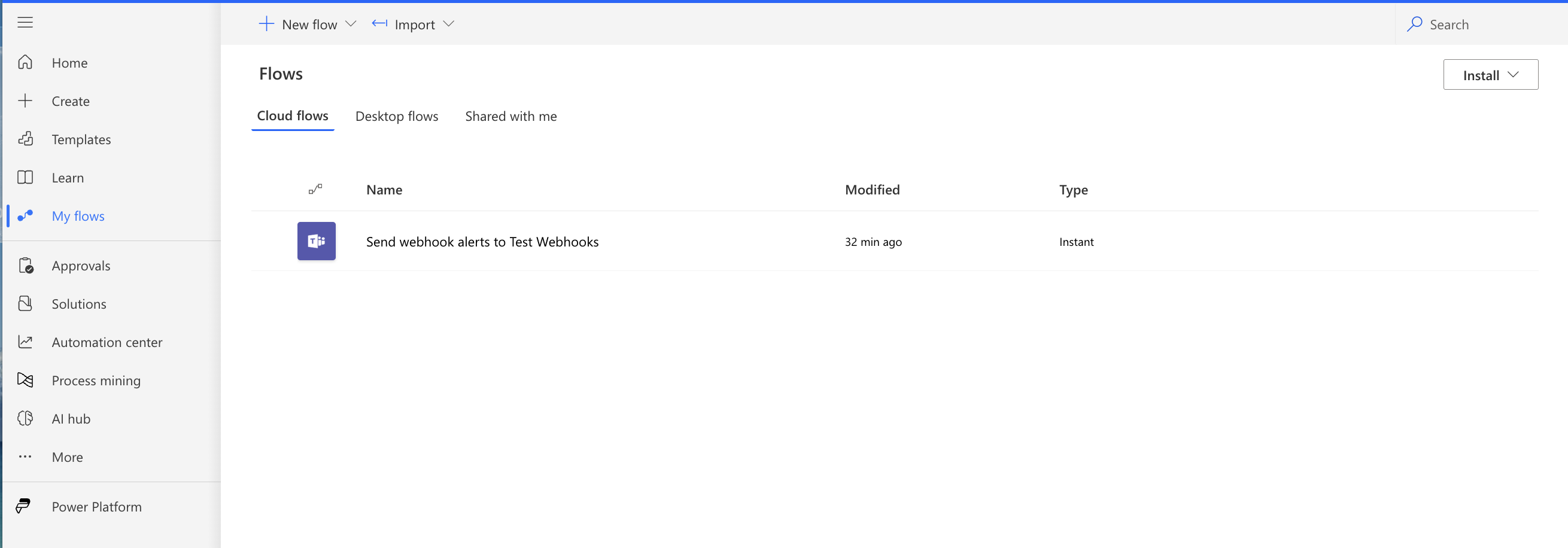
4
Edit the flow
Select Edit.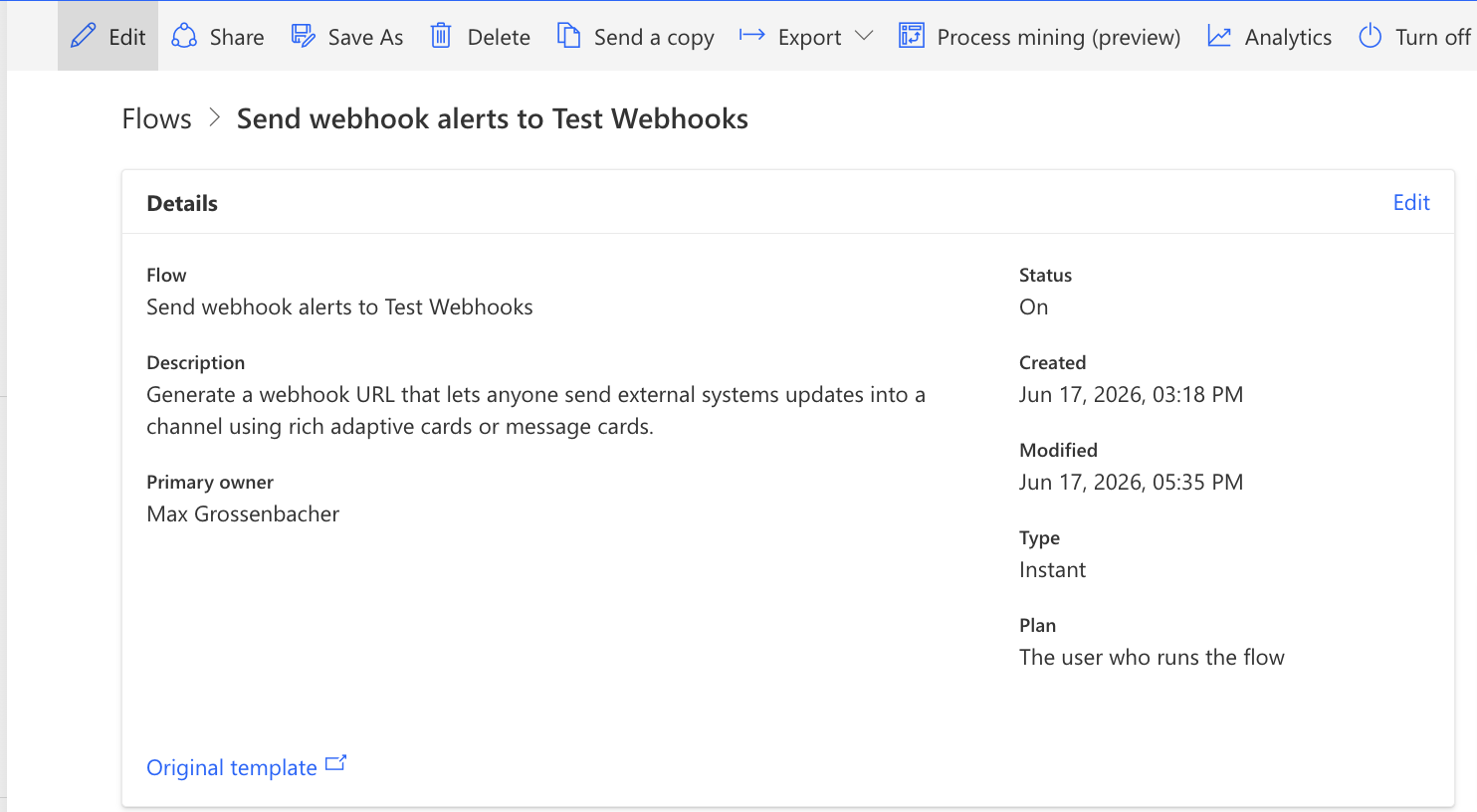
5
Open the Post card action
Expand the actions, then open Post card in a chat or channel.
6
Replace the Adaptive Card
In the Adaptive Card field, remove the existing string object and paste the JSON below:
7
Save the flow
Select Save.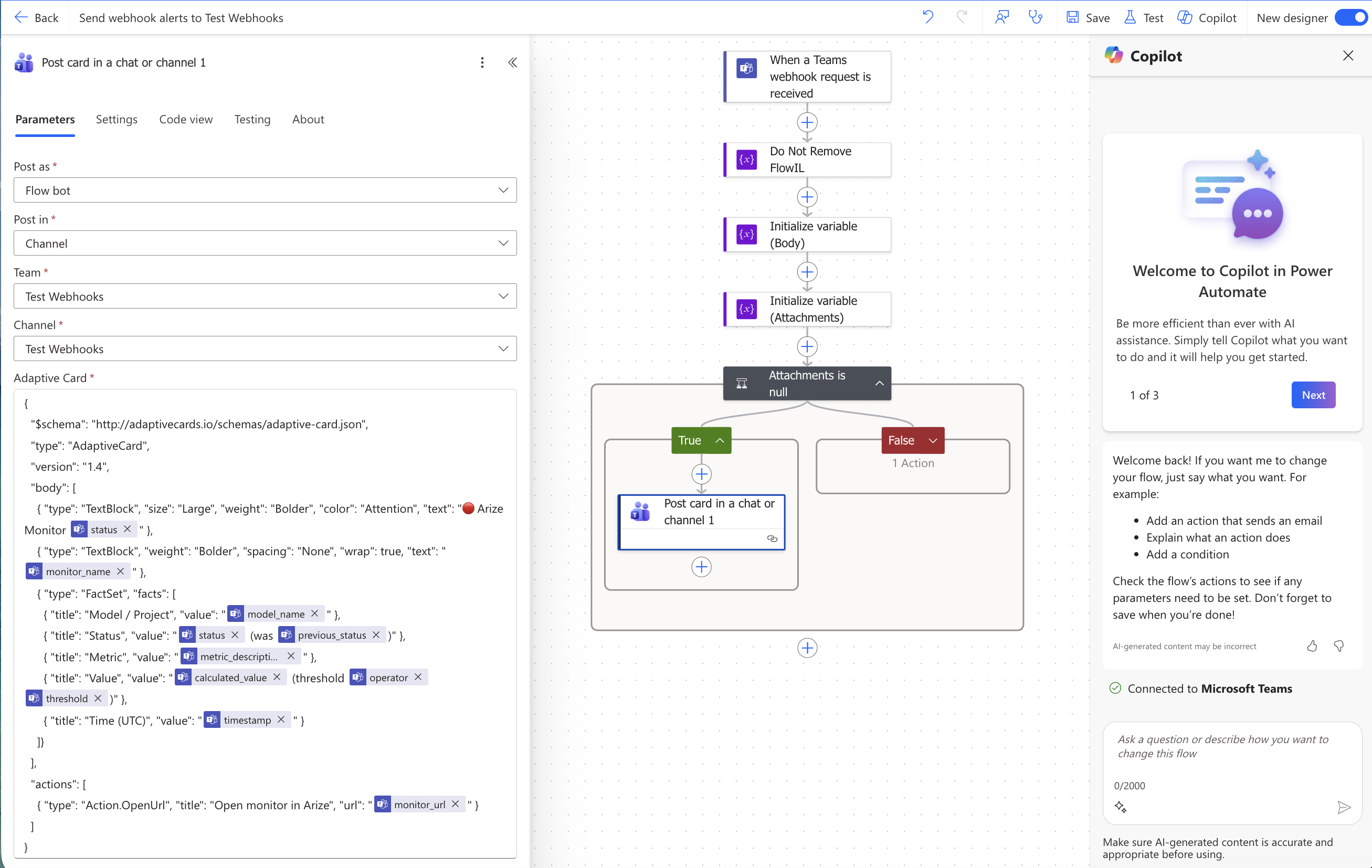
Integration Setup: Register Webhook in Arize
Register the Teams webhook URL in Arize as a webhook integration so it’s available as an alert destination for your monitors.1
Open the Webhook integration
Go to Settings → Alert Integrations → Webhook Integration.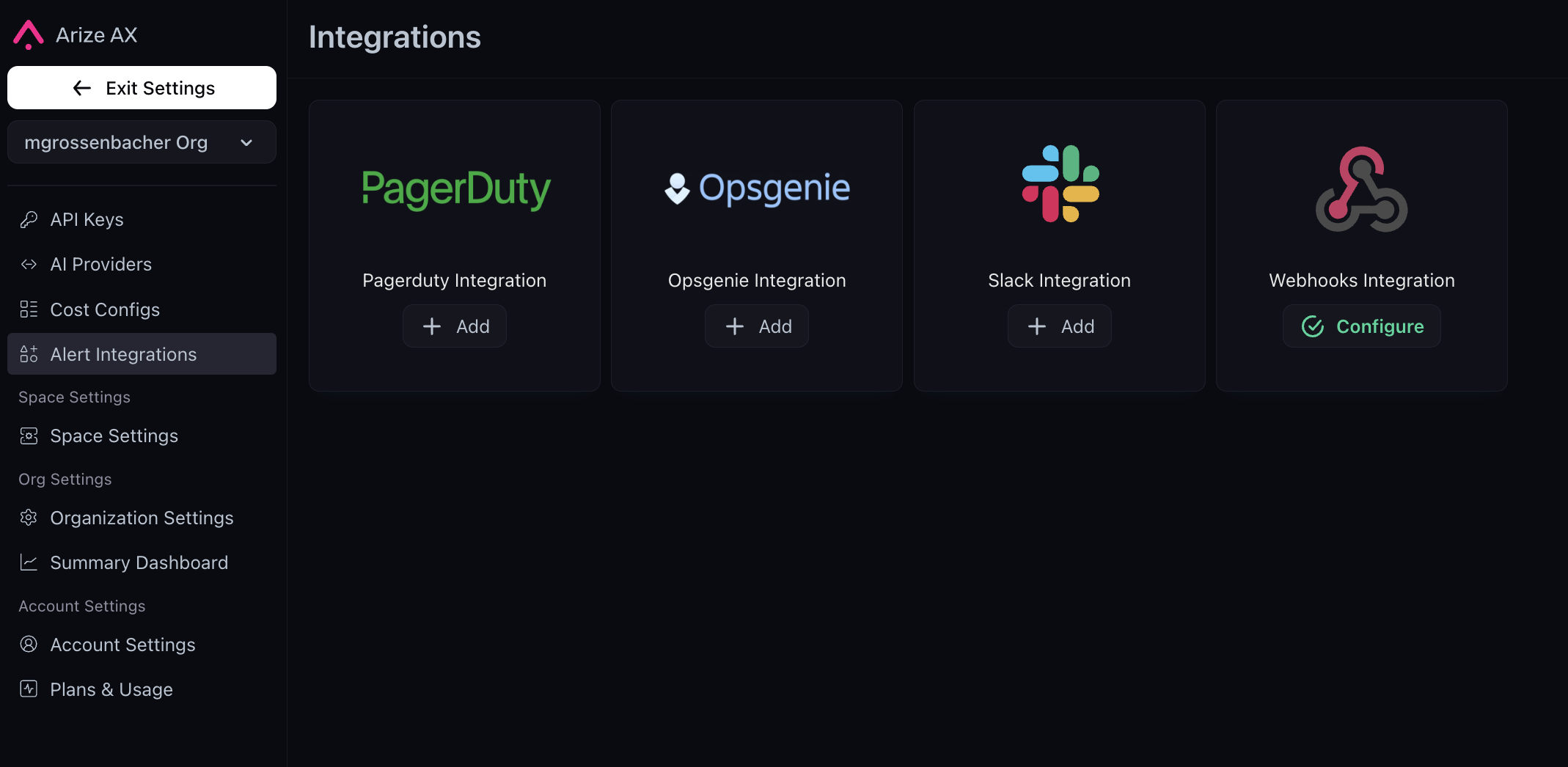
2
Register the webhook
Select Add New, name the integration (for example, 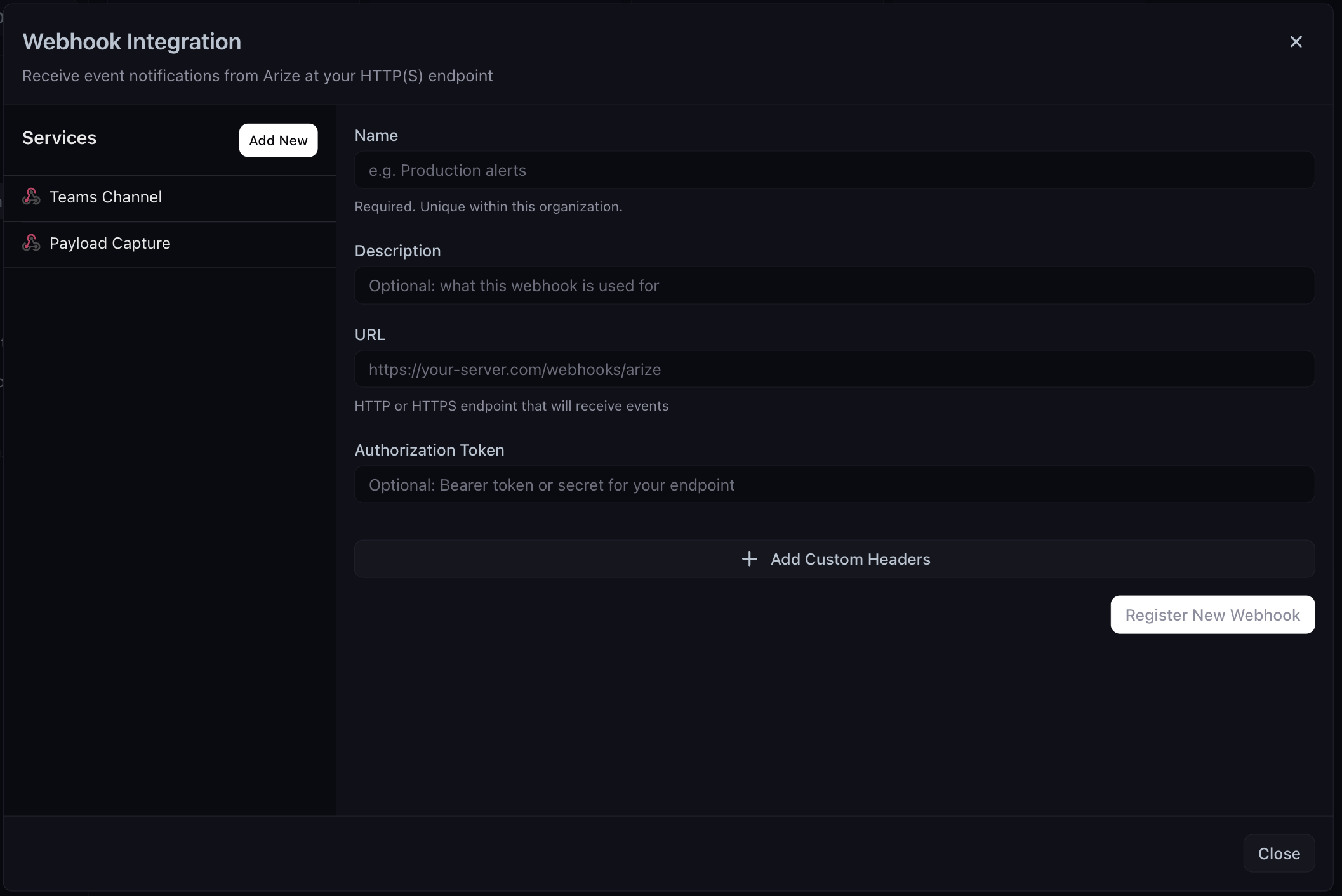
Teams Channel), and paste the webhook URL from the Teams Workflow. Leave Authorization Token and Custom Headers empty, then select Register New Webhook.Send Alerts
Assign the Teams webhook to your alerts at either level:- Project level — from a project’s Config tab, select the Teams webhook so every monitor in the project notifies Teams.
- Per monitor — set it on an individual monitor, as below.
1
Create a custom monitor
In your project, go to Monitors → New Monitor → Create Custom Monitor.
2
Send notifications to the Teams webhook
Configure the monitor, then set Send Notifications to your Teams Channel webhook and the alert event to Triggered. Select Create. To also be notified when a monitor recovers, subscribe the webhook to the Cleared (and optionally No data) events.
3
Confirm the alert in Teams
Within a few minutes, the alert triggers (if its conditions are met) and posts to the Teams channel.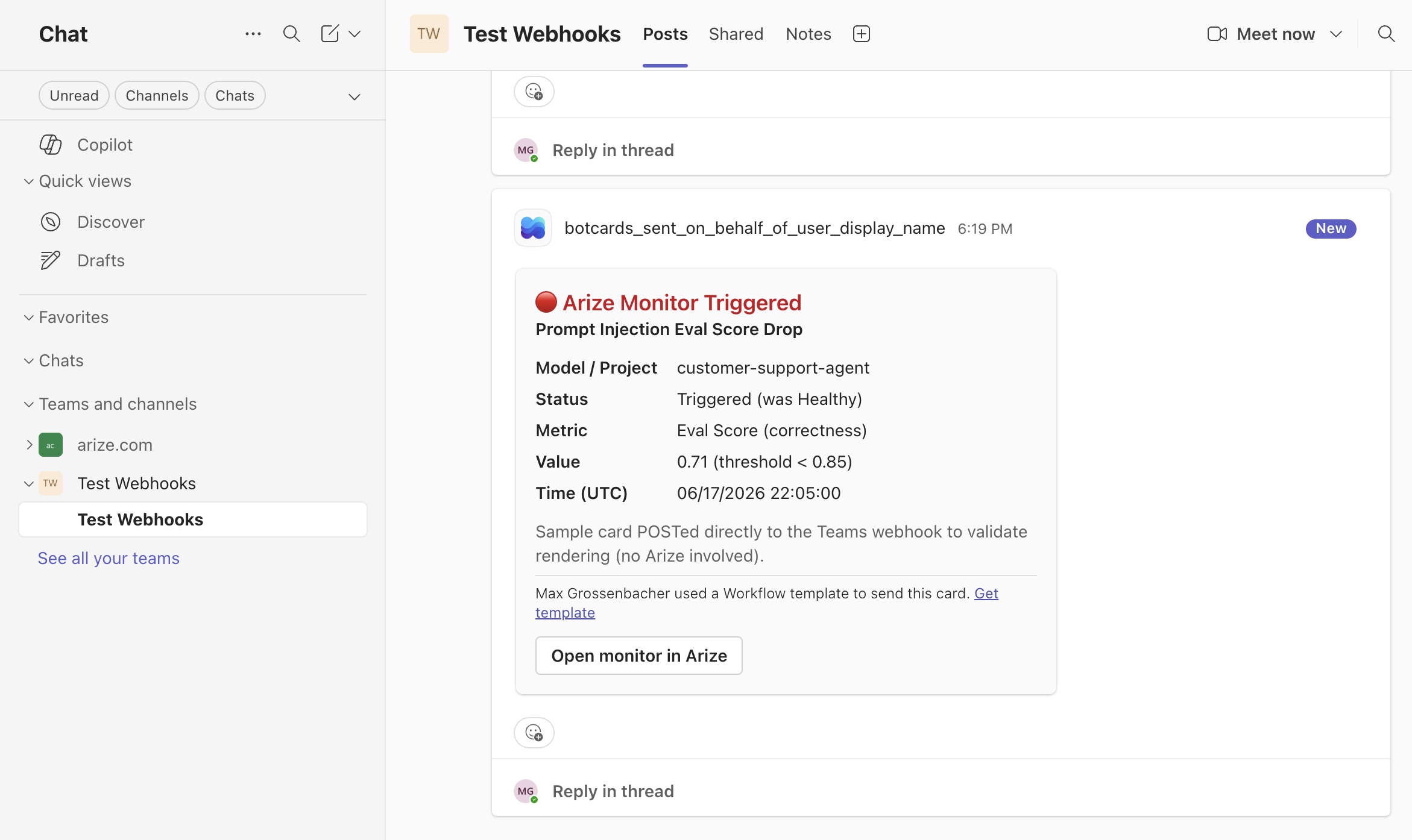
Alerts fire on a state change (Healthy → Triggered), not on every evaluation — a monitor won’t re-alert while it stays triggered. To test again, let it clear and re-trigger.
Troubleshooting
If no message appears in the channel:- Confirm the workflow is turned On in Power Automate (or the Teams Workflows app).
- Confirm the Adaptive Card field contains valid JSON.
- Confirm the monitor actually transitioned to Triggered — alerts fire on a state change, not on every evaluation.
- Open the flow’s run history at make.powerautomate.com → your flow. A failed run shows the exact error (for example, an invalid Adaptive Card).
Troubleshooting: Webhook Payload Reference
When a monitor changes state, Arize sends this JSON (Content-Type: application/json). The card maps its fields from these exact names — useful if you want to customize the alert card in Teams or debug a blank value:
Having trouble? Email support@arize.com or reach us in #arize-support on Slack.