

Documentation Index
Fetch the complete documentation index at: https://arize-ax.mintlify.dev/docs/llms.txt
Use this file to discover all available pages before exploring further.
When To Automate Retraining
Retrain your model after you root cause an issue. While some model performance/drift issues may point to underlying data quality issues that require you to fix your model upstream, if your model is constantly outdated or experiencing new data types, retrain your model on a regular cadence with automated retraining.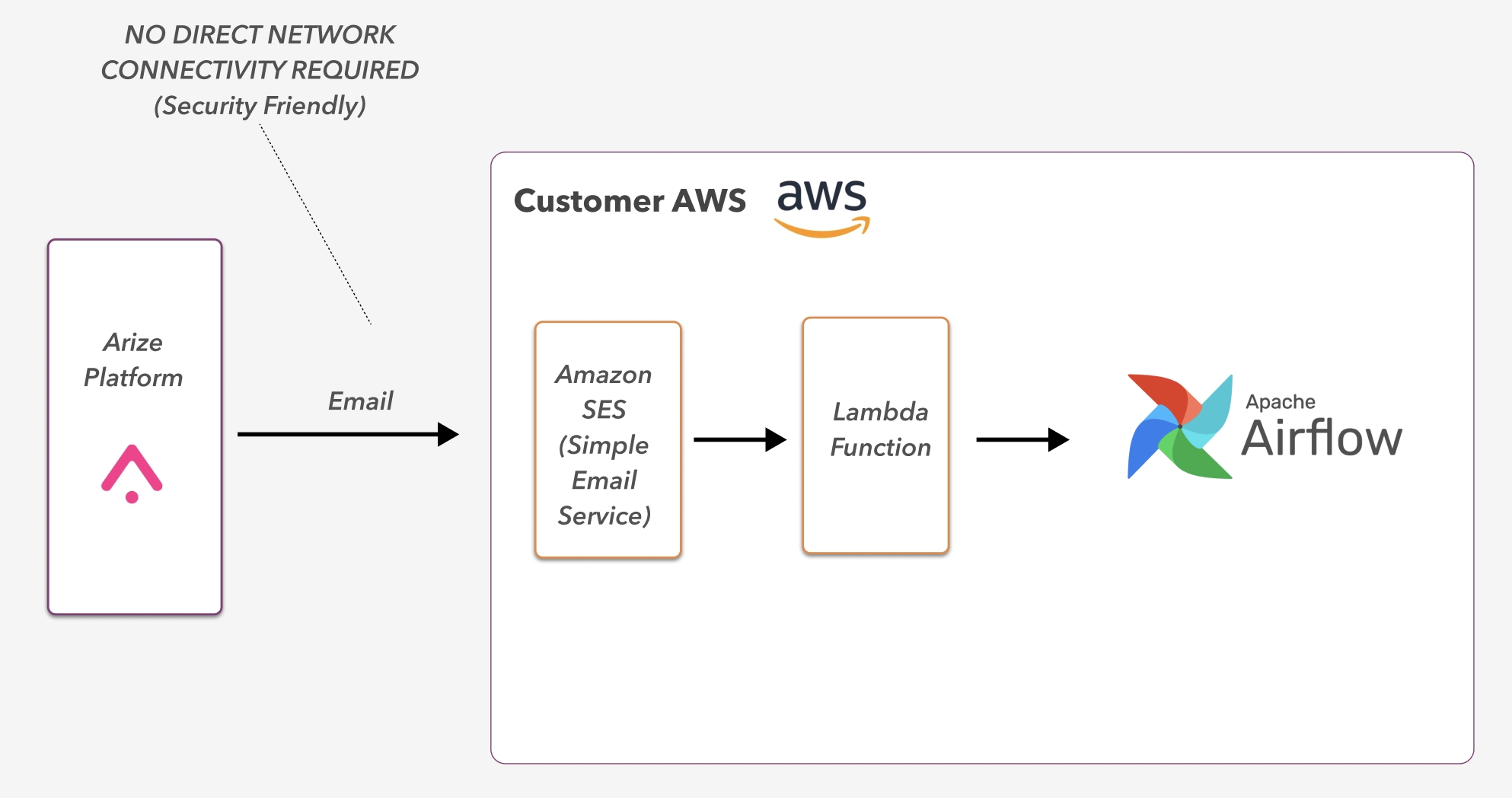
How Does Automated Model Retraining Work?
Automated retraining is a simple process once you connect your workflows with Arize, learn more about supported platforms here.Step 1 - Configure A Monitor
Enable a monitor in Arize to get alerted when your model deviates from expected behavior. Arize triggers automatic retraining events through an email service. When configuring your monitor, be sure to select your integration’s email address during the monitor setup flow.Step 2 - Monitor Alert Fires
A monitor’s alert is used to trigger the retraining workflow. Based on your model retraining needs, retraining actions can be customized using a lambda function.Step 3 - Create A New Version For Monitoring
Once your model is retrained, close the ML lifecycle by creating a new version and monitoring your new model!Supported Retraining Integrations
Learn how to setup automatic retraining with the step-by-step guides below:
Airflow Retrain

Amazon EventBridge
Webhooks are coming soon!