

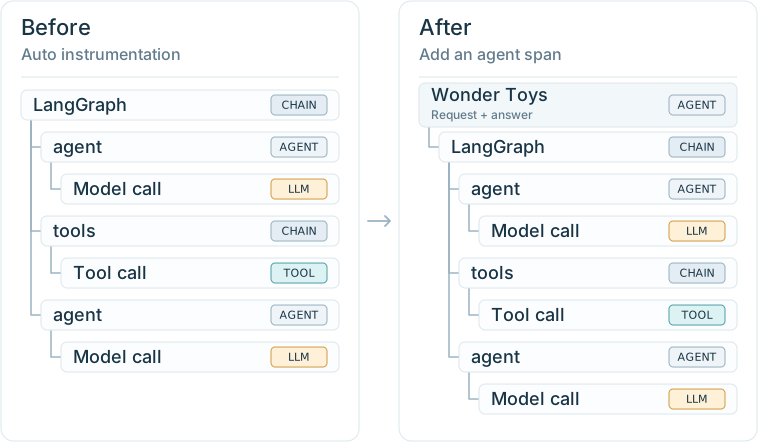
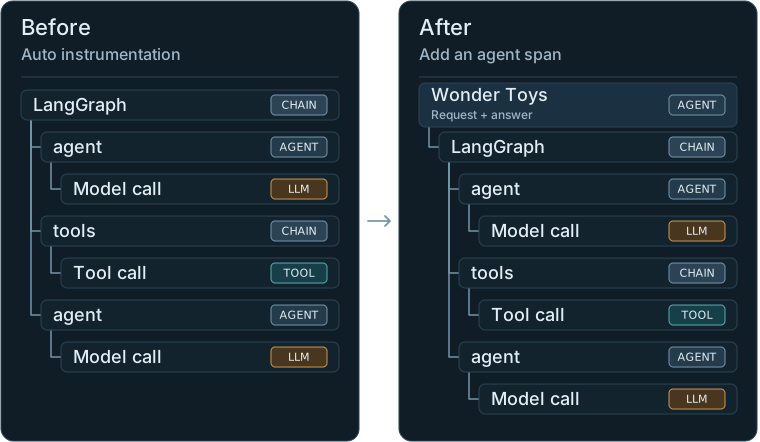
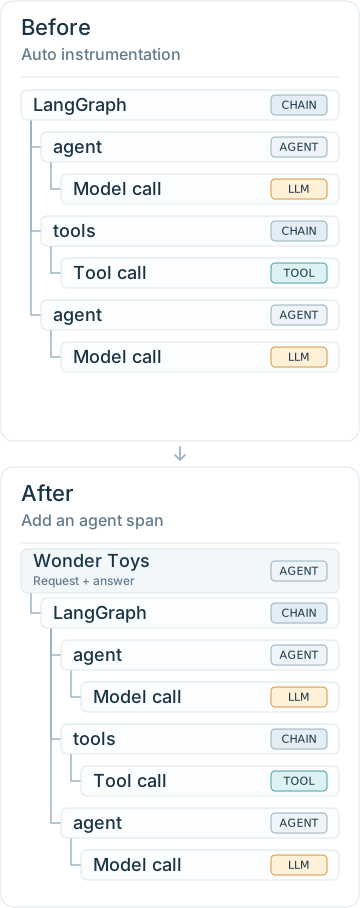
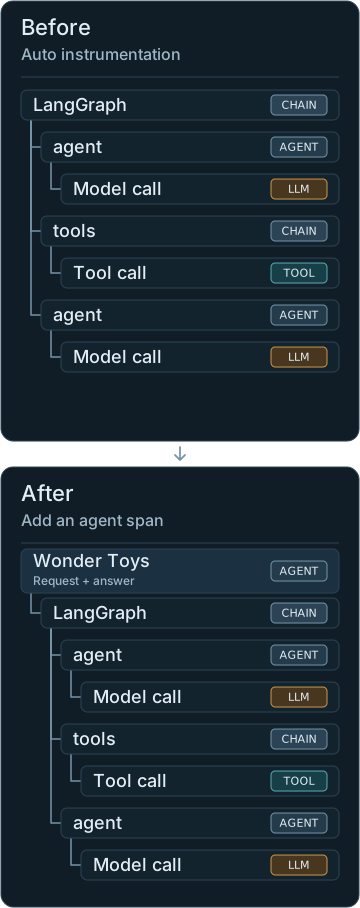
Example LangGraph trees before and after adding the Wonder Toys span. Other framework spans and repeated calls are omitted.
Before you start
To follow the exercise, continue with your setup from the previous lesson:- Keep the same Phoenix instance running.
- Work in the same
no-observability/langchain-pyfolder. - Use the
_tracer_provideryou created inbackend/tracing.py.
Step 1: Add the agent span
Before adding a span, decide:- What to trace: The work you want to review together. Here, that’s one complete agent request.
- What to record: The user’s request as input and the complete result as output.
- When to finish: After the agent’s work is complete, including any streamed reply.
with block, to mark where that work starts and ends. Calls recorded while this span is active appear underneath it.
In our practice app, the reply arrives in pieces, so we’ll collect the text before recording the output. The short example below shows the tracing code used in the full function:
Tracing pattern used in this lesson
question holds the user’s latest message and response_parts holds the streamed text. In the full function, agent.astream_events(...) runs inside the block, so its automatically recorded LangGraph span appears beneath our new span.
Add the code yourself or ask a coding assistant to make the same edits:
- Add the code yourself
- Use a coding assistant
Now let’s add the span to your app. Make these edits in your local
backend/agent.py and backend/main.py files:1
Reuse your tracing setup
Open
backend/agent.py and add the code below after the existing imports. We’ll use _tracer to create the span through your existing connection to Phoenix:2
Add the span around the agent's work
In the same file, replace the existing
stream_agent function with the complete function below. It keeps the chat’s streaming code and adds the span around it. The highlighted lines record the request and streamed reply.Copy the complete stream_agent function
Copy the complete stream_agent function
stream_agent
3
Adjust the practice app's trace layout
FastAPI adds an HTTP request span above the agent span. We’ll turn off that tracing in the practice app so Wonder Toys is the top-level span used for labels and test cases in later lessons.Open Other apps can keep HTTP tracing and leave the agent span underneath it.
backend/main.py and replace app = FastAPI(...) with:Step 2: Send a request
Let’s send a request to check that the span records the work and result we intended.-
Restart the app. Stop it in its terminal, then run this from
no-observability/langchain-pyto load your changes: -
Send a request. When the app is ready, you’ll see its address next to Local in your terminal. Open that address in your browser and send:
Step 3: Inspect the result
Your new trace should now have a Wonder Toys span above LangGraph. In Phoenix:- Open wonder-toys → Traces and select the latest Wonder Toys request.
- Select the Wonder Toys span. Its kind should be AGENT and its status OK after the reply finishes.
- Under Info, compare Input with the shopper’s message and Output with the answer in the chat.
- Expand the tree to find the model and tool spans underneath it.

Select the Wonder Toys agent span to read the request and answer together under Info → Input and Output.