Check that Wonder Toys saved the requested order, and test that your evaluator catches mistakes.
So far, we’ve reviewed whether an agent’s answers meet the user’s requirements. Now let’s check the result of an action, such as placing an order or updating a record. Did the application save the change the user asked for?In Choose what to evaluate, we introduced code evaluators: functions that check results against rules you define. For example, you can check whether:
An answer is valid JSON.
A tool call includes required fields.
All item quantities are positive.
A saved order matches the cart sent to the purchase tool.
The first 3 checks don’t need a separate expected answer. The last compares the saved result with the tool’s input.We’ll build a purchase check: did the purchase tool save the products and quantities it received? You’ll test whether the evaluator catches mistakes, then inspect its result in Phoenix.
Before writing an evaluator, decide what counts as a correct result for your agent’s action.For our Wonder Toys example, assume a shopper confirms 1 Dinosaur Explorer Kit (toy-051). The purchase tool receives that cart and should save the same product and quantity.To check this, we’ll compare:
What should be saved (expected): The confirmed cart sent to the purchase tool.
What was saved (output): The order read back after the purchase.
The script will place the order in Step 4. For now, here’s an example where the saved order is correct:
The saved items are nested inside order. We’ll compare expected["items"] with output["order"]["items"]: both contain 1 toy-051, so this example passes.Here, expected comes from the purchase request. The order and items fields belong to this exercise; use your own application’s fields for other agents.Our rule should also catch these mistakes:
Let’s turn the rule from Step 1 into a comparison: do the saved products and quantities match the cart sent to the tool?First, represent each cart as product IDs and total quantities. If the shopper confirmed 1 kit but the order saved 2, we’d compare:
actual == wanted returns False because the quantities differ. Matching products and quantities return True.Open academy/evaluations/order_checks.py and find ordered_items_match. The file already includes this working evaluator, shown below so we can walk through its comparison. You don’t need to paste it again.The helper adds up each product’s quantity. In the function, wanted holds the confirmed totals and actual holds the saved totals. The comparison checks whether they match.
@create_evaluator(name="ordered_items_match", kind="code", direction="maximize")def ordered_items_match(output: dict, expected: dict) -> Score: # A broken reference is an evaluation error, not a failed application run. wanted = item_quantities(expected["items"]) order = output.get("order") if not isinstance(order, dict): passed, explanation = False, "No stored order was found." else: try: actual = item_quantities(order.get("items")) passed = actual == wanted explanation = ( "The stored product IDs and quantities match the confirmed cart." if passed else f"Expected {dict(wanted)}; stored {dict(actual)}." ) except ValueError as error: passed, explanation = False, f"Invalid stored order: {error}." return Score( name="ordered_items_match", label="pass" if passed else "fail", score=int(passed), explanation=explanation, kind="code", direction="maximize", )
A useful evaluator needs to accept correct results and reject mistakes. Before calling the purchase tool, check your implementation against known examples.The provided tests already check that saving 2 kits when the shopper requested 1 fails. Let’s test the opposite: the shopper requests 2 kits, but only 1 is saved. This should also fail.Open academy/evaluations/tests/test_order_checks.py. It includes tests for the exercise. Add this test below the existing ones:
The test supplies a known mistake, calls your evaluator, and checks its decision. The assert lines make the test fail if the evaluator accepts the incorrect order.Run your new test alongside the provided tests from the Wonder Toys repository root:
Incorrect orders should fail: Wrong products, extra items, invalid quantities, and missing orders must be rejected.
Equivalent carts should pass: An order listing 2 kits on 1 line should match an order listing 1 kit on each of 2 lines.
Invalid expectations should raise an error: An empty expected cart means the evaluation setup is invalid. The evaluator shouldn’t record that as a failed purchase.
With your new test, you should see 12 passed. If a test fails, compare its expected and actual results with your rule.If the confirmed cart requests 1 kit, checking only product IDs would incorrectly pass a saved order containing 2 kits. The quantity test catches that mistake in the evaluator before you rely on its scores.For your own evaluator, use the same pattern: supply a result you know is correct or incorrect, then assert the decision you expect.
Once your evaluator passes the tests, let’s check the purchase tool’s saved result. The provided academy/evaluations/check_orders.py script supplies a fixed cart for practice: 1 toy-051. It will:
Place the order: Send the cart to the purchase tool, keeping that cart as expected.
Read the result: Use the returned order ID to retrieve the saved order as output.
Run the evaluator: Compare the requested products and quantities with the saved ones.
Keep Phoenix running, then run the script from the repository root:
Use your Phoenix address for --phoenix-url if it differs from the example.This command evaluates the exercise’s cases. For other purchases, call the evaluator with each purchase’s cart and saved order.The script also checks 2 deliberately altered examples, so you’ll see these 3 results:
Case
What your evaluator receives
Expected label
actual_order
The order saved by the purchase tool.
pass
changed_quantity
A copy changed to contain 2 kits.
fail
missing_order
No saved order.
fail
The last 2 cases are deliberately altered test examples and appear only in the terminal output.The explanation for changed_quantity should identify the mismatch:
The script records the actual order check in Phoenix. Open wonder-toys → Traces and select Purchase check. In the root span:
Input shows the shopper’s confirmed items.
Output shows the saved order.
Under Annotations, select Table to read the ordered_items_match label, score, and explanation.
The CODE annotation records whether the saved cart matches the request, with an explanation of the result.
Your actual order should have a pass annotation, as the recorded example does.This check covers products and quantities. A complete purchase review would also need the shopper’s consent, shipping address, and final response.
Ask PXI to review your code evaluator (optional)
Open PXI and paste the contents of order_checks.py, including the helper function. Then ask:
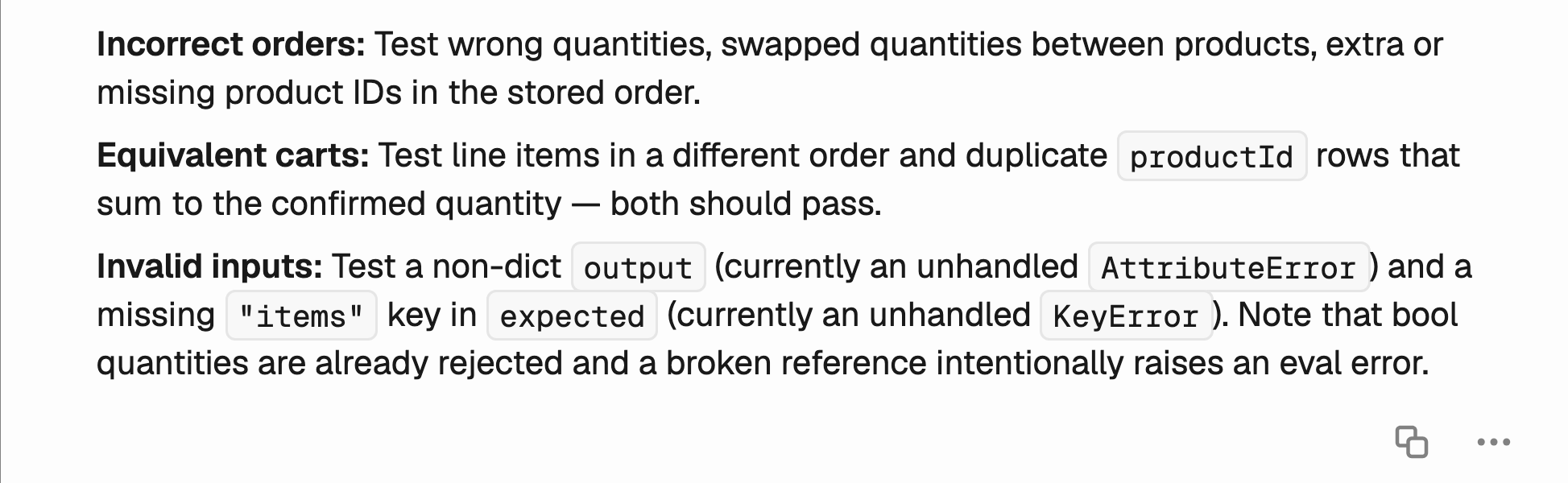
Review this evaluator for missing checks. Suggest test cases for incorrect orders, equivalent carts, and invalid inputs. Explain what each case checks. Keep the review brief. Only review the pasted code; don't create or change data.
PXI summarizes suggested test cases after reviewing the pasted evaluator.
Compare PXI’s suggestions with your existing tests. Add any useful cases locally, then rerun the tests in Step 3.
For an action in your own app, write down:
Expected result: The requested change, captured from the action’s input.
Actual result: Where you’d read the saved result.
Failure case: An incorrect result your evaluator should reject.
The purchase check compares product IDs and quantities directly. For our original budget check, we also need to interpret how a toy is described: is it recommended, or mentioned only to rule it out? In Write and validate an LLM judge, we’ll build that check and compare the judge’s decisions with your reviews.
{"docsConfig":{"theme":"mint","$schema":"https://mintlify.com/docs.json","name":"Phoenix","colors":{"primary":"#00769E","light":"#39C7FF","dark":"#009DD2"},"logo":{"light":"https://mintcdn.com/arizeai-433a7140/fitXeWll7ezQrIcg/docs/logo/light.png?fit=max\u0026auto=format\u0026n=fitXeWll7ezQrIcg\u0026q=85\u0026s=78e92baf10dd9eced114496ccb88dbf1","dark":"https://mintcdn.com/arizeai-433a7140/fitXeWll7ezQrIcg/docs/logo/dark.png?fit=max\u0026auto=format\u0026n=fitXeWll7ezQrIcg\u0026q=85\u0026s=ef36a0515f1c575affb91f81496ce2f3"},"favicon":"https://mintcdn.com/arizeai-433a7140/fitXeWll7ezQrIcg/docs/favicon.png?fit=max\u0026auto=format\u0026n=fitXeWll7ezQrIcg\u0026q=85\u0026s=7c6d0d7347821750d998c57c334ca376","background":{"color":{"light":"#FFFFFF","dark":"#08090A"}},"navbar":{"links":[]},"footer":{"socials":{"slack":"https://join.slack.com/t/arize-ai/shared_invite/zt-3r07iavnk-ammtATWSlF0pSrd1DsMW7g","x":"https://x.com/ArizePhoenix","bluesky":"https://bsky.app/profile/arize-phoenix.bsky.social","linkedin":"https://www.linkedin.com/showcase/113218220","github":"https://github.com/Arize-ai/phoenix"},"links":[{"items":[{"label":"Blog","href":"https://arize.com/blog?cat=phoenix"}]},{"items":[{"label":"English","href":"/docs/phoenix"},{"label":"日本語 (Japanese)","href":"/docs/phoenix/documentation/jp"},{"label":"中文 (Chinese)","href":"/docs/phoenix/documentation/zh"}]}]},"seo":{"metatags":{"canonical":"https://arize.com"},"indexing":"all"},"fonts":{"heading":{"family":"Geist","weight":600},"body":{"family":"Geist"}},"styling":{"codeblocks":{"theme":{"light":"github-light-default","dark":"github-dark-default"}},"latex":true},"integrations":{"gtm":{"tagId":"GTM-W96XM35"}},"contextual":{"options":["copy","view","chatgpt","claude","perplexity"],"display":"header"},"interaction":{"drilldown":false},"navigation":{"global":{"anchors":[]},"pages":[]}},"deployment":{"deploymentMetadataValue":{"subdomain":"arizeai-433a7140","hasAudioNarration":false,"actualSubdomain":"arizeai-433a7140","customDomains":[],"gitSource":{"type":"github","owner":"arize-ai","repo":"phoenix","deployBranch":"main","contentDirectory":"","isPrivate":false,"mountPath":"","label":""},"chroma":{"liveDeploymentHistoryId":"6aeb70a654566f4ef9909030","collectionId":"cf8dc4e2-57d9-423d-ad83-29aeaea7ea16","schemaVersion":"v3","latestBuiltDeploymentHistoryId":"6aeb70a654566f4ef9909030"},"feedback":{"thumbs":true,"edits":true,"issues":true},"entitlements":{"AI_CHAT":{"status":"ENABLED"},"REMOVE_BRANDING":{"status":"ENABLED"},"CONTEXTUAL_FEEDBACK":{"status":"ENABLED"},"CODE_SNIPPET_FEEDBACK":{"status":"ENABLED"},"WEB_MCP":{"status":"ENABLED"},"NARRATION":{"status":"ENABLED"}},"buildId":"6aeb714e0d822d4dc694a97d","clientVersion":"0.0.4064","searchFilterCounts":[{"language":"default","tag":"Integrations","count":211},{"language":"default","tag":"Documentation","count":175},{"language":"default","tag":"Release Notes","count":175},{"language":"default","tag":"SDK \u0026 API Reference","count":145},{"language":"default","tag":"Rest API","count":106},{"language":"default","tag":"API Reference","count":105},{"language":"default","tag":"LLM Providers","count":71},{"language":"default","tag":"Python","count":69},{"language":"default","tag":"Tracing","count":64},{"language":"default","tag":"Evaluation","count":59}]},"assistantConfig":{"enableAskAiButton":true,"enableAskAiSearchBar":true,"deflection":{"enabled":true,"email":"support@arize.com"}},"basePath":"","hasChatPermissions":true,"hasWebMcpPermissions":true,"toggles":[{"name":"kill-isr","enabled":true,"variant":{"name":"disabled","enabled":false,"feature_enabled":true},"impressionData":false},{"name":"agent-mintlify-slack","enabled":true,"variant":{"name":"disabled","enabled":false,"feature_enabled":true},"impressionData":false},{"name":"agent-integrations-settings","enabled":true,"variant":{"name":"disabled","enabled":false,"feature_enabled":true},"impressionData":false},{"name":"rbac-expansion","enabled":true,"variant":{"name":"disabled","enabled":false,"feature_enabled":true},"impressionData":false},{"name":"automations-pr-grouping","enabled":true,"variant":{"name":"disabled","enabled":false,"feature_enabled":true},"impressionData":false},{"name":"custom-prefix","enabled":true,"variant":{"name":"disabled","enabled":false,"feature_enabled":true},"impressionData":false},{"name":"analytics-v7","enabled":true,"variant":{"name":"disabled","enabled":false,"feature_enabled":true},"impressionData":false},{"name":"user-flows-analytics","enabled":true,"variant":{"name":"disabled","enabled":false,"feature_enabled":true},"impressionData":false},{"name":"no-publish-flow","enabled":true,"variant":{"name":"disabled","enabled":false,"feature_enabled":true},"impressionData":false},{"name":"workos-onboarding","enabled":true,"variant":{"name":"disabled","enabled":false,"feature_enabled":true},"impressionData":false},{"name":"llms-txt-v2","enabled":true,"variant":{"name":"disabled","enabled":false,"feature_enabled":true},"impressionData":false},{"name":"snapshot-serving-live","enabled":true,"variant":{"name":"disabled","enabled":false,"feature_enabled":true},"impressionData":false},{"name":"stripTemperatureMiddleware","enabled":true,"variant":{"name":"disabled","enabled":false,"feature_enabled":true},"impressionData":false},{"name":"support-platform-pylon-zendesk","enabled":true,"variant":{"name":"disabled","enabled":false,"feature_enabled":true},"impressionData":false},{"name":"snapshot-serving","enabled":true,"variant":{"name":"disabled","enabled":false,"feature_enabled":true},"impressionData":false},{"name":"instant-rollback","enabled":true,"variant":{"name":"disabled","enabled":false,"feature_enabled":true},"impressionData":false},{"name":"granular-notifications-server","enabled":true,"variant":{"name":"disabled","enabled":false,"feature_enabled":true},"impressionData":false},{"name":"granular-notifications","enabled":true,"variant":{"name":"disabled","enabled":false,"feature_enabled":true},"impressionData":false},{"name":"automations-fable","enabled":true,"variant":{"name":"disabled","enabled":false,"feature_enabled":true},"impressionData":false},{"name":"fixed-ai-action-pricing","enabled":true,"variant":{"name":"disabled","enabled":false,"feature_enabled":true},"impressionData":false},{"name":"automation-resolve-merge-conflict","enabled":true,"variant":{"name":"disabled","enabled":false,"feature_enabled":true},"impressionData":false},{"name":"scoped-publishing","enabled":true,"variant":{"name":"disabled","enabled":false,"feature_enabled":true},"impressionData":false},{"name":"mintql","enabled":true,"variant":{"name":"disabled","enabled":false,"feature_enabled":true},"impressionData":false},{"name":"page-level-analytics","enabled":true,"variant":{"name":"disabled","enabled":false,"feature_enabled":true},"impressionData":false},{"name":"editor-version-history-v2","enabled":true,"variant":{"name":"disabled","enabled":false,"feature_enabled":true},"impressionData":false},{"name":"billing-page-v2","enabled":true,"variant":{"name":"disabled","enabled":false,"feature_enabled":true},"impressionData":false},{"name":"full-page-search","enabled":true,"variant":{"name":"disabled","enabled":false,"feature_enabled":true},"impressionData":false},{"name":"workspace-projects","enabled":true,"variant":{"name":"disabled","enabled":false,"feature_enabled":true},"impressionData":false},{"name":"assistant-v5","enabled":true,"variant":{"name":"disabled","enabled":false,"feature_enabled":true},"impressionData":false},{"name":"fork-pr-previews","enabled":true,"variant":{"name":"disabled","enabled":false,"feature_enabled":true},"impressionData":false},{"name":"revalidation-jwt","enabled":true,"variant":{"name":"disabled","enabled":false,"feature_enabled":true},"impressionData":false},{"name":"vite-origin","enabled":true,"variant":{"name":"disabled","enabled":false,"feature_enabled":true},"impressionData":false},{"name":"workos-sso-scim","enabled":true,"variant":{"name":"disabled","enabled":false,"feature_enabled":true},"impressionData":false},{"name":"hobby-abuse-scan","enabled":true,"variant":{"name":"disabled","enabled":false,"feature_enabled":true},"impressionData":false},{"name":"dashboard-inbox","enabled":true,"variant":{"name":"disabled","enabled":false,"feature_enabled":true},"impressionData":false},{"name":"workos-signup","enabled":true,"variant":{"name":"disabled","enabled":false,"feature_enabled":true},"impressionData":false},{"name":"turbopuffer-dual-write","enabled":true,"variant":{"name":"disabled","enabled":false,"feature_enabled":true},"impressionData":false},{"name":"workos-enabled","enabled":true,"variant":{"name":"disabled","enabled":false,"feature_enabled":true},"impressionData":false},{"name":"approve-review-flow","enabled":true,"variant":{"name":"disabled","enabled":false,"feature_enabled":true},"impressionData":false},{"name":"sso-setup-deadline-banner","enabled":true,"variant":{"name":"disabled","enabled":false,"feature_enabled":true},"impressionData":false}],"googleFontsInlined":true},"customCss":[{"filePath":"docs/style.css","content":"/* cyrillic-ext */\n@font-face {\n font-family: 'Geist Mono';\n font-style: normal;\n font-weight: 300;\n font-display: swap;\n src: url(/_mintlify/assets/fonts/google/s/geistmono/v6/or3nQ6H-1_WfwkMZI_qYFrodmgPn.woff2) format('woff2');\n unicode-range: U+0460-052F, U+1C80-1C8A, U+20B4, U+2DE0-2DFF, U+A640-A69F, U+FE2E-FE2F;\n}\n/* cyrillic */\n@font-face {\n font-family: 'Geist Mono';\n font-style: normal;\n font-weight: 300;\n font-display: swap;\n src: url(/_mintlify/assets/fonts/google/s/geistmono/v6/or3nQ6H-1_WfwkMZI_qYFrMdmgPn.woff2) format('woff2');\n unicode-range: U+0301, U+0400-045F, U+0490-0491, U+04B0-04B1, U+2116;\n}\n/* symbols2 */\n@font-face {\n font-family: 'Geist Mono';\n font-style: normal;\n font-weight: 300;\n font-display: swap;\n src: url(/_mintlify/assets/fonts/google/s/geistmono/v6/or3nQ6H-1_WfwkMZI_qYFg08vz7ehw.woff2) format('woff2');\n unicode-range: U+2000-2001, U+2004-2008, U+200A, U+23B8-23BD, U+2500-259F;\n}\n/* vietnamese */\n@font-face {\n font-family: 'Geist Mono';\n font-style: normal;\n font-weight: 300;\n font-display: swap;\n src: url(/_mintlify/assets/fonts/google/s/geistmono/v6/or3nQ6H-1_WfwkMZI_qYFrgdmgPn.woff2) format('woff2');\n unicode-range: U+0102-0103, U+0110-0111, U+0128-0129, U+0168-0169, U+01A0-01A1, U+01AF-01B0, U+0300-0301, U+0303-0304, U+0308-0309, U+0323, U+0329, U+1EA0-1EF9, U+20AB;\n}\n/* latin-ext */\n@font-face {\n font-family: 'Geist Mono';\n font-style: normal;\n font-weight: 300;\n font-display: swap;\n src: url(/_mintlify/assets/fonts/google/s/geistmono/v6/or3nQ6H-1_WfwkMZI_qYFrkdmgPn.woff2) format('woff2');\n unicode-range: U+0100-02BA, U+02BD-02C5, U+02C7-02CC, U+02CE-02D7, U+02DD-02FF, U+0304, U+0308, U+0329, U+1D00-1DBF, U+1E00-1E9F, U+1EF2-1EFF, U+2020, U+20A0-20AB, U+20AD-20C4, U+2113, U+2C60-2C7F, U+A720-A7FF;\n}\n/* latin */\n@font-face {\n font-family: 'Geist Mono';\n font-style: normal;\n font-weight: 300;\n font-display: swap;\n src: url(/_mintlify/assets/fonts/google/s/geistmono/v6/or3nQ6H-1_WfwkMZI_qYFrcdmg.woff2) format('woff2');\n unicode-range: U+0000-00FF, U+0131, U+0152-0153, U+02BB-02BC, U+02C6, U+02DA, U+02DC, U+0304, U+0308, U+0329, U+2000-206F, U+20AC, U+2122, U+2191, U+2193, U+2212, U+2215, U+FEFF, U+FFFD;\n}\n/* cyrillic-ext */\n@font-face {\n font-family: 'Geist Mono';\n font-style: normal;\n font-weight: 400;\n font-display: swap;\n src: url(/_mintlify/assets/fonts/google/s/geistmono/v6/or3nQ6H-1_WfwkMZI_qYFrodmgPn.woff2) format('woff2');\n unicode-range: U+0460-052F, U+1C80-1C8A, U+20B4, U+2DE0-2DFF, U+A640-A69F, U+FE2E-FE2F;\n}\n/* cyrillic */\n@font-face {\n font-family: 'Geist Mono';\n font-style: normal;\n font-weight: 400;\n font-display: swap;\n src: url(/_mintlify/assets/fonts/google/s/geistmono/v6/or3nQ6H-1_WfwkMZI_qYFrMdmgPn.woff2) format('woff2');\n unicode-range: U+0301, U+0400-045F, U+0490-0491, U+04B0-04B1, U+2116;\n}\n/* symbols2 */\n@font-face {\n font-family: 'Geist Mono';\n font-style: normal;\n font-weight: 400;\n font-display: swap;\n src: url(/_mintlify/assets/fonts/google/s/geistmono/v6/or3nQ6H-1_WfwkMZI_qYFg08vz7ehw.woff2) format('woff2');\n unicode-range: U+2000-2001, U+2004-2008, U+200A, U+23B8-23BD, U+2500-259F;\n}\n/* vietnamese */\n@font-face {\n font-family: 'Geist Mono';\n font-style: normal;\n font-weight: 400;\n font-display: swap;\n src: url(/_mintlify/assets/fonts/google/s/geistmono/v6/or3nQ6H-1_WfwkMZI_qYFrgdmgPn.woff2) format('woff2');\n unicode-range: U+0102-0103, U+0110-0111, U+0128-0129, U+0168-0169, U+01A0-01A1, U+01AF-01B0, U+0300-0301, U+0303-0304, U+0308-0309, U+0323, U+0329, U+1EA0-1EF9, U+20AB;\n}\n/* latin-ext */\n@font-face {\n font-family: 'Geist Mono';\n font-style: normal;\n font-weight: 400;\n font-display: swap;\n src: url(/_mintlify/assets/fonts/google/s/geistmono/v6/or3nQ6H-1_WfwkMZI_qYFrkdmgPn.woff2) format('woff2');\n unicode-range: U+0100-02BA, U+02BD-02C5, U+02C7-02CC, U+02CE-02D7, U+02DD-02FF, U+0304, U+0308, U+0329, U+1D00-1DBF, U+1E00-1E9F, U+1EF2-1EFF, U+2020, U+20A0-20AB, U+20AD-20C4, U+2113, U+2C60-2C7F, U+A720-A7FF;\n}\n/* latin */\n@font-face {\n font-family: 'Geist Mono';\n font-style: normal;\n font-weight: 400;\n font-display: swap;\n src: url(/_mintlify/assets/fonts/google/s/geistmono/v6/or3nQ6H-1_WfwkMZI_qYFrcdmg.woff2) format('woff2');\n unicode-range: U+0000-00FF, U+0131, U+0152-0153, U+02BB-02BC, U+02C6, U+02DA, U+02DC, U+0304, U+0308, U+0329, U+2000-206F, U+20AC, U+2122, U+2191, U+2193, U+2212, U+2215, U+FEFF, U+FFFD;\n}\n/* cyrillic-ext */\n@font-face {\n font-family: 'Geist Mono';\n font-style: normal;\n font-weight: 500;\n font-display: swap;\n src: url(/_mintlify/assets/fonts/google/s/geistmono/v6/or3nQ6H-1_WfwkMZI_qYFrodmgPn.woff2) format('woff2');\n unicode-range: U+0460-052F, U+1C80-1C8A, U+20B4, U+2DE0-2DFF, U+A640-A69F, U+FE2E-FE2F;\n}\n/* cyrillic */\n@font-face {\n font-family: 'Geist Mono';\n font-style: normal;\n font-weight: 500;\n font-display: swap;\n src: url(/_mintlify/assets/fonts/google/s/geistmono/v6/or3nQ6H-1_WfwkMZI_qYFrMdmgPn.woff2) format('woff2');\n unicode-range: U+0301, U+0400-045F, U+0490-0491, U+04B0-04B1, U+2116;\n}\n/* symbols2 */\n@font-face {\n font-family: 'Geist Mono';\n font-style: normal;\n font-weight: 500;\n font-display: swap;\n src: url(/_mintlify/assets/fonts/google/s/geistmono/v6/or3nQ6H-1_WfwkMZI_qYFg08vz7ehw.woff2) format('woff2');\n unicode-range: U+2000-2001, U+2004-2008, U+200A, U+23B8-23BD, U+2500-259F;\n}\n/* vietnamese */\n@font-face {\n font-family: 'Geist Mono';\n font-style: normal;\n font-weight: 500;\n font-display: swap;\n src: url(/_mintlify/assets/fonts/google/s/geistmono/v6/or3nQ6H-1_WfwkMZI_qYFrgdmgPn.woff2) format('woff2');\n unicode-range: U+0102-0103, U+0110-0111, U+0128-0129, U+0168-0169, U+01A0-01A1, U+01AF-01B0, U+0300-0301, U+0303-0304, U+0308-0309, U+0323, U+0329, U+1EA0-1EF9, U+20AB;\n}\n/* latin-ext */\n@font-face {\n font-family: 'Geist Mono';\n font-style: normal;\n font-weight: 500;\n font-display: swap;\n src: url(/_mintlify/assets/fonts/google/s/geistmono/v6/or3nQ6H-1_WfwkMZI_qYFrkdmgPn.woff2) format('woff2');\n unicode-range: U+0100-02BA, U+02BD-02C5, U+02C7-02CC, U+02CE-02D7, U+02DD-02FF, U+0304, U+0308, U+0329, U+1D00-1DBF, U+1E00-1E9F, U+1EF2-1EFF, U+2020, U+20A0-20AB, U+20AD-20C4, U+2113, U+2C60-2C7F, U+A720-A7FF;\n}\n/* latin */\n@font-face {\n font-family: 'Geist Mono';\n font-style: normal;\n font-weight: 500;\n font-display: swap;\n src: url(/_mintlify/assets/fonts/google/s/geistmono/v6/or3nQ6H-1_WfwkMZI_qYFrcdmg.woff2) format('woff2');\n unicode-range: U+0000-00FF, U+0131, U+0152-0153, U+02BB-02BC, U+02C6, U+02DA, U+02DC, U+0304, U+0308, U+0329, U+2000-206F, U+20AC, U+2122, U+2191, U+2193, U+2212, U+2215, U+FEFF, U+FFFD;\n}\n/* cyrillic-ext */\n@font-face {\n font-family: 'Geist Mono';\n font-style: normal;\n font-weight: 600;\n font-display: swap;\n src: url(/_mintlify/assets/fonts/google/s/geistmono/v6/or3nQ6H-1_WfwkMZI_qYFrodmgPn.woff2) format('woff2');\n unicode-range: U+0460-052F, U+1C80-1C8A, U+20B4, U+2DE0-2DFF, U+A640-A69F, U+FE2E-FE2F;\n}\n/* cyrillic */\n@font-face {\n font-family: 'Geist Mono';\n font-style: normal;\n font-weight: 600;\n font-display: swap;\n src: url(/_mintlify/assets/fonts/google/s/geistmono/v6/or3nQ6H-1_WfwkMZI_qYFrMdmgPn.woff2) format('woff2');\n unicode-range: U+0301, U+0400-045F, U+0490-0491, U+04B0-04B1, U+2116;\n}\n/* symbols2 */\n@font-face {\n font-family: 'Geist Mono';\n font-style: normal;\n font-weight: 600;\n font-display: swap;\n src: url(/_mintlify/assets/fonts/google/s/geistmono/v6/or3nQ6H-1_WfwkMZI_qYFg08vz7ehw.woff2) format('woff2');\n unicode-range: U+2000-2001, U+2004-2008, U+200A, U+23B8-23BD, U+2500-259F;\n}\n/* vietnamese */\n@font-face {\n font-family: 'Geist Mono';\n font-style: normal;\n font-weight: 600;\n font-display: swap;\n src: url(/_mintlify/assets/fonts/google/s/geistmono/v6/or3nQ6H-1_WfwkMZI_qYFrgdmgPn.woff2) format('woff2');\n unicode-range: U+0102-0103, U+0110-0111, U+0128-0129, U+0168-0169, U+01A0-01A1, U+01AF-01B0, U+0300-0301, U+0303-0304, U+0308-0309, U+0323, U+0329, U+1EA0-1EF9, U+20AB;\n}\n/* latin-ext */\n@font-face {\n font-family: 'Geist Mono';\n font-style: normal;\n font-weight: 600;\n font-display: swap;\n src: url(/_mintlify/assets/fonts/google/s/geistmono/v6/or3nQ6H-1_WfwkMZI_qYFrkdmgPn.woff2) format('woff2');\n unicode-range: U+0100-02BA, U+02BD-02C5, U+02C7-02CC, U+02CE-02D7, U+02DD-02FF, U+0304, U+0308, U+0329, U+1D00-1DBF, U+1E00-1E9F, U+1EF2-1EFF, U+2020, U+20A0-20AB, U+20AD-20C4, U+2113, U+2C60-2C7F, U+A720-A7FF;\n}\n/* latin */\n@font-face {\n font-family: 'Geist Mono';\n font-style: normal;\n font-weight: 600;\n font-display: swap;\n src: url(/_mintlify/assets/fonts/google/s/geistmono/v6/or3nQ6H-1_WfwkMZI_qYFrcdmg.woff2) format('woff2');\n unicode-range: U+0000-00FF, U+0131, U+0152-0153, U+02BB-02BC, U+02C6, U+02DA, U+02DC, U+0304, U+0308, U+0329, U+2000-206F, U+20AC, U+2122, U+2191, U+2193, U+2212, U+2215, U+FEFF, U+FFFD;\n}\nhtml:root{--font-family-mono-custom: 'Geist Mono'}html:root{--gray-50: 247 247 248;--gray-100: 241 242 243;--gray-200: 228 229 232;--gray-300: 201 203 208;--gray-400: 161 164 171;--gray-500: 124 128 136;--gray-600: 86 90 98;--gray-700: 61 64 70;--gray-800: 43 45 49;--gray-900: 21 22 22;--gray-950: 8 9 10}html:root{--px-radius-sm: 2px;--px-radius-md: 6px;--px-radius-lg: 8px;--px-accent-bg: #009DD2}html:not(.dark){--px-bg: #FFFFFF;--px-surface: #F7F7F8;--px-code-bg: #F1F2F3;--px-chip: #E9EAEC;--px-line: rgba(8, 9, 10, 0.18);--px-t1: #08090A;--px-t2: #2B2D31;--px-t3: #3D4046;--px-accent: #00769E;--px-accent-line: rgba(0, 157, 210, 0.55);--px-accent-soft: #E7F3FD;--px-on-accent: #08090A;--px-note: #E8F3EC;--px-note-line: rgba(30, 70, 50, 0.24);--px-note-t: #1B4230;--px-warn: #FBEEE0;--px-warn-line: rgba(90, 50, 0, 0.24);--px-warn-t: #54300A;--px-blue: #E7F3FD;--px-blue-line: rgba(0, 82, 125, 0.24);--px-blue-t: #00527D;--px-danger: #FFEBE9;--px-danger-line: rgba(207, 34, 46, 0.28);--px-danger-t: #A40E26}html.dark{--px-bg: #08090A;--px-surface: #151616;--px-code-bg: #050506;--px-chip: #1E2226;--px-line: rgba(194, 196, 234, 0.20);--px-t1: #FFFFFF;--px-t2: #D5D7DB;--px-t3: #A1A4AB;--px-accent: #39C7FF;--px-accent-line: rgba(57, 199, 255, 0.45);--px-accent-soft: #122F3B;--px-on-accent: #08090A;--px-note: #10241A;--px-note-line: rgba(159, 224, 188, 0.30);--px-note-t: #9FE0BC;--px-warn: #2A1B0A;--px-warn-line: rgba(255, 201, 138, 0.30);--px-warn-t: #FFC98A;--px-blue: #0A1A24;--px-blue-line: rgba(57, 195, 255, 0.30);--px-blue-t: #97D8FF;--px-danger: #2A0F12;--px-danger-line: rgba(255, 138, 148, 0.30);--px-danger-t: #FFB3B8}#content{line-height:1.75}#page-title,#content h1{font-size:clamp(2rem, 1.4rem + 2.1vw, 2.875rem);line-height:1.12;letter-spacing:-0.02em;font-weight:600}#content h2,#content h3,#content h4{letter-spacing:-0.01em;font-weight:600}#content code,#content kbd,#content samp{font-feature-settings:'tnum' 1}#content a:not(.card){color:var(--px-accent);text-decoration-thickness:1px;text-underline-offset:3px}:focus-visible{outline:2px solid var(--px-accent-line);outline-offset:2px}html.dark :focus-visible{outline-color:var(--px-accent-line)}::selection{background:var(--px-accent-soft)}#navbar{background:var(--px-bg);border-bottom:1px solid var(--px-line)}#navbar div:has(>.nav-tabs){position:relative}#navbar div:has(>.nav-tabs)::before{content:'';position:absolute;top:0;left:50%;width:100vw;margin-left:-50vw;border-top:1px solid var(--px-line);pointer-events:none}.nav-tabs-item[data-active]{box-shadow:inset 0 -2px 0 var(--px-accent)}#search-bar-entry{background:var(--px-surface);border:1px solid var(--px-line);border-radius:var(--px-radius-md)}#assistant-entry{background:var(--px-surface);border:1px solid var(--px-accent-line);border-radius:var(--px-radius-md)}#assistant-entry svg{color:var(--px-accent)}#page-context-menu{font-size:0.9375rem;align-items:stretch}.page-context-dropdown{font-size:0.9375rem;align-items:stretch}.product-selector{position:relative;display:inline-flex;align-items:stretch;flex:0 0 auto}.product-selector--desktop{margin-left:0.75rem;align-self:center}#page-context-menu-button{padding:10px 14px;border-radius:var(--px-radius-md) 0 0 var(--px-radius-md);background:var(--px-surface);border-color:var(--px-line)}.page-context-dropdown__label{display:inline-flex;align-items:center;padding:10px 14px;border:1px solid var(--px-line);border-radius:var(--px-radius-md) 0 0 var(--px-radius-md);background:var(--px-surface);border-color:var(--px-line);color:var(--px-t1);font-family:inherit;font-weight:400;text-decoration:none}#page-context-menu-button>div{font-size:0.9375rem;gap:9px}#page-context-menu>button[aria-haspopup]{height:auto;align-self:stretch;aspect-ratio:auto;padding:10px 11px;border-radius:0 var(--px-radius-md) var(--px-radius-md) 0;background:var(--px-surface);border-color:var(--px-line)}.page-context-dropdown__chevron{display:inline-flex;align-items:center;height:auto;align-self:stretch;aspect-ratio:auto;padding:10px 11px;border:1px solid var(--px-line);border-left:0;border-radius:0 var(--px-radius-md) var(--px-radius-md) 0;background:var(--px-surface);color:var(--px-t3);cursor:pointer}.page-context-dropdown__chevron svg{display:block;width:1rem;height:1rem;transition:transform 150ms ease}.page-context-dropdown__chevron[aria-expanded=\"true\"] svg{transform:rotate(180deg)}.page-context-dropdown__menu{position:absolute;z-index:60;top:calc(100% + 0.55rem);left:0;min-width:12.5rem;padding:0.4rem;background:var(--px-bg);border:1px solid var(--px-line);border-radius:var(--px-radius-md);box-shadow:0 0.75rem 1.5rem rgb(8 9 10 / 0.18)}.page-context-dropdown__menu[hidden]{display:none}.page-context-dropdown__item{display:flex;align-items:center;justify-content:space-between;min-height:2.5rem;padding:0.55rem 0.65rem;color:var(--px-t1);border-radius:var(--px-radius-sm);text-decoration:none}.page-context-dropdown__item:hover,.page-context-dropdown__item:focus-visible{color:var(--px-accent);background:var(--px-accent-soft)}.page-context-dropdown__item[data-selected=\"true\"]{color:var(--px-accent);font-weight:500}.page-context-dropdown__item[data-selected=\"true\"]::after{content:'✓';margin-left:1.5rem}@media (max-width: 767px){#navbar .product-selector--desktop{display:none}#mobile-nav-content .product-selector--mobile{margin:0.5rem 0 1rem}#mobile-nav-content .page-context-dropdown__label{flex:1 1 auto}#mobile-nav-content .page-context-dropdown__menu{position:static;margin-top:0.4rem}}#sidebar-content li[data-active]>a{background:var(--px-accent-soft);color:var(--px-accent);border-radius:var(--px-radius-md);font-weight:500}.sidebar-group-header{font-weight:600;color:var(--px-t1)}ul.sidebar-group:has(>li[id=\"/docs/phoenix/get-started\"]),ul.sidebar-group:has(>li[id=\"/docs/phoenix/integrations/developer-tools/coding-agents\"]),ul.sidebar-group:has(>li[id=\"/docs/phoenix/pxi\"]){margin-top:1px}.toc-item[data-active],.toc-item[data-active] a{color:var(--px-accent);font-weight:400}.card.card{background:var(--px-surface);border-color:var(--px-line);border-radius:var(--px-radius-lg);box-shadow:none}.frame.frame{background:var(--px-surface);border:1px solid var(--px-line);border-radius:var(--px-radius-lg)}.accordion.accordion,.accordion-group.accordion-group{border-radius:var(--px-radius-md);border-color:var(--px-line)}.accordion.accordion{background:var(--px-surface)}.code-block.code-block,.code-group.code-group{background:var(--px-code-bg);border-color:var(--px-line);border-radius:var(--px-radius-md)}.code-block-background{background:var(--px-code-bg)!important}html.dark .code-block-background{background:var(--px-code-bg)!important}#content :not(pre)>code{background:var(--px-chip);border-radius:var(--px-radius-sm)}.code-block:has([data-floating-buttons]) [data-fade-overlay]{background-image:none}[data-floating-buttons] button{background:var(--px-chip)}.callout .code-block.code-block,.callout .code-group.code-group,.callout .code-block-background,html.dark .callout .code-block-background{background:var(--px-bg)!important}.callout{border-radius:var(--px-radius-lg)}.callout[data-callout-type=\"callout\"],.callout[data-callout-type=\"info\"]{background:var(--px-surface);border-color:var(--px-line)}.callout[data-callout-type=\"callout\"] [data-component-part=\"callout-content\"],.callout[data-callout-type=\"info\"] [data-component-part=\"callout-content\"]{color:var(--px-t2)!important}.callout[data-callout-type=\"tip\"],.callout[data-callout-type=\"check\"]{background:var(--px-note);border-color:var(--px-note-line)}.callout[data-callout-type=\"tip\"] [data-component-part=\"callout-content\"],.callout[data-callout-type=\"check\"] [data-component-part=\"callout-content\"]{color:var(--px-note-t)!important}.callout[data-callout-type=\"warning\"]{background:var(--px-warn);border-color:var(--px-warn-line)}.callout[data-callout-type=\"warning\"] [data-component-part=\"callout-content\"]{color:var(--px-warn-t)!important}.callout[data-callout-type=\"note\"]{background:var(--px-blue);border-color:var(--px-blue-line)}.callout[data-callout-type=\"note\"] [data-component-part=\"callout-content\"]{color:var(--px-blue-t)!important}.callout[data-callout-type=\"danger\"]{background:var(--px-danger);border-color:var(--px-danger-line)}.callout[data-callout-type=\"danger\"] [data-component-part=\"callout-content\"]{color:var(--px-danger-t)!important}[data-component-part=\"step-number\"]>div{background:var(--px-accent-soft);border:1px solid var(--px-accent-line);color:var(--px-accent);font-weight:500}.update.update-container{flex-direction:column;gap:0.5rem;border-top:1px solid var(--px-line)}.update.update-container:first-of-type{border-top:none}.update.update-container>div:first-child{width:100%;position:static}.update.update-container>div:last-child{width:100%;max-width:none}#content th{color:var(--px-t1);font-weight:600;border-bottom:1px solid var(--px-line)}#content td{border-bottom:1px solid var(--px-line)}footer{border-top:1px solid var(--px-line)}.sr-only{position:absolute;width:1px;height:1px;padding:0;margin:-1px;overflow:hidden;clip:rect(0, 0, 0, 0);white-space:nowrap;border:0}table{display:table!important}.step-title{font-size:1.5rem!important}.dark .invert-on-dark{filter:invert(1)}.release-update-read-more{display:inline-block;margin-top:0.75rem;font-weight:500;color:var(--primary);text-decoration:none}"}],"page":{"pagePath":"docs/phoenix/learn/code-checks","slug":"/docs/phoenix/learn/code-checks","pageMetadata":{"title":"Write checks for actions and outcomes","description":"Check that Wonder Toys saved the requested order, and test that your evaluator catches mistakes.","href":"/docs/phoenix/learn/code-checks"},"description":{"compiledSource":"\"use strict\";\nconst {jsx: _jsx} = arguments[0];\nconst {useMDXComponents: _provideComponents} = arguments[0];\nfunction _createMdxContent(props) {\n const _components = {\n p: \"p\",\n ..._provideComponents(),\n ...props.components\n };\n return _jsx(_components.p, {\n children: \"Check that Wonder Toys saved the requested order, and test that your evaluator catches mistakes.\"\n });\n}\nfunction MDXContent(props = {}) {\n const {wrapper: MDXLayout} = {\n ..._provideComponents(),\n ...props.components\n };\n return MDXLayout ? _jsx(MDXLayout, {\n ...props,\n children: _jsx(_createMdxContent, {\n ...props\n })\n }) : _createMdxContent(props);\n}\nreturn {\n default: MDXContent\n};\n","frontmatter":{},"scope":{}},"pageType":"default","mdx":{"mdxSource":{"compiledSource":"\"use strict\";const{Fragment:_Fragment,jsx:_jsx,jsxs:_jsxs}=arguments[0];const{useMDXComponents:_provideComponents}=arguments[0];function _createMdxContent(props){const _components={a:`a`,code:`code`,li:`li`,p:`p`,pre:`pre`,span:`span`,strong:`strong`,tbody:`tbody`,td:`td`,th:`th`,thead:`thead`,tr:`tr`,ul:`ul`,..._provideComponents(),...props.components},{Accordion,CodeBlock,Frame,Heading,OptimizedImage,Table}=_components;if(!Accordion)_missingMdxReference(`Accordion`,true);if(!CodeBlock)_missingMdxReference(`CodeBlock`,true);if(!Frame)_missingMdxReference(`Frame`,true);if(!Heading)_missingMdxReference(`Heading`,true);if(!OptimizedImage)_missingMdxReference(`OptimizedImage`,true);if(!Table)_missingMdxReference(`Table`,true);return _jsxs(_Fragment,{children:[_jsx(_components.p,{children:`So far, we’ve reviewed whether an agent’s answers meet the user’s requirements. Now let’s check the result of an action, such as placing an order or updating a record. Did the application save the change the user asked for?`}),`\n`,_jsxs(_components.p,{children:[`In `,_jsx(_components.a,{href:`/docs/phoenix/learn/choose-evals`,children:`Choose what to evaluate`}),`, we introduced `,_jsx(_components.strong,{children:`code evaluators`}),`: functions that check results against rules you define. For example, you can check whether:`]}),`\n`,_jsxs(_components.ul,{children:[`\n`,_jsx(_components.li,{children:`An answer is valid JSON.`}),`\n`,_jsx(_components.li,{children:`A tool call includes required fields.`}),`\n`,_jsx(_components.li,{children:`All item quantities are positive.`}),`\n`,_jsx(_components.li,{children:`A saved order matches the cart sent to the purchase tool.`}),`\n`]}),`\n`,_jsx(_components.p,{children:`The first 3 checks don’t need a separate expected answer. The last compares the saved result with the tool’s input.`}),`\n`,_jsxs(_components.p,{children:[`We’ll build a purchase check: `,_jsx(_components.strong,{children:`did the purchase tool save the products and quantities it received?`}),` You’ll test whether the evaluator catches mistakes, then inspect its result in Phoenix.`]}),`\n`,_jsxs(Frame,{children:[_jsx(OptimizedImage,{className:`mint-block dark:mint-hidden`,src:`https://storage.googleapis.com/arize-phoenix-assets/assets/images/phoenix-academy/academy-order-check-light-95a1e44635e4.svg`,alt:`Expected and actual outcomes feed into a code check, which returns a pass or fail with a reason.`}),_jsx(OptimizedImage,{className:`mint-hidden dark:mint-block`,src:`https://storage.googleapis.com/arize-phoenix-assets/assets/images/phoenix-academy/academy-order-check-dark-2895e0364c52.svg`,alt:`Expected and actual outcomes feed into a code check, which returns a pass or fail with a reason.`})]}),`\n`,_jsx(Heading,{level:`2`,id:`before-you-start`,children:`Before you start`}),`\n`,_jsx(_components.p,{children:`Continue with your Wonder Toys checkout from the previous lessons. You’ll need:`}),`\n`,_jsxs(_components.ul,{children:[`\n`,_jsxs(_components.li,{children:[_jsx(_components.strong,{children:`Exercise files:`}),` `,_jsx(_components.a,{href:`https://github.com/Arize-ai/project-rosetta-stone/tree/main/academy/evaluations`,children:_jsx(_components.code,{children:`academy/evaluations/`})}),` at the repository root.`]}),`\n`,_jsxs(_components.li,{children:[_jsx(_components.strong,{children:`Python:`}),` Version 3.11 and `,_jsx(_components.code,{children:`uv`}),` installed.`]}),`\n`,_jsxs(_components.li,{children:[_jsx(_components.strong,{children:`Phoenix:`}),` Keep it running for Step 4.`]}),`\n`]}),`\n`,_jsx(Heading,{level:`2`,id:`step-1-define-the-result-you’re-checking`,children:`Step 1: Define the result you’re checking`}),`\n`,_jsx(_components.p,{children:`Before writing an evaluator, decide what counts as a correct result for your agent’s action.`}),`\n`,_jsxs(_components.p,{children:[`For our Wonder Toys example, assume a shopper confirms 1 Dinosaur Explorer Kit (`,_jsx(_components.code,{children:`toy-051`}),`). The purchase tool receives that cart and should save the same product and quantity.`]}),`\n`,_jsx(_components.p,{children:`To check this, we’ll compare:`}),`\n`,_jsxs(_components.ul,{children:[`\n`,_jsxs(_components.li,{children:[_jsxs(_components.strong,{children:[`What should be saved (`,_jsx(_components.code,{children:`expected`}),`):`]}),` The confirmed cart sent to the purchase tool.`]}),`\n`,_jsxs(_components.li,{children:[_jsxs(_components.strong,{children:[`What was saved (`,_jsx(_components.code,{children:`output`}),`):`]}),` The order read back after the purchase.`]}),`\n`]}),`\n`,_jsx(_components.p,{children:`The script will place the order in Step 4. For now, here’s an example where the saved order is correct:`}),`\n`,_jsx(CodeBlock,{filename:``,numberOfLines:`3`,language:`python`,children:_jsx(_components.pre,{className:`shiki shiki-themes github-light-default github-dark-default`,style:{backgroundColor:`#ffffff`,\"--shiki-dark-bg\":`#0d1117`,color:`#1f2328`,\"--shiki-dark\":`#e6edf3`},language:`python`,children:_jsxs(_components.code,{language:`python`,numberOfLines:`3`,children:[_jsxs(_components.span,{className:`line`,children:[_jsx(_components.span,{style:{color:`#1F2328`,\"--shiki-dark\":`#E6EDF3`},children:`confirmed_cart `}),_jsx(_components.span,{style:{color:`#CF222E`,\"--shiki-dark\":`#FF7B72`},children:`=`}),_jsx(_components.span,{style:{color:`#1F2328`,\"--shiki-dark\":`#E6EDF3`},children:` [{`}),_jsx(_components.span,{style:{color:`#0A3069`,\"--shiki-dark\":`#A5D6FF`},children:`\"productId\"`}),_jsx(_components.span,{style:{color:`#1F2328`,\"--shiki-dark\":`#E6EDF3`},children:`: `}),_jsx(_components.span,{style:{color:`#0A3069`,\"--shiki-dark\":`#A5D6FF`},children:`\"toy-051\"`}),_jsx(_components.span,{style:{color:`#1F2328`,\"--shiki-dark\":`#E6EDF3`},children:`, `}),_jsx(_components.span,{style:{color:`#0A3069`,\"--shiki-dark\":`#A5D6FF`},children:`\"quantity\"`}),_jsx(_components.span,{style:{color:`#1F2328`,\"--shiki-dark\":`#E6EDF3`},children:`: `}),_jsx(_components.span,{style:{color:`#0550AE`,\"--shiki-dark\":`#79C0FF`},children:`1`}),_jsx(_components.span,{style:{color:`#1F2328`,\"--shiki-dark\":`#E6EDF3`},children:`}]`})]}),`\n`,_jsxs(_components.span,{className:`line`,children:[_jsx(_components.span,{style:{color:`#1F2328`,\"--shiki-dark\":`#E6EDF3`},children:`expected `}),_jsx(_components.span,{style:{color:`#CF222E`,\"--shiki-dark\":`#FF7B72`},children:`=`}),_jsx(_components.span,{style:{color:`#1F2328`,\"--shiki-dark\":`#E6EDF3`},children:` {`}),_jsx(_components.span,{style:{color:`#0A3069`,\"--shiki-dark\":`#A5D6FF`},children:`\"items\"`}),_jsx(_components.span,{style:{color:`#1F2328`,\"--shiki-dark\":`#E6EDF3`},children:`: confirmed_cart}`})]}),`\n`,_jsxs(_components.span,{className:`line`,children:[_jsx(_components.span,{style:{color:`#1F2328`,\"--shiki-dark\":`#E6EDF3`},children:`output `}),_jsx(_components.span,{style:{color:`#CF222E`,\"--shiki-dark\":`#FF7B72`},children:`=`}),_jsx(_components.span,{style:{color:`#1F2328`,\"--shiki-dark\":`#E6EDF3`},children:` {`}),_jsx(_components.span,{style:{color:`#0A3069`,\"--shiki-dark\":`#A5D6FF`},children:`\"order\"`}),_jsx(_components.span,{style:{color:`#1F2328`,\"--shiki-dark\":`#E6EDF3`},children:`: {`}),_jsx(_components.span,{style:{color:`#0A3069`,\"--shiki-dark\":`#A5D6FF`},children:`\"items\"`}),_jsx(_components.span,{style:{color:`#1F2328`,\"--shiki-dark\":`#E6EDF3`},children:`: [{`}),_jsx(_components.span,{style:{color:`#0A3069`,\"--shiki-dark\":`#A5D6FF`},children:`\"productId\"`}),_jsx(_components.span,{style:{color:`#1F2328`,\"--shiki-dark\":`#E6EDF3`},children:`: `}),_jsx(_components.span,{style:{color:`#0A3069`,\"--shiki-dark\":`#A5D6FF`},children:`\"toy-051\"`}),_jsx(_components.span,{style:{color:`#1F2328`,\"--shiki-dark\":`#E6EDF3`},children:`, `}),_jsx(_components.span,{style:{color:`#0A3069`,\"--shiki-dark\":`#A5D6FF`},children:`\"quantity\"`}),_jsx(_components.span,{style:{color:`#1F2328`,\"--shiki-dark\":`#E6EDF3`},children:`: `}),_jsx(_components.span,{style:{color:`#0550AE`,\"--shiki-dark\":`#79C0FF`},children:`1`}),_jsx(_components.span,{style:{color:`#1F2328`,\"--shiki-dark\":`#E6EDF3`},children:`}]}}`})]}),`\n`]})})}),`\n`,_jsxs(_components.p,{children:[`The saved items are nested inside `,_jsx(_components.code,{children:`order`}),`. We’ll compare `,_jsx(_components.code,{children:`expected[\"items\"]`}),` with `,_jsx(_components.code,{children:`output[\"order\"][\"items\"]`}),`: both contain 1 `,_jsx(_components.code,{children:`toy-051`}),`, so this example passes.`]}),`\n`,_jsxs(_components.p,{children:[`Here, `,_jsx(_components.code,{children:`expected`}),` comes from the purchase request. The `,_jsx(_components.code,{children:`order`}),` and `,_jsx(_components.code,{children:`items`}),` fields belong to this exercise; use your own application’s fields for other agents.`]}),`\n`,_jsx(_components.p,{children:`Our rule should also catch these mistakes:`}),`\n`,_jsxs(Table,{children:[_jsx(_components.thead,{children:_jsxs(_components.tr,{children:[_jsx(_components.th,{children:`Saved result`}),_jsx(_components.th,{children:`Expected label`}),_jsx(_components.th,{children:`Reason`})]})}),_jsxs(_components.tbody,{children:[_jsxs(_components.tr,{children:[_jsxs(_components.td,{children:[`1 `,_jsx(_components.code,{children:`toy-051`})]}),_jsx(_components.td,{children:_jsx(_components.code,{children:`pass`})}),_jsx(_components.td,{children:`Product and quantity match the confirmed cart.`})]}),_jsxs(_components.tr,{children:[_jsxs(_components.td,{children:[`2 `,_jsx(_components.code,{children:`toy-051`})]}),_jsx(_components.td,{children:_jsx(_components.code,{children:`fail`})}),_jsx(_components.td,{children:`The product matches, but the quantity is wrong.`})]}),_jsxs(_components.tr,{children:[_jsx(_components.td,{children:`A different or extra product`}),_jsx(_components.td,{children:_jsx(_components.code,{children:`fail`})}),_jsx(_components.td,{children:`The saved items differ from the confirmed cart.`})]}),_jsxs(_components.tr,{children:[_jsx(_components.td,{children:`No order`}),_jsx(_components.td,{children:_jsx(_components.code,{children:`fail`})}),_jsx(_components.td,{children:`The requested outcome wasn’t saved.`})]})]})]}),`\n`,_jsx(Heading,{level:`2`,id:`step-2-write-the-comparison`,children:`Step 2: Write the comparison`}),`\n`,_jsxs(_components.p,{children:[`Let’s turn the rule from Step 1 into a comparison: `,_jsx(_components.strong,{children:`do the saved products and quantities match the cart sent to the tool?`})]}),`\n`,_jsx(_components.p,{children:`First, represent each cart as product IDs and total quantities. If the shopper confirmed 1 kit but the order saved 2, we’d compare:`}),`\n`,_jsx(CodeBlock,{filename:``,wrap:`true`,numberOfLines:`3`,language:`python`,children:_jsx(_components.pre,{className:`shiki shiki-themes github-light-default github-dark-default`,style:{backgroundColor:`#ffffff`,\"--shiki-dark-bg\":`#0d1117`,color:`#1f2328`,\"--shiki-dark\":`#e6edf3`},language:`python`,children:_jsxs(_components.code,{language:`python`,numberOfLines:`3`,children:[_jsxs(_components.span,{className:`line`,children:[_jsx(_components.span,{style:{color:`#1F2328`,\"--shiki-dark\":`#E6EDF3`},children:`wanted `}),_jsx(_components.span,{style:{color:`#CF222E`,\"--shiki-dark\":`#FF7B72`},children:`=`}),_jsx(_components.span,{style:{color:`#1F2328`,\"--shiki-dark\":`#E6EDF3`},children:` {`}),_jsx(_components.span,{style:{color:`#0A3069`,\"--shiki-dark\":`#A5D6FF`},children:`\"toy-051\"`}),_jsx(_components.span,{style:{color:`#1F2328`,\"--shiki-dark\":`#E6EDF3`},children:`: `}),_jsx(_components.span,{style:{color:`#0550AE`,\"--shiki-dark\":`#79C0FF`},children:`1`}),_jsx(_components.span,{style:{color:`#1F2328`,\"--shiki-dark\":`#E6EDF3`},children:`}`})]}),`\n`,_jsxs(_components.span,{className:`line`,children:[_jsx(_components.span,{style:{color:`#1F2328`,\"--shiki-dark\":`#E6EDF3`},children:`actual `}),_jsx(_components.span,{style:{color:`#CF222E`,\"--shiki-dark\":`#FF7B72`},children:`=`}),_jsx(_components.span,{style:{color:`#1F2328`,\"--shiki-dark\":`#E6EDF3`},children:` {`}),_jsx(_components.span,{style:{color:`#0A3069`,\"--shiki-dark\":`#A5D6FF`},children:`\"toy-051\"`}),_jsx(_components.span,{style:{color:`#1F2328`,\"--shiki-dark\":`#E6EDF3`},children:`: `}),_jsx(_components.span,{style:{color:`#0550AE`,\"--shiki-dark\":`#79C0FF`},children:`2`}),_jsx(_components.span,{style:{color:`#1F2328`,\"--shiki-dark\":`#E6EDF3`},children:`}`})]}),`\n`,_jsxs(_components.span,{className:`line`,children:[_jsx(_components.span,{style:{color:`#1F2328`,\"--shiki-dark\":`#E6EDF3`},children:`passed `}),_jsx(_components.span,{style:{color:`#CF222E`,\"--shiki-dark\":`#FF7B72`},children:`=`}),_jsx(_components.span,{style:{color:`#1F2328`,\"--shiki-dark\":`#E6EDF3`},children:` actual `}),_jsx(_components.span,{style:{color:`#CF222E`,\"--shiki-dark\":`#FF7B72`},children:`==`}),_jsx(_components.span,{style:{color:`#1F2328`,\"--shiki-dark\":`#E6EDF3`},children:` wanted `}),_jsx(_components.span,{style:{color:`#6E7781`,\"--shiki-dark\":`#8B949E`},children:`# False`})]}),`\n`]})})}),`\n`,_jsxs(_components.p,{children:[_jsx(_components.code,{children:`actual == wanted`}),` returns `,_jsx(_components.code,{children:`False`}),` because the quantities differ. Matching products and quantities return `,_jsx(_components.code,{children:`True`}),`.`]}),`\n`,_jsxs(_components.p,{children:[`Open `,_jsx(_components.a,{href:`https://github.com/Arize-ai/project-rosetta-stone/blob/main/academy/evaluations/order_checks.py`,children:_jsx(_components.code,{children:`academy/evaluations/order_checks.py`})}),` and find `,_jsx(_components.code,{children:`ordered_items_match`}),`. The file already includes this working evaluator, shown below so we can walk through its comparison. You don’t need to paste it again.`]}),`\n`,_jsxs(_components.p,{children:[`The helper adds up each product’s quantity. In the function, `,_jsx(_components.code,{children:`wanted`}),` holds the confirmed totals and `,_jsx(_components.code,{children:`actual`}),` holds the saved totals. The comparison checks whether they match.`]}),`\n`,_jsx(CodeBlock,{filename:``,wrap:`true`,numberOfLines:`21`,language:`python`,children:_jsx(_components.pre,{className:`shiki shiki-themes github-light-default github-dark-default`,style:{backgroundColor:`#ffffff`,\"--shiki-dark-bg\":`#0d1117`,color:`#1f2328`,\"--shiki-dark\":`#e6edf3`},language:`python`,children:_jsxs(_components.code,{language:`python`,numberOfLines:`21`,children:[_jsxs(_components.span,{className:`line`,children:[_jsx(_components.span,{style:{color:`#8250DF`,\"--shiki-dark\":`#D2A8FF`},children:`@create_evaluator`}),_jsx(_components.span,{style:{color:`#1F2328`,\"--shiki-dark\":`#E6EDF3`},children:`(`}),_jsx(_components.span,{style:{color:`#953800`,\"--shiki-dark\":`#FFA657`},children:`name`}),_jsx(_components.span,{style:{color:`#CF222E`,\"--shiki-dark\":`#FF7B72`},children:`=`}),_jsx(_components.span,{style:{color:`#0A3069`,\"--shiki-dark\":`#A5D6FF`},children:`\"ordered_items_match\"`}),_jsx(_components.span,{style:{color:`#1F2328`,\"--shiki-dark\":`#E6EDF3`},children:`, `}),_jsx(_components.span,{style:{color:`#953800`,\"--shiki-dark\":`#FFA657`},children:`kind`}),_jsx(_components.span,{style:{color:`#CF222E`,\"--shiki-dark\":`#FF7B72`},children:`=`}),_jsx(_components.span,{style:{color:`#0A3069`,\"--shiki-dark\":`#A5D6FF`},children:`\"code\"`}),_jsx(_components.span,{style:{color:`#1F2328`,\"--shiki-dark\":`#E6EDF3`},children:`, `}),_jsx(_components.span,{style:{color:`#953800`,\"--shiki-dark\":`#FFA657`},children:`direction`}),_jsx(_components.span,{style:{color:`#CF222E`,\"--shiki-dark\":`#FF7B72`},children:`=`}),_jsx(_components.span,{style:{color:`#0A3069`,\"--shiki-dark\":`#A5D6FF`},children:`\"maximize\"`}),_jsx(_components.span,{style:{color:`#1F2328`,\"--shiki-dark\":`#E6EDF3`},children:`)`})]}),`\n`,_jsxs(_components.span,{className:`line`,children:[_jsx(_components.span,{style:{color:`#CF222E`,\"--shiki-dark\":`#FF7B72`},children:`def`}),_jsx(_components.span,{style:{color:`#8250DF`,\"--shiki-dark\":`#D2A8FF`},children:` ordered_items_match`}),_jsx(_components.span,{style:{color:`#1F2328`,\"--shiki-dark\":`#E6EDF3`},children:`(output: `}),_jsx(_components.span,{style:{color:`#0550AE`,\"--shiki-dark\":`#79C0FF`},children:`dict`}),_jsx(_components.span,{style:{color:`#1F2328`,\"--shiki-dark\":`#E6EDF3`},children:`, expected: `}),_jsx(_components.span,{style:{color:`#0550AE`,\"--shiki-dark\":`#79C0FF`},children:`dict`}),_jsx(_components.span,{style:{color:`#1F2328`,\"--shiki-dark\":`#E6EDF3`},children:`) -> Score:`})]}),`\n`,_jsx(_components.span,{className:`line`,children:_jsx(_components.span,{style:{color:`#6E7781`,\"--shiki-dark\":`#8B949E`},children:` # A broken reference is an evaluation error, not a failed application run.`})}),`\n`,_jsxs(_components.span,{className:`line`,children:[_jsx(_components.span,{style:{color:`#1F2328`,\"--shiki-dark\":`#E6EDF3`},children:` wanted `}),_jsx(_components.span,{style:{color:`#CF222E`,\"--shiki-dark\":`#FF7B72`},children:`=`}),_jsx(_components.span,{style:{color:`#1F2328`,\"--shiki-dark\":`#E6EDF3`},children:` item_quantities(expected[`}),_jsx(_components.span,{style:{color:`#0A3069`,\"--shiki-dark\":`#A5D6FF`},children:`\"items\"`}),_jsx(_components.span,{style:{color:`#1F2328`,\"--shiki-dark\":`#E6EDF3`},children:`])`})]}),`\n`,_jsxs(_components.span,{className:`line`,children:[_jsx(_components.span,{style:{color:`#1F2328`,\"--shiki-dark\":`#E6EDF3`},children:` order `}),_jsx(_components.span,{style:{color:`#CF222E`,\"--shiki-dark\":`#FF7B72`},children:`=`}),_jsx(_components.span,{style:{color:`#1F2328`,\"--shiki-dark\":`#E6EDF3`},children:` output.get(`}),_jsx(_components.span,{style:{color:`#0A3069`,\"--shiki-dark\":`#A5D6FF`},children:`\"order\"`}),_jsx(_components.span,{style:{color:`#1F2328`,\"--shiki-dark\":`#E6EDF3`},children:`)`})]}),`\n`,_jsxs(_components.span,{className:`line`,children:[_jsx(_components.span,{style:{color:`#CF222E`,\"--shiki-dark\":`#FF7B72`},children:` if`}),_jsx(_components.span,{style:{color:`#CF222E`,\"--shiki-dark\":`#FF7B72`},children:` not`}),_jsx(_components.span,{style:{color:`#0550AE`,\"--shiki-dark\":`#79C0FF`},children:` isinstance`}),_jsx(_components.span,{style:{color:`#1F2328`,\"--shiki-dark\":`#E6EDF3`},children:`(order, `}),_jsx(_components.span,{style:{color:`#0550AE`,\"--shiki-dark\":`#79C0FF`},children:`dict`}),_jsx(_components.span,{style:{color:`#1F2328`,\"--shiki-dark\":`#E6EDF3`},children:`):`})]}),`\n`,_jsxs(_components.span,{className:`line`,children:[_jsx(_components.span,{style:{color:`#1F2328`,\"--shiki-dark\":`#E6EDF3`},children:` passed, explanation `}),_jsx(_components.span,{style:{color:`#CF222E`,\"--shiki-dark\":`#FF7B72`},children:`=`}),_jsx(_components.span,{style:{color:`#0550AE`,\"--shiki-dark\":`#79C0FF`},children:` False`}),_jsx(_components.span,{style:{color:`#1F2328`,\"--shiki-dark\":`#E6EDF3`},children:`, `}),_jsx(_components.span,{style:{color:`#0A3069`,\"--shiki-dark\":`#A5D6FF`},children:`\"No stored order was found.\"`})]}),`\n`,_jsxs(_components.span,{className:`line`,children:[_jsx(_components.span,{style:{color:`#CF222E`,\"--shiki-dark\":`#FF7B72`},children:` else`}),_jsx(_components.span,{style:{color:`#1F2328`,\"--shiki-dark\":`#E6EDF3`},children:`:`})]}),`\n`,_jsxs(_components.span,{className:`line`,children:[_jsx(_components.span,{style:{color:`#CF222E`,\"--shiki-dark\":`#FF7B72`},children:` try`}),_jsx(_components.span,{style:{color:`#1F2328`,\"--shiki-dark\":`#E6EDF3`},children:`:`})]}),`\n`,_jsxs(_components.span,{className:`line`,children:[_jsx(_components.span,{style:{color:`#1F2328`,\"--shiki-dark\":`#E6EDF3`},children:` actual `}),_jsx(_components.span,{style:{color:`#CF222E`,\"--shiki-dark\":`#FF7B72`},children:`=`}),_jsx(_components.span,{style:{color:`#1F2328`,\"--shiki-dark\":`#E6EDF3`},children:` item_quantities(order.get(`}),_jsx(_components.span,{style:{color:`#0A3069`,\"--shiki-dark\":`#A5D6FF`},children:`\"items\"`}),_jsx(_components.span,{style:{color:`#1F2328`,\"--shiki-dark\":`#E6EDF3`},children:`))`})]}),`\n`,_jsxs(_components.span,{className:`line`,children:[_jsx(_components.span,{style:{color:`#1F2328`,\"--shiki-dark\":`#E6EDF3`},children:` passed `}),_jsx(_components.span,{style:{color:`#CF222E`,\"--shiki-dark\":`#FF7B72`},children:`=`}),_jsx(_components.span,{style:{color:`#1F2328`,\"--shiki-dark\":`#E6EDF3`},children:` actual `}),_jsx(_components.span,{style:{color:`#CF222E`,\"--shiki-dark\":`#FF7B72`},children:`==`}),_jsx(_components.span,{style:{color:`#1F2328`,\"--shiki-dark\":`#E6EDF3`},children:` wanted`})]}),`\n`,_jsxs(_components.span,{className:`line`,children:[_jsx(_components.span,{style:{color:`#1F2328`,\"--shiki-dark\":`#E6EDF3`},children:` explanation `}),_jsx(_components.span,{style:{color:`#CF222E`,\"--shiki-dark\":`#FF7B72`},children:`=`}),_jsx(_components.span,{style:{color:`#1F2328`,\"--shiki-dark\":`#E6EDF3`},children:` (`})]}),`\n`,_jsx(_components.span,{className:`line`,children:_jsx(_components.span,{style:{color:`#0A3069`,\"--shiki-dark\":`#A5D6FF`},children:` \"The stored product IDs and quantities match the confirmed cart.\"`})}),`\n`,_jsxs(_components.span,{className:`line`,children:[_jsx(_components.span,{style:{color:`#CF222E`,\"--shiki-dark\":`#FF7B72`},children:` if`}),_jsx(_components.span,{style:{color:`#1F2328`,\"--shiki-dark\":`#E6EDF3`},children:` passed `}),_jsx(_components.span,{style:{color:`#CF222E`,\"--shiki-dark\":`#FF7B72`},children:`else`}),_jsx(_components.span,{style:{color:`#CF222E`,\"--shiki-dark\":`#FF7B72`},children:` f`}),_jsx(_components.span,{style:{color:`#0A3069`,\"--shiki-dark\":`#A5D6FF`},children:`\"Expected `}),_jsx(_components.span,{style:{color:`#CF222E`,\"--shiki-dark\":`#FF7B72`},children:`{`}),_jsx(_components.span,{style:{color:`#0550AE`,\"--shiki-dark\":`#79C0FF`},children:`dict`}),_jsx(_components.span,{style:{color:`#1F2328`,\"--shiki-dark\":`#E6EDF3`},children:`(wanted)`}),_jsx(_components.span,{style:{color:`#CF222E`,\"--shiki-dark\":`#FF7B72`},children:`}`}),_jsx(_components.span,{style:{color:`#0A3069`,\"--shiki-dark\":`#A5D6FF`},children:`; stored `}),_jsx(_components.span,{style:{color:`#CF222E`,\"--shiki-dark\":`#FF7B72`},children:`{`}),_jsx(_components.span,{style:{color:`#0550AE`,\"--shiki-dark\":`#79C0FF`},children:`dict`}),_jsx(_components.span,{style:{color:`#1F2328`,\"--shiki-dark\":`#E6EDF3`},children:`(actual)`}),_jsx(_components.span,{style:{color:`#CF222E`,\"--shiki-dark\":`#FF7B72`},children:`}`}),_jsx(_components.span,{style:{color:`#0A3069`,\"--shiki-dark\":`#A5D6FF`},children:`.\"`})]}),`\n`,_jsx(_components.span,{className:`line`,children:_jsx(_components.span,{style:{color:`#1F2328`,\"--shiki-dark\":`#E6EDF3`},children:` )`})}),`\n`,_jsxs(_components.span,{className:`line`,children:[_jsx(_components.span,{style:{color:`#CF222E`,\"--shiki-dark\":`#FF7B72`},children:` except`}),_jsx(_components.span,{style:{color:`#0550AE`,\"--shiki-dark\":`#79C0FF`},children:` ValueError`}),_jsx(_components.span,{style:{color:`#CF222E`,\"--shiki-dark\":`#FF7B72`},children:` as`}),_jsx(_components.span,{style:{color:`#1F2328`,\"--shiki-dark\":`#E6EDF3`},children:` error:`})]}),`\n`,_jsxs(_components.span,{className:`line`,children:[_jsx(_components.span,{style:{color:`#1F2328`,\"--shiki-dark\":`#E6EDF3`},children:` passed, explanation `}),_jsx(_components.span,{style:{color:`#CF222E`,\"--shiki-dark\":`#FF7B72`},children:`=`}),_jsx(_components.span,{style:{color:`#0550AE`,\"--shiki-dark\":`#79C0FF`},children:` False`}),_jsx(_components.span,{style:{color:`#1F2328`,\"--shiki-dark\":`#E6EDF3`},children:`, `}),_jsx(_components.span,{style:{color:`#CF222E`,\"--shiki-dark\":`#FF7B72`},children:`f`}),_jsx(_components.span,{style:{color:`#0A3069`,\"--shiki-dark\":`#A5D6FF`},children:`\"Invalid stored order: `}),_jsx(_components.span,{style:{color:`#CF222E`,\"--shiki-dark\":`#FF7B72`},children:`{`}),_jsx(_components.span,{style:{color:`#1F2328`,\"--shiki-dark\":`#E6EDF3`},children:`error`}),_jsx(_components.span,{style:{color:`#CF222E`,\"--shiki-dark\":`#FF7B72`},children:`}`}),_jsx(_components.span,{style:{color:`#0A3069`,\"--shiki-dark\":`#A5D6FF`},children:`.\"`})]}),`\n`,_jsxs(_components.span,{className:`line`,children:[_jsx(_components.span,{style:{color:`#CF222E`,\"--shiki-dark\":`#FF7B72`},children:` return`}),_jsx(_components.span,{style:{color:`#1F2328`,\"--shiki-dark\":`#E6EDF3`},children:` Score(`})]}),`\n`,_jsxs(_components.span,{className:`line`,children:[_jsx(_components.span,{style:{color:`#953800`,\"--shiki-dark\":`#FFA657`},children:` name`}),_jsx(_components.span,{style:{color:`#CF222E`,\"--shiki-dark\":`#FF7B72`},children:`=`}),_jsx(_components.span,{style:{color:`#0A3069`,\"--shiki-dark\":`#A5D6FF`},children:`\"ordered_items_match\"`}),_jsx(_components.span,{style:{color:`#1F2328`,\"--shiki-dark\":`#E6EDF3`},children:`, `}),_jsx(_components.span,{style:{color:`#953800`,\"--shiki-dark\":`#FFA657`},children:`label`}),_jsx(_components.span,{style:{color:`#CF222E`,\"--shiki-dark\":`#FF7B72`},children:`=`}),_jsx(_components.span,{style:{color:`#0A3069`,\"--shiki-dark\":`#A5D6FF`},children:`\"pass\"`}),_jsx(_components.span,{style:{color:`#CF222E`,\"--shiki-dark\":`#FF7B72`},children:` if`}),_jsx(_components.span,{style:{color:`#1F2328`,\"--shiki-dark\":`#E6EDF3`},children:` passed `}),_jsx(_components.span,{style:{color:`#CF222E`,\"--shiki-dark\":`#FF7B72`},children:`else`}),_jsx(_components.span,{style:{color:`#0A3069`,\"--shiki-dark\":`#A5D6FF`},children:` \"fail\"`}),_jsx(_components.span,{style:{color:`#1F2328`,\"--shiki-dark\":`#E6EDF3`},children:`,`})]}),`\n`,_jsxs(_components.span,{className:`line`,children:[_jsx(_components.span,{style:{color:`#953800`,\"--shiki-dark\":`#FFA657`},children:` score`}),_jsx(_components.span,{style:{color:`#CF222E`,\"--shiki-dark\":`#FF7B72`},children:`=`}),_jsx(_components.span,{style:{color:`#0550AE`,\"--shiki-dark\":`#79C0FF`},children:`int`}),_jsx(_components.span,{style:{color:`#1F2328`,\"--shiki-dark\":`#E6EDF3`},children:`(passed), `}),_jsx(_components.span,{style:{color:`#953800`,\"--shiki-dark\":`#FFA657`},children:`explanation`}),_jsx(_components.span,{style:{color:`#CF222E`,\"--shiki-dark\":`#FF7B72`},children:`=`}),_jsx(_components.span,{style:{color:`#1F2328`,\"--shiki-dark\":`#E6EDF3`},children:`explanation, `}),_jsx(_components.span,{style:{color:`#953800`,\"--shiki-dark\":`#FFA657`},children:`kind`}),_jsx(_components.span,{style:{color:`#CF222E`,\"--shiki-dark\":`#FF7B72`},children:`=`}),_jsx(_components.span,{style:{color:`#0A3069`,\"--shiki-dark\":`#A5D6FF`},children:`\"code\"`}),_jsx(_components.span,{style:{color:`#1F2328`,\"--shiki-dark\":`#E6EDF3`},children:`, `}),_jsx(_components.span,{style:{color:`#953800`,\"--shiki-dark\":`#FFA657`},children:`direction`}),_jsx(_components.span,{style:{color:`#CF222E`,\"--shiki-dark\":`#FF7B72`},children:`=`}),_jsx(_components.span,{style:{color:`#0A3069`,\"--shiki-dark\":`#A5D6FF`},children:`\"maximize\"`}),_jsx(_components.span,{style:{color:`#1F2328`,\"--shiki-dark\":`#E6EDF3`},children:`,`})]}),`\n`,_jsx(_components.span,{className:`line`,children:_jsx(_components.span,{style:{color:`#1F2328`,\"--shiki-dark\":`#E6EDF3`},children:` )`})}),`\n`]})})}),`\n`,_jsxs(_components.p,{children:[`The function returns a Phoenix `,_jsx(_components.a,{href:`/docs/phoenix/evaluation/how-to-evals/code-evaluators`,children:_jsx(_components.code,{children:`Score`})}),`:`]}),`\n`,_jsxs(_components.ul,{children:[`\n`,_jsxs(_components.li,{children:[_jsx(_components.strong,{children:`Match:`}),` `,_jsx(_components.code,{children:`pass`}),` with a score of `,_jsx(_components.code,{children:`1`}),`.`]}),`\n`,_jsxs(_components.li,{children:[_jsx(_components.strong,{children:`Mismatch:`}),` `,_jsx(_components.code,{children:`fail`}),` with a score of `,_jsx(_components.code,{children:`0`}),`.`]}),`\n`,_jsxs(_components.li,{children:[_jsx(_components.strong,{children:`Explanation:`}),` Why the order passed or failed.`]}),`\n`]}),`\n`,_jsx(_components.p,{children:`In Step 3, you’ll add a test to check whether this evaluator catches an order with too few items.`}),`\n`,_jsx(Heading,{level:`2`,id:`step-3-test-your-evaluator`,children:`Step 3: Test your evaluator`}),`\n`,_jsx(_components.p,{children:`A useful evaluator needs to accept correct results and reject mistakes. Before calling the purchase tool, check your implementation against known examples.`}),`\n`,_jsx(_components.p,{children:`The provided tests already check that saving 2 kits when the shopper requested 1 fails. Let’s test the opposite: the shopper requests 2 kits, but only 1 is saved. This should also fail.`}),`\n`,_jsxs(_components.p,{children:[`Open `,_jsx(_components.a,{href:`https://github.com/Arize-ai/project-rosetta-stone/blob/main/academy/evaluations/tests/test_order_checks.py`,children:_jsx(_components.code,{children:`academy/evaluations/tests/test_order_checks.py`})}),`. It includes tests for the exercise. Add this test below the existing ones:`]}),`\n`,_jsx(CodeBlock,{filename:``,wrap:`true`,numberOfLines:`8`,language:`python`,children:_jsx(_components.pre,{className:`shiki shiki-themes github-light-default github-dark-default`,style:{backgroundColor:`#ffffff`,\"--shiki-dark-bg\":`#0d1117`,color:`#1f2328`,\"--shiki-dark\":`#e6edf3`},language:`python`,children:_jsxs(_components.code,{language:`python`,numberOfLines:`8`,children:[_jsxs(_components.span,{className:`line`,children:[_jsx(_components.span,{style:{color:`#CF222E`,\"--shiki-dark\":`#FF7B72`},children:`def`}),_jsx(_components.span,{style:{color:`#8250DF`,\"--shiki-dark\":`#D2A8FF`},children:` test_too_few_items_is_rejected`}),_jsx(_components.span,{style:{color:`#1F2328`,\"--shiki-dark\":`#E6EDF3`},children:`():`})]}),`\n`,_jsxs(_components.span,{className:`line`,children:[_jsx(_components.span,{style:{color:`#1F2328`,\"--shiki-dark\":`#E6EDF3`},children:` expected `}),_jsx(_components.span,{style:{color:`#CF222E`,\"--shiki-dark\":`#FF7B72`},children:`=`}),_jsx(_components.span,{style:{color:`#1F2328`,\"--shiki-dark\":`#E6EDF3`},children:` {`}),_jsx(_components.span,{style:{color:`#0A3069`,\"--shiki-dark\":`#A5D6FF`},children:`\"items\"`}),_jsx(_components.span,{style:{color:`#1F2328`,\"--shiki-dark\":`#E6EDF3`},children:`: [{`}),_jsx(_components.span,{style:{color:`#0A3069`,\"--shiki-dark\":`#A5D6FF`},children:`\"productId\"`}),_jsx(_components.span,{style:{color:`#1F2328`,\"--shiki-dark\":`#E6EDF3`},children:`: `}),_jsx(_components.span,{style:{color:`#0A3069`,\"--shiki-dark\":`#A5D6FF`},children:`\"toy-051\"`}),_jsx(_components.span,{style:{color:`#1F2328`,\"--shiki-dark\":`#E6EDF3`},children:`, `}),_jsx(_components.span,{style:{color:`#0A3069`,\"--shiki-dark\":`#A5D6FF`},children:`\"quantity\"`}),_jsx(_components.span,{style:{color:`#1F2328`,\"--shiki-dark\":`#E6EDF3`},children:`: `}),_jsx(_components.span,{style:{color:`#0550AE`,\"--shiki-dark\":`#79C0FF`},children:`2`}),_jsx(_components.span,{style:{color:`#1F2328`,\"--shiki-dark\":`#E6EDF3`},children:`}]}`})]}),`\n`,_jsxs(_components.span,{className:`line`,children:[_jsx(_components.span,{style:{color:`#1F2328`,\"--shiki-dark\":`#E6EDF3`},children:` output `}),_jsx(_components.span,{style:{color:`#CF222E`,\"--shiki-dark\":`#FF7B72`},children:`=`}),_jsx(_components.span,{style:{color:`#1F2328`,\"--shiki-dark\":`#E6EDF3`},children:` {`}),_jsx(_components.span,{style:{color:`#0A3069`,\"--shiki-dark\":`#A5D6FF`},children:`\"order\"`}),_jsx(_components.span,{style:{color:`#1F2328`,\"--shiki-dark\":`#E6EDF3`},children:`: {`}),_jsx(_components.span,{style:{color:`#0A3069`,\"--shiki-dark\":`#A5D6FF`},children:`\"items\"`}),_jsx(_components.span,{style:{color:`#1F2328`,\"--shiki-dark\":`#E6EDF3`},children:`: [{`}),_jsx(_components.span,{style:{color:`#0A3069`,\"--shiki-dark\":`#A5D6FF`},children:`\"productId\"`}),_jsx(_components.span,{style:{color:`#1F2328`,\"--shiki-dark\":`#E6EDF3`},children:`: `}),_jsx(_components.span,{style:{color:`#0A3069`,\"--shiki-dark\":`#A5D6FF`},children:`\"toy-051\"`}),_jsx(_components.span,{style:{color:`#1F2328`,\"--shiki-dark\":`#E6EDF3`},children:`, `}),_jsx(_components.span,{style:{color:`#0A3069`,\"--shiki-dark\":`#A5D6FF`},children:`\"quantity\"`}),_jsx(_components.span,{style:{color:`#1F2328`,\"--shiki-dark\":`#E6EDF3`},children:`: `}),_jsx(_components.span,{style:{color:`#0550AE`,\"--shiki-dark\":`#79C0FF`},children:`1`}),_jsx(_components.span,{style:{color:`#1F2328`,\"--shiki-dark\":`#E6EDF3`},children:`}]}}`})]}),`\n`,_jsx(_components.span,{className:`line`}),`\n`,_jsxs(_components.span,{className:`line`,children:[_jsx(_components.span,{style:{color:`#1F2328`,\"--shiki-dark\":`#E6EDF3`},children:` result `}),_jsx(_components.span,{style:{color:`#CF222E`,\"--shiki-dark\":`#FF7B72`},children:`=`}),_jsx(_components.span,{style:{color:`#1F2328`,\"--shiki-dark\":`#E6EDF3`},children:` ordered_items_match.evaluate({`}),_jsx(_components.span,{style:{color:`#0A3069`,\"--shiki-dark\":`#A5D6FF`},children:`\"output\"`}),_jsx(_components.span,{style:{color:`#1F2328`,\"--shiki-dark\":`#E6EDF3`},children:`: output, `}),_jsx(_components.span,{style:{color:`#0A3069`,\"--shiki-dark\":`#A5D6FF`},children:`\"expected\"`}),_jsx(_components.span,{style:{color:`#1F2328`,\"--shiki-dark\":`#E6EDF3`},children:`: expected})[`}),_jsx(_components.span,{style:{color:`#0550AE`,\"--shiki-dark\":`#79C0FF`},children:`0`}),_jsx(_components.span,{style:{color:`#1F2328`,\"--shiki-dark\":`#E6EDF3`},children:`]`})]}),`\n`,_jsx(_components.span,{className:`line`}),`\n`,_jsxs(_components.span,{className:`line`,children:[_jsx(_components.span,{style:{color:`#CF222E`,\"--shiki-dark\":`#FF7B72`},children:` assert`}),_jsx(_components.span,{style:{color:`#1F2328`,\"--shiki-dark\":`#E6EDF3`},children:` result.label `}),_jsx(_components.span,{style:{color:`#CF222E`,\"--shiki-dark\":`#FF7B72`},children:`==`}),_jsx(_components.span,{style:{color:`#0A3069`,\"--shiki-dark\":`#A5D6FF`},children:` \"fail\"`})]}),`\n`,_jsxs(_components.span,{className:`line`,children:[_jsx(_components.span,{style:{color:`#CF222E`,\"--shiki-dark\":`#FF7B72`},children:` assert`}),_jsx(_components.span,{style:{color:`#1F2328`,\"--shiki-dark\":`#E6EDF3`},children:` result.score `}),_jsx(_components.span,{style:{color:`#CF222E`,\"--shiki-dark\":`#FF7B72`},children:`==`}),_jsx(_components.span,{style:{color:`#0550AE`,\"--shiki-dark\":`#79C0FF`},children:` 0`})]}),`\n`]})})}),`\n`,_jsxs(_components.p,{children:[`The test supplies a known mistake, calls your evaluator, and checks its decision. The `,_jsx(_components.code,{children:`assert`}),` lines make the test fail if the evaluator accepts the incorrect order.`]}),`\n`,_jsx(_components.p,{children:`Run your new test alongside the provided tests from the Wonder Toys repository root:`}),`\n`,_jsx(CodeBlock,{filename:``,numberOfLines:`3`,language:`shellscript`,children:_jsx(_components.pre,{className:`shiki shiki-themes github-light-default github-dark-default`,style:{backgroundColor:`#ffffff`,\"--shiki-dark-bg\":`#0d1117`,color:`#1f2328`,\"--shiki-dark\":`#e6edf3`},language:`shellscript`,children:_jsxs(_components.code,{language:`shellscript`,numberOfLines:`3`,children:[_jsxs(_components.span,{className:`line`,children:[_jsx(_components.span,{style:{color:`#953800`,\"--shiki-dark\":`#FFA657`},children:`uv`}),_jsx(_components.span,{style:{color:`#0A3069`,\"--shiki-dark\":`#A5D6FF`},children:` run`}),_jsx(_components.span,{style:{color:`#0550AE`,\"--shiki-dark\":`#79C0FF`},children:` --python`}),_jsx(_components.span,{style:{color:`#0550AE`,\"--shiki-dark\":`#79C0FF`},children:` 3.11`}),_jsx(_components.span,{style:{color:`#CF222E`,\"--shiki-dark\":`#FF7B72`},children:` \\\\`})]}),`\n`,_jsxs(_components.span,{className:`line`,children:[_jsx(_components.span,{style:{color:`#0550AE`,\"--shiki-dark\":`#79C0FF`},children:` --with-requirements`}),_jsx(_components.span,{style:{color:`#0A3069`,\"--shiki-dark\":`#A5D6FF`},children:` phoenix/langchain-py/backend/requirements.txt`}),_jsx(_components.span,{style:{color:`#CF222E`,\"--shiki-dark\":`#FF7B72`},children:` \\\\`})]}),`\n`,_jsxs(_components.span,{className:`line`,children:[_jsx(_components.span,{style:{color:`#0550AE`,\"--shiki-dark\":`#79C0FF`},children:` --with`}),_jsx(_components.span,{style:{color:`#0A3069`,\"--shiki-dark\":`#A5D6FF`},children:` pytest`}),_jsx(_components.span,{style:{color:`#0A3069`,\"--shiki-dark\":`#A5D6FF`},children:` python`}),_jsx(_components.span,{style:{color:`#0550AE`,\"--shiki-dark\":`#79C0FF`},children:` -m`}),_jsx(_components.span,{style:{color:`#0A3069`,\"--shiki-dark\":`#A5D6FF`},children:` pytest`}),_jsx(_components.span,{style:{color:`#0A3069`,\"--shiki-dark\":`#A5D6FF`},children:` academy/evaluations/tests/test_order_checks.py`}),_jsx(_components.span,{style:{color:`#0550AE`,\"--shiki-dark\":`#79C0FF`},children:` -q`})]}),`\n`]})})}),`\n`,_jsx(_components.p,{children:`The provided tests cover more cases:`}),`\n`,_jsxs(_components.ul,{children:[`\n`,_jsxs(_components.li,{children:[_jsx(_components.strong,{children:`Incorrect orders should fail:`}),` Wrong products, extra items, invalid quantities, and missing orders must be rejected.`]}),`\n`,_jsxs(_components.li,{children:[_jsx(_components.strong,{children:`Equivalent carts should pass:`}),` An order listing 2 kits on 1 line should match an order listing 1 kit on each of 2 lines.`]}),`\n`,_jsxs(_components.li,{children:[_jsx(_components.strong,{children:`Invalid expectations should raise an error:`}),` An empty expected cart means the evaluation setup is invalid. The evaluator shouldn’t record that as a failed purchase.`]}),`\n`]}),`\n`,_jsxs(_components.p,{children:[`With your new test, you should see `,_jsx(_components.code,{children:`12 passed`}),`. If a test fails, compare its expected and actual results with your rule.`]}),`\n`,_jsx(_components.p,{children:`If the confirmed cart requests 1 kit, checking only product IDs would incorrectly pass a saved order containing 2 kits. The quantity test catches that mistake in the evaluator before you rely on its scores.`}),`\n`,_jsx(_components.p,{children:`For your own evaluator, use the same pattern: supply a result you know is correct or incorrect, then assert the decision you expect.`}),`\n`,_jsx(Heading,{level:`2`,id:`step-4-run-the-check-against-a-saved-order`,children:`Step 4: Run the check against a saved order`}),`\n`,_jsxs(_components.p,{children:[`Once your evaluator passes the tests, let’s check the purchase tool’s saved result. The provided `,_jsx(_components.a,{href:`https://github.com/Arize-ai/project-rosetta-stone/blob/main/academy/evaluations/check_orders.py`,children:_jsx(_components.code,{children:`academy/evaluations/check_orders.py`})}),` script supplies a fixed cart for practice: 1 `,_jsx(_components.code,{children:`toy-051`}),`. It will:`]}),`\n`,_jsxs(_components.ul,{children:[`\n`,_jsxs(_components.li,{children:[_jsx(_components.strong,{children:`Place the order:`}),` Send the cart to the purchase tool, keeping that cart as `,_jsx(_components.code,{children:`expected`}),`.`]}),`\n`,_jsxs(_components.li,{children:[_jsx(_components.strong,{children:`Read the result:`}),` Use the returned order ID to retrieve the saved order as `,_jsx(_components.code,{children:`output`}),`.`]}),`\n`,_jsxs(_components.li,{children:[_jsx(_components.strong,{children:`Run the evaluator:`}),` Compare the requested products and quantities with the saved ones.`]}),`\n`]}),`\n`,_jsx(_components.p,{children:`Keep Phoenix running, then run the script from the repository root:`}),`\n`,_jsx(CodeBlock,{filename:``,numberOfLines:`3`,language:`shellscript`,children:_jsx(_components.pre,{className:`shiki shiki-themes github-light-default github-dark-default`,style:{backgroundColor:`#ffffff`,\"--shiki-dark-bg\":`#0d1117`,color:`#1f2328`,\"--shiki-dark\":`#e6edf3`},language:`shellscript`,children:_jsxs(_components.code,{language:`shellscript`,numberOfLines:`3`,children:[_jsxs(_components.span,{className:`line`,children:[_jsx(_components.span,{style:{color:`#953800`,\"--shiki-dark\":`#FFA657`},children:`uv`}),_jsx(_components.span,{style:{color:`#0A3069`,\"--shiki-dark\":`#A5D6FF`},children:` run`}),_jsx(_components.span,{style:{color:`#0550AE`,\"--shiki-dark\":`#79C0FF`},children:` --python`}),_jsx(_components.span,{style:{color:`#0550AE`,\"--shiki-dark\":`#79C0FF`},children:` 3.11`}),_jsx(_components.span,{style:{color:`#CF222E`,\"--shiki-dark\":`#FF7B72`},children:` \\\\`})]}),`\n`,_jsxs(_components.span,{className:`line`,children:[_jsx(_components.span,{style:{color:`#0550AE`,\"--shiki-dark\":`#79C0FF`},children:` --with-requirements`}),_jsx(_components.span,{style:{color:`#0A3069`,\"--shiki-dark\":`#A5D6FF`},children:` phoenix/langchain-py/backend/requirements.txt`}),_jsx(_components.span,{style:{color:`#CF222E`,\"--shiki-dark\":`#FF7B72`},children:` \\\\`})]}),`\n`,_jsxs(_components.span,{className:`line`,children:[_jsx(_components.span,{style:{color:`#0A3069`,\"--shiki-dark\":`#A5D6FF`},children:` python`}),_jsx(_components.span,{style:{color:`#0550AE`,\"--shiki-dark\":`#79C0FF`},children:` -m`}),_jsx(_components.span,{style:{color:`#0A3069`,\"--shiki-dark\":`#A5D6FF`},children:` academy.evaluations.check_orders`}),_jsx(_components.span,{style:{color:`#0550AE`,\"--shiki-dark\":`#79C0FF`},children:` --phoenix-url`}),_jsx(_components.span,{style:{color:`#0A3069`,\"--shiki-dark\":`#A5D6FF`},children:` http://localhost:6006`})]}),`\n`]})})}),`\n`,_jsxs(_components.p,{children:[`Use your Phoenix address for `,_jsx(_components.code,{children:`--phoenix-url`}),` if it differs from the example.`]}),`\n`,_jsx(_components.p,{children:`This command evaluates the exercise’s cases. For other purchases, call the evaluator with each purchase’s cart and saved order.`}),`\n`,_jsx(_components.p,{children:`The script also checks 2 deliberately altered examples, so you’ll see these 3 results:`}),`\n`,_jsxs(Table,{children:[_jsx(_components.thead,{children:_jsxs(_components.tr,{children:[_jsx(_components.th,{children:`Case`}),_jsx(_components.th,{children:`What your evaluator receives`}),_jsx(_components.th,{children:`Expected label`})]})}),_jsxs(_components.tbody,{children:[_jsxs(_components.tr,{children:[_jsx(_components.td,{children:_jsx(_components.code,{children:`actual_order`})}),_jsx(_components.td,{children:`The order saved by the purchase tool.`}),_jsx(_components.td,{children:_jsx(_components.code,{children:`pass`})})]}),_jsxs(_components.tr,{children:[_jsx(_components.td,{children:_jsx(_components.code,{children:`changed_quantity`})}),_jsx(_components.td,{children:`A copy changed to contain 2 kits.`}),_jsx(_components.td,{children:_jsx(_components.code,{children:`fail`})})]}),_jsxs(_components.tr,{children:[_jsx(_components.td,{children:_jsx(_components.code,{children:`missing_order`})}),_jsx(_components.td,{children:`No saved order.`}),_jsx(_components.td,{children:_jsx(_components.code,{children:`fail`})})]})]})]}),`\n`,_jsx(_components.p,{children:`The last 2 cases are deliberately altered test examples and appear only in the terminal output.`}),`\n`,_jsxs(_components.p,{children:[`The explanation for `,_jsx(_components.code,{children:`changed_quantity`}),` should identify the mismatch:`]}),`\n`,_jsx(CodeBlock,{filename:``,wrap:`true`,numberOfLines:`2`,language:`text`,children:_jsx(_components.pre,{className:`shiki shiki-themes github-light-default github-dark-default`,style:{backgroundColor:`#ffffff`,\"--shiki-dark-bg\":`#0d1117`,color:`#1f2328`,\"--shiki-dark\":`#e6edf3`},language:`text`,children:_jsxs(_components.code,{language:`text`,numberOfLines:`2`,children:[_jsx(_components.span,{className:`line`,children:_jsx(_components.span,{children:`Expected {'toy-051': 1}; stored {'toy-051': 2}.`})}),`\n`,_jsx(_components.span,{className:`line`,children:_jsx(_components.span,{})})]})})}),`\n`,_jsx(Heading,{level:`2`,id:`step-5-inspect-the-result-in-phoenix`,children:`Step 5: Inspect the result in Phoenix`}),`\n`,_jsxs(_components.p,{children:[`The script records the actual order check in Phoenix. Open `,_jsx(_components.strong,{children:`wonder-toys → Traces`}),` and select `,_jsx(_components.strong,{children:`Purchase check`}),`. In the root span:`]}),`\n`,_jsxs(_components.ul,{children:[`\n`,_jsxs(_components.li,{children:[_jsx(_components.strong,{children:`Input`}),` shows the shopper’s confirmed items.`]}),`\n`,_jsxs(_components.li,{children:[_jsx(_components.strong,{children:`Output`}),` shows the saved order.`]}),`\n`,_jsxs(_components.li,{children:[`Under `,_jsx(_components.strong,{children:`Annotations`}),`, select `,_jsx(_components.strong,{children:`Table`}),` to read the `,_jsx(_components.code,{children:`ordered_items_match`}),` label, score, and explanation.`]}),`\n`]}),`\n`,_jsx(Frame,{caption:`The CODE annotation records whether the saved cart matches the request, with an explanation of the result.`,children:_jsx(OptimizedImage,{src:`https://storage.googleapis.com/arize-phoenix-assets/assets/images/phoenix-academy/academy-order-check-60517ad40057.png`,alt:`Phoenix purchase-check trace with confirmed items, a stored order, and an ordered_items_match code annotation.`})}),`\n`,_jsxs(_components.p,{children:[`Your actual order should have a `,_jsx(_components.code,{children:`pass`}),` annotation, as the recorded example does.`]}),`\n`,_jsx(_components.p,{children:`This check covers products and quantities. A complete purchase review would also need the shopper’s consent, shipping address, and final response.`}),`\n`,_jsxs(Accordion,{title:`Ask PXI to review your code evaluator (optional)`,id:`ask-pxi-to-review-your-code-evaluator-optional`,children:[_jsxs(_components.p,{children:[`Open `,_jsx(_components.a,{href:`/docs/phoenix/pxi#get-started`,children:`PXI`}),` and paste the contents of `,_jsx(_components.code,{children:`order_checks.py`}),`, including the helper function. Then ask:`]}),_jsx(CodeBlock,{filename:``,wrap:`true`,numberOfLines:`2`,language:`text`,children:_jsx(_components.pre,{className:`shiki shiki-themes github-light-default github-dark-default`,style:{backgroundColor:`#ffffff`,\"--shiki-dark-bg\":`#0d1117`,color:`#1f2328`,\"--shiki-dark\":`#e6edf3`},language:`text`,children:_jsxs(_components.code,{language:`text`,numberOfLines:`2`,children:[_jsx(_components.span,{className:`line`,children:_jsx(_components.span,{children:`Review this evaluator for missing checks. Suggest test cases for incorrect orders, equivalent carts, and invalid inputs. Explain what each case checks. Keep the review brief. Only review the pasted code; don't create or change data.`})}),`\n`,_jsx(_components.span,{className:`line`,children:_jsx(_components.span,{})})]})})}),_jsx(Frame,{caption:`PXI summarizes suggested test cases after reviewing the pasted evaluator.`,children:_jsx(OptimizedImage,{src:`https://storage.googleapis.com/arize-phoenix-assets/assets/images/phoenix-academy/academy-code-check-pxi-f1b2f8b5be71.png`,alt:`PXI suggests tests for incorrect orders, equivalent carts, and invalid inputs, distinguishing an invalid saved order from a broken reference.`})}),_jsx(_components.p,{children:`Compare PXI’s suggestions with your existing tests. Add any useful cases locally, then rerun the tests in Step 3.`})]}),`\n`,_jsx(_components.p,{children:`For an action in your own app, write down:`}),`\n`,_jsxs(_components.ul,{children:[`\n`,_jsxs(_components.li,{children:[_jsx(_components.strong,{children:`Expected result:`}),` The requested change, captured from the action’s input.`]}),`\n`,_jsxs(_components.li,{children:[_jsx(_components.strong,{children:`Actual result:`}),` Where you’d read the saved result.`]}),`\n`,_jsxs(_components.li,{children:[_jsx(_components.strong,{children:`Failure case:`}),` An incorrect result your evaluator should reject.`]}),`\n`]}),`\n`,_jsxs(_components.p,{children:[`The purchase check compares product IDs and quantities directly. For our original budget check, we also need to interpret how a toy is described: is it recommended, or mentioned only to rule it out? In `,_jsx(_components.a,{href:`/docs/phoenix/learn/llm-judge`,children:`Write and validate an LLM judge`}),`, we’ll build that check and compare the judge’s decisions with your reviews.`]})]})}function MDXContent(props={}){const{wrapper:MDXLayout}={..._provideComponents(),...props.components};return MDXLayout?_jsx(MDXLayout,{...props,children:_jsx(_createMdxContent,{...props})}):_createMdxContent(props)}return{default:MDXContent};function _missingMdxReference(id,component){throw new Error(`Expected `+(component?`component`:`object`)+\" `\"+id+\"` to be defined: you likely forgot to import, pass, or provide it.\")}","frontmatter":{},"scope":{"codeStyling":{"theme":{"light":"github-light-default","dark":"github-dark-default"}},"config":{},"pageMetadata":{"title":"Write checks for actions and outcomes","description":"Check that Wonder Toys saved the requested order, and test that your evaluator catches mistakes.","href":"/docs/phoenix/learn/code-checks"}}},"mdxSourceWithNoJs":null},"mdxExtracts":{"tableOfContents":[{"title":"Before you start","slug":"before-you-start","depth":2,"children":[]},{"title":"Step 1: Define the result you’re checking","slug":"step-1-define-the-result-you’re-checking","depth":2,"children":[]},{"title":"Step 2: Write the comparison","slug":"step-2-write-the-comparison","depth":2,"children":[]},{"title":"Step 3: Test your evaluator","slug":"step-3-test-your-evaluator","depth":2,"children":[]},{"title":"Step 4: Run the check against a saved order","slug":"step-4-run-the-check-against-a-saved-order","depth":2,"children":[]},{"title":"Step 5: Inspect the result in Phoenix","slug":"step-5-inspect-the-result-in-phoenix","depth":2,"children":[]}],"codeExamples":{}},"jsLinks":["/_mintlify/custom/arizeai-433a7140/ad8f81ded4a76bea/docs/analytics.js","/_mintlify/custom/arizeai-433a7140/f5010f618af65dc2/docs/product-selector.js"],"dynamicCss":".mint-block {\n display: block\n}\n.mint-hidden {\n display: none\n}\n.dark\\:mint-block:is(.dark *) {\n display: block\n}\n.dark\\:mint-hidden:is(.dark *) {\n display: none\n}","subdomain":"arizeai-433a7140","siteName":"Phoenix","title":"Write checks for actions and outcomes - Phoenix","navMaps":{"firstHrefInVersion":{},"firstHrefInLanguage":{}},"lastModified":"2026-11-04T17:52:56.743Z","originalFileLocation":"docs/phoenix/learn/code-checks.mdx"},"headHtml":"\u003cscript data-mint-head>(function(){var d=document.documentElement,p=null;if(!p){try{p=localStorage.getItem(\"isDarkMode\")}catch(e){}if(p==='true')p='dark';else if(p==='false')p='light';if(p!=='light'\u0026\u0026p!=='dark'\u0026\u0026p!=='system')p=\"system\"}var r=p==='system'?(matchMedia(\"(prefers-color-scheme: dark)\").matches?'dark':'light'):p;d.classList.remove(r==='dark'?'light':'dark');d.classList.add(r);d.setAttribute(\"data-theme-preference\",p)})();\u003c/script>\u003cmeta data-mint-head name=\"description\" content=\"Check that Wonder Toys saved the requested order, and test that your evaluator catches mistakes.\">\u003cmeta data-mint-head name=\"application-name\" content=\"Phoenix\">\u003cmeta data-mint-head name=\"generator\" content=\"Mintlify\">\u003clink data-mint-head rel=\"icon\" type=\"image/png\" sizes=\"192x192\" href=\"/mintlify-assets/_mintlify/favicons/arizeai-433a7140/QaORPmVscwA-cjPG/_generated/favicon/android-chrome-192x192.png\" media=\"(prefers-color-scheme: light)\">\u003clink data-mint-head rel=\"apple-touch-icon\" type=\"image/png\" sizes=\"180x180\" href=\"/mintlify-assets/_mintlify/favicons/arizeai-433a7140/QaORPmVscwA-cjPG/_generated/favicon/apple-touch-icon.png\">\u003clink data-mint-head rel=\"icon\" type=\"image/png\" sizes=\"16x16\" href=\"/mintlify-assets/_mintlify/favicons/arizeai-433a7140/QaORPmVscwA-cjPG/_generated/favicon/favicon-16x16.png\" media=\"(prefers-color-scheme: light)\">\u003clink data-mint-head rel=\"icon\" type=\"image/png\" sizes=\"32x32\" href=\"/mintlify-assets/_mintlify/favicons/arizeai-433a7140/QaORPmVscwA-cjPG/_generated/favicon/favicon-32x32.png\" media=\"(prefers-color-scheme: light)\">\u003clink data-mint-head rel=\"shortcut icon\" type=\"image/x-icon\" href=\"/mintlify-assets/_mintlify/favicons/arizeai-433a7140/QaORPmVscwA-cjPG/_generated/favicon/favicon.ico\" media=\"(prefers-color-scheme: light)\">\u003clink data-mint-head rel=\"icon\" type=\"image/png\" sizes=\"192x192\" href=\"/mintlify-assets/_mintlify/favicons/arizeai-433a7140/QaORPmVscwA-cjPG/_generated/favicon-dark/android-chrome-192x192.png\" media=\"(prefers-color-scheme: dark)\">\u003clink data-mint-head rel=\"icon\" type=\"image/png\" sizes=\"16x16\" href=\"/mintlify-assets/_mintlify/favicons/arizeai-433a7140/QaORPmVscwA-cjPG/_generated/favicon-dark/favicon-16x16.png\" media=\"(prefers-color-scheme: dark)\">\u003clink data-mint-head rel=\"icon\" type=\"image/png\" sizes=\"32x32\" href=\"/mintlify-assets/_mintlify/favicons/arizeai-433a7140/QaORPmVscwA-cjPG/_generated/favicon-dark/favicon-32x32.png\" media=\"(prefers-color-scheme: dark)\">\u003clink data-mint-head rel=\"shortcut icon\" type=\"image/x-icon\" href=\"/mintlify-assets/_mintlify/favicons/arizeai-433a7140/QaORPmVscwA-cjPG/_generated/favicon-dark/favicon.ico\" media=\"(prefers-color-scheme: dark)\">\u003cmeta data-mint-head property=\"og:title\" content=\"Write checks for actions and outcomes - Phoenix\">\u003cmeta data-mint-head property=\"og:description\" content=\"Check that Wonder Toys saved the requested order, and test that your evaluator catches mistakes.\">\u003cmeta data-mint-head property=\"og:site_name\" content=\"Phoenix\">\u003cmeta data-mint-head property=\"og:url\" content=\"https://arize.com/docs/phoenix/learn/code-checks\">\u003cmeta data-mint-head property=\"og:type\" content=\"website\">\u003cmeta data-mint-head property=\"og:image\" content=\"https://arizeai-433a7140.mintlify.app/_mintlify/api/og/v2?division=Design+evaluations\u0026amp;title=Write+checks+for+actions+and+outcomes\u0026amp;description=Check+that+Wonder+Toys+saved+the+requested+order%2C+and+test+that+your+evaluator+catches+mistakes.\u0026amp;theme=157e5839ca66cf301513f501\u0026amp;signature=66ef5cd23e2dedce709c9021c56c647fe17c237cfb65ad42e3fd93faff77257a\">\u003cmeta data-mint-head property=\"og:image:width\" content=\"1200\">\u003cmeta data-mint-head property=\"og:image:height\" content=\"630\">\u003cmeta data-mint-head name=\"twitter:card\" content=\"summary_large_image\">\u003cmeta data-mint-head name=\"twitter:title\" content=\"Write checks for actions and outcomes - Phoenix\">\u003cmeta data-mint-head name=\"twitter:description\" content=\"Check that Wonder Toys saved the requested order, and test that your evaluator catches mistakes.\">\u003cmeta data-mint-head name=\"twitter:image\" content=\"https://arizeai-433a7140.mintlify.app/_mintlify/api/og/v2?division=Design+evaluations\u0026amp;title=Write+checks+for+actions+and+outcomes\u0026amp;description=Check+that+Wonder+Toys+saved+the+requested+order%2C+and+test+that+your+evaluator+catches+mistakes.\u0026amp;theme=157e5839ca66cf301513f501\u0026amp;signature=66ef5cd23e2dedce709c9021c56c647fe17c237cfb65ad42e3fd93faff77257a\">\u003cmeta data-mint-head name=\"twitter:image:width\" content=\"1200\">\u003cmeta data-mint-head name=\"twitter:image:height\" content=\"630\">\u003cmeta data-mint-head name=\"msapplication-config\" content=\"/mintlify-assets/_mintlify/favicons/arizeai-433a7140/QaORPmVscwA-cjPG/_generated/favicon/browserconfig.xml\">\u003cmeta data-mint-head name=\"apple-mobile-web-app-title\" content=\"Phoenix\">\u003cmeta data-mint-head name=\"msapplication-TileColor\" content=\"#00769E\">\u003clink data-mint-head rel=\"canonical\" href=\"https://arize.com/docs/phoenix/learn/code-checks\">\u003clink data-mint-head rel=\"alternate\" type=\"application/xml\" href=\"/sitemap.xml\">\u003clink data-mint-head rel=\"alternate\" type=\"text/markdown\" href=\"/docs/phoenix/learn/code-checks.md\">\u003cscript data-mint-head type=\"application/ld+json\">{\"@context\":\"https://schema.org\",\"@graph\":[{\"@type\":\"Organization\",\"@id\":\"https://arize.com/#organization\",\"name\":\"Phoenix\",\"url\":\"https://arize.com\",\"logo\":{\"@type\":\"ImageObject\",\"url\":\"https://mintcdn.com/arizeai-433a7140/fitXeWll7ezQrIcg/docs/logo/light.png?fit=max\u0026auto=format\u0026n=fitXeWll7ezQrIcg\u0026q=85\u0026s=78e92baf10dd9eced114496ccb88dbf1\"}},{\"@type\":\"WebSite\",\"@id\":\"https://arize.com#website\",\"name\":\"Phoenix\",\"url\":\"https://arize.com\",\"publisher\":{\"@id\":\"https://arize.com/#organization\"}},{\"@type\":\"WebPage\",\"@id\":\"https://arize.com/docs/phoenix/learn/code-checks#webpage\",\"url\":\"https://arize.com/docs/phoenix/learn/code-checks\",\"name\":\"Write checks for actions and outcomes\",\"description\":\"Check that Wonder Toys saved the requested order, and test that your evaluator catches mistakes.\",\"dateModified\":\"2026-11-04T17:52:56.743Z\",\"isPartOf\":{\"@id\":\"https://arize.com#website\"},\"breadcrumb\":{\"@id\":\"https://arize.com/docs/phoenix/learn/code-checks#breadcrumb\"}},{\"@type\":\"BreadcrumbList\",\"@id\":\"https://arize.com/docs/phoenix/learn/code-checks#breadcrumb\",\"itemListElement\":[{\"@type\":\"ListItem\",\"position\":1,\"name\":\"Design evaluations\",\"item\":\"https://arize.com/docs/phoenix/learn/choose-evals\"},{\"@type\":\"ListItem\",\"position\":2,\"name\":\"Write checks for actions and outcomes\",\"item\":\"https://arize.com/docs/phoenix/learn/code-checks\"}]},{\"@type\":[\"Article\",\"TechArticle\"],\"@id\":\"https://arize.com/docs/phoenix/learn/code-checks#article\",\"headline\":\"Write checks for actions and outcomes\",\"name\":\"Write checks for actions and outcomes\",\"description\":\"Check that Wonder Toys saved the requested order, and test that your evaluator catches mistakes.\",\"url\":\"https://arize.com/docs/phoenix/learn/code-checks\",\"mainEntityOfPage\":{\"@id\":\"https://arize.com/docs/phoenix/learn/code-checks#webpage\"},\"dateModified\":\"2026-11-04T17:52:56.743Z\",\"publisher\":{\"@id\":\"https://arize.com/#organization\"},\"isPartOf\":{\"@id\":\"https://arize.com#website\"}}]}\u003c/script>","siteName":"Phoenix","nav":{"global":{"anchors":[]},"tabs":[{"tab":"Documentation","pages":[{"title":"Documentation","href":"/docs/phoenix"}]},{"tab":"Learn","pages":[{"group":"Start here","pages":[{"title":"Welcome to Phoenix Academy","sidebarTitle":"How teams improve an agent","href":"/docs/phoenix/learn"}]},{"group":"Understand behavior","pages":[{"title":"Capture your first agent run","href":"/docs/phoenix/learn/capture-first-run"},{"title":"Add an agent span","href":"/docs/phoenix/learn/add-context-to-traces"},{"title":"Read model, retrieval, and tool steps","href":"/docs/phoenix/learn/read-agent-run"},{"title":"Follow a conversation with sessions","href":"/docs/phoenix/learn/sessions"}]},{"group":"Find failures","pages":[{"title":"Use traces and feedback","href":"/docs/phoenix/learn/find-failures"},{"title":"Investigate and label a failed run","href":"/docs/phoenix/learn/investigate-failure"},{"title":"Turn failures into representative cases","href":"/docs/phoenix/learn/build-test-cases"}]},{"group":"Design evaluations","pages":[{"title":"Choose what to evaluate","description":"Choose a requirement, the evidence needed to check it, and a suitable evaluator.","href":"/docs/phoenix/learn/choose-evals"},{"title":"Write checks for actions and outcomes","href":"/docs/phoenix/learn/code-checks"},{"title":"Write and validate an LLM judge","description":"Build a budget judge and compare its decisions with your review before relying on its scores.","href":"/docs/phoenix/learn/llm-judge"}]},{"group":"Test a change","pages":[{"title":"Compare prompt changes in Playground","href":"/docs/phoenix/learn/playground-evals"},{"title":"Run a Phoenix dataset experiment","href":"/docs/phoenix/learn/run-experiment"},{"title":"Compare results and agent steps","href":"/docs/phoenix/learn/compare-experiments"},{"title":"Test sandboxable agents with Harbor","href":"/docs/phoenix/learn/harbor-agent-tests"}]},{"group":"Ship and repeat","pages":[{"title":"Decide whether a change is ready","href":"/docs/phoenix/learn/ship-decision"},{"title":"Add critical checks to CI","href":"/docs/phoenix/learn/ci-checks"},{"title":"Evaluate new runs and update tests","href":"/docs/phoenix/learn/production-evals"}]}]},{"tab":"Integrations","pages":[{"title":"Integrations","href":"/docs/phoenix/integrations"}]},{"tab":"SDK \u0026 API Reference","pages":[{"title":"SDK \u0026 API Reference","href":"/docs/phoenix/sdk-api-reference"}]},{"tab":"Self-Hosting","pages":[{"title":"Self-Hosting","href":"/docs/phoenix/self-hosting"}]},{"tab":"Cookbooks","pages":[{"title":"Cookbooks","href":"/docs/phoenix/cookbook"}]},{"tab":"Release Notes","pages":[{"title":"Release Notes","href":"/docs/phoenix/release-notes"}]}]},"basePath":"","title":"Write checks for actions and outcomes - Phoenix","buildId":"dpl_2gSLkbMoF5kkLsBqYzq9KWtDyJRo","deploymentId":"dpl_2gSLkbMoF5kkLsBqYzq9KWtDyJRo","dynamics":["07c022d89b","a74be98ba7"],"chunks":["Frame-Du0ep7S2.js","DynamicMarkdown-Jk8YAWGN.js","zoom-image-lightbox-DR0NJNUZ.js","lightbox-handle-r17bVUz3.js"]}