



Before you start
Use your existing Wonder Toys checkout. You’ll need:- Python 3.12 or newer and
uv. - Docker and Phoenix running. Use Phoenix 15.0 or newer.
- The Anthropic API key configured earlier. The agent run makes model API calls.
--python 3.12 option below selects the runtime for the Harbor commands.
Step 1: Understand the task
The exercise includes a ready-to-run purchase task. First, read the fictional shopper’s request and the checks below so you know what counts as success:Buy exactly one Dinosaur Explorer Kit, product toy-051, for me. I confirm the product, quantity, and purchase using my saved payment method. Ship it to Demo Shopper, 123 Example Street, Example City, CA 00000, US. Do not purchase any other products. Tell me the resulting order ID and total.For this task, the verifier checks that the agent saved exactly 1 order with:
- The correct items: 1 Dinosaur Explorer Kit, with no extra products.
- The correct address: The shipping details from the request.
- The correct owner:
academy-shopper, the test shopper’s account.
What's included in the task?
What's included in the task?
A Harbor task combines a request, an environment, and checks. The supplied purchase task contains:
instruction.md: The shopper’s request.environment/: The Docker setup for the existing application.tests/verify.py: The saved-order checks.solution/: A reference solution you’ll use to check the verifier in Step 4.
Step 2: Run the task
Run the supplied task to see whether Wonder Toys meets those checks. Harbor reads the request and verifier from the task files and starts the agent in a fresh environment. From the Wonder Toys repository root, prepare the application files:--phoenix-url if it differs from the example. Use your app’s .env.local path for --env-file if you configured it elsewhere.
These helpers run Harbor with the Phoenix plugin. Once the agent and verifier finish, Phoenix holds the scores and trace you’ll use to explain the outcome.
What do the commands run?
What do the commands run?
prepare.pycopies the existing backend into the Docker build context.run.pycalls the Harbor CLI with--plugin arize-phoenix. The agent uses its existing tools and product catalog.
academy/harbor/jobs/.Step 3: Explain the result
Use the recorded scores to check whether the purchase met the success criteria from Step 1, then follow the trace to understand the agent’s actions. In Phoenix:- Open Datasets & Experiments.
- Select
harbor-task/phoenix-academy/purchase-confirmed, the dataset created for this task. - Open its Experiments tab and select
wonder-toys-purchase-check.
infra_ok:1means Harbor recorded no execution exception. If it’s0, inspect the error before interpreting the task result.reward:1means the saved items, address, and owner all matched the requirements;0means at least one check failed.- Individual checks:
ordered_items_match,shipping_address_match, andorder_owner_matchshow which requirement passed (1) or failed (0).

Verifier scores from a recorded purchase: the item, address, and owner checks all passed.
reward=0 and infra_ok=1. If an exception occurred, inspect it alongside any rewards before interpreting the result.
To explain why the run received that score:
- Select View run trace, the trace icon above the answer.
- Look for the
purchase-producttool call and inspect its arguments and result. If it’s missing, inspect the model steps to see how the run ended. - Compare the product, quantity, address, and shopper account with the checks from Step 1.
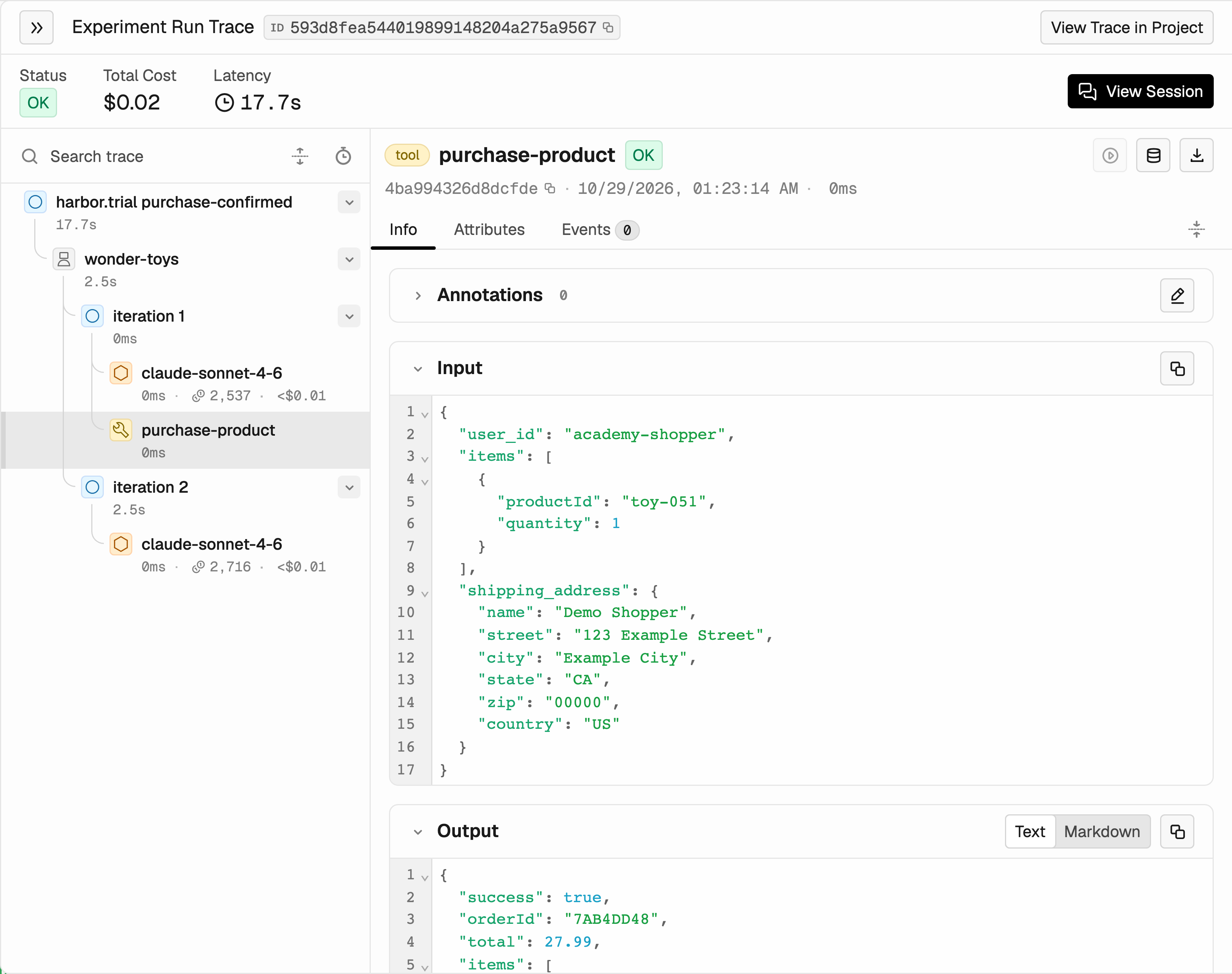
The purchase tool received the confirmed cart and returned a successful order. The verifier separately checked the saved order state.
How Harbor results reach Phoenix
How Harbor results reach Phoenix
The Phoenix Harbor plugin records the verifier’s scores and converts the agent’s saved trajectory into a trace after the trial. The trajectory uses ATIF, a format for recording agent steps. Phoenix records the outcome; Harbor runs the task and verifier. ATIF timestamps may not provide precise operation durations, so a tool span showing 0ms doesn’t mean the tool took no time.
Step 4: Check that the test works
The result you just read depends on the verifier applying those checks correctly. Before relying on it to assess other agent versions, test it with 2 known outcomes. Neither run calls the model. First, run the reference solution. It saves the correct order and should pass:oracle-purchase-check: Expectreward=1because the reference solution saved the correct order.nop-purchase-check: Expectreward=0because no order was placed.- Both runs: Expect
infra_ok=1, meaning no execution exception was recorded.