Create a Phoenix dataset with reviewed requests and clear expectations for testing future changes.
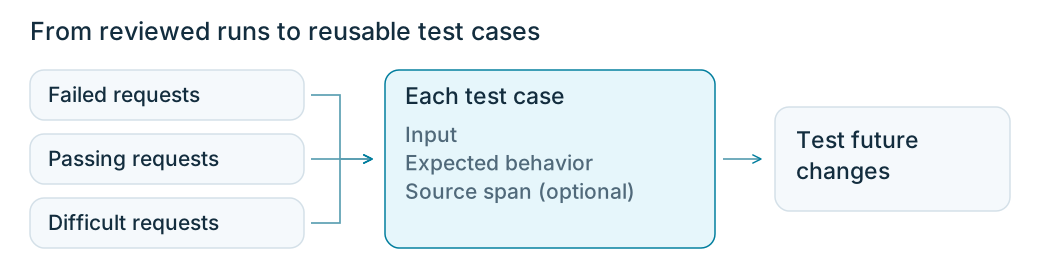
When you change the agent, you need to check whether its answers improve without breaking requests it already handles well. You’ll save reviewed requests handled by the Wonder Toys agent, along with the expected behavior, in a dataset, a collection of cases you can reuse to test changes.
Use the requests you reviewed in Investigate and label a failed run. Start with the $25, $35, and $1 shopping requests, using the outcomes you actually observed.You’ll run these requests again to test changes, so each one needs enough context on its own. The shopping requests above include the shopper’s requirements; a follow-up question would also need the earlier conversation.
Ask PXI to help build the dataset
Open PXI and share links to the traces you reviewed. Keep Manual Approval enabled and review the proposed cases before saving them.
Use these reviewed traces to propose cases for `wonder-toys-shopping`. Include passing requests, observed failures, and different conditions. For each case, keep the complete request in `input` and draft an `expected_behavior` reference based on the request's requirements. Show me the cases before saving them. After I approve, add them to the dataset with working View Source Span links, preserving existing examples and avoiding duplicates.
PXI's revised proposals after reviewing the budgets and source spans. These proposals haven't been saved.
Step 1: Choose cases that test different conditions
Choose requests that reflect the situations your users encounter. Include:
Failures you want to fix. For example, the recorded $25 request returned an over-budget recommendation.
Successful requests you want to keep working. The recorded $35 request returned products below its limit.
Difficult conditions the agent should handle. The $1 request checks what happens when no product meets the budget.
An AI assistant added these budget reviews: 1 means pass and 0 means fail.
If all your runs passed, keep them so you can check that future changes still handle them correctly.These requests are a starting point for testing budget behavior. As you review more traffic, add other needs and conditions your users encounter, such as different ages or product types.
Use the top-level span because this dataset will test the complete shopping request. A ChatAnthropic or search-products span would give you the input and output of just that step.
Open a reviewed trace and select Wonder Toys at the top of the tree.
Choose Add to Dataset, then select wonder-toys-shopping if it already exists.
To create it, select the + beside the dataset selector, enter wonder-toys-shopping, and select Create Dataset.
Select the top-level Wonder Toys span, then use the highlighted database icon to add it to a dataset.
Phoenix fills the editor from the span. Check these fields before saving:
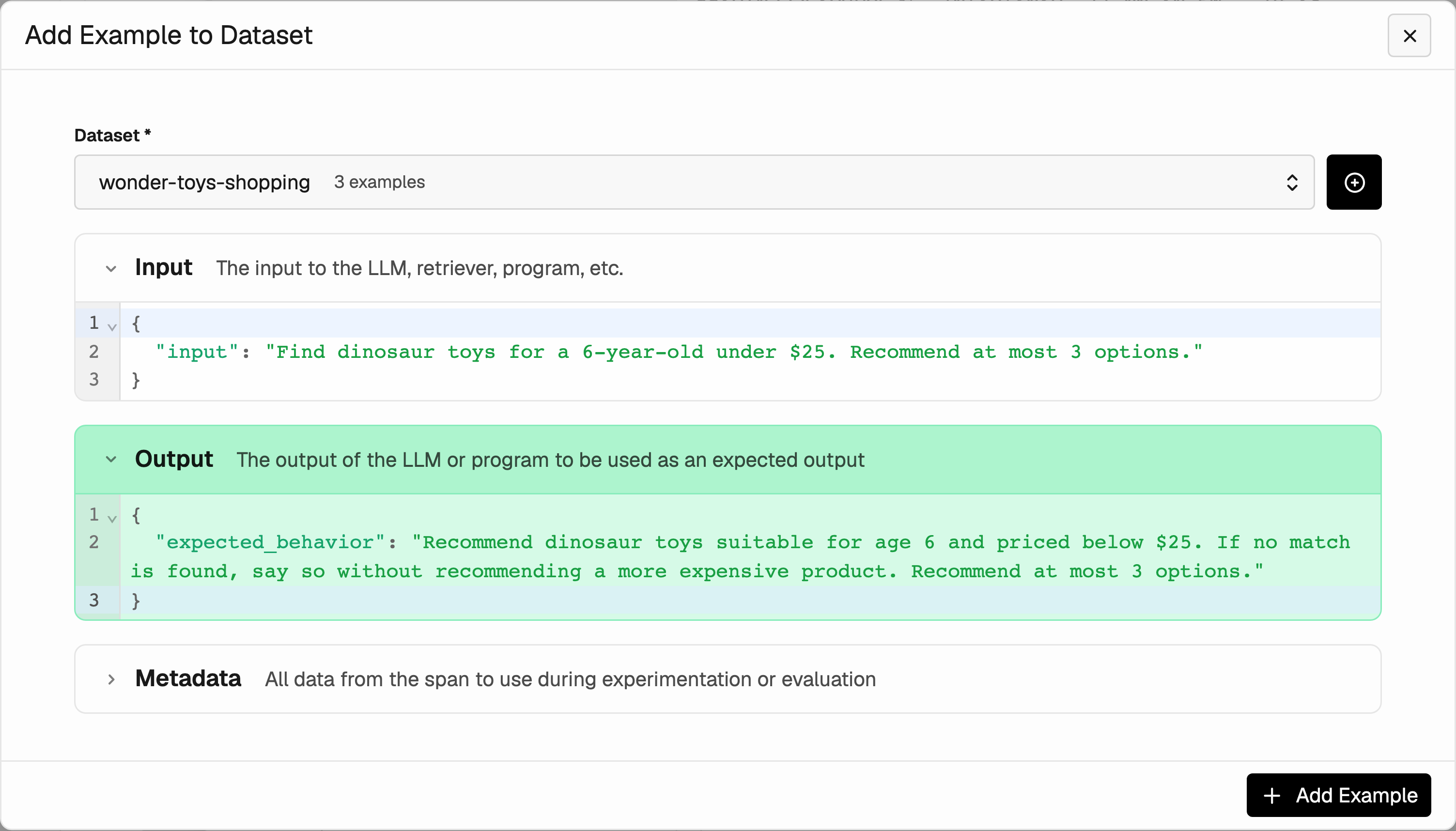
Input: Keep the shopper’s complete request in the input field.
Output: Replace the captured answer with your expected behavior. This is the reference output you’ll use when assessing future answers.
Metadata: Optionally record why you selected the case, such as case_type: budget_failure.
For the $25 request, replace the JSON in Output with:
{ "expected_behavior": "Recommend dinosaur toys suitable for age 6 and priced below $25. If no match is found, say so without recommending a more expensive product. Recommend at most 3 options."}
We use expected_behavior to describe a good response without requiring exact wording. This is a field we chose; saving it doesn’t run an evaluation. Keep it consistent with the request. Editing the example won’t change the original trace.
Check the request and replace the recorded response with the behavior the test should expect.
Select Add Example, then repeat for the other requests, selecting the same dataset each time. Update each reference to match its request.
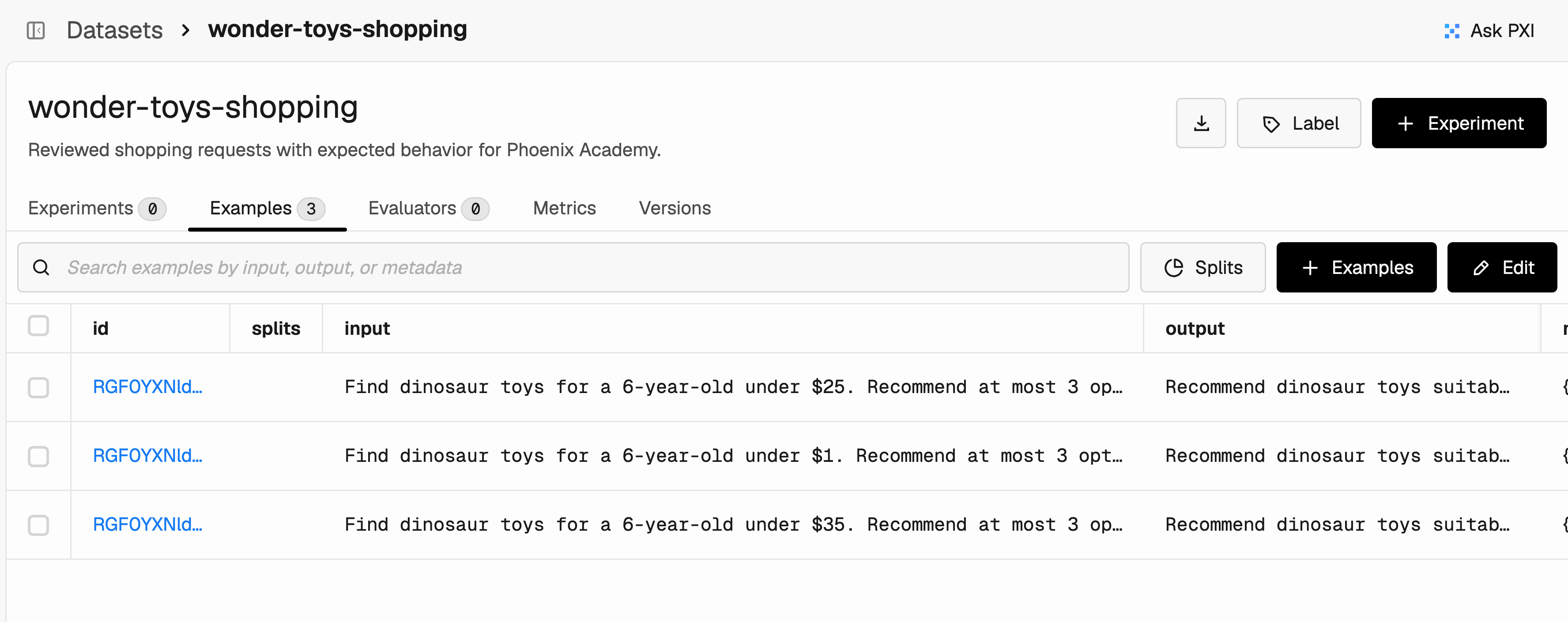
Open Datasets & Experiments → wonder-toys-shopping → Examples. Select an example’s ID to read its full input and reference output, then check that:
Each input contains enough information to run the request again.
Each reference describes the expected behavior rather than copying a failed answer or its pass/fail label.
Cases cover different conditions, including passing requests and any failures you observed.
The dataset keeps the reviewed requests and their expectations together for future experiments.
In an example added this way, View Source Span takes you back to the original evidence. Phoenix versions dataset changes, letting you identify which cases an experiment used.
Keep cases useful as the application changes
Review expectations when product data or requirements change. Cases involving orders also need a known starting state, so a previous test’s purchase or cancellation doesn’t change the next result.Later, dataset splits can group cases for development, validation, or focused checks. You don’t need to create splits for this first dataset.
Your dataset now holds the requests and expectations for future tests. Next, choose what to evaluate to define how you’ll check the agent’s answers against those expectations.
{"docsConfig":{"theme":"mint","$schema":"https://mintlify.com/docs.json","name":"Phoenix","colors":{"primary":"#00769E","light":"#39C7FF","dark":"#009DD2"},"logo":{"light":"https://mintcdn.com/arizeai-433a7140/fitXeWll7ezQrIcg/docs/logo/light.png?fit=max\u0026auto=format\u0026n=fitXeWll7ezQrIcg\u0026q=85\u0026s=78e92baf10dd9eced114496ccb88dbf1","dark":"https://mintcdn.com/arizeai-433a7140/fitXeWll7ezQrIcg/docs/logo/dark.png?fit=max\u0026auto=format\u0026n=fitXeWll7ezQrIcg\u0026q=85\u0026s=ef36a0515f1c575affb91f81496ce2f3"},"favicon":"https://mintcdn.com/arizeai-433a7140/fitXeWll7ezQrIcg/docs/favicon.png?fit=max\u0026auto=format\u0026n=fitXeWll7ezQrIcg\u0026q=85\u0026s=7c6d0d7347821750d998c57c334ca376","background":{"color":{"light":"#FFFFFF","dark":"#08090A"}},"navbar":{"links":[]},"footer":{"socials":{"slack":"https://join.slack.com/t/arize-ai/shared_invite/zt-3r07iavnk-ammtATWSlF0pSrd1DsMW7g","x":"https://x.com/ArizePhoenix","bluesky":"https://bsky.app/profile/arize-phoenix.bsky.social","linkedin":"https://www.linkedin.com/showcase/113218220","github":"https://github.com/Arize-ai/phoenix"},"links":[{"items":[{"label":"Blog","href":"https://arize.com/blog?cat=phoenix"}]},{"items":[{"label":"English","href":"/docs/phoenix"},{"label":"日本語 (Japanese)","href":"/docs/phoenix/documentation/jp"},{"label":"中文 (Chinese)","href":"/docs/phoenix/documentation/zh"}]}]},"seo":{"metatags":{"canonical":"https://arize.com"},"indexing":"all"},"fonts":{"heading":{"family":"Geist","weight":600},"body":{"family":"Geist"}},"styling":{"codeblocks":{"theme":{"light":"github-light-default","dark":"github-dark-default"}},"latex":true},"integrations":{"gtm":{"tagId":"GTM-W96XM35"}},"contextual":{"options":["copy","view","chatgpt","claude","perplexity"],"display":"header"},"interaction":{"drilldown":false},"navigation":{"global":{"anchors":[]},"pages":[]}},"deployment":{"deploymentMetadataValue":{"subdomain":"arizeai-433a7140","hasAudioNarration":false,"actualSubdomain":"arizeai-433a7140","customDomains":[],"gitSource":{"type":"github","owner":"arize-ai","repo":"phoenix","deployBranch":"main","contentDirectory":"","isPrivate":false,"mountPath":"","label":""},"chroma":{"liveDeploymentHistoryId":"6aeb70a654566f4ef9909030","collectionId":"cf8dc4e2-57d9-423d-ad83-29aeaea7ea16","schemaVersion":"v3","latestBuiltDeploymentHistoryId":"6aeb70a654566f4ef9909030"},"feedback":{"thumbs":true,"edits":true,"issues":true},"entitlements":{"AI_CHAT":{"status":"ENABLED"},"REMOVE_BRANDING":{"status":"ENABLED"},"CONTEXTUAL_FEEDBACK":{"status":"ENABLED"},"CODE_SNIPPET_FEEDBACK":{"status":"ENABLED"},"WEB_MCP":{"status":"ENABLED"},"NARRATION":{"status":"ENABLED"}},"buildId":"6aeb714e0d822d4dc694a97d","clientVersion":"0.0.4064","searchFilterCounts":[{"language":"default","tag":"Integrations","count":211},{"language":"default","tag":"Documentation","count":175},{"language":"default","tag":"Release Notes","count":175},{"language":"default","tag":"SDK \u0026 API Reference","count":145},{"language":"default","tag":"Rest API","count":106},{"language":"default","tag":"API Reference","count":105},{"language":"default","tag":"LLM Providers","count":71},{"language":"default","tag":"Python","count":69},{"language":"default","tag":"Tracing","count":64},{"language":"default","tag":"Evaluation","count":59}]},"assistantConfig":{"enableAskAiButton":true,"enableAskAiSearchBar":true,"deflection":{"enabled":true,"email":"support@arize.com"}},"basePath":"","hasChatPermissions":true,"hasWebMcpPermissions":true,"toggles":[{"name":"kill-isr","enabled":true,"variant":{"name":"disabled","enabled":false,"feature_enabled":true},"impressionData":false},{"name":"agent-mintlify-slack","enabled":true,"variant":{"name":"disabled","enabled":false,"feature_enabled":true},"impressionData":false},{"name":"agent-integrations-settings","enabled":true,"variant":{"name":"disabled","enabled":false,"feature_enabled":true},"impressionData":false},{"name":"rbac-expansion","enabled":true,"variant":{"name":"disabled","enabled":false,"feature_enabled":true},"impressionData":false},{"name":"automations-pr-grouping","enabled":true,"variant":{"name":"disabled","enabled":false,"feature_enabled":true},"impressionData":false},{"name":"custom-prefix","enabled":true,"variant":{"name":"disabled","enabled":false,"feature_enabled":true},"impressionData":false},{"name":"analytics-v7","enabled":true,"variant":{"name":"disabled","enabled":false,"feature_enabled":true},"impressionData":false},{"name":"user-flows-analytics","enabled":true,"variant":{"name":"disabled","enabled":false,"feature_enabled":true},"impressionData":false},{"name":"no-publish-flow","enabled":true,"variant":{"name":"disabled","enabled":false,"feature_enabled":true},"impressionData":false},{"name":"workos-onboarding","enabled":true,"variant":{"name":"disabled","enabled":false,"feature_enabled":true},"impressionData":false},{"name":"llms-txt-v2","enabled":true,"variant":{"name":"disabled","enabled":false,"feature_enabled":true},"impressionData":false},{"name":"snapshot-serving-live","enabled":true,"variant":{"name":"disabled","enabled":false,"feature_enabled":true},"impressionData":false},{"name":"stripTemperatureMiddleware","enabled":true,"variant":{"name":"disabled","enabled":false,"feature_enabled":true},"impressionData":false},{"name":"support-platform-pylon-zendesk","enabled":true,"variant":{"name":"disabled","enabled":false,"feature_enabled":true},"impressionData":false},{"name":"snapshot-serving","enabled":true,"variant":{"name":"disabled","enabled":false,"feature_enabled":true},"impressionData":false},{"name":"instant-rollback","enabled":true,"variant":{"name":"disabled","enabled":false,"feature_enabled":true},"impressionData":false},{"name":"granular-notifications-server","enabled":true,"variant":{"name":"disabled","enabled":false,"feature_enabled":true},"impressionData":false},{"name":"granular-notifications","enabled":true,"variant":{"name":"disabled","enabled":false,"feature_enabled":true},"impressionData":false},{"name":"automations-fable","enabled":true,"variant":{"name":"disabled","enabled":false,"feature_enabled":true},"impressionData":false},{"name":"fixed-ai-action-pricing","enabled":true,"variant":{"name":"disabled","enabled":false,"feature_enabled":true},"impressionData":false},{"name":"automation-resolve-merge-conflict","enabled":true,"variant":{"name":"disabled","enabled":false,"feature_enabled":true},"impressionData":false},{"name":"scoped-publishing","enabled":true,"variant":{"name":"disabled","enabled":false,"feature_enabled":true},"impressionData":false},{"name":"mintql","enabled":true,"variant":{"name":"disabled","enabled":false,"feature_enabled":true},"impressionData":false},{"name":"page-level-analytics","enabled":true,"variant":{"name":"disabled","enabled":false,"feature_enabled":true},"impressionData":false},{"name":"editor-version-history-v2","enabled":true,"variant":{"name":"disabled","enabled":false,"feature_enabled":true},"impressionData":false},{"name":"billing-page-v2","enabled":true,"variant":{"name":"disabled","enabled":false,"feature_enabled":true},"impressionData":false},{"name":"full-page-search","enabled":true,"variant":{"name":"disabled","enabled":false,"feature_enabled":true},"impressionData":false},{"name":"workspace-projects","enabled":true,"variant":{"name":"disabled","enabled":false,"feature_enabled":true},"impressionData":false},{"name":"assistant-v5","enabled":true,"variant":{"name":"disabled","enabled":false,"feature_enabled":true},"impressionData":false},{"name":"fork-pr-previews","enabled":true,"variant":{"name":"disabled","enabled":false,"feature_enabled":true},"impressionData":false},{"name":"revalidation-jwt","enabled":true,"variant":{"name":"disabled","enabled":false,"feature_enabled":true},"impressionData":false},{"name":"vite-origin","enabled":true,"variant":{"name":"disabled","enabled":false,"feature_enabled":true},"impressionData":false},{"name":"workos-sso-scim","enabled":true,"variant":{"name":"disabled","enabled":false,"feature_enabled":true},"impressionData":false},{"name":"hobby-abuse-scan","enabled":true,"variant":{"name":"disabled","enabled":false,"feature_enabled":true},"impressionData":false},{"name":"dashboard-inbox","enabled":true,"variant":{"name":"disabled","enabled":false,"feature_enabled":true},"impressionData":false},{"name":"workos-signup","enabled":true,"variant":{"name":"disabled","enabled":false,"feature_enabled":true},"impressionData":false},{"name":"turbopuffer-dual-write","enabled":true,"variant":{"name":"disabled","enabled":false,"feature_enabled":true},"impressionData":false},{"name":"workos-enabled","enabled":true,"variant":{"name":"disabled","enabled":false,"feature_enabled":true},"impressionData":false},{"name":"approve-review-flow","enabled":true,"variant":{"name":"disabled","enabled":false,"feature_enabled":true},"impressionData":false},{"name":"sso-setup-deadline-banner","enabled":true,"variant":{"name":"disabled","enabled":false,"feature_enabled":true},"impressionData":false}],"googleFontsInlined":true},"customCss":[{"filePath":"docs/style.css","content":"/* cyrillic-ext */\n@font-face {\n font-family: 'Geist Mono';\n font-style: normal;\n font-weight: 300;\n font-display: swap;\n src: url(/_mintlify/assets/fonts/google/s/geistmono/v6/or3nQ6H-1_WfwkMZI_qYFrodmgPn.woff2) format('woff2');\n unicode-range: U+0460-052F, U+1C80-1C8A, U+20B4, U+2DE0-2DFF, U+A640-A69F, U+FE2E-FE2F;\n}\n/* cyrillic */\n@font-face {\n font-family: 'Geist Mono';\n font-style: normal;\n font-weight: 300;\n font-display: swap;\n src: url(/_mintlify/assets/fonts/google/s/geistmono/v6/or3nQ6H-1_WfwkMZI_qYFrMdmgPn.woff2) format('woff2');\n unicode-range: U+0301, U+0400-045F, U+0490-0491, U+04B0-04B1, U+2116;\n}\n/* symbols2 */\n@font-face {\n font-family: 'Geist Mono';\n font-style: normal;\n font-weight: 300;\n font-display: swap;\n src: url(/_mintlify/assets/fonts/google/s/geistmono/v6/or3nQ6H-1_WfwkMZI_qYFg08vz7ehw.woff2) format('woff2');\n unicode-range: U+2000-2001, U+2004-2008, U+200A, U+23B8-23BD, U+2500-259F;\n}\n/* vietnamese */\n@font-face {\n font-family: 'Geist Mono';\n font-style: normal;\n font-weight: 300;\n font-display: swap;\n src: url(/_mintlify/assets/fonts/google/s/geistmono/v6/or3nQ6H-1_WfwkMZI_qYFrgdmgPn.woff2) format('woff2');\n unicode-range: U+0102-0103, U+0110-0111, U+0128-0129, U+0168-0169, U+01A0-01A1, U+01AF-01B0, U+0300-0301, U+0303-0304, U+0308-0309, U+0323, U+0329, U+1EA0-1EF9, U+20AB;\n}\n/* latin-ext */\n@font-face {\n font-family: 'Geist Mono';\n font-style: normal;\n font-weight: 300;\n font-display: swap;\n src: url(/_mintlify/assets/fonts/google/s/geistmono/v6/or3nQ6H-1_WfwkMZI_qYFrkdmgPn.woff2) format('woff2');\n unicode-range: U+0100-02BA, U+02BD-02C5, U+02C7-02CC, U+02CE-02D7, U+02DD-02FF, U+0304, U+0308, U+0329, U+1D00-1DBF, U+1E00-1E9F, U+1EF2-1EFF, U+2020, U+20A0-20AB, U+20AD-20C4, U+2113, U+2C60-2C7F, U+A720-A7FF;\n}\n/* latin */\n@font-face {\n font-family: 'Geist Mono';\n font-style: normal;\n font-weight: 300;\n font-display: swap;\n src: url(/_mintlify/assets/fonts/google/s/geistmono/v6/or3nQ6H-1_WfwkMZI_qYFrcdmg.woff2) format('woff2');\n unicode-range: U+0000-00FF, U+0131, U+0152-0153, U+02BB-02BC, U+02C6, U+02DA, U+02DC, U+0304, U+0308, U+0329, U+2000-206F, U+20AC, U+2122, U+2191, U+2193, U+2212, U+2215, U+FEFF, U+FFFD;\n}\n/* cyrillic-ext */\n@font-face {\n font-family: 'Geist Mono';\n font-style: normal;\n font-weight: 400;\n font-display: swap;\n src: url(/_mintlify/assets/fonts/google/s/geistmono/v6/or3nQ6H-1_WfwkMZI_qYFrodmgPn.woff2) format('woff2');\n unicode-range: U+0460-052F, U+1C80-1C8A, U+20B4, U+2DE0-2DFF, U+A640-A69F, U+FE2E-FE2F;\n}\n/* cyrillic */\n@font-face {\n font-family: 'Geist Mono';\n font-style: normal;\n font-weight: 400;\n font-display: swap;\n src: url(/_mintlify/assets/fonts/google/s/geistmono/v6/or3nQ6H-1_WfwkMZI_qYFrMdmgPn.woff2) format('woff2');\n unicode-range: U+0301, U+0400-045F, U+0490-0491, U+04B0-04B1, U+2116;\n}\n/* symbols2 */\n@font-face {\n font-family: 'Geist Mono';\n font-style: normal;\n font-weight: 400;\n font-display: swap;\n src: url(/_mintlify/assets/fonts/google/s/geistmono/v6/or3nQ6H-1_WfwkMZI_qYFg08vz7ehw.woff2) format('woff2');\n unicode-range: U+2000-2001, U+2004-2008, U+200A, U+23B8-23BD, U+2500-259F;\n}\n/* vietnamese */\n@font-face {\n font-family: 'Geist Mono';\n font-style: normal;\n font-weight: 400;\n font-display: swap;\n src: url(/_mintlify/assets/fonts/google/s/geistmono/v6/or3nQ6H-1_WfwkMZI_qYFrgdmgPn.woff2) format('woff2');\n unicode-range: U+0102-0103, U+0110-0111, U+0128-0129, U+0168-0169, U+01A0-01A1, U+01AF-01B0, U+0300-0301, U+0303-0304, U+0308-0309, U+0323, U+0329, U+1EA0-1EF9, U+20AB;\n}\n/* latin-ext */\n@font-face {\n font-family: 'Geist Mono';\n font-style: normal;\n font-weight: 400;\n font-display: swap;\n src: url(/_mintlify/assets/fonts/google/s/geistmono/v6/or3nQ6H-1_WfwkMZI_qYFrkdmgPn.woff2) format('woff2');\n unicode-range: U+0100-02BA, U+02BD-02C5, U+02C7-02CC, U+02CE-02D7, U+02DD-02FF, U+0304, U+0308, U+0329, U+1D00-1DBF, U+1E00-1E9F, U+1EF2-1EFF, U+2020, U+20A0-20AB, U+20AD-20C4, U+2113, U+2C60-2C7F, U+A720-A7FF;\n}\n/* latin */\n@font-face {\n font-family: 'Geist Mono';\n font-style: normal;\n font-weight: 400;\n font-display: swap;\n src: url(/_mintlify/assets/fonts/google/s/geistmono/v6/or3nQ6H-1_WfwkMZI_qYFrcdmg.woff2) format('woff2');\n unicode-range: U+0000-00FF, U+0131, U+0152-0153, U+02BB-02BC, U+02C6, U+02DA, U+02DC, U+0304, U+0308, U+0329, U+2000-206F, U+20AC, U+2122, U+2191, U+2193, U+2212, U+2215, U+FEFF, U+FFFD;\n}\n/* cyrillic-ext */\n@font-face {\n font-family: 'Geist Mono';\n font-style: normal;\n font-weight: 500;\n font-display: swap;\n src: url(/_mintlify/assets/fonts/google/s/geistmono/v6/or3nQ6H-1_WfwkMZI_qYFrodmgPn.woff2) format('woff2');\n unicode-range: U+0460-052F, U+1C80-1C8A, U+20B4, U+2DE0-2DFF, U+A640-A69F, U+FE2E-FE2F;\n}\n/* cyrillic */\n@font-face {\n font-family: 'Geist Mono';\n font-style: normal;\n font-weight: 500;\n font-display: swap;\n src: url(/_mintlify/assets/fonts/google/s/geistmono/v6/or3nQ6H-1_WfwkMZI_qYFrMdmgPn.woff2) format('woff2');\n unicode-range: U+0301, U+0400-045F, U+0490-0491, U+04B0-04B1, U+2116;\n}\n/* symbols2 */\n@font-face {\n font-family: 'Geist Mono';\n font-style: normal;\n font-weight: 500;\n font-display: swap;\n src: url(/_mintlify/assets/fonts/google/s/geistmono/v6/or3nQ6H-1_WfwkMZI_qYFg08vz7ehw.woff2) format('woff2');\n unicode-range: U+2000-2001, U+2004-2008, U+200A, U+23B8-23BD, U+2500-259F;\n}\n/* vietnamese */\n@font-face {\n font-family: 'Geist Mono';\n font-style: normal;\n font-weight: 500;\n font-display: swap;\n src: url(/_mintlify/assets/fonts/google/s/geistmono/v6/or3nQ6H-1_WfwkMZI_qYFrgdmgPn.woff2) format('woff2');\n unicode-range: U+0102-0103, U+0110-0111, U+0128-0129, U+0168-0169, U+01A0-01A1, U+01AF-01B0, U+0300-0301, U+0303-0304, U+0308-0309, U+0323, U+0329, U+1EA0-1EF9, U+20AB;\n}\n/* latin-ext */\n@font-face {\n font-family: 'Geist Mono';\n font-style: normal;\n font-weight: 500;\n font-display: swap;\n src: url(/_mintlify/assets/fonts/google/s/geistmono/v6/or3nQ6H-1_WfwkMZI_qYFrkdmgPn.woff2) format('woff2');\n unicode-range: U+0100-02BA, U+02BD-02C5, U+02C7-02CC, U+02CE-02D7, U+02DD-02FF, U+0304, U+0308, U+0329, U+1D00-1DBF, U+1E00-1E9F, U+1EF2-1EFF, U+2020, U+20A0-20AB, U+20AD-20C4, U+2113, U+2C60-2C7F, U+A720-A7FF;\n}\n/* latin */\n@font-face {\n font-family: 'Geist Mono';\n font-style: normal;\n font-weight: 500;\n font-display: swap;\n src: url(/_mintlify/assets/fonts/google/s/geistmono/v6/or3nQ6H-1_WfwkMZI_qYFrcdmg.woff2) format('woff2');\n unicode-range: U+0000-00FF, U+0131, U+0152-0153, U+02BB-02BC, U+02C6, U+02DA, U+02DC, U+0304, U+0308, U+0329, U+2000-206F, U+20AC, U+2122, U+2191, U+2193, U+2212, U+2215, U+FEFF, U+FFFD;\n}\n/* cyrillic-ext */\n@font-face {\n font-family: 'Geist Mono';\n font-style: normal;\n font-weight: 600;\n font-display: swap;\n src: url(/_mintlify/assets/fonts/google/s/geistmono/v6/or3nQ6H-1_WfwkMZI_qYFrodmgPn.woff2) format('woff2');\n unicode-range: U+0460-052F, U+1C80-1C8A, U+20B4, U+2DE0-2DFF, U+A640-A69F, U+FE2E-FE2F;\n}\n/* cyrillic */\n@font-face {\n font-family: 'Geist Mono';\n font-style: normal;\n font-weight: 600;\n font-display: swap;\n src: url(/_mintlify/assets/fonts/google/s/geistmono/v6/or3nQ6H-1_WfwkMZI_qYFrMdmgPn.woff2) format('woff2');\n unicode-range: U+0301, U+0400-045F, U+0490-0491, U+04B0-04B1, U+2116;\n}\n/* symbols2 */\n@font-face {\n font-family: 'Geist Mono';\n font-style: normal;\n font-weight: 600;\n font-display: swap;\n src: url(/_mintlify/assets/fonts/google/s/geistmono/v6/or3nQ6H-1_WfwkMZI_qYFg08vz7ehw.woff2) format('woff2');\n unicode-range: U+2000-2001, U+2004-2008, U+200A, U+23B8-23BD, U+2500-259F;\n}\n/* vietnamese */\n@font-face {\n font-family: 'Geist Mono';\n font-style: normal;\n font-weight: 600;\n font-display: swap;\n src: url(/_mintlify/assets/fonts/google/s/geistmono/v6/or3nQ6H-1_WfwkMZI_qYFrgdmgPn.woff2) format('woff2');\n unicode-range: U+0102-0103, U+0110-0111, U+0128-0129, U+0168-0169, U+01A0-01A1, U+01AF-01B0, U+0300-0301, U+0303-0304, U+0308-0309, U+0323, U+0329, U+1EA0-1EF9, U+20AB;\n}\n/* latin-ext */\n@font-face {\n font-family: 'Geist Mono';\n font-style: normal;\n font-weight: 600;\n font-display: swap;\n src: url(/_mintlify/assets/fonts/google/s/geistmono/v6/or3nQ6H-1_WfwkMZI_qYFrkdmgPn.woff2) format('woff2');\n unicode-range: U+0100-02BA, U+02BD-02C5, U+02C7-02CC, U+02CE-02D7, U+02DD-02FF, U+0304, U+0308, U+0329, U+1D00-1DBF, U+1E00-1E9F, U+1EF2-1EFF, U+2020, U+20A0-20AB, U+20AD-20C4, U+2113, U+2C60-2C7F, U+A720-A7FF;\n}\n/* latin */\n@font-face {\n font-family: 'Geist Mono';\n font-style: normal;\n font-weight: 600;\n font-display: swap;\n src: url(/_mintlify/assets/fonts/google/s/geistmono/v6/or3nQ6H-1_WfwkMZI_qYFrcdmg.woff2) format('woff2');\n unicode-range: U+0000-00FF, U+0131, U+0152-0153, U+02BB-02BC, U+02C6, U+02DA, U+02DC, U+0304, U+0308, U+0329, U+2000-206F, U+20AC, U+2122, U+2191, U+2193, U+2212, U+2215, U+FEFF, U+FFFD;\n}\nhtml:root{--font-family-mono-custom: 'Geist Mono'}html:root{--gray-50: 247 247 248;--gray-100: 241 242 243;--gray-200: 228 229 232;--gray-300: 201 203 208;--gray-400: 161 164 171;--gray-500: 124 128 136;--gray-600: 86 90 98;--gray-700: 61 64 70;--gray-800: 43 45 49;--gray-900: 21 22 22;--gray-950: 8 9 10}html:root{--px-radius-sm: 2px;--px-radius-md: 6px;--px-radius-lg: 8px;--px-accent-bg: #009DD2}html:not(.dark){--px-bg: #FFFFFF;--px-surface: #F7F7F8;--px-code-bg: #F1F2F3;--px-chip: #E9EAEC;--px-line: rgba(8, 9, 10, 0.18);--px-t1: #08090A;--px-t2: #2B2D31;--px-t3: #3D4046;--px-accent: #00769E;--px-accent-line: rgba(0, 157, 210, 0.55);--px-accent-soft: #E7F3FD;--px-on-accent: #08090A;--px-note: #E8F3EC;--px-note-line: rgba(30, 70, 50, 0.24);--px-note-t: #1B4230;--px-warn: #FBEEE0;--px-warn-line: rgba(90, 50, 0, 0.24);--px-warn-t: #54300A;--px-blue: #E7F3FD;--px-blue-line: rgba(0, 82, 125, 0.24);--px-blue-t: #00527D;--px-danger: #FFEBE9;--px-danger-line: rgba(207, 34, 46, 0.28);--px-danger-t: #A40E26}html.dark{--px-bg: #08090A;--px-surface: #151616;--px-code-bg: #050506;--px-chip: #1E2226;--px-line: rgba(194, 196, 234, 0.20);--px-t1: #FFFFFF;--px-t2: #D5D7DB;--px-t3: #A1A4AB;--px-accent: #39C7FF;--px-accent-line: rgba(57, 199, 255, 0.45);--px-accent-soft: #122F3B;--px-on-accent: #08090A;--px-note: #10241A;--px-note-line: rgba(159, 224, 188, 0.30);--px-note-t: #9FE0BC;--px-warn: #2A1B0A;--px-warn-line: rgba(255, 201, 138, 0.30);--px-warn-t: #FFC98A;--px-blue: #0A1A24;--px-blue-line: rgba(57, 195, 255, 0.30);--px-blue-t: #97D8FF;--px-danger: #2A0F12;--px-danger-line: rgba(255, 138, 148, 0.30);--px-danger-t: #FFB3B8}#content{line-height:1.75}#page-title,#content h1{font-size:clamp(2rem, 1.4rem + 2.1vw, 2.875rem);line-height:1.12;letter-spacing:-0.02em;font-weight:600}#content h2,#content h3,#content h4{letter-spacing:-0.01em;font-weight:600}#content code,#content kbd,#content samp{font-feature-settings:'tnum' 1}#content a:not(.card){color:var(--px-accent);text-decoration-thickness:1px;text-underline-offset:3px}:focus-visible{outline:2px solid var(--px-accent-line);outline-offset:2px}html.dark :focus-visible{outline-color:var(--px-accent-line)}::selection{background:var(--px-accent-soft)}#navbar{background:var(--px-bg);border-bottom:1px solid var(--px-line)}#navbar div:has(>.nav-tabs){position:relative}#navbar div:has(>.nav-tabs)::before{content:'';position:absolute;top:0;left:50%;width:100vw;margin-left:-50vw;border-top:1px solid var(--px-line);pointer-events:none}.nav-tabs-item[data-active]{box-shadow:inset 0 -2px 0 var(--px-accent)}#search-bar-entry{background:var(--px-surface);border:1px solid var(--px-line);border-radius:var(--px-radius-md)}#assistant-entry{background:var(--px-surface);border:1px solid var(--px-accent-line);border-radius:var(--px-radius-md)}#assistant-entry svg{color:var(--px-accent)}#page-context-menu{font-size:0.9375rem;align-items:stretch}.page-context-dropdown{font-size:0.9375rem;align-items:stretch}.product-selector{position:relative;display:inline-flex;align-items:stretch;flex:0 0 auto}.product-selector--desktop{margin-left:0.75rem;align-self:center}#page-context-menu-button{padding:10px 14px;border-radius:var(--px-radius-md) 0 0 var(--px-radius-md);background:var(--px-surface);border-color:var(--px-line)}.page-context-dropdown__label{display:inline-flex;align-items:center;padding:10px 14px;border:1px solid var(--px-line);border-radius:var(--px-radius-md) 0 0 var(--px-radius-md);background:var(--px-surface);border-color:var(--px-line);color:var(--px-t1);font-family:inherit;font-weight:400;text-decoration:none}#page-context-menu-button>div{font-size:0.9375rem;gap:9px}#page-context-menu>button[aria-haspopup]{height:auto;align-self:stretch;aspect-ratio:auto;padding:10px 11px;border-radius:0 var(--px-radius-md) var(--px-radius-md) 0;background:var(--px-surface);border-color:var(--px-line)}.page-context-dropdown__chevron{display:inline-flex;align-items:center;height:auto;align-self:stretch;aspect-ratio:auto;padding:10px 11px;border:1px solid var(--px-line);border-left:0;border-radius:0 var(--px-radius-md) var(--px-radius-md) 0;background:var(--px-surface);color:var(--px-t3);cursor:pointer}.page-context-dropdown__chevron svg{display:block;width:1rem;height:1rem;transition:transform 150ms ease}.page-context-dropdown__chevron[aria-expanded=\"true\"] svg{transform:rotate(180deg)}.page-context-dropdown__menu{position:absolute;z-index:60;top:calc(100% + 0.55rem);left:0;min-width:12.5rem;padding:0.4rem;background:var(--px-bg);border:1px solid var(--px-line);border-radius:var(--px-radius-md);box-shadow:0 0.75rem 1.5rem rgb(8 9 10 / 0.18)}.page-context-dropdown__menu[hidden]{display:none}.page-context-dropdown__item{display:flex;align-items:center;justify-content:space-between;min-height:2.5rem;padding:0.55rem 0.65rem;color:var(--px-t1);border-radius:var(--px-radius-sm);text-decoration:none}.page-context-dropdown__item:hover,.page-context-dropdown__item:focus-visible{color:var(--px-accent);background:var(--px-accent-soft)}.page-context-dropdown__item[data-selected=\"true\"]{color:var(--px-accent);font-weight:500}.page-context-dropdown__item[data-selected=\"true\"]::after{content:'✓';margin-left:1.5rem}@media (max-width: 767px){#navbar .product-selector--desktop{display:none}#mobile-nav-content .product-selector--mobile{margin:0.5rem 0 1rem}#mobile-nav-content .page-context-dropdown__label{flex:1 1 auto}#mobile-nav-content .page-context-dropdown__menu{position:static;margin-top:0.4rem}}#sidebar-content li[data-active]>a{background:var(--px-accent-soft);color:var(--px-accent);border-radius:var(--px-radius-md);font-weight:500}.sidebar-group-header{font-weight:600;color:var(--px-t1)}ul.sidebar-group:has(>li[id=\"/docs/phoenix/get-started\"]),ul.sidebar-group:has(>li[id=\"/docs/phoenix/integrations/developer-tools/coding-agents\"]),ul.sidebar-group:has(>li[id=\"/docs/phoenix/pxi\"]){margin-top:1px}.toc-item[data-active],.toc-item[data-active] a{color:var(--px-accent);font-weight:400}.card.card{background:var(--px-surface);border-color:var(--px-line);border-radius:var(--px-radius-lg);box-shadow:none}.frame.frame{background:var(--px-surface);border:1px solid var(--px-line);border-radius:var(--px-radius-lg)}.accordion.accordion,.accordion-group.accordion-group{border-radius:var(--px-radius-md);border-color:var(--px-line)}.accordion.accordion{background:var(--px-surface)}.code-block.code-block,.code-group.code-group{background:var(--px-code-bg);border-color:var(--px-line);border-radius:var(--px-radius-md)}.code-block-background{background:var(--px-code-bg)!important}html.dark .code-block-background{background:var(--px-code-bg)!important}#content :not(pre)>code{background:var(--px-chip);border-radius:var(--px-radius-sm)}.code-block:has([data-floating-buttons]) [data-fade-overlay]{background-image:none}[data-floating-buttons] button{background:var(--px-chip)}.callout .code-block.code-block,.callout .code-group.code-group,.callout .code-block-background,html.dark .callout .code-block-background{background:var(--px-bg)!important}.callout{border-radius:var(--px-radius-lg)}.callout[data-callout-type=\"callout\"],.callout[data-callout-type=\"info\"]{background:var(--px-surface);border-color:var(--px-line)}.callout[data-callout-type=\"callout\"] [data-component-part=\"callout-content\"],.callout[data-callout-type=\"info\"] [data-component-part=\"callout-content\"]{color:var(--px-t2)!important}.callout[data-callout-type=\"tip\"],.callout[data-callout-type=\"check\"]{background:var(--px-note);border-color:var(--px-note-line)}.callout[data-callout-type=\"tip\"] [data-component-part=\"callout-content\"],.callout[data-callout-type=\"check\"] [data-component-part=\"callout-content\"]{color:var(--px-note-t)!important}.callout[data-callout-type=\"warning\"]{background:var(--px-warn);border-color:var(--px-warn-line)}.callout[data-callout-type=\"warning\"] [data-component-part=\"callout-content\"]{color:var(--px-warn-t)!important}.callout[data-callout-type=\"note\"]{background:var(--px-blue);border-color:var(--px-blue-line)}.callout[data-callout-type=\"note\"] [data-component-part=\"callout-content\"]{color:var(--px-blue-t)!important}.callout[data-callout-type=\"danger\"]{background:var(--px-danger);border-color:var(--px-danger-line)}.callout[data-callout-type=\"danger\"] [data-component-part=\"callout-content\"]{color:var(--px-danger-t)!important}[data-component-part=\"step-number\"]>div{background:var(--px-accent-soft);border:1px solid var(--px-accent-line);color:var(--px-accent);font-weight:500}.update.update-container{flex-direction:column;gap:0.5rem;border-top:1px solid var(--px-line)}.update.update-container:first-of-type{border-top:none}.update.update-container>div:first-child{width:100%;position:static}.update.update-container>div:last-child{width:100%;max-width:none}#content th{color:var(--px-t1);font-weight:600;border-bottom:1px solid var(--px-line)}#content td{border-bottom:1px solid var(--px-line)}footer{border-top:1px solid var(--px-line)}.sr-only{position:absolute;width:1px;height:1px;padding:0;margin:-1px;overflow:hidden;clip:rect(0, 0, 0, 0);white-space:nowrap;border:0}table{display:table!important}.step-title{font-size:1.5rem!important}.dark .invert-on-dark{filter:invert(1)}.release-update-read-more{display:inline-block;margin-top:0.75rem;font-weight:500;color:var(--primary);text-decoration:none}"}],"page":{"pagePath":"docs/phoenix/learn/build-test-cases","slug":"/docs/phoenix/learn/build-test-cases","pageMetadata":{"title":"Turn failures into representative cases","description":"Create a Phoenix dataset with reviewed requests and clear expectations for testing future changes.","href":"/docs/phoenix/learn/build-test-cases"},"description":{"compiledSource":"\"use strict\";\nconst {jsx: _jsx} = arguments[0];\nconst {useMDXComponents: _provideComponents} = arguments[0];\nfunction _createMdxContent(props) {\n const _components = {\n p: \"p\",\n ..._provideComponents(),\n ...props.components\n };\n return _jsx(_components.p, {\n children: \"Create a Phoenix dataset with reviewed requests and clear expectations for testing future changes.\"\n });\n}\nfunction MDXContent(props = {}) {\n const {wrapper: MDXLayout} = {\n ..._provideComponents(),\n ...props.components\n };\n return MDXLayout ? _jsx(MDXLayout, {\n ...props,\n children: _jsx(_createMdxContent, {\n ...props\n })\n }) : _createMdxContent(props);\n}\nreturn {\n default: MDXContent\n};\n","frontmatter":{},"scope":{}},"pageType":"default","mdx":{"mdxSource":{"compiledSource":"\"use strict\";const{Fragment:_Fragment,jsx:_jsx,jsxs:_jsxs}=arguments[0];const{useMDXComponents:_provideComponents}=arguments[0];function _createMdxContent(props){const _components={a:`a`,code:`code`,li:`li`,p:`p`,pre:`pre`,span:`span`,strong:`strong`,ul:`ul`,..._provideComponents(),...props.components},{Accordion,CodeBlock,Frame,Heading,OptimizedImage}=_components;if(!Accordion)_missingMdxReference(`Accordion`,true);if(!CodeBlock)_missingMdxReference(`CodeBlock`,true);if(!Frame)_missingMdxReference(`Frame`,true);if(!Heading)_missingMdxReference(`Heading`,true);if(!OptimizedImage)_missingMdxReference(`OptimizedImage`,true);return _jsxs(_Fragment,{children:[_jsxs(_components.p,{children:[`When you change the agent, you need to check whether its answers improve without breaking requests it already handles well. You’ll save reviewed requests handled by the `,_jsx(_components.a,{href:`https://github.com/Arize-ai/project-rosetta-stone`,children:`Wonder Toys`}),` agent, along with the expected behavior, in a `,_jsx(_components.a,{href:`/docs/phoenix/datasets-and-experiments/concepts-datasets`,children:_jsx(_components.strong,{children:`dataset`})}),`, a collection of cases you can reuse to test changes.`]}),`\n`,_jsxs(Frame,{children:[_jsx(OptimizedImage,{className:`mint-block dark:mint-hidden`,src:`https://storage.googleapis.com/arize-phoenix-assets/assets/images/phoenix-academy/find-failures-dataset-light-aebc99446794.svg`,alt:`Failed, passing, and difficult requests become test cases with an input, expected behavior, and an optional source span, ready to test future changes.`}),_jsx(OptimizedImage,{className:`mint-hidden dark:mint-block`,src:`https://storage.googleapis.com/arize-phoenix-assets/assets/images/phoenix-academy/find-failures-dataset-dark-8737fd311196.svg`,alt:`Failed, passing, and difficult requests become test cases with an input, expected behavior, and an optional source span, ready to test future changes.`})]}),`\n`,_jsx(Heading,{level:`2`,id:`before-you-start`,children:`Before you start`}),`\n`,_jsxs(_components.p,{children:[`Use the requests you reviewed in `,_jsx(_components.a,{href:`/docs/phoenix/learn/investigate-failure`,children:`Investigate and label a failed run`}),`. Start with the $25, $35, and $1 shopping requests, using the outcomes you actually observed.`]}),`\n`,_jsx(_components.p,{children:`You’ll run these requests again to test changes, so each one needs enough context on its own. The shopping requests above include the shopper’s requirements; a follow-up question would also need the earlier conversation.`}),`\n`,_jsxs(Accordion,{title:`Ask PXI to help build the dataset`,id:`ask-pxi-to-help-build-the-dataset`,children:[_jsxs(_components.p,{children:[`Open `,_jsx(_components.a,{href:`/docs/phoenix/pxi#get-started`,children:`PXI`}),` and share links to the traces you reviewed. Keep `,_jsx(_components.strong,{children:`Manual Approval`}),` enabled and review the proposed cases before saving them.`]}),_jsx(CodeBlock,{filename:``,wrap:`true`,numberOfLines:`2`,language:`text`,children:_jsx(_components.pre,{className:`shiki shiki-themes github-light-default github-dark-default`,style:{backgroundColor:`#ffffff`,\"--shiki-dark-bg\":`#0d1117`,color:`#1f2328`,\"--shiki-dark\":`#e6edf3`},language:`text`,children:_jsxs(_components.code,{language:`text`,numberOfLines:`2`,children:[_jsx(_components.span,{className:`line`,children:_jsx(_components.span,{children:\"Use these reviewed traces to propose cases for `wonder-toys-shopping`. Include passing requests, observed failures, and different conditions. For each case, keep the complete request in `input` and draft an `expected_behavior` reference based on the request's requirements. Show me the cases before saving them. After I approve, add them to the dataset with working View Source Span links, preserving existing examples and avoiding duplicates.\"})}),`\n`,_jsx(_components.span,{className:`line`,children:_jsx(_components.span,{})})]})})}),_jsx(Frame,{caption:`PXI's revised proposals after reviewing the budgets and source spans. These proposals haven't been saved.`,children:_jsx(OptimizedImage,{src:`https://storage.googleapis.com/arize-phoenix-assets/assets/images/phoenix-academy/build-test-pxi-b000c4a30ebe.png`,alt:`PXI proposing cases for the reviewed 35 dollar, 25 dollar, and 1 dollar requests, with expected behavior and links to the source spans`})})]}),`\n`,_jsx(Heading,{level:`2`,id:`step-1-choose-cases-that-test-different-conditions`,children:`Step 1: Choose cases that test different conditions`}),`\n`,_jsx(_components.p,{children:`Choose requests that reflect the situations your users encounter. Include:`}),`\n`,_jsxs(_components.ul,{children:[`\n`,_jsxs(_components.li,{children:[_jsx(_components.strong,{children:`Failures you want to fix.`}),` For example, the recorded $25 request returned an over-budget recommendation.`]}),`\n`,_jsxs(_components.li,{children:[_jsx(_components.strong,{children:`Successful requests you want to keep working.`}),` The recorded $35 request returned products below its limit.`]}),`\n`,_jsxs(_components.li,{children:[_jsx(_components.strong,{children:`Difficult conditions the agent should handle.`}),` The $1 request checks what happens when no product meets the budget.`]}),`\n`]}),`\n`,_jsx(Frame,{caption:`An AI assistant added these budget reviews: 1 means pass and 0 means fail.`,children:_jsx(OptimizedImage,{src:`https://storage.googleapis.com/arize-phoenix-assets/assets/images/phoenix-academy/build-test-reviewed-requests-68e02b272165.png`,alt:`Three reviewed Wonder Toys requests with different budgets: the 35 dollar request has a passing budget score, while the 1 dollar and 25 dollar requests have failing scores`})}),`\n`,_jsx(_components.p,{children:`If all your runs passed, keep them so you can check that future changes still handle them correctly.`}),`\n`,_jsx(_components.p,{children:`These requests are a starting point for testing budget behavior. As you review more traffic, add other needs and conditions your users encounter, such as different ages or product types.`}),`\n`,_jsx(Heading,{level:`2`,id:`step-2-add-a-request-to-a-dataset`,children:`Step 2: Add a request to a dataset`}),`\n`,_jsxs(_components.p,{children:[`Use the top-level span because this dataset will test the complete shopping request. A `,_jsx(_components.code,{children:`ChatAnthropic`}),` or `,_jsx(_components.code,{children:`search-products`}),` span would give you the input and output of just that step.`]}),`\n`,_jsxs(_components.ul,{children:[`\n`,_jsxs(_components.li,{children:[`Open a reviewed trace and select `,_jsx(_components.strong,{children:`Wonder Toys`}),` at the top of the tree.`]}),`\n`,_jsxs(_components.li,{children:[`Choose `,_jsx(_components.strong,{children:`Add to Dataset`}),`, then select `,_jsx(_components.code,{children:`wonder-toys-shopping`}),` if it already exists.`]}),`\n`,_jsxs(_components.li,{children:[`To create it, select the `,_jsx(_components.strong,{children:`+`}),` beside the dataset selector, enter `,_jsx(_components.code,{children:`wonder-toys-shopping`}),`, and select `,_jsx(_components.strong,{children:`Create Dataset`}),`.`]}),`\n`]}),`\n`,_jsx(Frame,{caption:`Select the top-level Wonder Toys span, then use the highlighted database icon to add it to a dataset.`,children:_jsx(OptimizedImage,{src:`https://storage.googleapis.com/arize-phoenix-assets/assets/images/phoenix-academy/build-test-add-to-dataset-2d5e9befa1b6.png`,alt:`The top-level Wonder Toys span selected in Phoenix, with its complete shopping request and the Add to Dataset icon outlined in teal`})}),`\n`,_jsx(Heading,{level:`2`,id:`step-3-set-the-expected-behavior`,children:`Step 3: Set the expected behavior`}),`\n`,_jsx(_components.p,{children:`Phoenix fills the editor from the span. Check these fields before saving:`}),`\n`,_jsxs(_components.ul,{children:[`\n`,_jsxs(_components.li,{children:[_jsx(_components.strong,{children:`Input:`}),` Keep the shopper’s complete request in the `,_jsx(_components.code,{children:`input`}),` field.`]}),`\n`,_jsxs(_components.li,{children:[_jsx(_components.strong,{children:`Output:`}),` Replace the captured answer with your expected behavior. This is the `,_jsx(_components.strong,{children:`reference output`}),` you’ll use when assessing future answers.`]}),`\n`,_jsxs(_components.li,{children:[_jsx(_components.strong,{children:`Metadata:`}),` Optionally record why you selected the case, such as `,_jsx(_components.code,{children:`case_type: budget_failure`}),`.`]}),`\n`]}),`\n`,_jsxs(_components.p,{children:[`For the $25 request, replace the JSON in `,_jsx(_components.strong,{children:`Output`}),` with:`]}),`\n`,_jsx(CodeBlock,{filename:``,numberOfLines:`3`,language:`json`,children:_jsx(_components.pre,{className:`shiki shiki-themes github-light-default github-dark-default`,style:{backgroundColor:`#ffffff`,\"--shiki-dark-bg\":`#0d1117`,color:`#1f2328`,\"--shiki-dark\":`#e6edf3`},language:`json`,children:_jsxs(_components.code,{language:`json`,numberOfLines:`3`,children:[_jsx(_components.span,{className:`line`,children:_jsx(_components.span,{style:{color:`#1F2328`,\"--shiki-dark\":`#E6EDF3`},children:`{`})}),`\n`,_jsxs(_components.span,{className:`line`,children:[_jsx(_components.span,{style:{color:`#116329`,\"--shiki-dark\":`#7EE787`},children:` \"expected_behavior\"`}),_jsx(_components.span,{style:{color:`#1F2328`,\"--shiki-dark\":`#E6EDF3`},children:`: `}),_jsx(_components.span,{style:{color:`#0A3069`,\"--shiki-dark\":`#A5D6FF`},children:`\"Recommend dinosaur toys suitable for age 6 and priced below $25. If no match is found, say so without recommending a more expensive product. Recommend at most 3 options.\"`})]}),`\n`,_jsx(_components.span,{className:`line`,children:_jsx(_components.span,{style:{color:`#1F2328`,\"--shiki-dark\":`#E6EDF3`},children:`}`})}),`\n`]})})}),`\n`,_jsxs(_components.p,{children:[`We use `,_jsx(_components.code,{children:`expected_behavior`}),` to describe a good response without requiring exact wording. This is a field we chose; saving it doesn’t run an evaluation. Keep it consistent with the request. Editing the example won’t change the original trace.`]}),`\n`,_jsx(Frame,{caption:`Check the request and replace the recorded response with the behavior the test should expect.`,children:_jsx(OptimizedImage,{src:`https://storage.googleapis.com/arize-phoenix-assets/assets/images/phoenix-academy/build-test-case-c0c2c7e8172e.png`,alt:`Phoenix dataset example editor with the shopping request as input and expected behavior as the reference output`})}),`\n`,_jsxs(_components.p,{children:[`Select `,_jsx(_components.strong,{children:`Add Example`}),`, then repeat for the other requests, selecting the same dataset each time. Update each reference to match its request.`]}),`\n`,_jsx(Heading,{level:`2`,id:`step-4-review-the-saved-cases`,children:`Step 4: Review the saved cases`}),`\n`,_jsxs(_components.p,{children:[`Open `,_jsx(_components.strong,{children:`Datasets \u0026 Experiments → wonder-toys-shopping → Examples`}),`. Select an example’s ID to read its full input and reference output, then check that:`]}),`\n`,_jsxs(_components.ul,{children:[`\n`,_jsx(_components.li,{children:`Each input contains enough information to run the request again.`}),`\n`,_jsx(_components.li,{children:`Each reference describes the expected behavior rather than copying a failed answer or its pass/fail label.`}),`\n`,_jsx(_components.li,{children:`Cases cover different conditions, including passing requests and any failures you observed.`}),`\n`]}),`\n`,_jsx(Frame,{caption:`The dataset keeps the reviewed requests and their expectations together for future experiments.`,children:_jsx(OptimizedImage,{src:`https://storage.googleapis.com/arize-phoenix-assets/assets/images/phoenix-academy/build-test-dataset-2fa2605c5509.png`,alt:`Wonder Toys shopping dataset with the 25 dollar, 35 dollar, and 1 dollar requests and their reference outputs`})}),`\n`,_jsxs(_components.p,{children:[`In an example added this way, `,_jsx(_components.strong,{children:`View Source Span`}),` takes you back to the `,_jsx(_components.a,{href:`/docs/phoenix/datasets-and-experiments/how-to-datasets/linking-examples-to-spans`,children:`original evidence`}),`. Phoenix versions dataset changes, letting you identify which cases an experiment used.`]}),`\n`,_jsxs(Accordion,{title:`Keep cases useful as the application changes`,id:`keep-cases-useful-as-the-application-changes`,children:[_jsx(_components.p,{children:`Review expectations when product data or requirements change. Cases involving orders also need a known starting state, so a previous test’s purchase or cancellation doesn’t change the next result.`}),_jsxs(_components.p,{children:[`Later, `,_jsx(_components.a,{href:`/docs/phoenix/datasets-and-experiments/how-to-experiments/splits`,children:`dataset splits`}),` can group cases for development, validation, or focused checks. You don’t need to create splits for this first dataset.`]})]}),`\n`,_jsxs(_components.p,{children:[`Your dataset now holds the requests and expectations for future tests. Next, `,_jsx(_components.a,{href:`/docs/phoenix/learn/choose-evals`,children:`choose what to evaluate`}),` to define how you’ll check the agent’s answers against those expectations.`]})]})}function MDXContent(props={}){const{wrapper:MDXLayout}={..._provideComponents(),...props.components};return MDXLayout?_jsx(MDXLayout,{...props,children:_jsx(_createMdxContent,{...props})}):_createMdxContent(props)}return{default:MDXContent};function _missingMdxReference(id,component){throw new Error(`Expected `+(component?`component`:`object`)+\" `\"+id+\"` to be defined: you likely forgot to import, pass, or provide it.\")}","frontmatter":{},"scope":{"codeStyling":{"theme":{"light":"github-light-default","dark":"github-dark-default"}},"config":{},"pageMetadata":{"title":"Turn failures into representative cases","description":"Create a Phoenix dataset with reviewed requests and clear expectations for testing future changes.","href":"/docs/phoenix/learn/build-test-cases"}}},"mdxSourceWithNoJs":null},"mdxExtracts":{"tableOfContents":[{"title":"Before you start","slug":"before-you-start","depth":2,"children":[]},{"title":"Step 1: Choose cases that test different conditions","slug":"step-1-choose-cases-that-test-different-conditions","depth":2,"children":[]},{"title":"Step 2: Add a request to a dataset","slug":"step-2-add-a-request-to-a-dataset","depth":2,"children":[]},{"title":"Step 3: Set the expected behavior","slug":"step-3-set-the-expected-behavior","depth":2,"children":[]},{"title":"Step 4: Review the saved cases","slug":"step-4-review-the-saved-cases","depth":2,"children":[]}],"codeExamples":{}},"jsLinks":["/_mintlify/custom/arizeai-433a7140/ad8f81ded4a76bea/docs/analytics.js","/_mintlify/custom/arizeai-433a7140/f5010f618af65dc2/docs/product-selector.js"],"dynamicCss":".mint-block {\n display: block\n}\n.mint-hidden {\n display: none\n}\n.dark\\:mint-block:is(.dark *) {\n display: block\n}\n.dark\\:mint-hidden:is(.dark *) {\n display: none\n}","subdomain":"arizeai-433a7140","siteName":"Phoenix","title":"Turn failures into representative cases - Phoenix","navMaps":{"firstHrefInVersion":{},"firstHrefInLanguage":{}},"lastModified":"2026-11-04T17:52:56.734Z","originalFileLocation":"docs/phoenix/learn/build-test-cases.mdx"},"headHtml":"\u003cscript data-mint-head>(function(){var d=document.documentElement,p=null;if(!p){try{p=localStorage.getItem(\"isDarkMode\")}catch(e){}if(p==='true')p='dark';else if(p==='false')p='light';if(p!=='light'\u0026\u0026p!=='dark'\u0026\u0026p!=='system')p=\"system\"}var r=p==='system'?(matchMedia(\"(prefers-color-scheme: dark)\").matches?'dark':'light'):p;d.classList.remove(r==='dark'?'light':'dark');d.classList.add(r);d.setAttribute(\"data-theme-preference\",p)})();\u003c/script>\u003cmeta data-mint-head name=\"description\" content=\"Create a Phoenix dataset with reviewed requests and clear expectations for testing future changes.\">\u003cmeta data-mint-head name=\"application-name\" content=\"Phoenix\">\u003cmeta data-mint-head name=\"generator\" content=\"Mintlify\">\u003clink data-mint-head rel=\"icon\" type=\"image/png\" sizes=\"192x192\" href=\"/mintlify-assets/_mintlify/favicons/arizeai-433a7140/QaORPmVscwA-cjPG/_generated/favicon/android-chrome-192x192.png\" media=\"(prefers-color-scheme: light)\">\u003clink data-mint-head rel=\"apple-touch-icon\" type=\"image/png\" sizes=\"180x180\" href=\"/mintlify-assets/_mintlify/favicons/arizeai-433a7140/QaORPmVscwA-cjPG/_generated/favicon/apple-touch-icon.png\">\u003clink data-mint-head rel=\"icon\" type=\"image/png\" sizes=\"16x16\" href=\"/mintlify-assets/_mintlify/favicons/arizeai-433a7140/QaORPmVscwA-cjPG/_generated/favicon/favicon-16x16.png\" media=\"(prefers-color-scheme: light)\">\u003clink data-mint-head rel=\"icon\" type=\"image/png\" sizes=\"32x32\" href=\"/mintlify-assets/_mintlify/favicons/arizeai-433a7140/QaORPmVscwA-cjPG/_generated/favicon/favicon-32x32.png\" media=\"(prefers-color-scheme: light)\">\u003clink data-mint-head rel=\"shortcut icon\" type=\"image/x-icon\" href=\"/mintlify-assets/_mintlify/favicons/arizeai-433a7140/QaORPmVscwA-cjPG/_generated/favicon/favicon.ico\" media=\"(prefers-color-scheme: light)\">\u003clink data-mint-head rel=\"icon\" type=\"image/png\" sizes=\"192x192\" href=\"/mintlify-assets/_mintlify/favicons/arizeai-433a7140/QaORPmVscwA-cjPG/_generated/favicon-dark/android-chrome-192x192.png\" media=\"(prefers-color-scheme: dark)\">\u003clink data-mint-head rel=\"icon\" type=\"image/png\" sizes=\"16x16\" href=\"/mintlify-assets/_mintlify/favicons/arizeai-433a7140/QaORPmVscwA-cjPG/_generated/favicon-dark/favicon-16x16.png\" media=\"(prefers-color-scheme: dark)\">\u003clink data-mint-head rel=\"icon\" type=\"image/png\" sizes=\"32x32\" href=\"/mintlify-assets/_mintlify/favicons/arizeai-433a7140/QaORPmVscwA-cjPG/_generated/favicon-dark/favicon-32x32.png\" media=\"(prefers-color-scheme: dark)\">\u003clink data-mint-head rel=\"shortcut icon\" type=\"image/x-icon\" href=\"/mintlify-assets/_mintlify/favicons/arizeai-433a7140/QaORPmVscwA-cjPG/_generated/favicon-dark/favicon.ico\" media=\"(prefers-color-scheme: dark)\">\u003cmeta data-mint-head property=\"og:title\" content=\"Turn failures into representative cases - Phoenix\">\u003cmeta data-mint-head property=\"og:description\" content=\"Create a Phoenix dataset with reviewed requests and clear expectations for testing future changes.\">\u003cmeta data-mint-head property=\"og:site_name\" content=\"Phoenix\">\u003cmeta data-mint-head property=\"og:url\" content=\"https://arize.com/docs/phoenix/learn/build-test-cases\">\u003cmeta data-mint-head property=\"og:type\" content=\"website\">\u003cmeta data-mint-head property=\"og:image\" content=\"https://arizeai-433a7140.mintlify.app/_mintlify/api/og/v2?division=Find+failures\u0026amp;title=Turn+failures+into+representative+cases\u0026amp;description=Create+a+Phoenix+dataset+with+reviewed+requests+and+clear+expectations+for+testing+future+changes.\u0026amp;theme=157e5839ca66cf301513f501\u0026amp;signature=577b7797a624a102b361c29c89beaafa290c433fc84a686bdae43684253ea6ae\">\u003cmeta data-mint-head property=\"og:image:width\" content=\"1200\">\u003cmeta data-mint-head property=\"og:image:height\" content=\"630\">\u003cmeta data-mint-head name=\"twitter:card\" content=\"summary_large_image\">\u003cmeta data-mint-head name=\"twitter:title\" content=\"Turn failures into representative cases - Phoenix\">\u003cmeta data-mint-head name=\"twitter:description\" content=\"Create a Phoenix dataset with reviewed requests and clear expectations for testing future changes.\">\u003cmeta data-mint-head name=\"twitter:image\" content=\"https://arizeai-433a7140.mintlify.app/_mintlify/api/og/v2?division=Find+failures\u0026amp;title=Turn+failures+into+representative+cases\u0026amp;description=Create+a+Phoenix+dataset+with+reviewed+requests+and+clear+expectations+for+testing+future+changes.\u0026amp;theme=157e5839ca66cf301513f501\u0026amp;signature=577b7797a624a102b361c29c89beaafa290c433fc84a686bdae43684253ea6ae\">\u003cmeta data-mint-head name=\"twitter:image:width\" content=\"1200\">\u003cmeta data-mint-head name=\"twitter:image:height\" content=\"630\">\u003cmeta data-mint-head name=\"msapplication-config\" content=\"/mintlify-assets/_mintlify/favicons/arizeai-433a7140/QaORPmVscwA-cjPG/_generated/favicon/browserconfig.xml\">\u003cmeta data-mint-head name=\"apple-mobile-web-app-title\" content=\"Phoenix\">\u003cmeta data-mint-head name=\"msapplication-TileColor\" content=\"#00769E\">\u003clink data-mint-head rel=\"canonical\" href=\"https://arize.com/docs/phoenix/learn/build-test-cases\">\u003clink data-mint-head rel=\"alternate\" type=\"application/xml\" href=\"/sitemap.xml\">\u003clink data-mint-head rel=\"alternate\" type=\"text/markdown\" href=\"/docs/phoenix/learn/build-test-cases.md\">\u003cscript data-mint-head type=\"application/ld+json\">{\"@context\":\"https://schema.org\",\"@graph\":[{\"@type\":\"Organization\",\"@id\":\"https://arize.com/#organization\",\"name\":\"Phoenix\",\"url\":\"https://arize.com\",\"logo\":{\"@type\":\"ImageObject\",\"url\":\"https://mintcdn.com/arizeai-433a7140/fitXeWll7ezQrIcg/docs/logo/light.png?fit=max\u0026auto=format\u0026n=fitXeWll7ezQrIcg\u0026q=85\u0026s=78e92baf10dd9eced114496ccb88dbf1\"}},{\"@type\":\"WebSite\",\"@id\":\"https://arize.com#website\",\"name\":\"Phoenix\",\"url\":\"https://arize.com\",\"publisher\":{\"@id\":\"https://arize.com/#organization\"}},{\"@type\":\"WebPage\",\"@id\":\"https://arize.com/docs/phoenix/learn/build-test-cases#webpage\",\"url\":\"https://arize.com/docs/phoenix/learn/build-test-cases\",\"name\":\"Turn failures into representative cases\",\"description\":\"Create a Phoenix dataset with reviewed requests and clear expectations for testing future changes.\",\"dateModified\":\"2026-11-04T17:52:56.734Z\",\"isPartOf\":{\"@id\":\"https://arize.com#website\"},\"breadcrumb\":{\"@id\":\"https://arize.com/docs/phoenix/learn/build-test-cases#breadcrumb\"}},{\"@type\":\"BreadcrumbList\",\"@id\":\"https://arize.com/docs/phoenix/learn/build-test-cases#breadcrumb\",\"itemListElement\":[{\"@type\":\"ListItem\",\"position\":1,\"name\":\"Find failures\",\"item\":\"https://arize.com/docs/phoenix/learn/find-failures\"},{\"@type\":\"ListItem\",\"position\":2,\"name\":\"Turn failures into representative cases\",\"item\":\"https://arize.com/docs/phoenix/learn/build-test-cases\"}]},{\"@type\":[\"Article\",\"TechArticle\"],\"@id\":\"https://arize.com/docs/phoenix/learn/build-test-cases#article\",\"headline\":\"Turn failures into representative cases\",\"name\":\"Turn failures into representative cases\",\"description\":\"Create a Phoenix dataset with reviewed requests and clear expectations for testing future changes.\",\"url\":\"https://arize.com/docs/phoenix/learn/build-test-cases\",\"mainEntityOfPage\":{\"@id\":\"https://arize.com/docs/phoenix/learn/build-test-cases#webpage\"},\"dateModified\":\"2026-11-04T17:52:56.734Z\",\"publisher\":{\"@id\":\"https://arize.com/#organization\"},\"isPartOf\":{\"@id\":\"https://arize.com#website\"}}]}\u003c/script>","siteName":"Phoenix","nav":{"global":{"anchors":[]},"tabs":[{"tab":"Documentation","pages":[{"title":"Documentation","href":"/docs/phoenix"}]},{"tab":"Learn","pages":[{"group":"Start here","pages":[{"title":"Welcome to Phoenix Academy","sidebarTitle":"How teams improve an agent","href":"/docs/phoenix/learn"}]},{"group":"Understand behavior","pages":[{"title":"Capture your first agent run","href":"/docs/phoenix/learn/capture-first-run"},{"title":"Add an agent span","href":"/docs/phoenix/learn/add-context-to-traces"},{"title":"Read model, retrieval, and tool steps","href":"/docs/phoenix/learn/read-agent-run"},{"title":"Follow a conversation with sessions","href":"/docs/phoenix/learn/sessions"}]},{"group":"Find failures","pages":[{"title":"Use traces and feedback","href":"/docs/phoenix/learn/find-failures"},{"title":"Investigate and label a failed run","description":"Use trace evidence to explain a failed requirement, then label similar requests consistently.","href":"/docs/phoenix/learn/investigate-failure"},{"title":"Turn failures into representative cases","href":"/docs/phoenix/learn/build-test-cases"}]},{"group":"Design evaluations","pages":[{"title":"Choose what to evaluate","description":"Choose a requirement, the evidence needed to check it, and a suitable evaluator.","href":"/docs/phoenix/learn/choose-evals"},{"title":"Write checks for actions and outcomes","href":"/docs/phoenix/learn/code-checks"},{"title":"Write and validate an LLM judge","href":"/docs/phoenix/learn/llm-judge"}]},{"group":"Test a change","pages":[{"title":"Compare prompt changes in Playground","href":"/docs/phoenix/learn/playground-evals"},{"title":"Run a Phoenix dataset experiment","href":"/docs/phoenix/learn/run-experiment"},{"title":"Compare results and agent steps","href":"/docs/phoenix/learn/compare-experiments"},{"title":"Test sandboxable agents with Harbor","href":"/docs/phoenix/learn/harbor-agent-tests"}]},{"group":"Ship and repeat","pages":[{"title":"Decide whether a change is ready","href":"/docs/phoenix/learn/ship-decision"},{"title":"Add critical checks to CI","href":"/docs/phoenix/learn/ci-checks"},{"title":"Evaluate new runs and update tests","href":"/docs/phoenix/learn/production-evals"}]}]},{"tab":"Integrations","pages":[{"title":"Integrations","href":"/docs/phoenix/integrations"}]},{"tab":"SDK \u0026 API Reference","pages":[{"title":"SDK \u0026 API Reference","href":"/docs/phoenix/sdk-api-reference"}]},{"tab":"Self-Hosting","pages":[{"title":"Self-Hosting","href":"/docs/phoenix/self-hosting"}]},{"tab":"Cookbooks","pages":[{"title":"Cookbooks","href":"/docs/phoenix/cookbook"}]},{"tab":"Release Notes","pages":[{"title":"Release Notes","href":"/docs/phoenix/release-notes"}]}]},"basePath":"","title":"Turn failures into representative cases - Phoenix","buildId":"dpl_2gSLkbMoF5kkLsBqYzq9KWtDyJRo","deploymentId":"dpl_2gSLkbMoF5kkLsBqYzq9KWtDyJRo","dynamics":["07c022d89b","a74be98ba7"],"chunks":["Frame-Du0ep7S2.js","DynamicMarkdown-Jk8YAWGN.js","zoom-image-lightbox-DR0NJNUZ.js","lightbox-handle-r17bVUz3.js"]}