

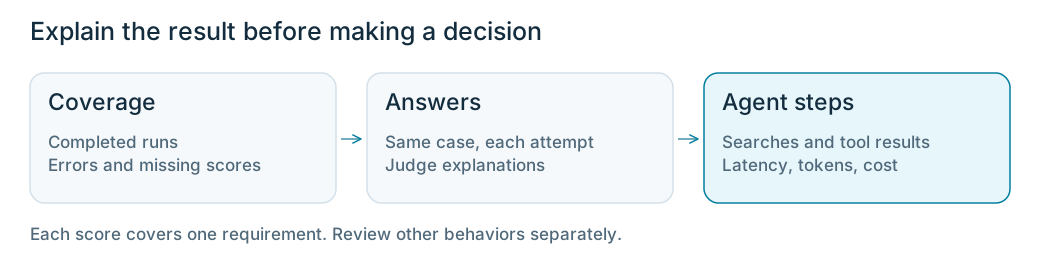

Before you start
Complete Run a Phoenix dataset experiment. Openwonder-toys-shopping in Datasets & Experiments and select its Experiments tab.
Step 1: Open the two experiments together
Openwonder-toys-baseline. Under comparisons, select wonder-toys-budget-rule. Keep the original version first so you can see how the revised version compares with it.
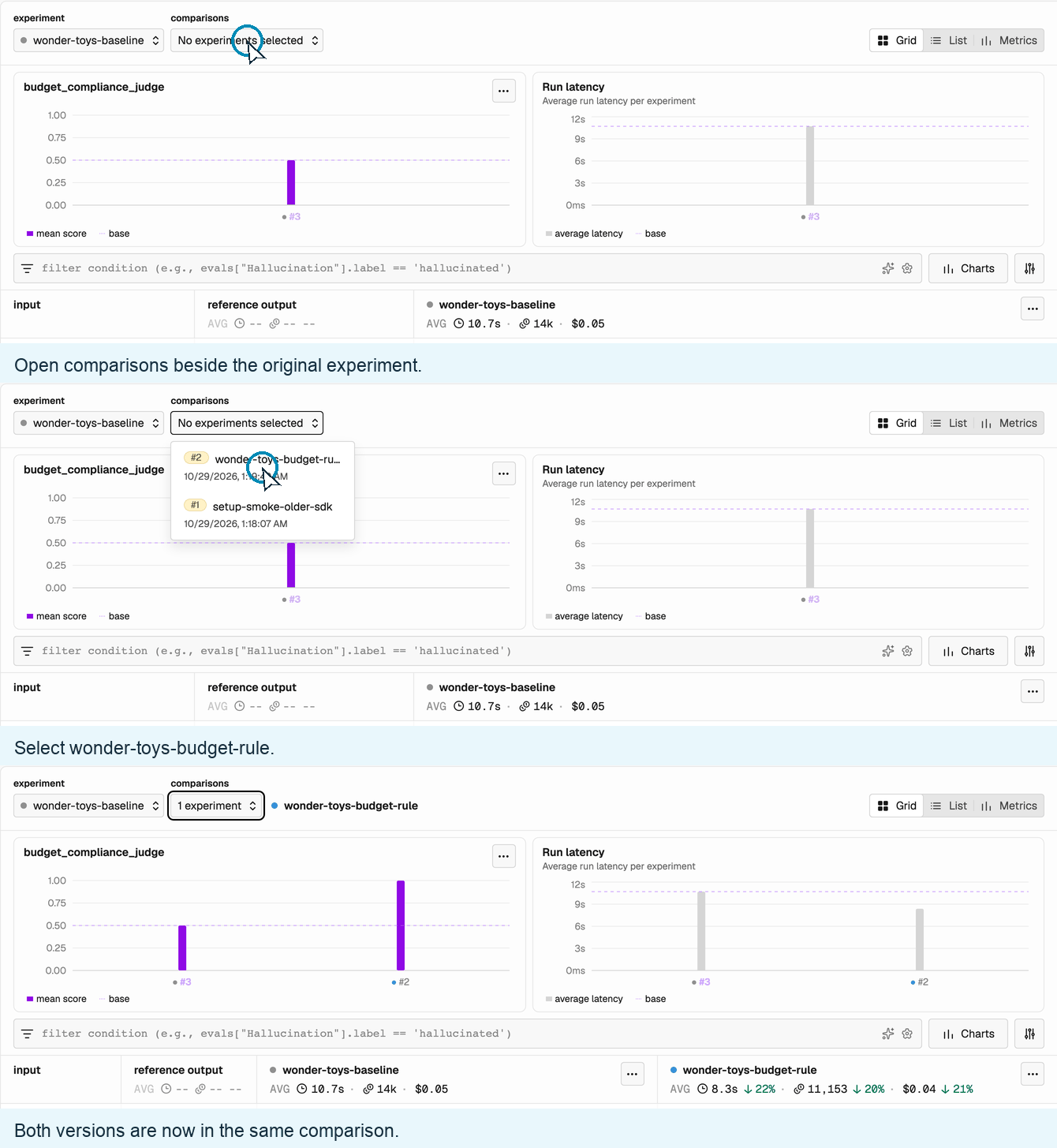
Add the revised version to the original experiment's comparison.
Step 2: Check that the results are complete
Before comparing scores, open each experiment’s … → View details menu and check:- Runs: Both experiments completed the expected number, such as 6 out of 6.
- Configuration: Both use the same repetitions,
model, andrubric_version. The model and rubric version appear in Metadata. - Errors: The commands from the previous lesson reported no task or evaluation errors. Investigate any errors before drawing a conclusion.
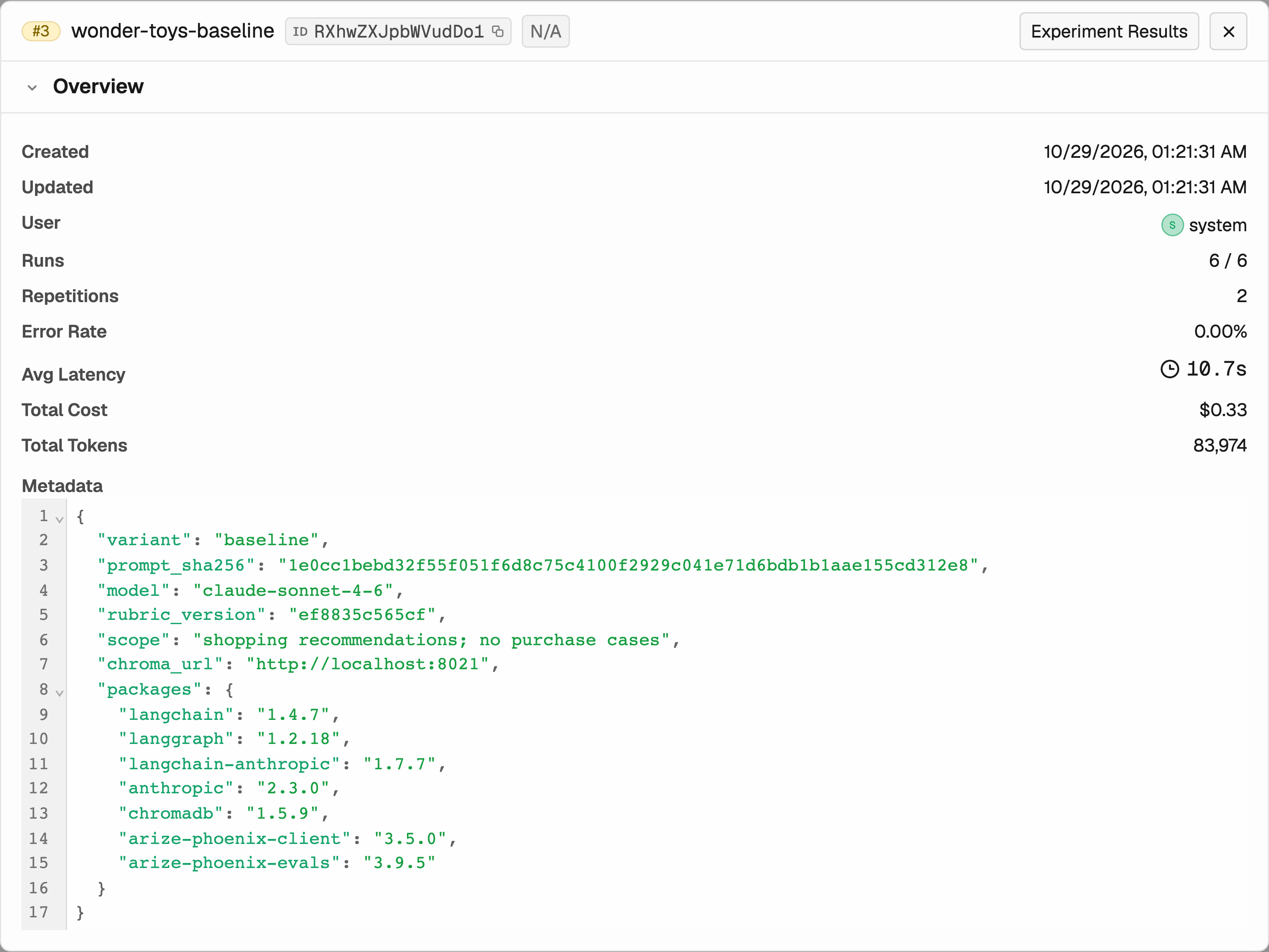
Experiment details show completed runs, repetitions, errors, and the saved configuration.
needs_review judgment has no score, so check those answers separately rather than treating them as passes.
Step 3: Read what changed for each request
Compare both versions’ answers to the same request to see whether the instruction helped. Start where the answers or scores differ:- Read the shopper’s request and both answers. Use Expand to see the full answer.
- Use the arrows beside 1 / 2 to read each repetition, or attempt at the same request.
- Hover over the
budget_compliance_judgelabel to read its explanation. Check whether the judgment matches the answer and your budget criteria.

Compare both answers to the same request, then check the judge’s explanation.
What does the recorded example show?
What does the recorded example show?
The judge passed all 6 attempts from the revised agent. Yet this answer praises the $27.99 kit while asking the shopper to raise their $25 budget. Its explanation treats that as asking a question rather than making a recommendation.That decision deserves review against your rubric. Your results may differ, so use the answers you actually see.
Step 4: Follow the trace behind a result
To see how the agent produced an answer, select View run trace, the trace icon above that answer. Use the agent’s trace to inspect:- Search arguments and results: Select
search-productsin the trace tree and read its Input and Output. - The final answer: Select the top task span to read the agent’s response alongside its earlier steps.
- Additional calls: Check whether the revised agent searched again and used those results in its answer.

Open the trace from the answer, then select its product-search step.
Step 5: Decide what to test next
Use the answers and traces to decide what to do with the instruction:- Keep testing it if the answers show improvements and the previously correct cases still work. Check more requests before relying on the change.
- Revise it if the budget problem remains or the instruction causes another problem. Use the affected answers and traces to guide the next edit.
- Investigate first if missing runs or questionable judge decisions prevent a useful comparison.