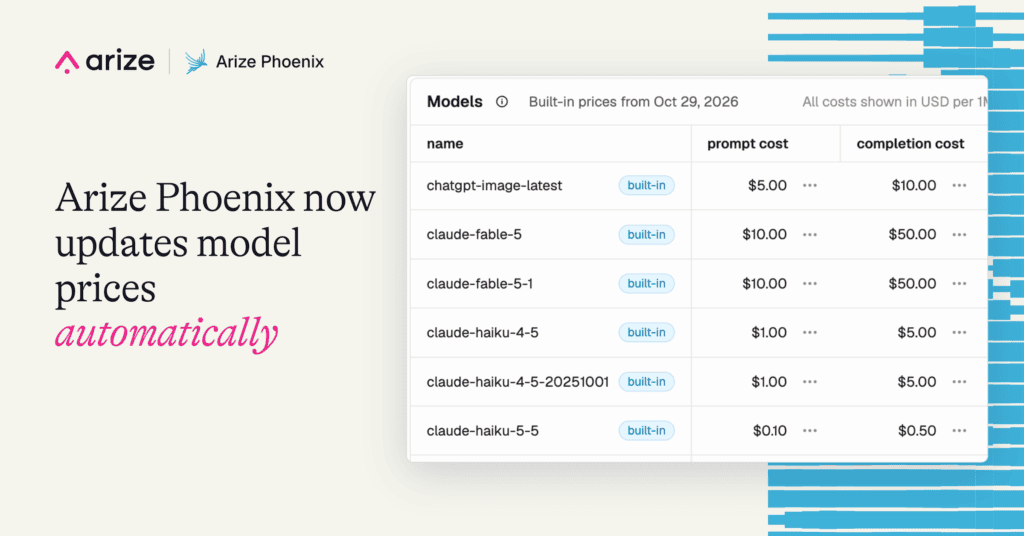
Arize Phoenix now updates its built-in model prices automatically, with no upgrade needed to get new or revised rates.
Phoenix uses a catalog to calculate the cost of LLM calls in your traces. For each call, it applies the model's token rates to the recorded token usage and adds that cost to the trace total.
Previously, built-in pricing updates came with Phoenix releases. If your catalog didn't include a model's pricing, you could upgrade Phoenix or add a custom configuration. With automatic updates, your server can receive new pricing between releases.
If you're new to Phoenix, follow the installation guide to run it locally before trying the steps below.
Build better agents with Arize
Trace, evaluate, and learn. Build agents that work with Arize AX and start tracing your runs today.
Prefer open source? Try Arize Phoenix for self-hosted, open source agent observability.

Check which pricing catalog your server is using
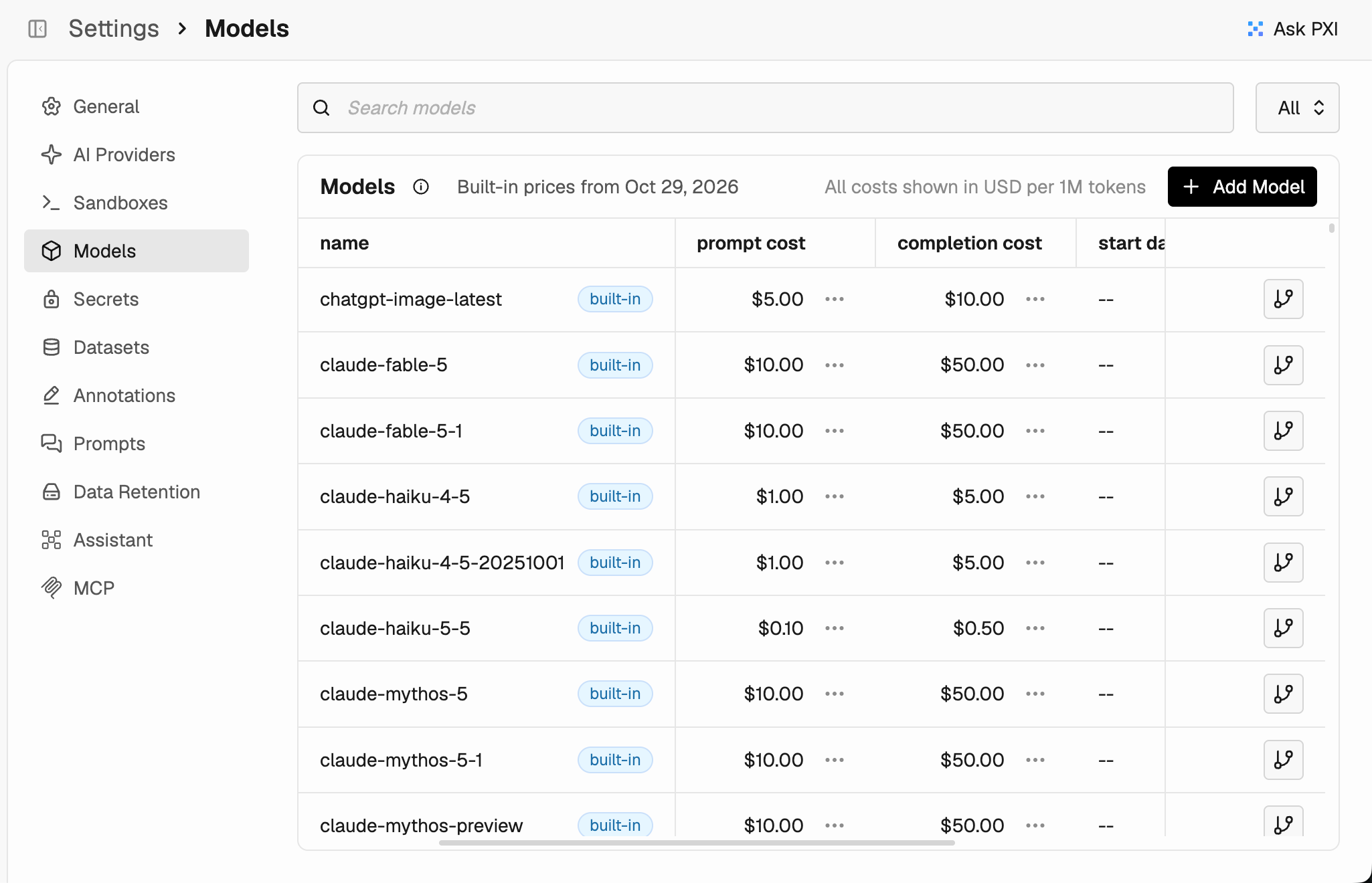
You can check which built-in pricing catalog your server is using on the Models page. To find it, open Settings > Models and look for Built-in prices from above the model list. The date beside this label shows when that catalog was generated, rather than when your server last checked for updates.
The server applies newer catalogs in the background
Phoenix keeps its pricing current through a background process that runs from download through cost calculation. Shortly after startup, your server checks for a newer catalog, then repeats that check about once a day. These checks run in the background, so you don't need to restart the server to receive updated prices.
During each check, your server downloads the pricing catalog from the Arize Phoenix repository on GitHub. We generate this catalog from LiteLLM's model price list and publish it as a JSON file.
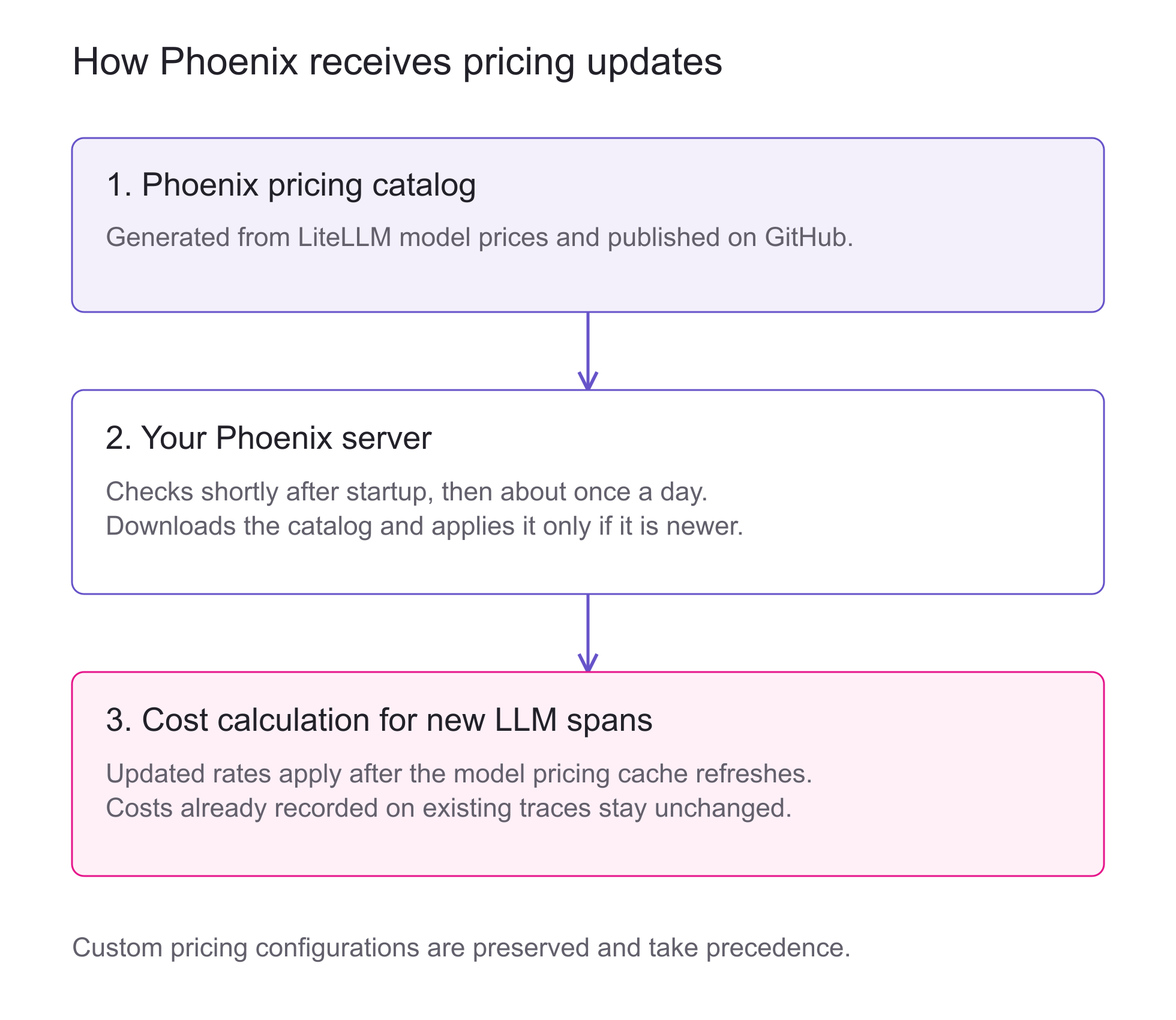
Phoenix then compares the generation dates of the downloaded catalog and the one it's already using. If the downloaded catalog is newer, Phoenix saves its model entries and token prices together in a single database transaction.
It also records which catalog it has applied. When your server restarts, Phoenix uses that record to check the catalog bundled with your installation. An older bundled catalog won't overwrite newer prices that your server has already downloaded.
For deployments with multiple Phoenix servers sharing a PostgreSQL database, a database lock allows one server to apply an update at a time. Each server checks whether the catalog is still newer before applying it. If another server has already applied the update, there's no need to apply it again.
If a download fails, your server continues using its existing prices and tries again at the next scheduled check. Phoenix logs the failure, and startup can proceed without waiting for a download to finish.
Once an update is applied, here's how Phoenix uses the pricing:
- New spans: Phoenix uses the updated rates for newly received LLM spans after it refreshes its model pricing. Costs already recorded on existing traces aren't recalculated.
- Custom pricing: If you've configured custom prices for a model, Phoenix continues to use those instead of the matching built-in prices. Catalog updates don't change your custom configurations, so you can keep using them for negotiated provider rates.
See what your model calls cost. Follow the Phoenix cost-tracking guide to get started.
Choose how your deployment receives pricing updates
You can choose whether your server receives pricing updates automatically or through Phoenix upgrades. Automatic updates are on by default, so you don't need to change any settings to start receiving them.
If your team needs to review pricing changes as part of its release process, you can turn off automatic downloads. To do this, set the following environment variable on your Phoenix server:
PHOENIX_DISABLE_MODEL_COST_AUTO_UPDATE=trueIf your deployment already sets PHOENIX_ALLOW_EXTERNAL_RESOURCES=false, pricing downloads are also disabled. In either case, Phoenix continues using its existing prices and can apply a newer bundled catalog when you upgrade Phoenix.
Once you've chosen how to receive updates, you can check the prices used by your application:
- Check the catalog: Open Settings > Models to see the catalog date and find the pricing configuration that matches your model.
- Verify a model call: Send a new request through your instrumented application and open its trace. Check that the recorded model and token counts match the call, then review the calculated cost.
- Review custom rates: If you use negotiated pricing, check that your custom configuration contains the rates you expect Phoenix to use.
If the catalog is missing pricing you need, share the model and provider in the Arize community Slack.

