

If your S3 images are encrypted using the AWS managed KMS encryption key, please reach out to support@arize.com for more assistance.
Step 1. Ingest Embeddings Using Links To Your Private S3 Bucket
Add private S3 image URLs or URIs in thelink_to_data_column_name (Python Pandas) or link_to_data (Python Single Record or any Data Connector in the UI).
Once you upload to Arize, navigate to the ‘Embeddings’ tab to enable bucket access in S3. Click ‘View Bucket Policy’ to uncover bucket access information.

Link to data currently only supports links to image files. Learn more about ingesting image data on the Computer Vision model type page.
Image Classification
Step 2. AWS Bucket Access Permissions
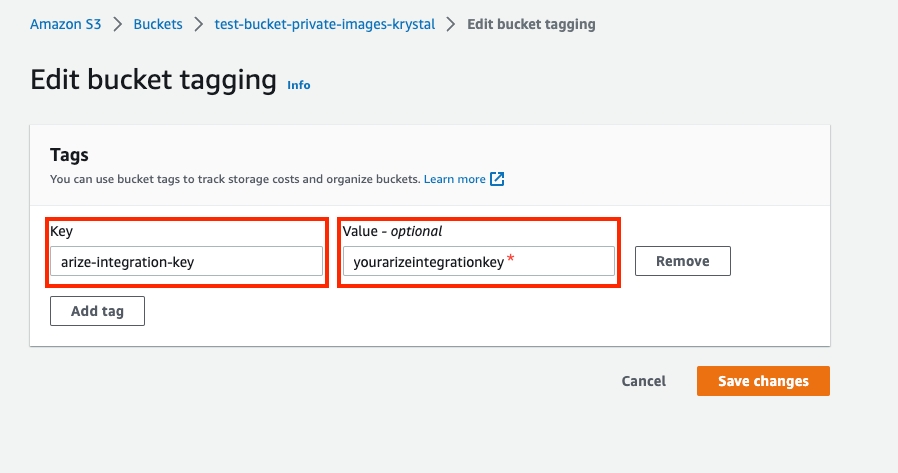
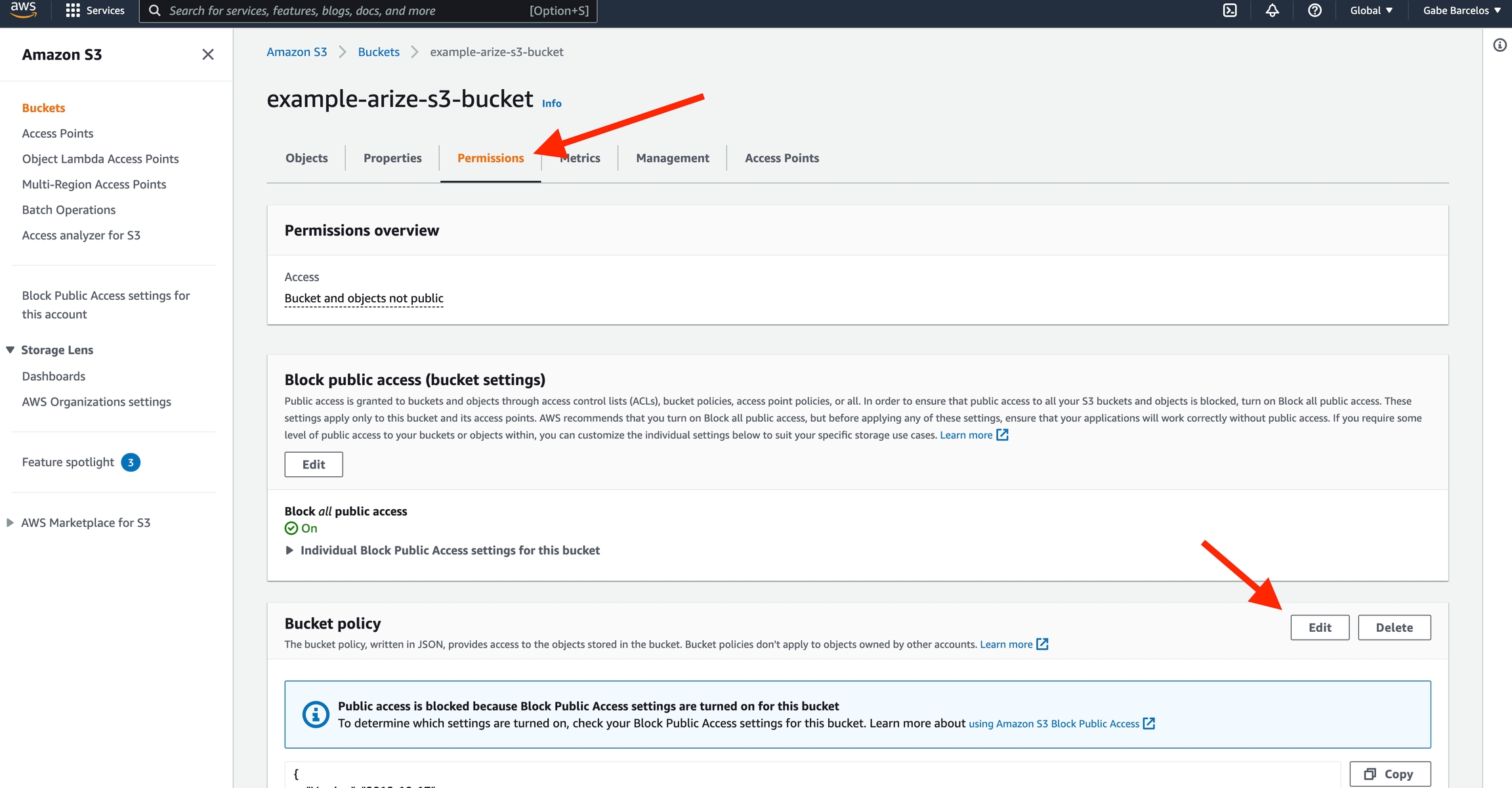
Tag your bucket with the keyarize-integration-key, the provided tag value, and AWS Policy.
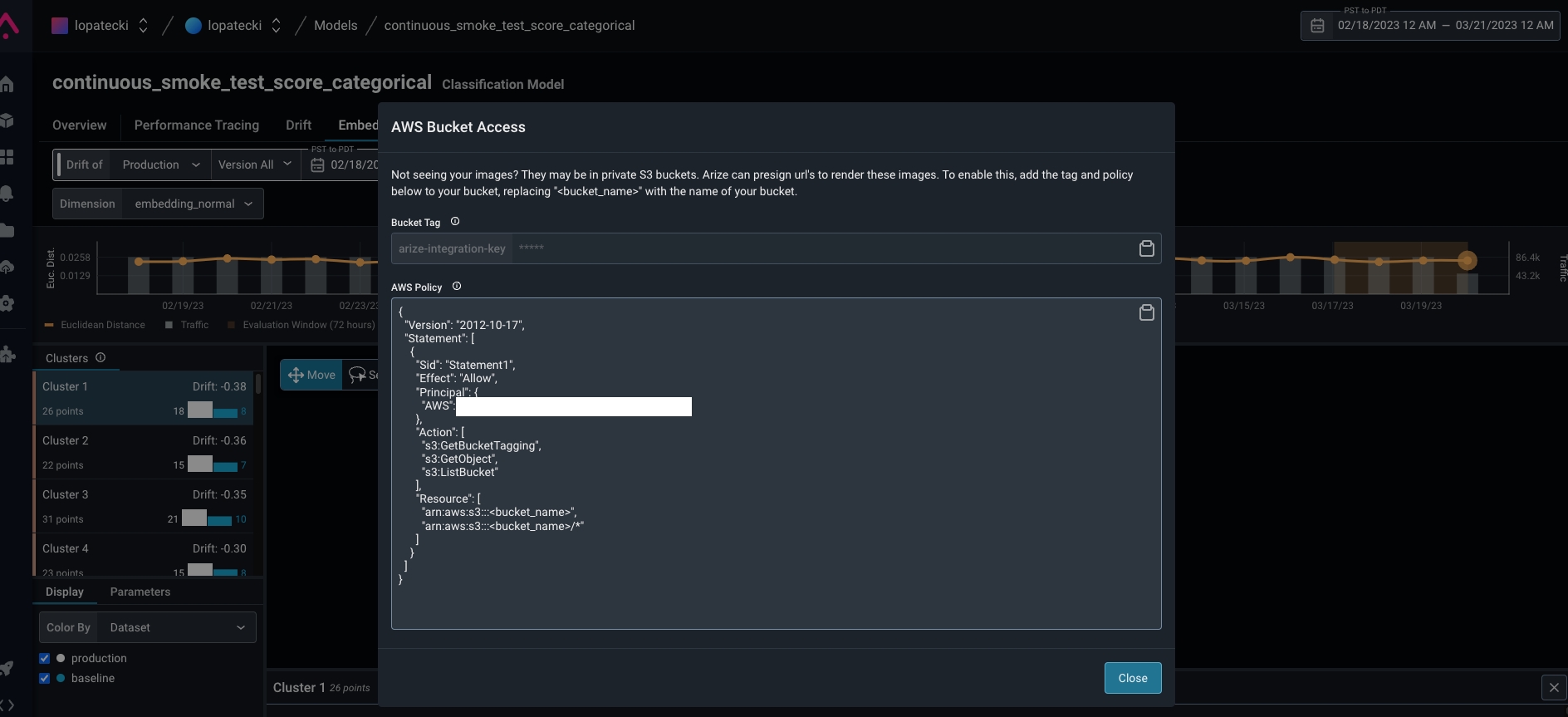
Add Proof Of Ownership: Bucket Tag
In Arize: Copy thearize-integration-key value

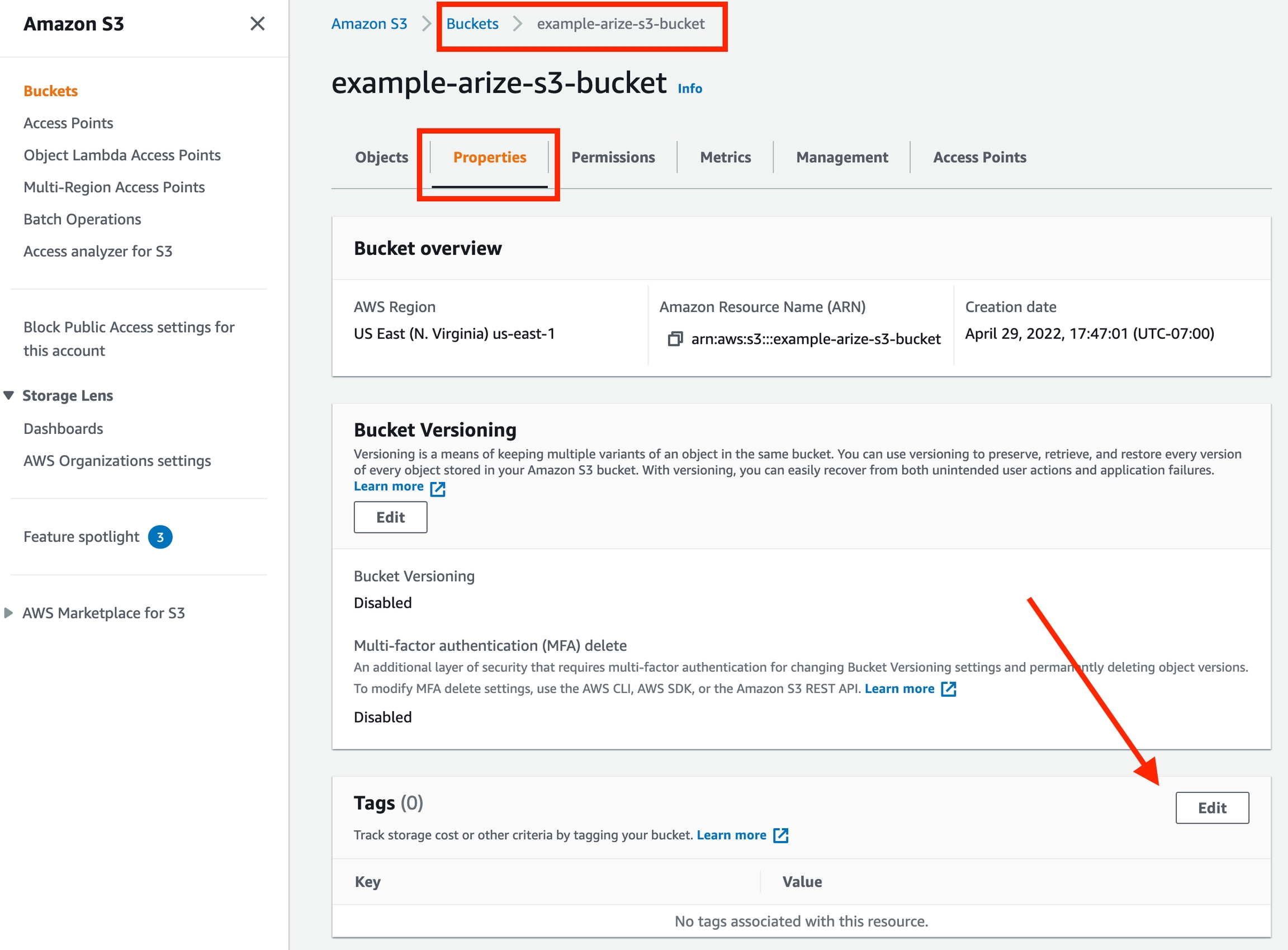
arize-integration-key and Value as the value copied from the Arize UI
Enable Bucket Access: AWS Policy
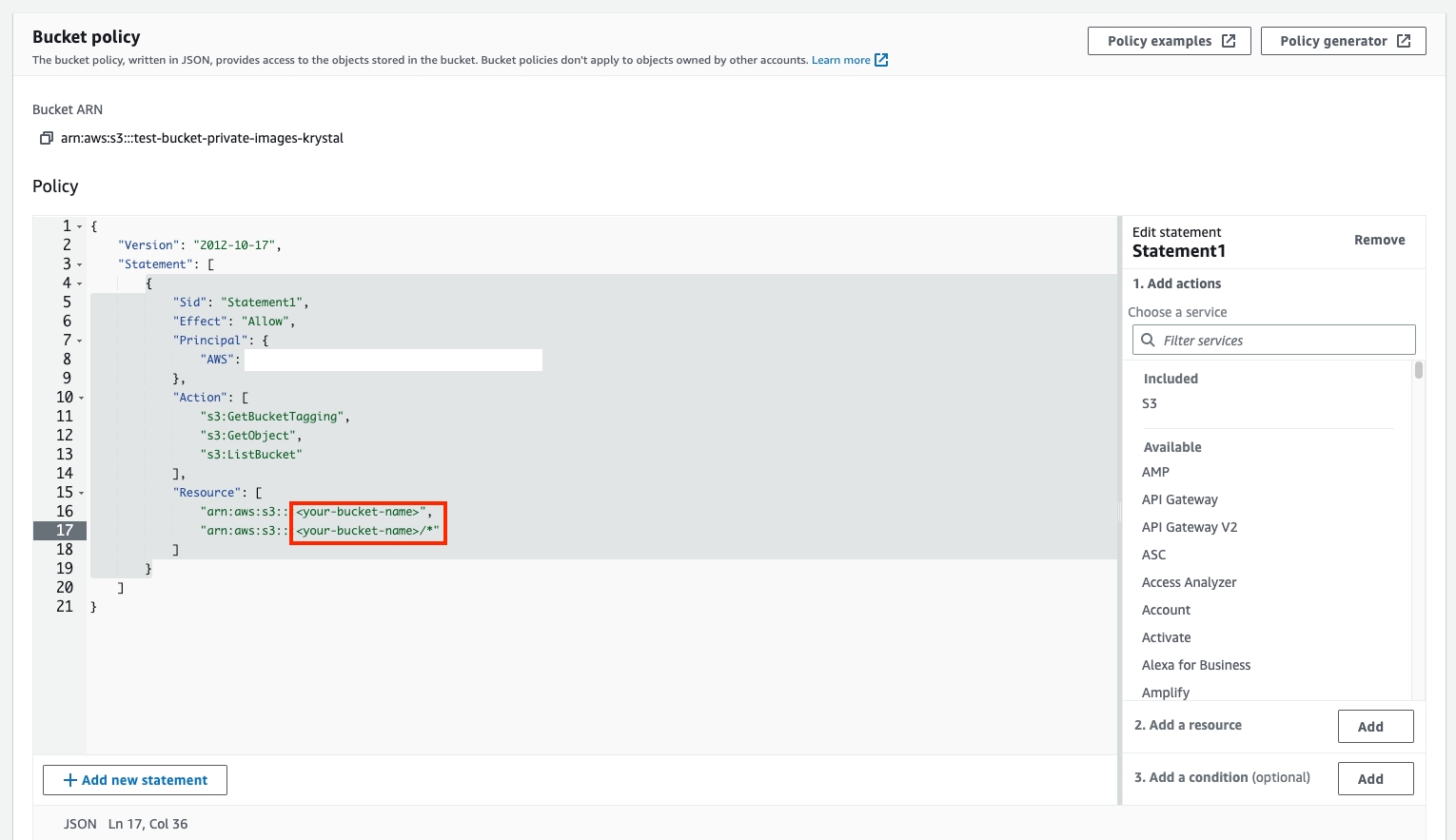
In Arize UI: Copy the AWS policy from the Arize UI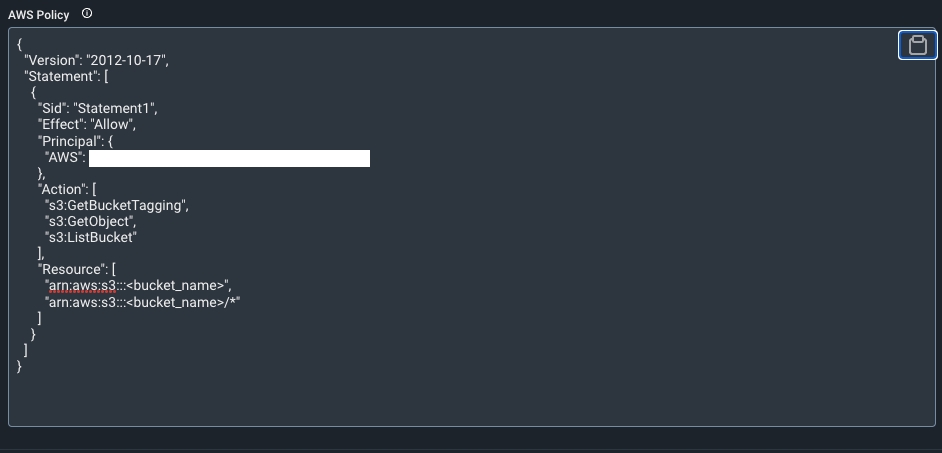
resource field
Step 3. Configure Encryption Key Access
S3 objects can be encrypted in several different ways:- If your image objects are encrypted using the default AWS managed S3-SSE encryption method, proceed to Step 4.
- If your image objects are encrypted using the AWS managed KMS encryption key,please reach out to support@arize.com for assistance.
-
If your image objects are encrypted using your own customer managed KMS key, perform the following steps:
- Navigate to the KMS page on the AWS console.
- Select the key in question.
- Scroll to the bottom of the page, and click on the “Add other AWS accounts” button.
-
Enter in the account id that appears in the instructions above. (i.e.
arn:aws::<account_id>) and save your changes.
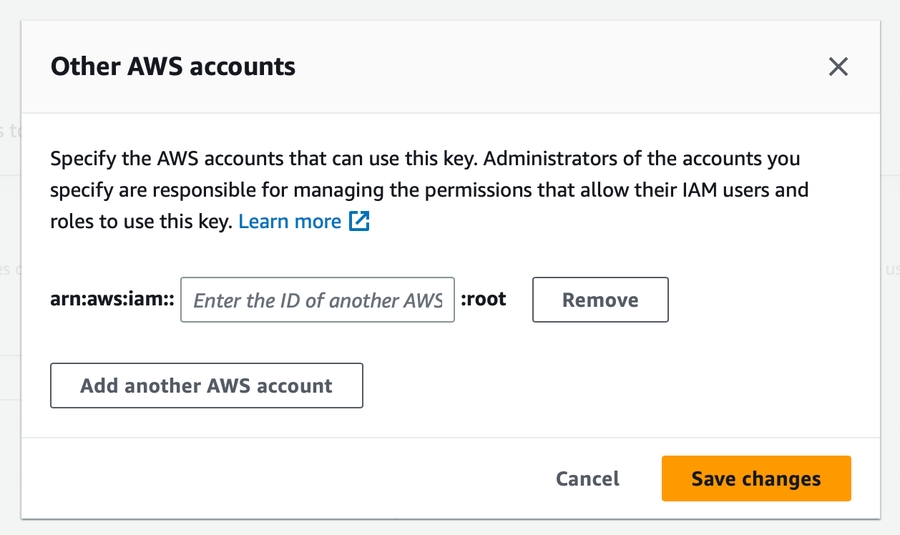
- For more information on configuring other AWS account access to a customer managed key, see theAWS documentation for other account KMS encryption key access.