Check out our How to Monitor Ranking Model’s blog and follow along with our various Colab examples here.Documentation Index
Fetch the complete documentation index at: https://arize-ax.mintlify.dev/docs/llms.txt
Use this file to discover all available pages before exploring further.
Ranking Overview
Ranking models are used by search engines to display query results ranked in the order of the highest relevance. These predictions seek to maximize user actions that are then used to evaluate model performance. The complexity within a ranking model makes failures challenging to pinpoint as a model’s dimensions expand per recommendation. Notable challenges within ranking models include upstream data quality issues, poor-performing segments, the cold start problem, and more.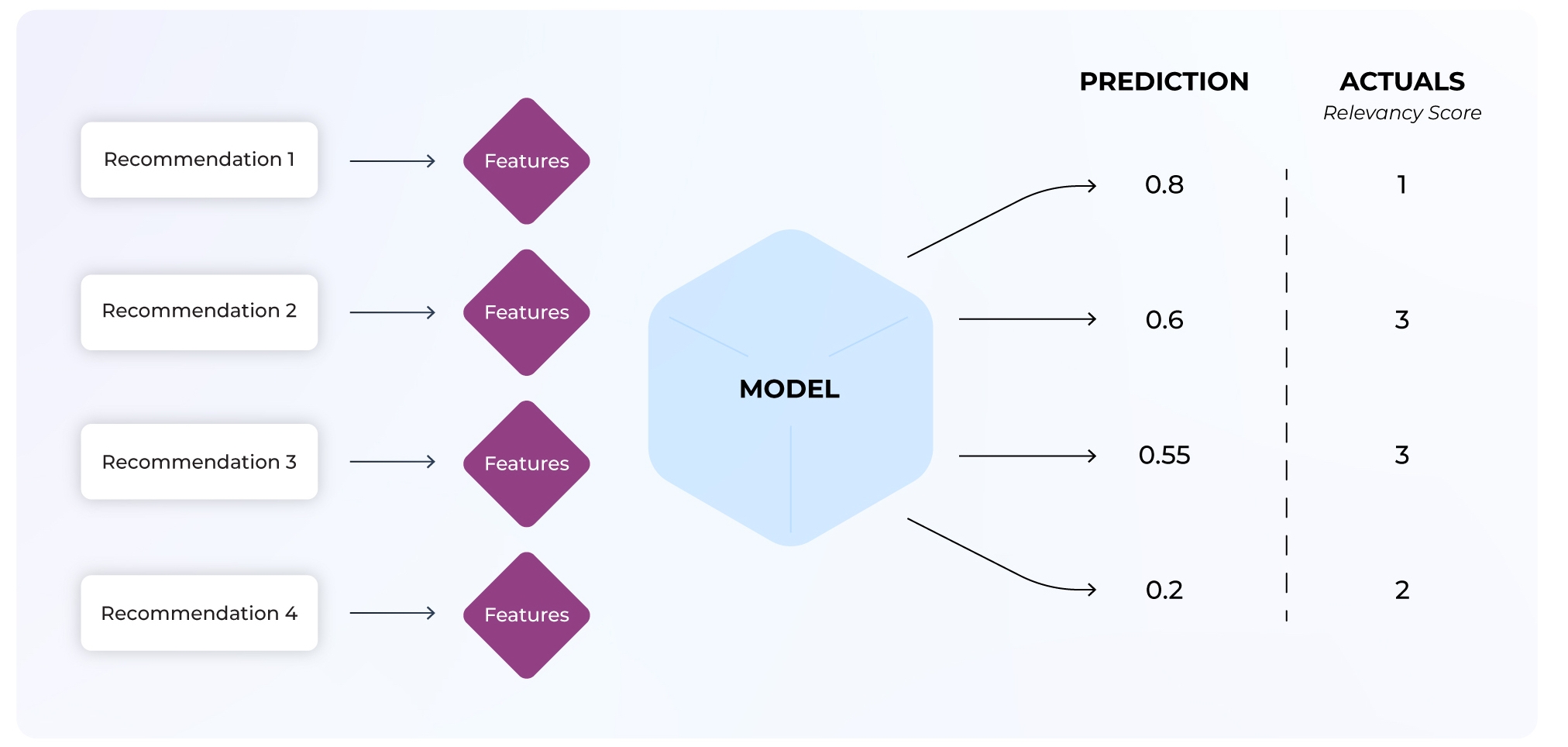
Ranking Use Case: Hotel Booking Rank
This use case will use ML observability to improve a hotel booking ranking model with low model performance. A poor-performing search ranking model means the model is not surfacing the most relevant items in a list first. You will investigate model performance using NDCG at different @k values to improve this model and accurately predict relevant recommendations in the right order. You will learn to:- Evaluate NDCG for different k values
- Compare datasets to investigate where the model is underperforming
- Use the feature performance heatmap to identify the root cause of our model issues
Gain a detailed view of how to log your ranking model schema here.
Performance Metric: NDCG
This use case utilizes a rank-aware evaluation metric, which is used to accurately weigh rank order and relevant recommendations within a list. Normalized discounted cumulative gain (NDCG) is a rank-aware evaluation metric that measures a model’s ability to rank query results in the order of the highest relevance (graded relevance).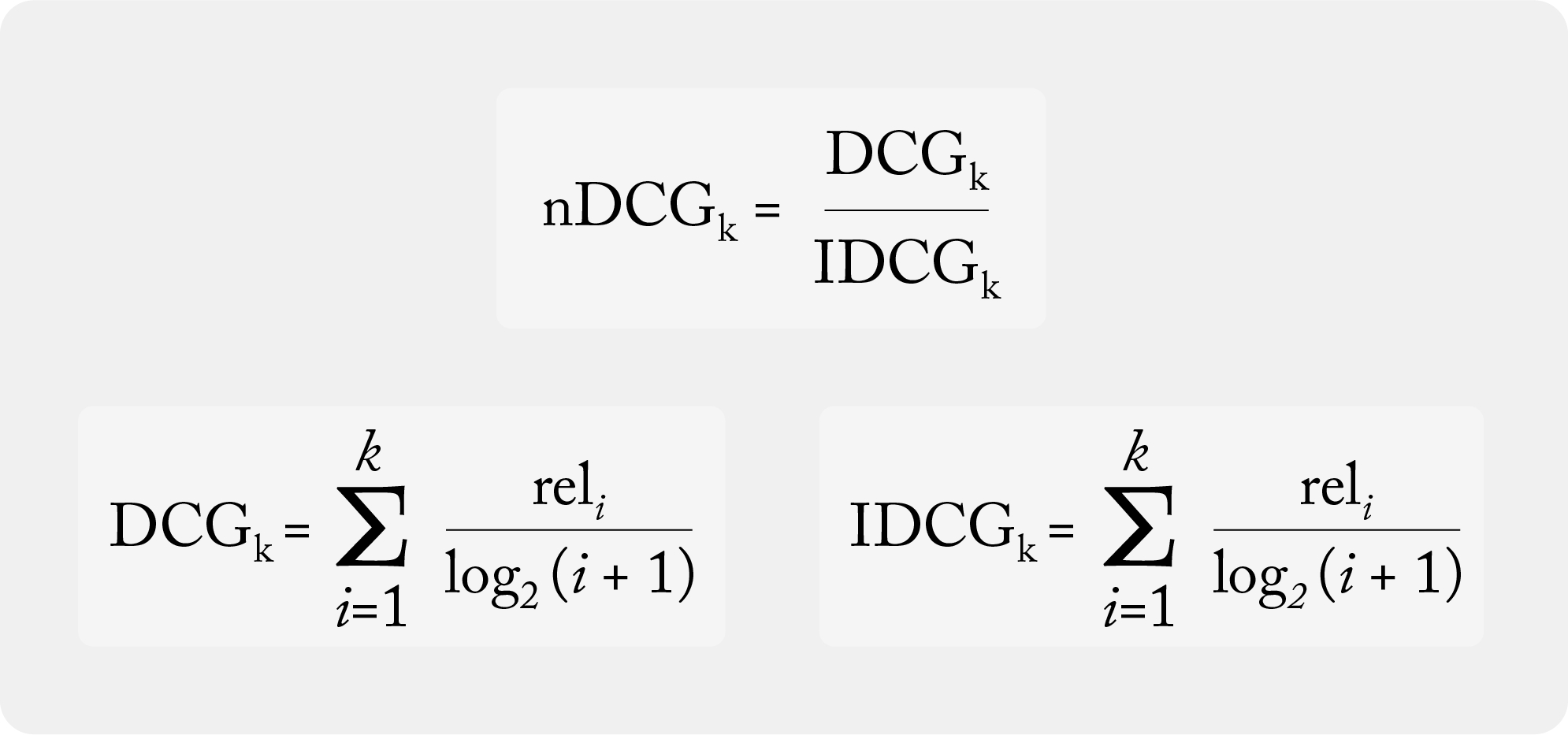
Once you ingest ranking data, the Arize platform computes your rank-aware evaluation metric.
What is @ k?
The k value determines the metric computation up to position k in a sorted list. For example, if k = 10, then NDCG evaluates the 10th item within the sorted list, whereas k = 20 evaluates the 20th item within a sorted list.How to Troubleshoot Ranking Models
Use the ‘arize-demo-hotel-ranking’ model, available in all free accounts, to follow along.Step 1: Configure A Positive Class
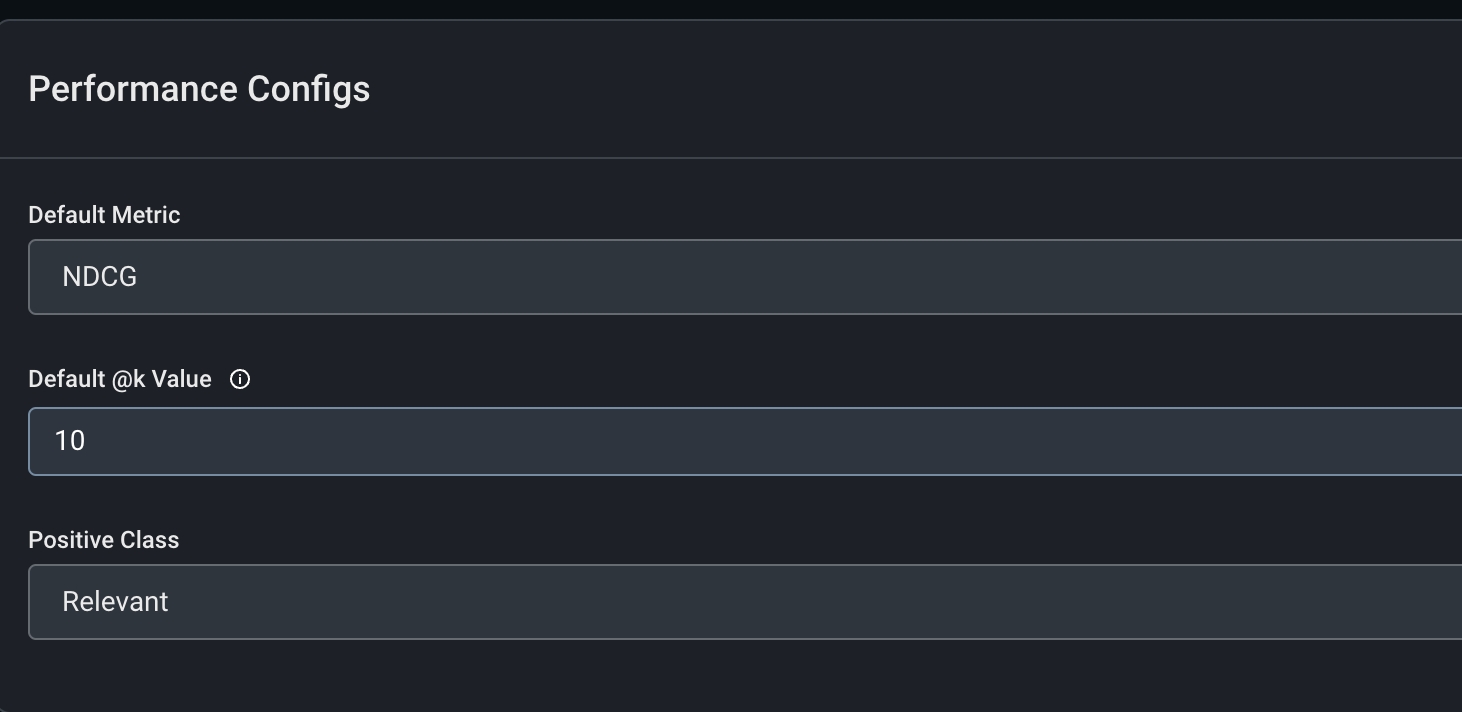
Configure our performance metric in the ‘Config’ tab.-
Default Metric:
NDCG - Default @K value: 10
-
Positive Class:
Relevant
Step 2: Evaluate Different @k Values
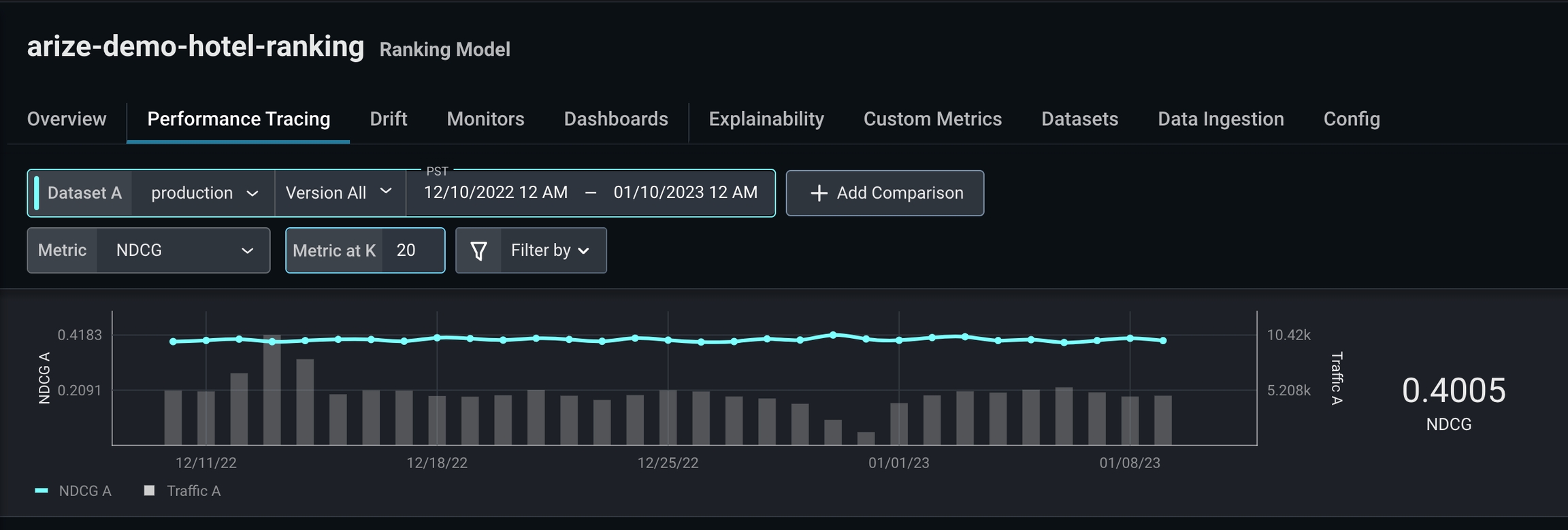
NDCG is low for k = 10, which indicates this model inaccurately predicts most recommendations users interact with first.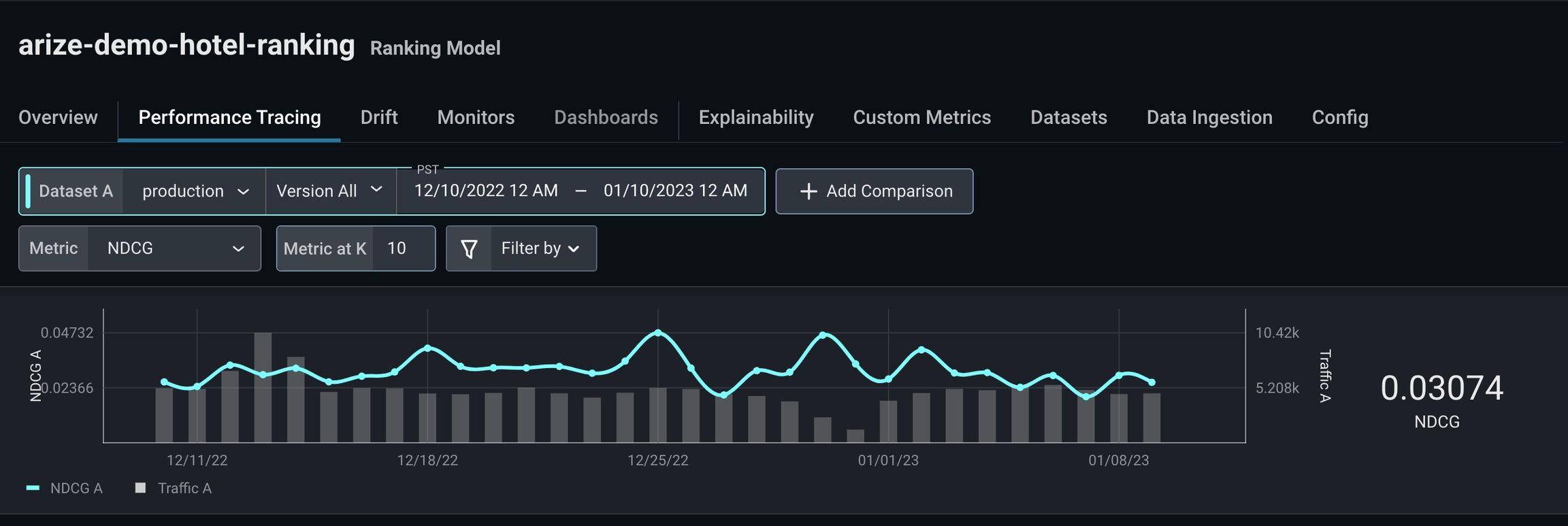
Step 3: Add a Comparison Dataset
To investigate further, we’ll add a comparison dataset using high-performing training data. Adding a comparison dataset during a period of high performance can help easily identify problem areas and enable you to better understand your performance breakdown.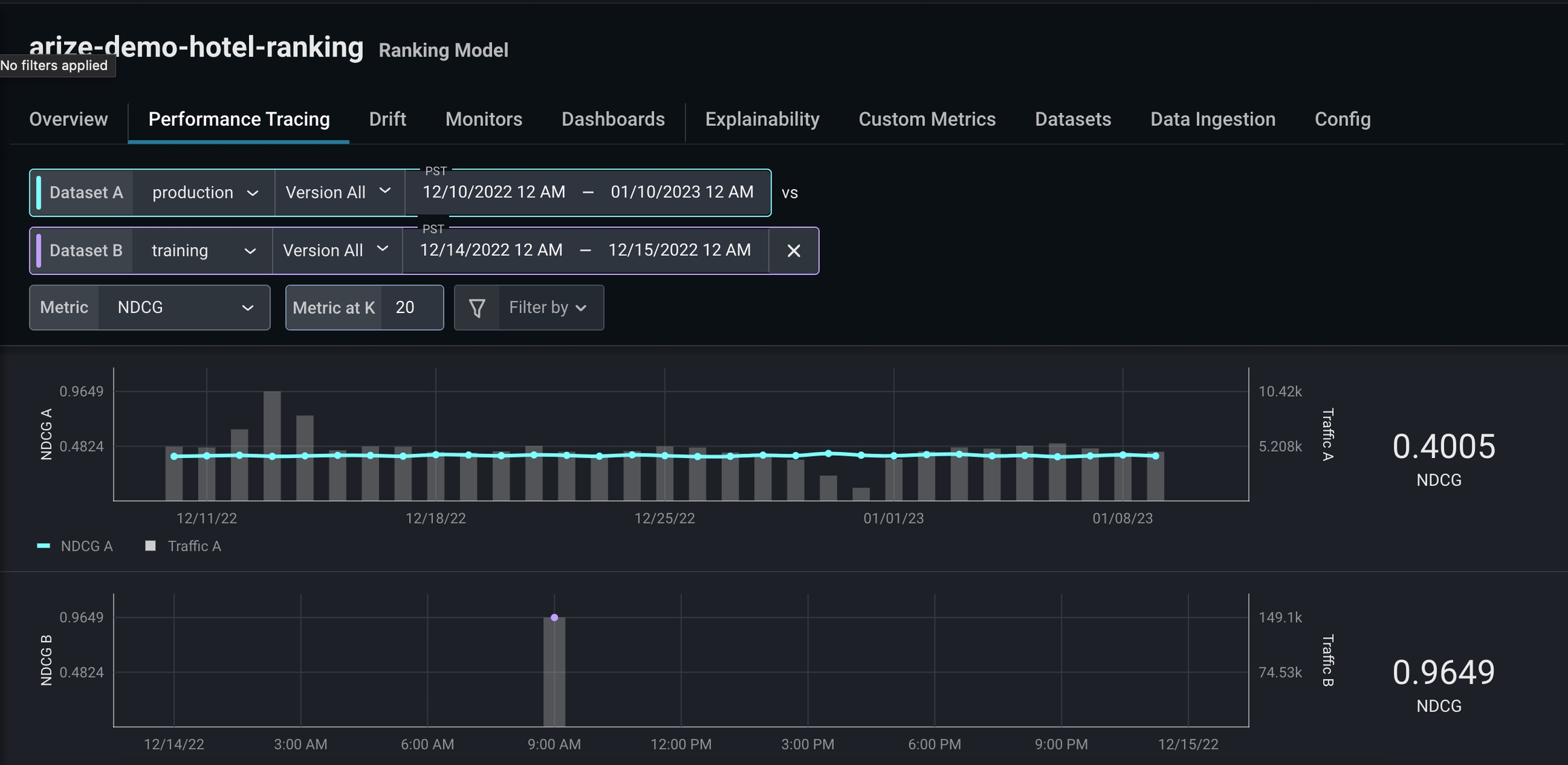
- different colors (the more red = worse performing)
- missing values
Step 4: Use Performance Breakdown
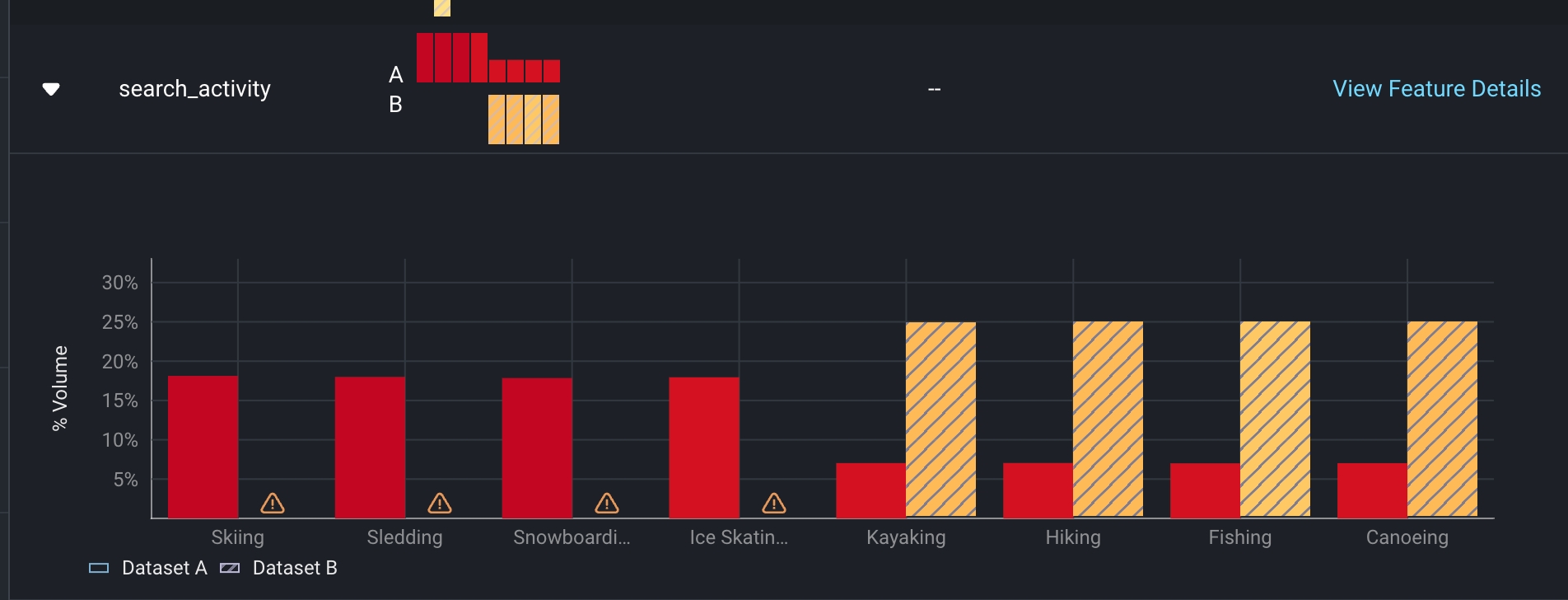
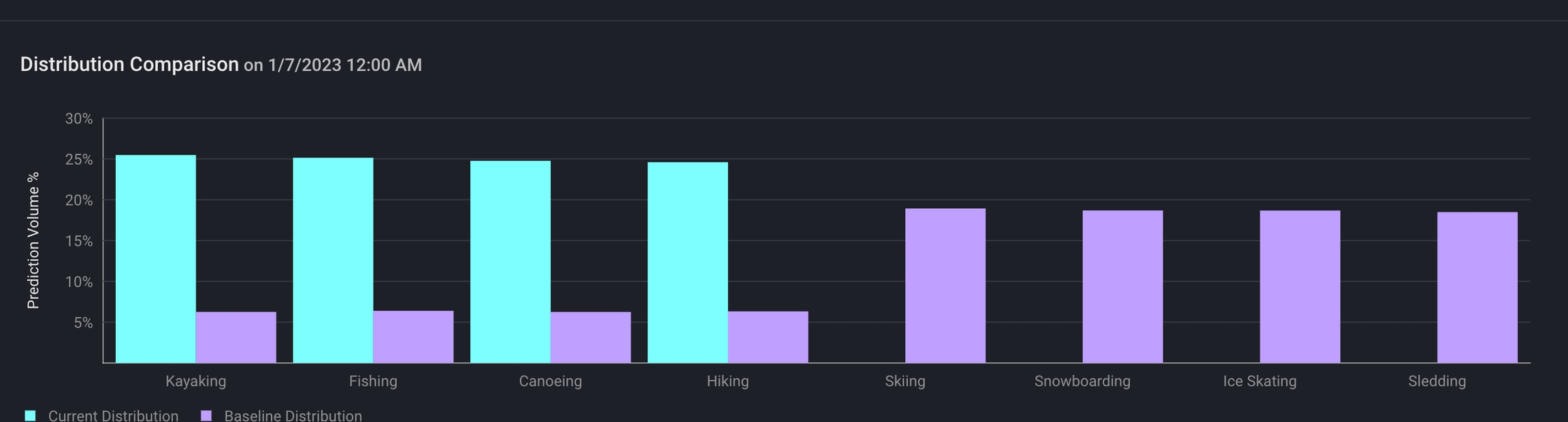
As we scroll through our performance breakdown, we notice a significant gap in training data compared to production in the featuresearch_activity . From there, click on the card to uncover a more detailed view of search_activity.