Add your Fireworks AI API key to run Fireworks-hosted models — including your own fine-tunes and dedicated deployments — in Arize AX’s prompt playground and LLM-as-a-judge evaluations. Fireworks is a single hosted service, so the API key is the only credential you need: there is no base URL or custom header to configure. This page covers adding Fireworks as an AI provider so Arize can call it on your behalf. To capture traces from the Fireworks calls your own application makes, see Fireworks AI tracing instead.
By adding this integration, your data may be sent to Fireworks AI for certain actions within Arize AX (e.g., prompt playground) and your account may be billed for usage.

Add the Integration from Arize AX

Select Fireworks AI from the Providers List

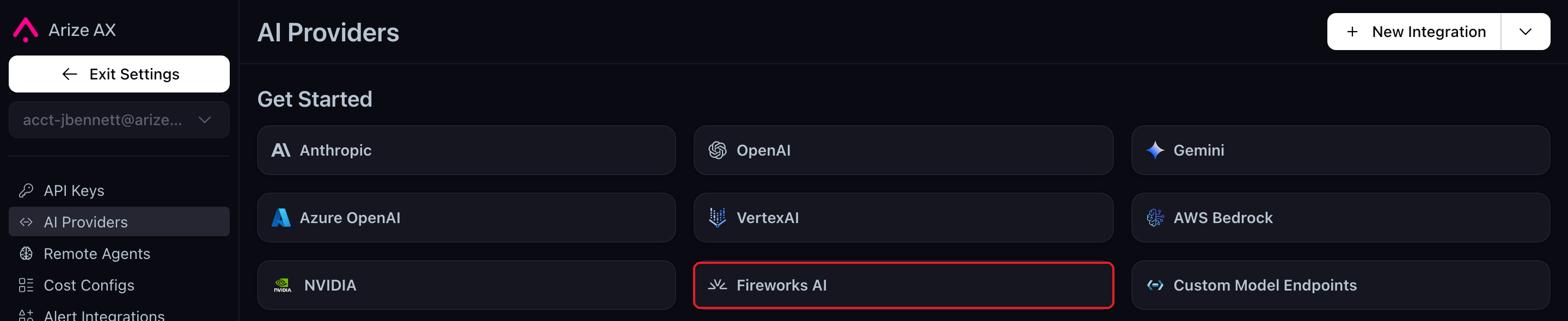
Navigate to Settings -> AI Providers, then select Fireworks AI from the provider tiles. You can also use the New Integration button and pick Fireworks AI from the menu.
The AI Provider integrations tab with the Fireworks AI tile highlighted

The AI Provider integrations tab

Fill Out Your Integration Details

The Fireworks AI integration details pane

The Fireworks AI integration configuration pane

Give your integration a name, then paste an API key from your Fireworks account API keys page. The key is write-only — once saved, Arize never returns it, and the integration reports only that a key is configured. Custom model names are optional. Arize resolves the models your key can reach directly from your Fireworks account, so an integration created with no model names still has a full, selectable model list. Add names here only for fine-tuned models and dedicated deployments that cannot be listed automatically. Before saving, use Test Model Integration to confirm the key works: pick a model and select Test Integration. The dropdown defaults to a model Fireworks serves on demand, so a valid key should pass without any further setup in Fireworks.

Advanced Settings

The AI integration details tab

The Advanced Settings configuration pane

Expand the Advanced Settings section to configure the following:
  • Supports Function Calling - Turn this on to allow the integration to use function calling features. This is on by default.
  • Authorized Orgs - Configure which organizations have access to this integration.
  • Authorized Spaces - Configure which spaces have access to this integration.

Add the Integration

Finally check the box to agree to the terms and conditions, then select the Add Integration button to create the integration.

Choose a Fireworks Model

Fireworks fronts models that differ in how a request reaches them, and the model picker in the prompt playground and in evaluator configuration groups them accordingly:
  • Serverless — models that answer on demand. These need no setup beyond the API key. Only a subset of the Fireworks catalog is served this way.
  • Your deployments — the dedicated deployments in your own Fireworks account, including fine-tunes. These are billed by Fireworks per GPU-hour, even while idle.
  • Requires a deployment — models your key can address but that have no capacity behind them yet. Rent capacity for one in Fireworks first, and it moves into Your deployments.
Models from the shared Fireworks catalog that need dedicated capacity are collapsed into a single counted row rather than listed individually, so the picker stays readable.
If a model returns a “model not found, inaccessible, and/or not deployed” error on a key you know is valid, the model is almost certainly not one Fireworks serves on demand. Pick a model from the Serverless group, or create a deployment for it in Fireworks.