
Google Colab

colab.research.google.com
ReAct is ideal for situations that require multi-step problem-solving with external tools. It also improves transparency by clearly showing the reasoning behind each tool choice, making it easier to understand and refine the model’s actions. In this tutorial, you will:
  • Learn how to craft prompts, tools, and evaluators in Phoenix
  • Refine your prompts to understand the power of ReAct prompting
  • Leverage Phoenix and LLM as a Judge techniques to evaluate accuracy at each step, gaining insight into the model’s thought process.
  • Learn how to apply ReAct prompting in real-world scenarios for improved task execution and problem-solving.
You’ll need an OpenAI Key for this tutorial.
Let’s get started! 🚀

Set up Dependencies and Keys

Point your code at the Phoenix instance you started. The endpoint below is the default for a local phoenix serve; for a deployment running elsewhere, use its hostname instead.
Then provide your OpenAI key, which this tutorial uses for the LLM calls:
Instrument Application

Load Dataset Into Phoenix

This dataset contains 20 customer service questions that a customer might ask a store’s chatbot. As we dive into ReAct prompting, we’ll use these questions to guide the LLM in selecting the appropriate tools. Here, we also import the Phoenix Client, which enables us to create and modify prompts directly within the notebook while seamlessly syncing changes to the Phoenix UI. After running this cell, the dataset should will be under the Datasets tab in Phoenix.

Define Tools

Next, let’s define the tools available for the LLM to use. We have five tools at our disposal, each serving a specific purpose: Product Comparison, Product Details, Discounts, Customer Support, and Track Package. Depending on the customer’s question, the LLM will determine the optimal sequence of tools to use.

Initial Prompt

Let’s start by defining a simple prompt that instructs the system to utilize the available tools to answer the questions. The choice of which tools to use, and how to apply them, is left to the model’s discretion based on the context of each customer query.
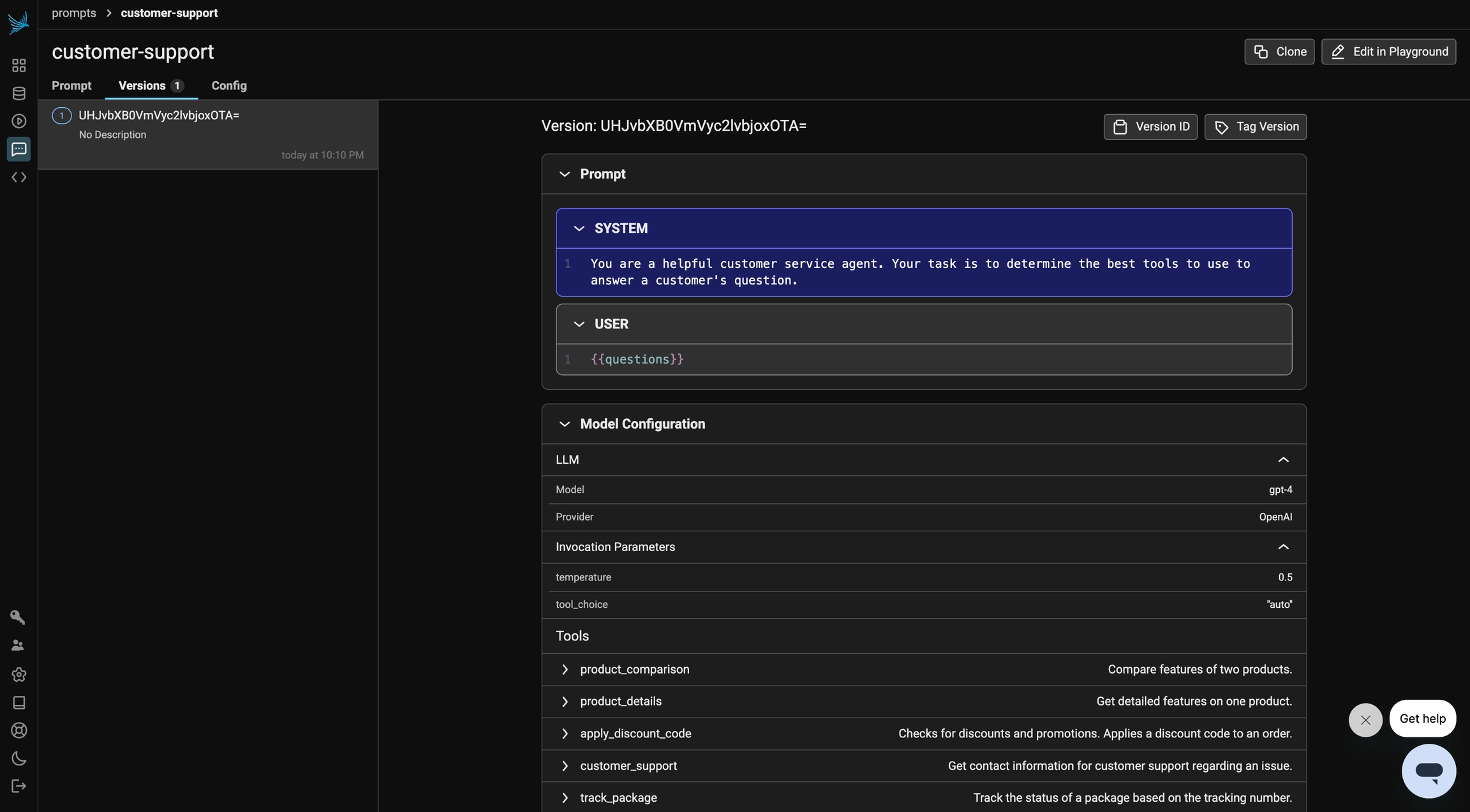
At this stage, this initial prompt is now available in Phoenix under the Prompt tab. Any modifications made to the prompt moving forward will be tracked under Versions, allowing you to monitor and compare changes over time. Prompts in Phoenix store more than just text—they also include key details such as the prompt template, model configurations, and response format, ensuring a structured and consistent approach to generating outputs.
Next, we will define our evaluation tools. In this step, we use LLM as a Judge to evaluate the output. LLM as a Judge is a technique where one LLM assesses the performance of another LLM. We use Phoenix’s built-in ToolSelectionEvaluator to assess whether the agent selected the right tools for the query, and ToolInvocationEvaluator to assess whether the tools were invoked with correct arguments.
In the following cells, we will define a task for the experiment. Then, in the evaluate_response function, we define our LLM as a Judge evaluators. Finally, we run our experiment.

Experiment
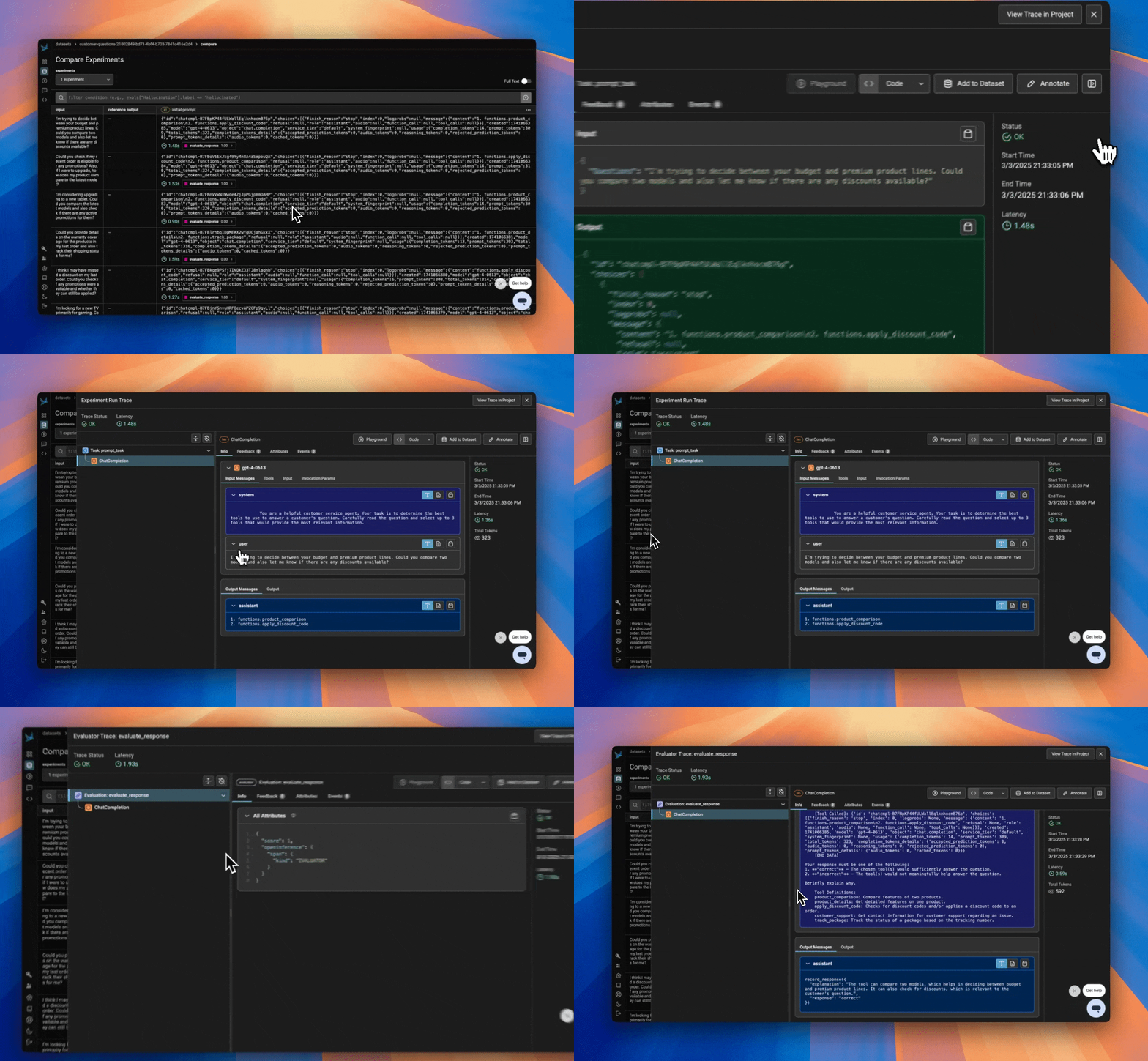
After running our experiment and evaluation, we can dive deeper into the results. By clicking into the experiment, we can explore the tools that the LLM selected for the specific input. Next, if we click on the trace for the evaluation, we can see the reasoning behind the score assigned by LLM as a Judge for the output.

ReAct Prompt

Next, we iterate on our system prompt using ReAct Prompting techniques. We emphasize that the model should think through the problem step-by-step, break it down logically, and then determine which tools to use and in what order. The model is instructed to output the relevant tools along with their corresponding parameters. This approach differs from our initial prompt because it encourages reasoning before action, guiding the model to select the best tools and parameters based on the specific context of the query, rather than simply using predefined actions.
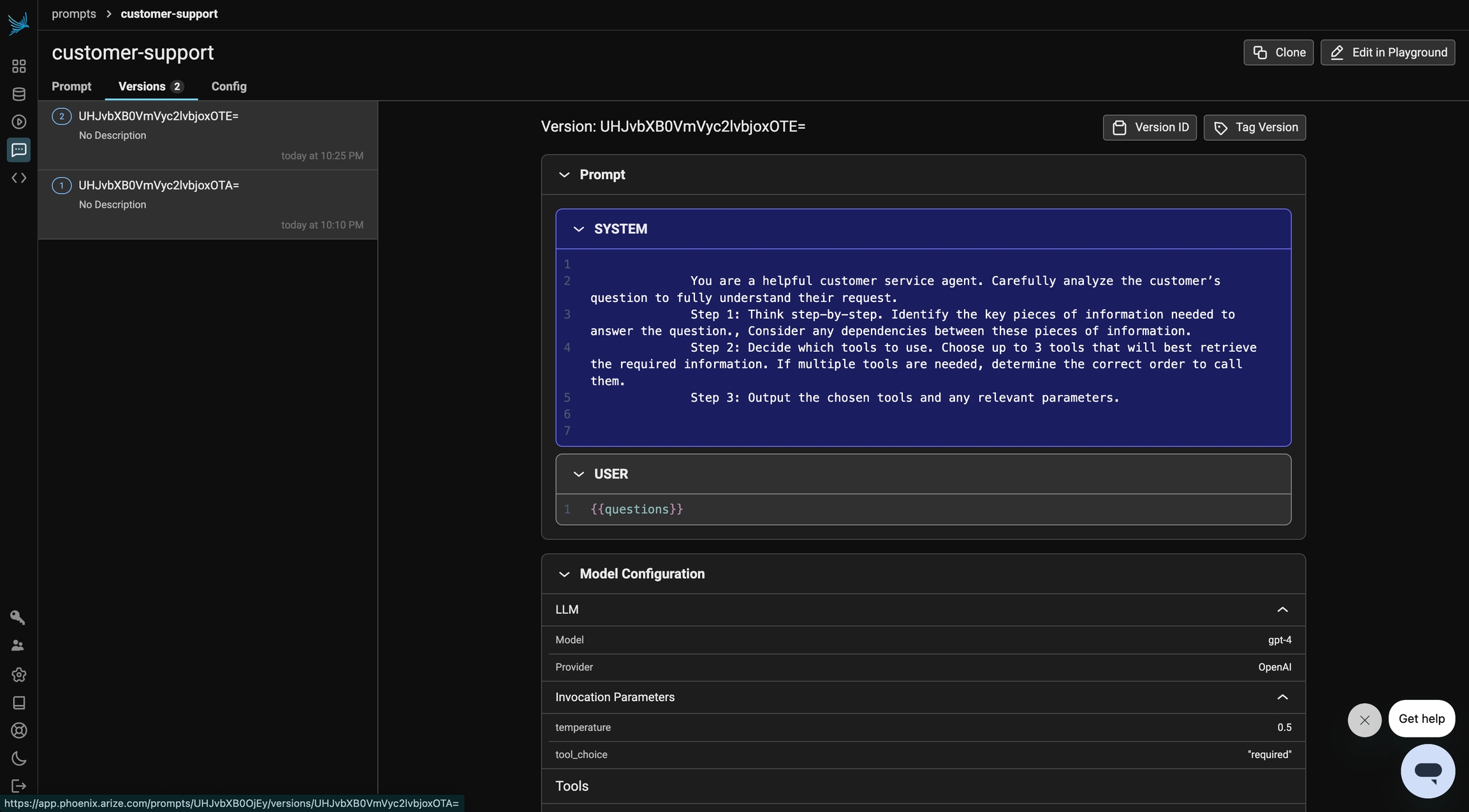
In the Prompts tab, you will see the updated prompt. As you iterate, you can build a version history.
Just like above, we define our task and run the experiment with the same evaluators.

Experiment

With our updated ReAct prompt, we can observe that the LLM as a Judge Evaluator rated more outputs as correct. By clicking into the traces, we can gain insights into the reasons behind this improvement. By prompting our LLM to be more thoughtful and purposeful, we can see the reasoning and acting aspects of ReAct. You can explore the evaluators outputs to better understand the improvements in detail. Keep in mind that results may vary due to randomness and the model’s non-deterministic behavior.
To refine and test these prompts against other datasets, experiment with alternative techniques like Chain of Thought (CoT) prompting to assess how they complement or contrast with ReAct in your specific use cases. With Phoenix, you can seamlessly integrate this process into your workflow using both the TypeScript and Python Clients. From here, you can check out more examples on Phoenix, and if you haven’t already, please give us a star on GitHub! ⭐️