

High Level Concepts
Set up Arize AX
Install tracing for your agent
Run your agent and observe
Control what gets captured
Next steps
High Level Concepts
A coding agent (or “harness”) wraps a model in a loop that submits prompts, calls tools, and reacts to the results. The Coding Harness Tracing toolkit registers hooks in each agent’s own configuration. When a hook fires — a session starts, a prompt is submitted, a tool runs — a small adapter builds OpenInference spans and exports them to Arize AX. There is no background service to manage, and tracing fails open: if the adapter errors, your agent keeps running. The toolkit supports these coding agents:
Regardless of which agent you use, the captured spans follow the same OpenInference shape:
- Sessions group every turn from a single coding session.
- Turn traces capture one user prompt and the agent’s response.
- LLM spans record each model call with model name, provider, and token counts.
- Tool spans capture each tool invocation — shell commands, file edits, MCP calls — with inputs, outputs, and duration.
Set up Arize AX
Sign up for a free Arize AX account, then grab the two credentials you’ll need:- Log in at app.arize.com.
- Click Settings and copy your Space ID.
- Open the API Keys tab and create or copy an API key.
Install tracing for your agent
Every agent installs the same way — run the installer with your agent’s key. It detects the agent, prompts for your Arize AX credentials and project name, writes them to~/.arize/harness/config.json, and registers the hooks in the agent’s config.
- macOS / Linux
- Windows (PowerShell)
Run your agent and observe
Start your coding agent the way you normally would and complete a few turns. Traces stream to your configured project in Arize AX, grouped by session. You’ll see each turn as a trace, with nested spans for the model’s response, every tool call, and any subagents the coding agent spawns.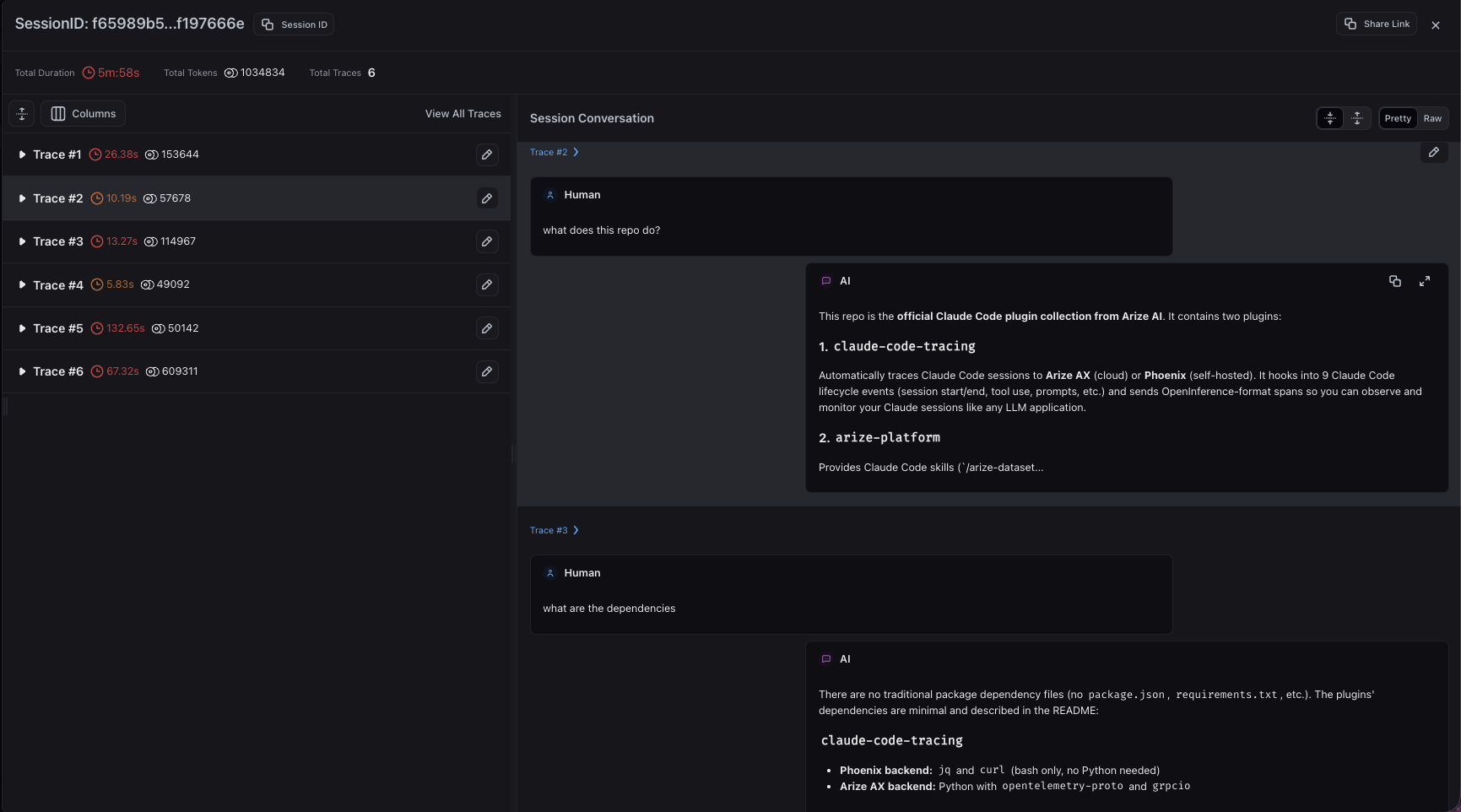
Coding agent turns grouped together in a single session view
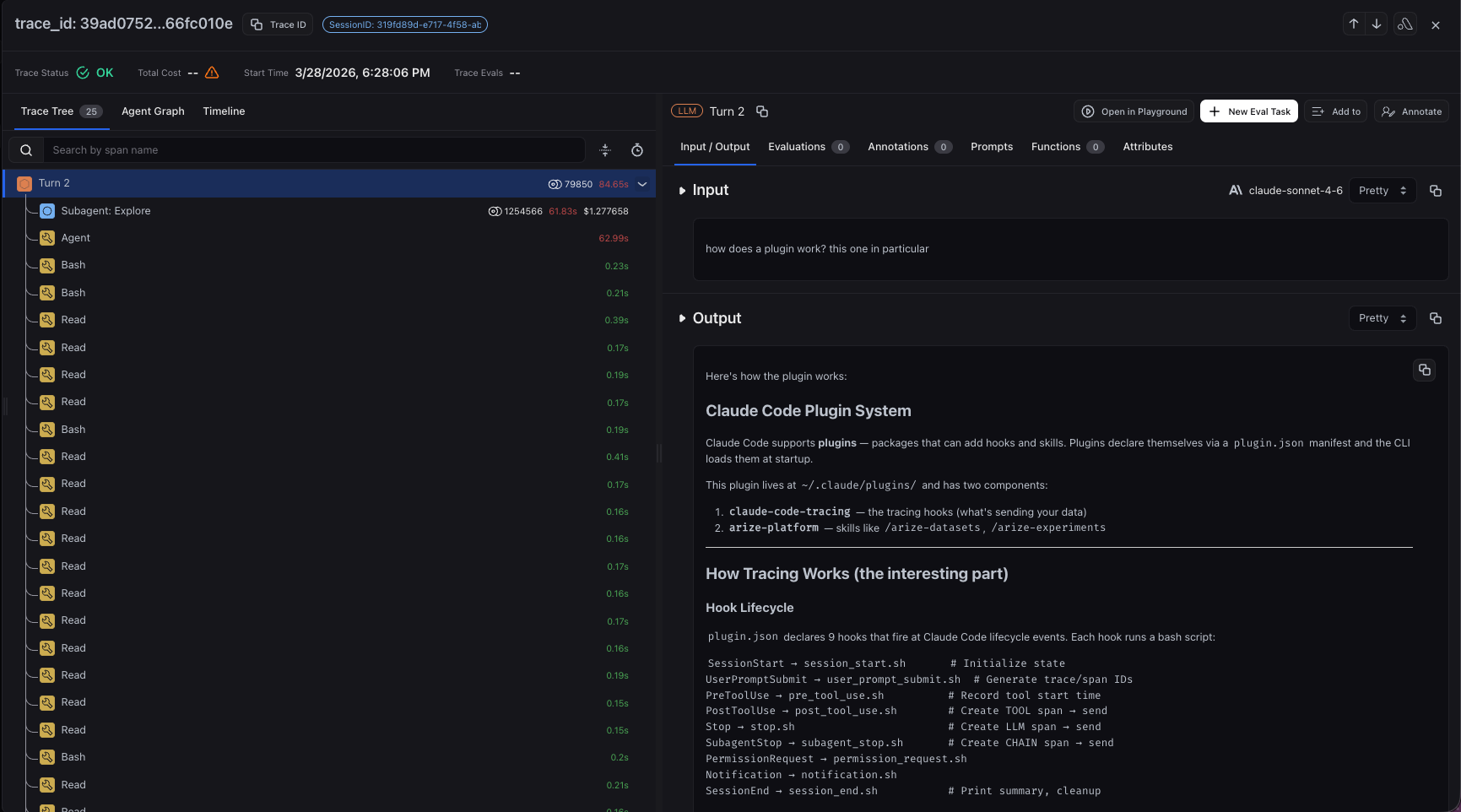
Detailed trace view for a single coding agent turn
~/.arize/harness/logs/<agent>.log, or set ARIZE_VERBOSE=true before launching the agent to see routine tracing activity.
Control what gets captured
All agents share a common set of environment variables. Set them in your shell profile, or for Claude Code in theenv block of ~/.claude/settings.json. Environment variables take precedence over ~/.arize/harness/config.json.
Toggle tracing without uninstalling:
"true"; set to "false" to opt out per category:
Attribute sessions to a user or add custom span attributes — set
ARIZE_USER_ID, or add an attributes map in ~/.arize/harness/config.json to tag every span (for example with team or environment):
uninstall and your agent’s key:
Next steps
- Follow the dedicated setup guide for your coding agent to see the exact hooks captured and any agent-specific behavior.
- Browse all tracing integrations to instrument the rest of your stack.
- Once traces are flowing, evaluate your agent to measure quality and catch regressions.