

- Create an agent using the OpenAI Agents SDK
- Trace the agent activity
- Create a dataset to benchmark performance
- Run an experiment to evaluate agent performance using LLM as a judge
Building without the Agents SDK? If you assemble the agent loop yourself on the plain OpenAI SDK, see Trace an Agent Built with the OpenAI SDK, which covers the manual spans you add to make that loop observable.
Get your Arize credentials
Open Tracing Projects. If you already have a project, click New Tracing Project. If you don’t, follow the steps under Get started with Arize, then click Generate API key and copy the pre-filled environment variables. You’ll also need an OpenAI API key. You’ll plug all of these into the steps below.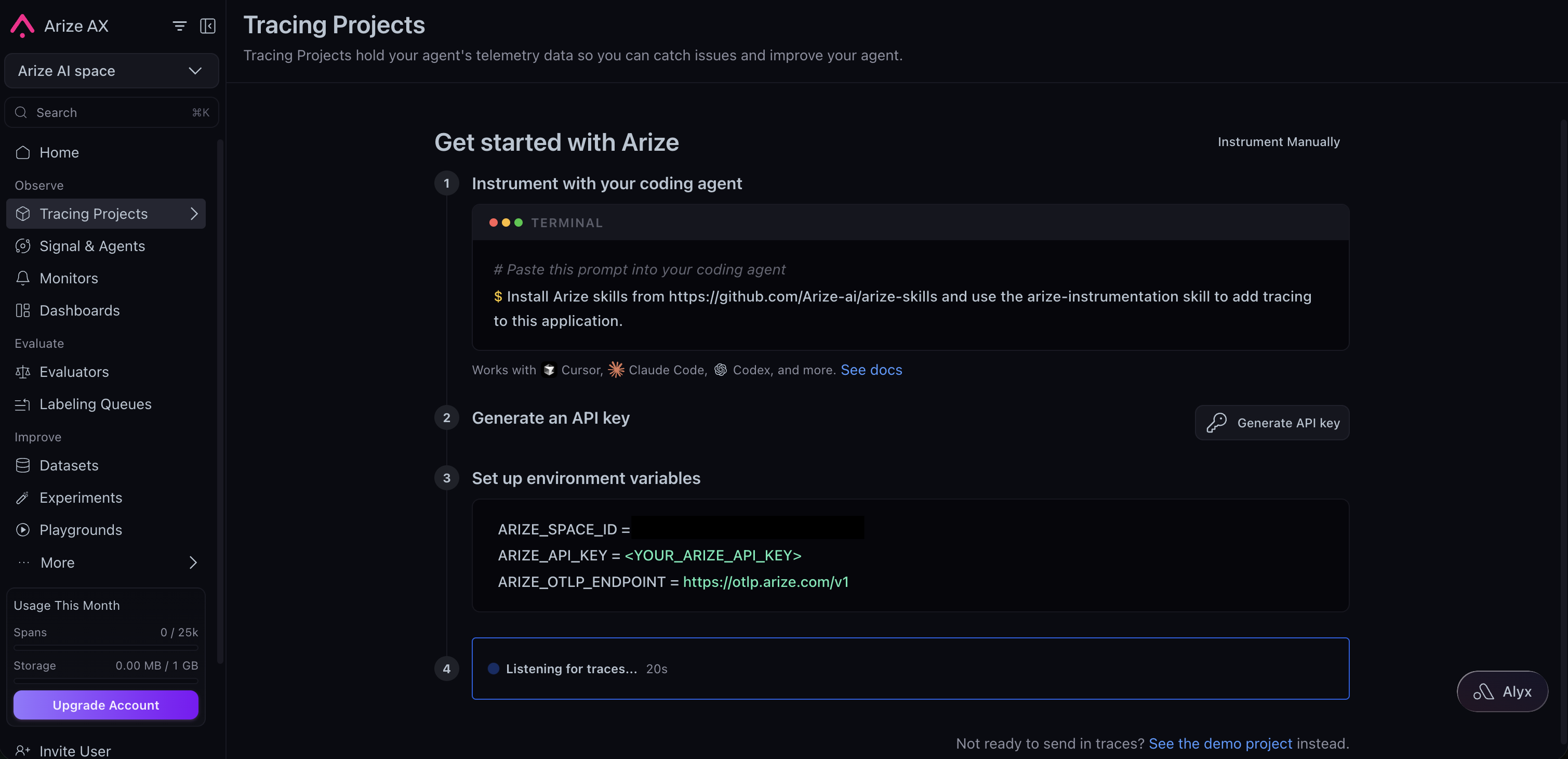
Initial setup
1
Install libraries
- Python
- TypeScript
2
Set up keys
Enter the Space ID and API key you copied, along with your OpenAI key.
3
Set up tracing
The OpenInference instrumentor registers against the Agents SDK, so agent invocations, tool calls, handoffs, and the underlying LLM calls all become spans.
- Python
- TypeScript
Create your first agent
You’ll set up a basic agent that solves math problems, with a function tool that evaluates equations and an agent that can call it.- Python
- TypeScript
Use the
Runner class to run the agent and get the final output.The dataset and experiment steps below use the Arize Python SDK. If you built your agent in TypeScript, its traces are already in Arize AX; run the evaluation from a Python environment, or use the online evaluations workflow in the product.
Evaluate the agent
Agents can go wrong in several ways:- Tool call accuracy: did the agent choose the right tool with the right arguments?
- Tool call results: did the tool respond with the right results?
- Agent goal accuracy: did the agent accomplish the stated goal and reach the right outcome?
Create synthetic dataset of questions
Using the template below, generate a dataframe of 25 questions to test the math-solving agent.Create an experiment
With the dataset generated above, use experiments to track changes across models, prompts, and parameters for the agent. Create this dataset and upload it to the platform.dry_run=True executes the task and evaluators locally without uploading the results, which is handy for a quick check. Remove it to persist the experiment and view it in Arize AX.