

What the Playground is for
The Playground brings structure and speed to prompt development. Instead of guessing how a prompt change will perform, you test prompts directly on real data, compare results side-by-side, and understand exactly why one version works better than another. What it’s actually doing on your behalf:- Joining a Prompt Object with a dataset. Variables in the template (
{customer_input},{order_id}) bind to columns in the dataset. Each row becomes one rendered prompt. - Running the prompt at scale. One click runs the prompt against every row in the dataset, in parallel, with the LLM you configured.
- Scoring with evaluators. Attached evaluators (from the Eval Hub or created inline) score each row’s output. The scores show up in the run record.
- Recording the run as an experiment. Every Playground run is a comparable experiment — you can return to it, share it, diff it against another run.
- Saving the winning variant back to the Hub. When a variant is the one you want, one click saves it as a new immutable version with a description.
Three modes
The Playground supports three ways of feeding prompts with data, each suited to a different stage of iteration.Mode 1 — Run on a dataset
Load a dataset and run the prompt against every row. The dataset can be CSV-uploaded, built from production traces, or synthetic (Alyx-generated). This is the workhorse mode — useful any time you want a quantitative read on a prompt across many examples.Mode 2 — Replay on a span
Span replay loads a single production span — exactly what happened in production — into the Playground with its inputs, variables, model, and tool definitions auto-populated. You can then iterate against that exact context: try a different prompt, swap the model, change parameters, re-run, and compare. Span replay bridges tracing and prompt iteration. Instead of guessing what caused a bad response, you can reproduce the exact LLM call and experiment freely. Concretely, span replay lets you:- Debug in context — reproduce the precise LLM invocation that occurred in production, including all inputs and configurations.
- Iterate instantly — adjust prompts, parameters, or models and re-run them on the same real data, no manual reconstruction needed.
- Validate improvements — compare responses side-by-side and confirm changes lead to measurable quality gains.
- Turn traces into actionable testing environments — production traffic becomes the test set for the next iteration.
Mode 3 — Side-by-side comparison
The Playground supports running up to three prompt variants at once against the same data, with their outputs and evaluator scores rendered in parallel columns. Variants can differ in any of the five Prompt Object parts:- A wording tweak in the template
- A swap from one model to another (e.g.,
gpt-5.4-minivsgpt-5.4) - A change in temperature or max tokens
- An added or removed tool
- A different response format
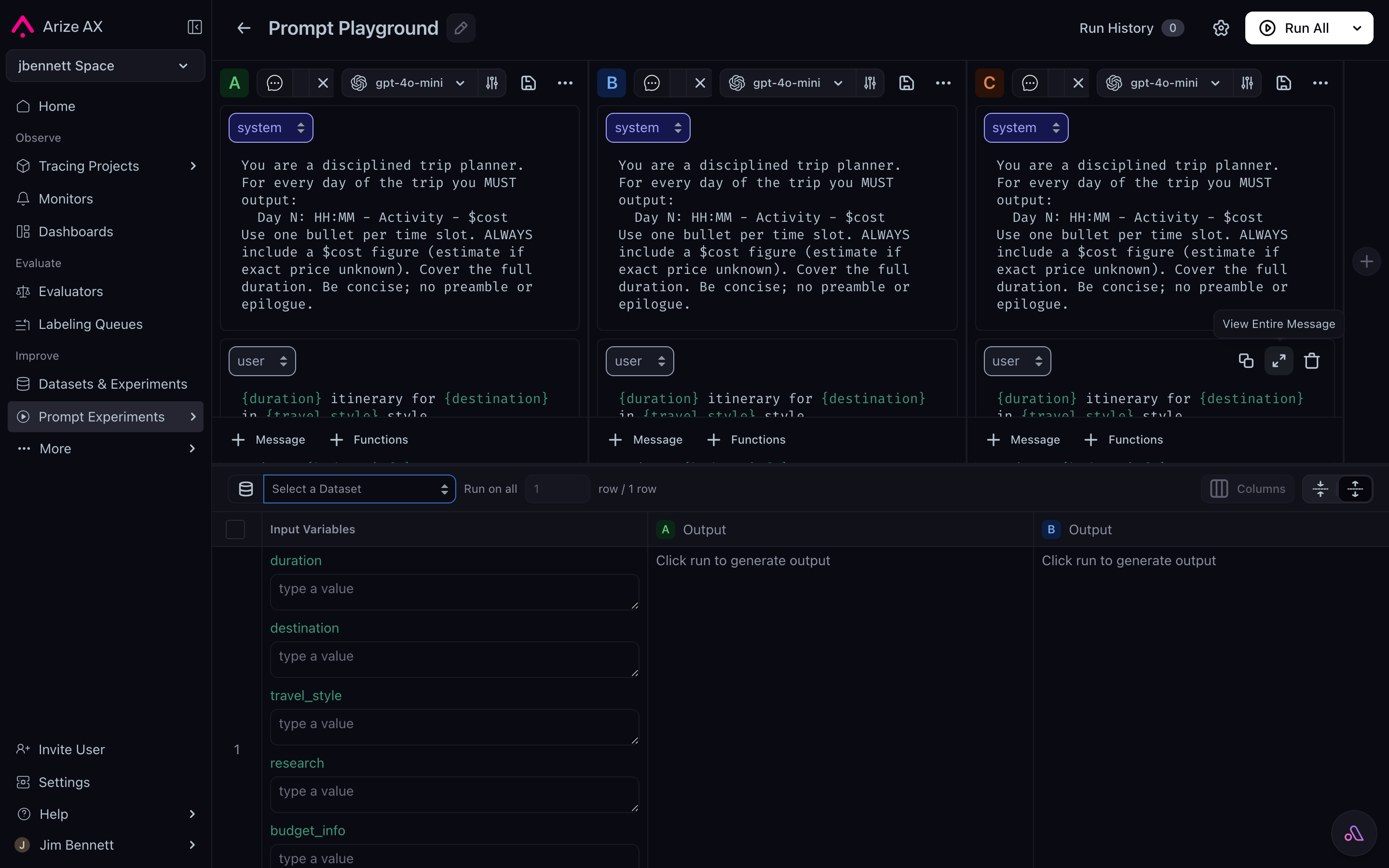
The Playground running three prompt variants side by side (A / B / C) against the same Input Variables panel, with per-variant Output columns and a single Run All button.
Where the Playground sits in the cycle
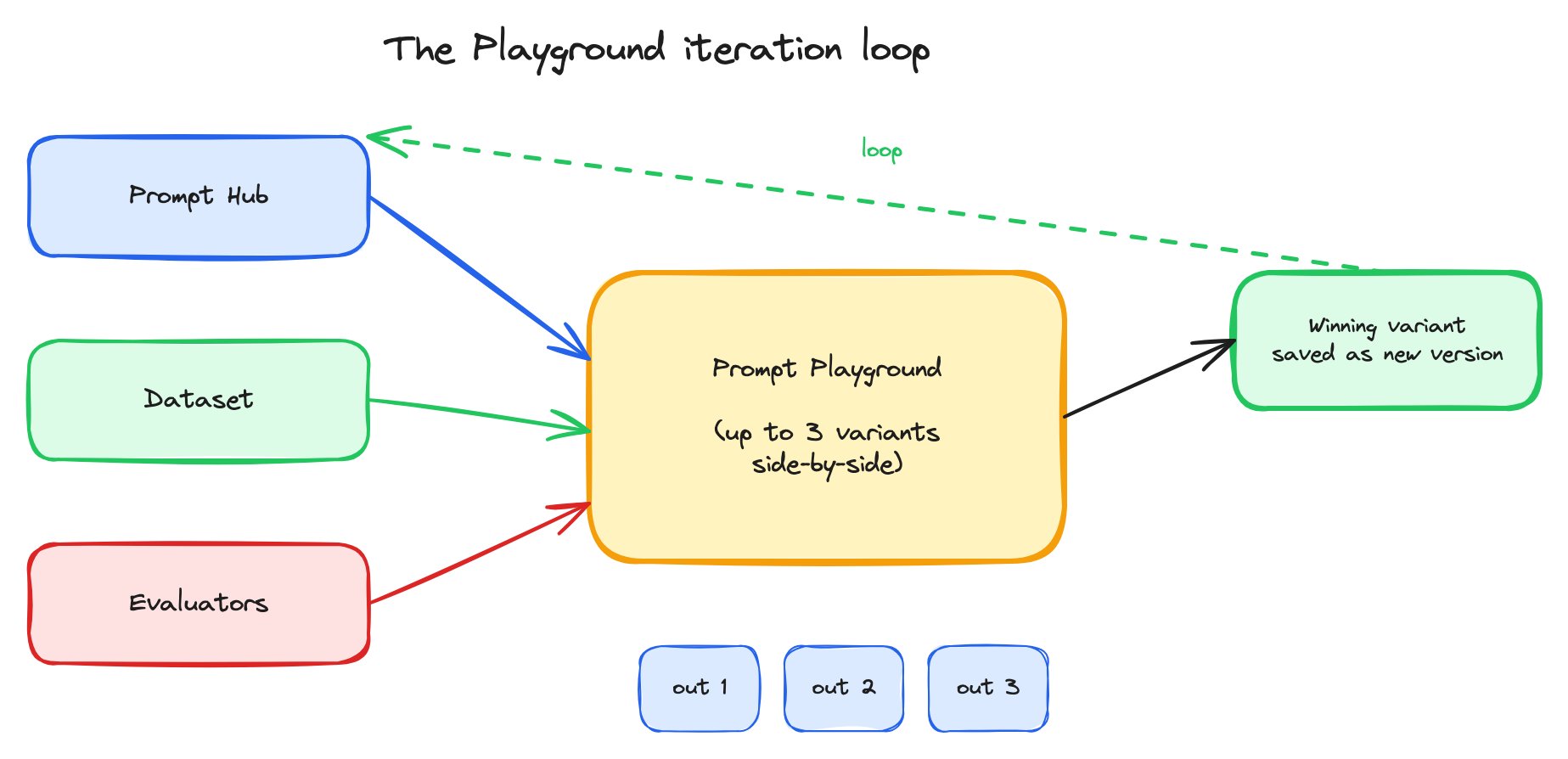
The Playground loop — load a version from the Hub, attach dataset and evaluators, run, compare, save the winner back as a new version.
- The Hub supplies the prompt versions the Playground loads.
- Datasets supply the data the Playground runs against.
- Evaluators supply the scoring signal the Playground reports.
- Experiments are the records the Playground produces.
- CI/CD runs the same Playground loop non-interactively, on every prompt or model change.
Tool calls in the Playground
When a Prompt Object includes tools, the Playground becomes the place to debug tool use. The kinds of questions you can answer in the Playground that are hard to answer anywhere else:- Were there any unclear parts in the function description or parameter details?
- Was the function used with the right parameter values?
- If the correct function existed, did the LLM use it?
- Did the LLM have the needed function to reply to the input?
Playground Views
A Playground View is a saved snapshot of your current Playground session — the prompts, models, parameters, tools, the dataset, the run results. Views are how you preserve experiments you might want to revisit, share with a teammate, or return to after a context switch. Auto-save keeps the latest state safe; manual saves give you named milestones. Views are session-level state, not Prompt Object state. The winning prompt still needs to be saved back to the Hub to become deployable. Views are for how you got there.Multimodal and image inputs
The Playground supports image inputs for multimodal models (e.g.,gpt-4o). Image URLs become variables the same way text does, and you can build image datasets from CSV uploads or production traces with image attributes. The iteration loop is identical to text — the only difference is that the variables can carry image URLs.
Supported image formats are JPG, PNG, GIF, SVG, and WebP, addressable by public web URL, cloud storage path (gs://..., s3://...), or inline data: URL.